
1. Introduction
This manual provides detailed instructions for the installation, operation, and maintenance of your Haudio 9 Inch Double Din Car Stereo, Model CR09. This advanced car stereo system integrates wireless CarPlay and Android Auto, GPS navigation, and a backup camera to enhance your driving experience. Please read this manual thoroughly before use to ensure proper functionality and safety.
Safety Information
- Always ensure the vehicle is parked safely before operating the stereo's advanced features.
- Do not attempt to install the unit if you are unsure about any steps. Professional installation is recommended.
- Keep the volume at a level that allows you to hear external traffic sounds.
- Avoid prolonged exposure to direct sunlight or extreme temperatures.
2. What's in the Box
Verify that all components are present before beginning installation:
- Haudio 9 Inch Double Din Car Stereo Unit
- 720P AHD Rearview Camera
- GPS Antenna
- Power Cables (various types for universal fit)
- RCA Input/Output Cables
- USB Cables
- Installation Screws
- Mounting Brackets
- User Manual

3. Setup & Installation
Proper installation is crucial for optimal performance. If you are unsure about any steps, it is recommended to seek professional assistance.
3.1 Mounting the Unit
The Haudio CR09 is designed for universal fit in most cars. Use the provided mounting brackets and screws to secure the unit into your vehicle's double din slot. Ensure the unit is firmly in place to prevent movement during driving.

3.2 Wiring Connections
Connect the appropriate cables to the corresponding ports on the back of the stereo unit and to your vehicle's wiring harness. Refer to the wiring diagram provided in the box and below for detailed connections.
- Power Cable: Connect the main power harness to your vehicle's power supply.
- GPS Antenna: Connect the GPS antenna for navigation functionality. Position the antenna in an area with clear sky view for best signal reception.
- USB Cables: Connect the provided USB cables for data transfer and charging.
- Rearview Camera: Connect the rearview camera cable to the dedicated input. Ensure the camera is mounted securely at the rear of the vehicle.
- RCA Input/Output: Use these for connecting external amplifiers or other audio/video devices.

3.3 Video Installation Guides
For visual guidance on installation, please refer to the following official videos:
Video 3.1: Detailed guide on how to install the car stereo unit.
Video 3.2: Installation video specifically for 9-inch car audio systems.
4. Operating Instructions
4.1 Wireless CarPlay & Android Auto
Connect your smartphone wirelessly or via USB for seamless integration. This allows for hands-free calling, music streaming, and access to navigation apps directly on the stereo's display.
- Pairing: Enable Bluetooth and Wi-Fi on your smartphone. On the stereo, navigate to the "ZLINK5" app or Bluetooth settings to pair with your device.
- Voice Control: Utilize "Hi Siri" or "OK Google" for voice commands to make calls, play music, or get directions.


4.2 Navigation
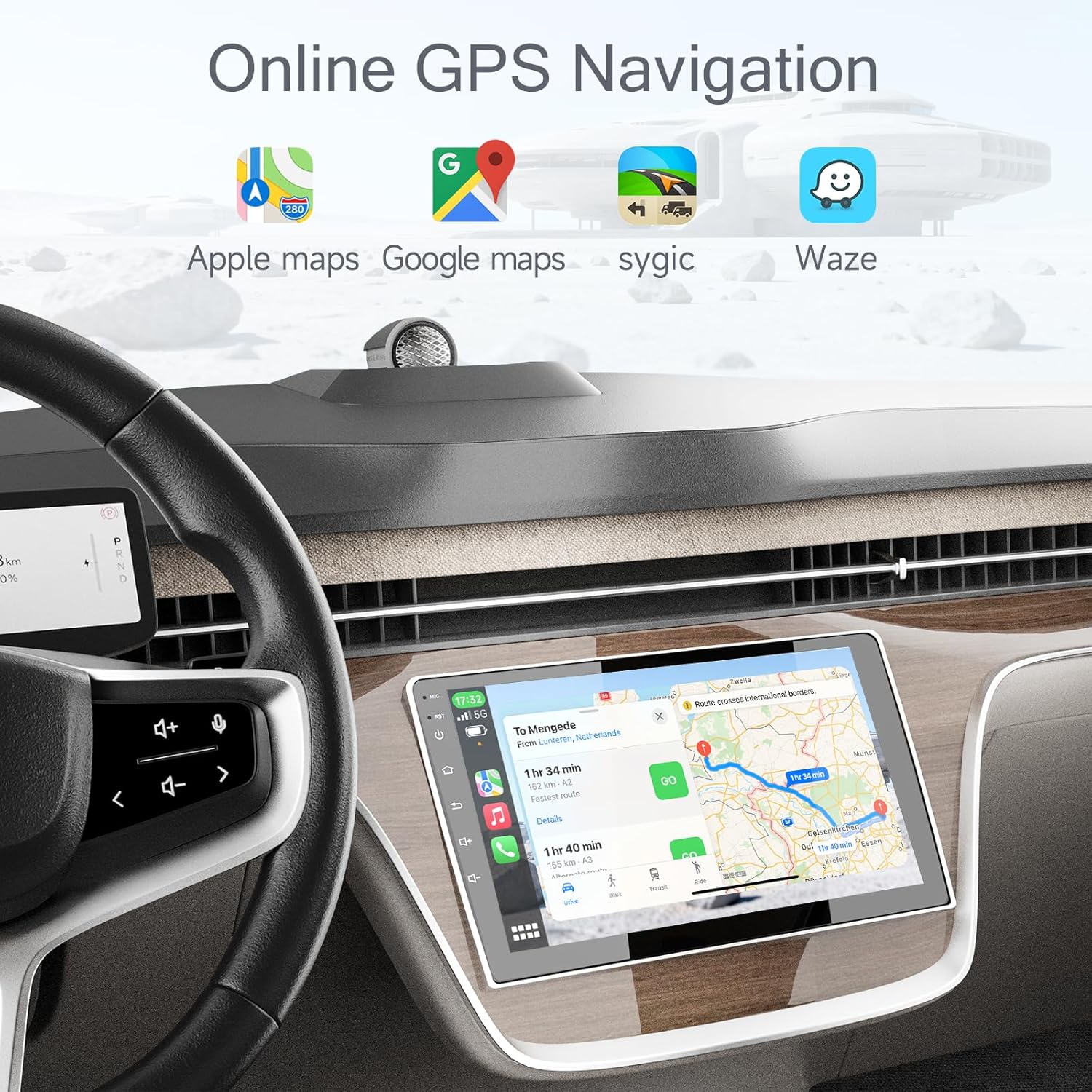
Access popular navigation apps like Apple Maps, Google Maps, Sygic, and Waze through CarPlay or Android Auto. The large 9-inch HD IPS display provides clear visibility for directions.
4.3 Media Playback & Radio
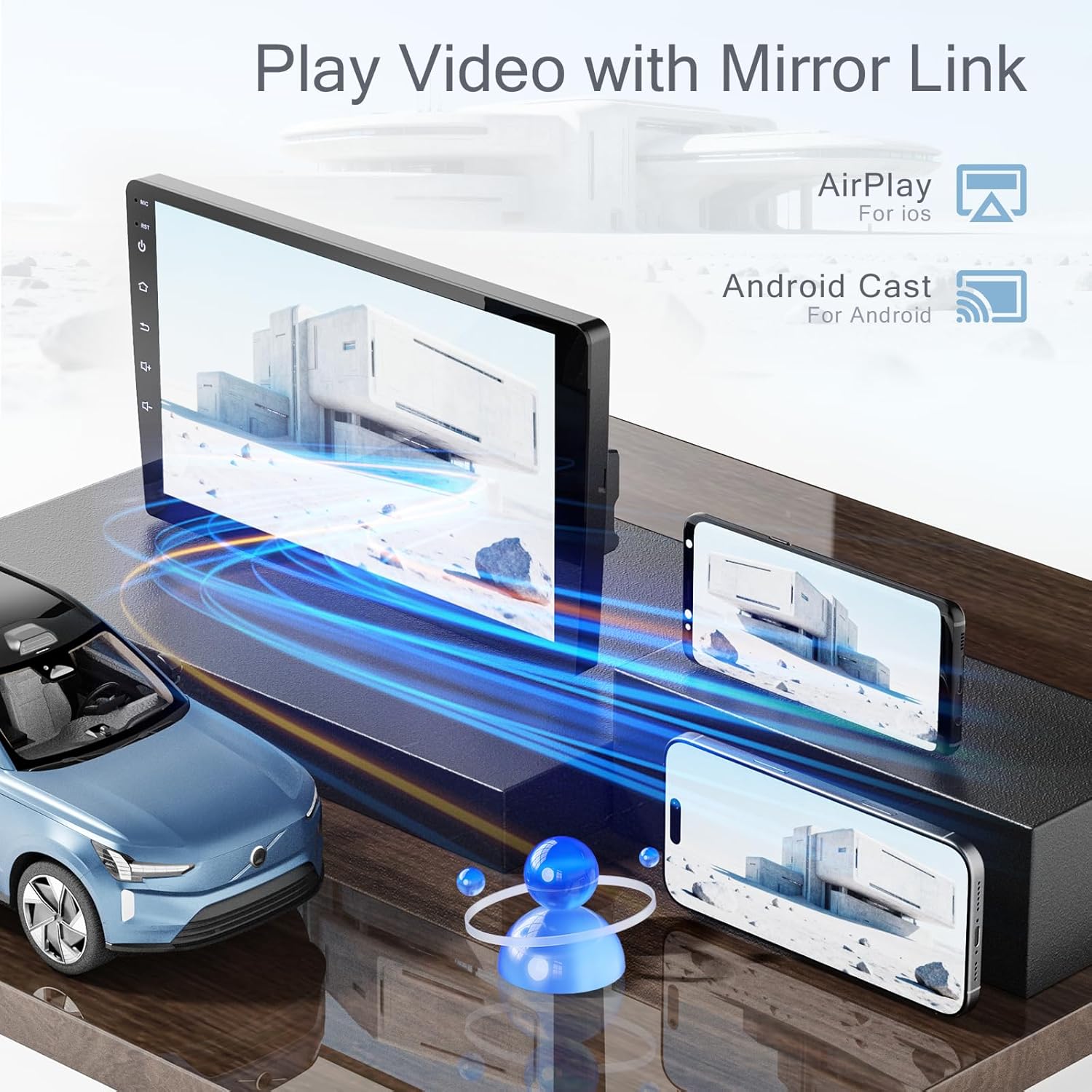
Enjoy music and videos from various sources, including Bluetooth streaming, USB, and FM/AM/RDS radio. The unit supports 25 different UI themes and EQ sound settings for a personalized audio experience.


4.4 Steering Wheel Control Learning
The unit supports learning functions for your vehicle's steering wheel controls. This allows you to map stereo functions to your existing steering wheel buttons for convenience.
Video 4.1: Guide on how to configure steering wheel control functions.
5. Key Features
- Wireless CarPlay & Android Auto: Seamless smartphone integration for hands-free calling, music streaming, and app access.
- Large 9-Inch HD IPS Display: Superior 720P resolution screen with wide viewing angles for clear visibility.
- Powerful Android 13 Performance: Quad-Core processor, 4GB RAM, and 64GB ROM for fast, smooth operation, supporting split-screen and app downloads.
- Advanced Connectivity & Safety: Built-in GPS navigation, WiFi 6 (2.4/5GHz), Bluetooth 5.4, and includes a 720P AHD rearview camera with a 140° wide angle.
- Customizable Entertainment System: 25 UI themes, EQ sound settings, FM/AM/RDS radio, and voice control compatibility (Hi Siri/OK Google). USB OTG and Zlink support.
6. Maintenance
- Cleaning: Use a soft, dry cloth to clean the screen and unit. Avoid abrasive cleaners or solvents.
- Software Updates: Periodically check for software updates to ensure optimal performance and access to new features. Updates can typically be performed via Wi-Fi.
- Environmental Conditions: Protect the unit from extreme temperatures, direct sunlight, and moisture.
7. Troubleshooting
- No Power:
- Check all power connections to ensure they are secure.
- Verify the vehicle's fuse for the stereo is intact.
- No Sound:
- Check speaker connections and ensure volume is not muted or set too low.
- Verify audio output settings in the stereo menu.
- CarPlay/Android Auto Not Connecting:
- Ensure Bluetooth and Wi-Fi are enabled on your phone and the stereo.
- Try restarting both your phone and the stereo unit.
- Check for any software updates for your phone's CarPlay/Android Auto app.
- Backup Camera Not Displaying:
- Check the camera's power and video connections.
- Ensure the vehicle is in reverse gear.
8. Specifications
| Feature | Detail |
|---|---|
| Product Dimensions | 9.01 x 5.12 x 1.87 inches |
| Item Weight | 3.14 pounds |
| Item Model Number | CR09 |
| Brand | Haudio |
| Connectivity Technology | Bluetooth, Wi-Fi |
| Controller Type | Android 13 |
| Special Features | Connectivity: WiFi 6 (2.4/5GHz), Bluetooth 5.4, USB (OTG/Zlink), Operating System: Android 13.0, Operating Voltage: 11-16V, Radio: FM, AM, RDS, Screen Size: 9-inch IPS |
| Compatible Devices | Speaker |
| Connector Type | 3.5mm Jack |
| Audio Output Mode | Surround |
| Surround Sound Channel Configuration | 5.1 |
| Video Encoding | H.264, H.265/HEVC, MPEG-4 |
| Color | Black |
9. Warranty & Support
For any product installation or quality issues, please contact customer service first. 7/12 hours of online service is available for immediate handling.
If you are unsure whether the car model matches, you can take a photo of the car's dashboard and send it to customer service for consultation.
For additional support and information, please visit the Haudio Store on Amazon.


