
1. Introduction
This manual provides detailed instructions for the HAMCUBE Mini Morse Code Trainer Kit, designed for radio enthusiasts and beginners to learn and practice Morse code effectively. The kit offers a full-process assisted learning experience with custom character storage and a durable stainless steel paddle key.
2. What's in the Box
- Morse Code Trainer (Main Unit)
- USB Cable
- Morse Key (Paddle Key)
- 3.5MM Audio Cable
3. Product Overview
The HAMCUBE Mini Morse Code Trainer Kit includes a compact trainer unit and a stainless steel paddle key, designed for portability and durability.

Figure 1: HAMCUBE Mini Morse Code Trainer Kit components.
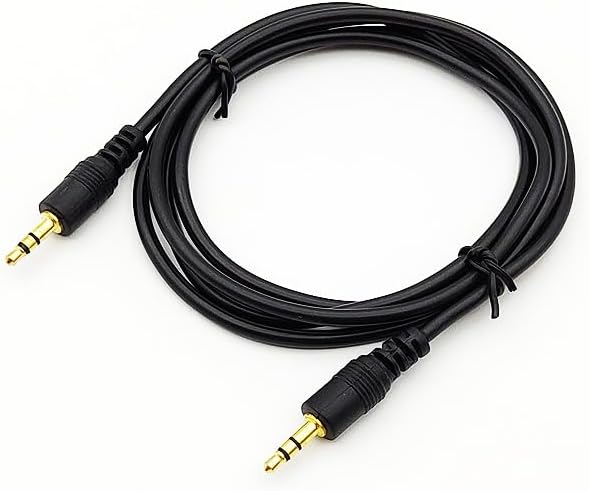
Figure 2: The durable stainless steel Morse Code Paddle Key features magnetic return force for comfortable tactile feedback during practice.
Video 1: This video demonstrates the basic functionality of the Morse Code Decoder, including audio input, real-time text decoding, and adjustment of decoding rate.
Video 2: A detailed tutorial on the Morse Code Decoder's interfaces, power supply connection, LCD screen adjustment, and practice modes using the external keypad.
4. Setup
4.1 Component Assembly
The Morse Code Trainer Kit requires assembly of its components. Follow these steps for proper setup:
- Resistor Installation: Solder the 51 ohm resistor to the R5 position on the PCB. Solder the 200K ohm resistor to the R12 position. Solder the six 1K ohm resistors to R9, R10, R6, R7, R8, R11 positions. Solder the 10K ohm resistors to R13, R14, R1, R2, R3, R4 positions. Ensure all excess pins are cut after soldering.
- USB Socket Installation: Solder the USB socket to the P1 position on the PCB.
- Audio Sockets Installation: Install the three audio sockets into the CON1, CON2, and CON3 positions on the PCB and solder them.
- Ceramic Capacitors Installation: Install the five 104 ceramic capacitors into the C5, C10, C3, C4, and C8 positions on the PCB and solder them.
- Button Installation: Install the three buttons into the SW1, SW2, and SW3 positions and solder them.
- IC Seat Installation: Install the 8-pin IC seat into the U2 position, ensuring the chipped side of the IC block faces the chipped side of the silk screen. Solder it.
- 16-pin IC Socket Installation: Install the 16-pin IC socket into the U1 location, ensuring the chipped side of the IC block faces the chipped side of the silk screen. Solder it.
- LED Installation: Install the two white and red light-emitting diodes into the LED1 and LED2 positions. The long pin is positive and the short pin is negative. Solder them.
- Potentiometer Installation: Install the 102 blue and white potentiometer at the RP1 location and solder it.
- Electrolytic Capacitor Installation: Install the 220 microfarad electrolytic capacitor into the C1 position. The long pin is positive, and the short pin is negative. Solder it.
- Transistor Installation: Install the 8550 transistor into the Q1 position. The side with the circular arc is welded to the side with the circular arc printed on the silk screen. Solder it.
- LCD Screen Assembly: Insert the 16-pin single-row pin header into the LCD screen and solder it. Then, plug the assembled LCD screen into the 16-pin socket on the PCB.
- Case Assembly: Remove the protective film from the acrylic shell pieces. Assemble the bottom shell, securing the circuit board with M3 screws. Install the copper columns in the four corners. Install the top shell, aligning the opening with the buttons, and secure it with M3 screws.
4.2 Keypad Assembly
Assemble the Morse Code Paddle Key by removing the protective film from the acrylic pieces. Overlap the two main shell pieces. Pass an M3x25 screw through the two shells and fix it with two nuts, ensuring it's firmly fixed. Insert the spring onto the screw and clip it with the nut. Place the acrylic lever on top. Secure the lever with an M3x6 screw and cover mother. Insert the audio interface into the designated opening, clip the U-port to the screw, and tighten it. Organize the wires into the groove. Place the last acrylic piece on top and secure the entire assembly with four M3x16 screws and four M3 cover mothers.
5. Operating Instructions
5.1 Powering On
Connect the USB cable to the trainer unit and a 5V power source. The power indicator light (LED1) will illuminate.
5.2 LCD Screen Adjustment
If the LCD screen display is unclear, use a screwdriver to adjust the blue and white potentiometer (RP1) until the characters are clearly visible.
5.3 Audio Input Decoding
Connect one end of the 3.5mm audio cable to the audio input interface (CON1) on the trainer unit and the other end to a phone or computer playing Morse code audio. The trainer will decode the audio into text in real-time on the LCD screen.
5.4 Keypad Practice
Connect the Morse Code Paddle Key to the key input interface (CON3) on the trainer unit. Use the key to practice sending Morse code. A short press registers as a dot, and a long press registers as a dash.
5.5 Decoding Rate Adjustment
To adjust the decoding rate, long-press SW2. The display will show "CW Time: 0100ms". Short-press SW2 to cycle through single digits, ten digits, hundred digits, and thousand digits for adjustment. Short-press SW1 to increase the value and SW3 to decrease it. Long-press SW2 again to save and exit. This setting will be saved even after power loss.
5.6 Buzzer Control
The trainer has a built-in buzzer for real-time Morse code sound feedback. Long-press SW1 to turn the buzzer sound on or off.
5.7 Code Symbol Display
Short-press SW1 to view the Morse code symbol corresponding to the decoded character.
5.8 Reception Bit Rate
Short-press SW3 to view the Morse code reception bit rate (characters per minute). Long-press SW3 to clear the displayed characters.
6. Maintenance
- Keep the device clean and dry. Avoid exposure to moisture or extreme temperatures.
- Use a soft, dry cloth to clean the LCD screen and external surfaces.
- Ensure all cable connections are secure before use.
- Store the kit in a safe place to prevent physical damage.
7. Troubleshooting
7.1 No Display on LCD Screen
- Check if the 5V power supply is correctly connected and the power indicator light is on.
- Adjust the blue and white potentiometer (RP1) with a screwdriver to ensure proper screen contrast.
- Verify that the LCD screen is correctly plugged into its socket on the PCB.
7.2 Incorrect Decoding or No Output
- Ensure the audio cable is securely connected to both the trainer's audio input and the audio source.
- Confirm that the Morse code audio being played is clear and at an appropriate volume.
- If using the keypad, ensure it is correctly connected to the key input interface.
- Do not connect both the keypad and audio input simultaneously.
7.3 Buzzer Not Working
- Long-press SW1 to toggle the buzzer sound on/off. Ensure it is enabled.
- Check the buzzer's installation and soldering connections on the PCB.
8. Specifications
- Item Weight: 14.1 ounces
- Package Dimensions: 7.09 x 4.92 x 4.13 inches
- Item Model Number: B0FQB4V2MB
- Batteries: 1 AA batteries required (included)
- Brand: hamgeek
- Color: Black
- Number of Channels: 2
- Special Feature: Portable, Durable
- Water Resistance Level: Water Resistant
- Included Components: Morse Code Trainer, USB Cable, Morse Key, 3.5MM Audio Cable
- Manufacturer: hamgeek
- Date First Available: September 9, 2025
9. Warranty and Support
For warranty information or technical support, please refer to the manufacturer's official website or contact their customer service. Protection plans are available for purchase separately.
