
1. Introduction
Thank you for choosing the COLORROOM Android 16 Tablet C5L1. This device combines powerful performance with an intuitive user experience, featuring the latest Android 16 operating system and Gemini AI integration. Designed for both productivity and entertainment, your tablet offers a large 11-inch display, robust battery life, and versatile connectivity options.
This manual provides detailed instructions to help you get started, operate your device efficiently, and maintain its optimal performance.
2. Key Features
- Latest Android 16 with Gemini AI: Experience a refreshed interface, enhanced security, real-time notifications, efficient multitasking, and AI optimization for various scenarios. Gemini AI assists with content recommendations, image processing, and semantic understanding.
- High-Performance Specifications: Equipped with a Unisoc T7200 Octa-core CPU for smooth multitasking and app operation. Features 4GB physical RAM expandable to 32GB virtual RAM, 128GB internal storage expandable up to 2TB, and GMS certification for full access to Google Play, YouTube, and Gmail.
- 11-inch Large Screen & 8000mAh Battery: The 11-inch display provides a comfortable viewing experience. A high-capacity 8000mAh lithium battery ensures long-lasting and stable operation. Supports Widevine L1 for seamless 1080p+ high-quality streaming on platforms like Netflix and Amazon Prime Video.
- 8MP + 5MP Camera with Face Recognition: Features a 5-megapixel front camera for clear video calls and selfies, and an 8-megapixel rear camera for capturing daily moments. Includes convenient face recognition for secure and quick unlocking.
- Versatile Connectivity: Supports dual-band (2.4GHz/5GHz) Wi-Fi and Bluetooth 5.0 for fast and stable communication. Integrated GPS for high-precision positioning.
3. Device Layout
Familiarize yourself with the physical components of your COLORROOM C5L1 tablet.
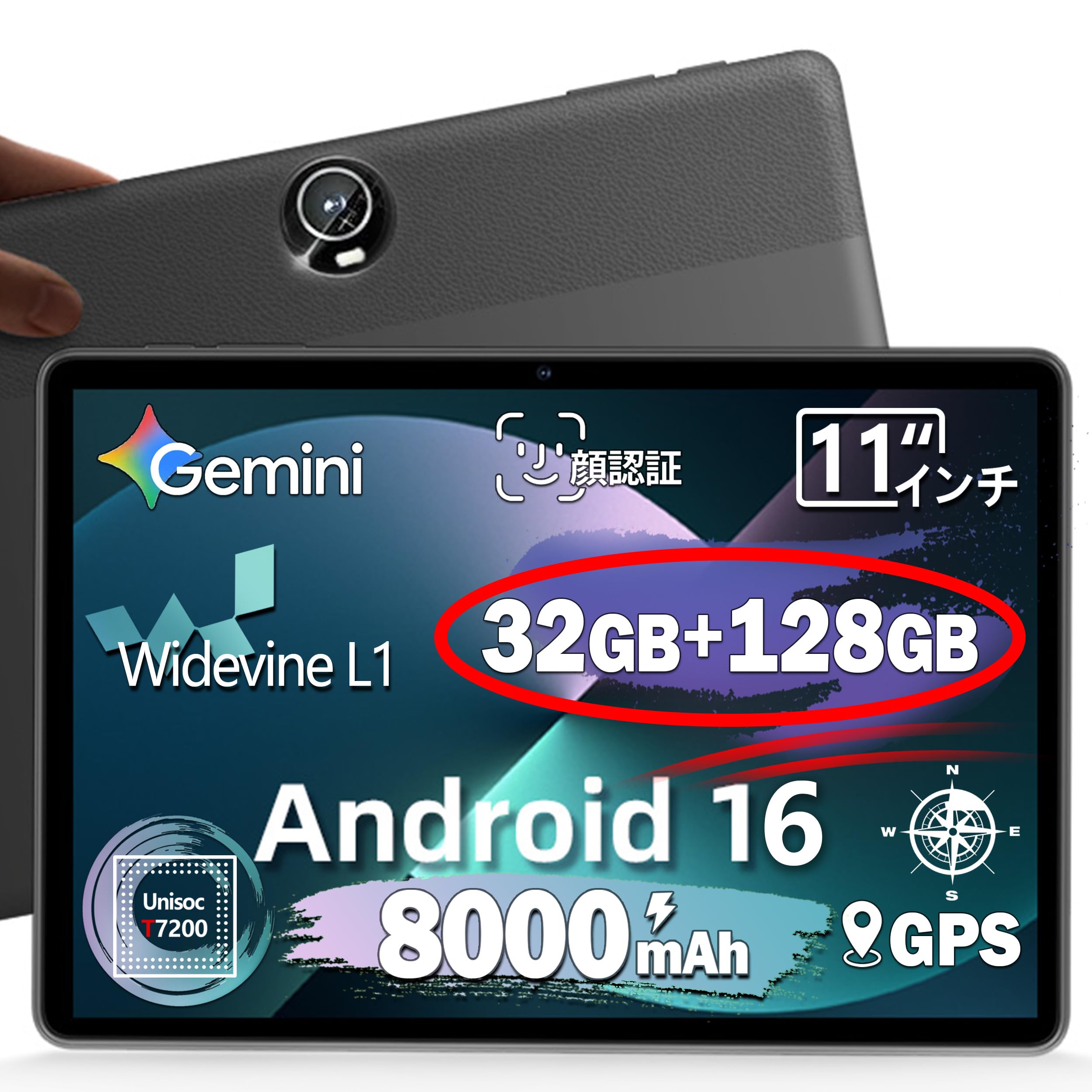
Image: Front view of the COLORROOM C5L1 tablet, showcasing its 11-inch display.
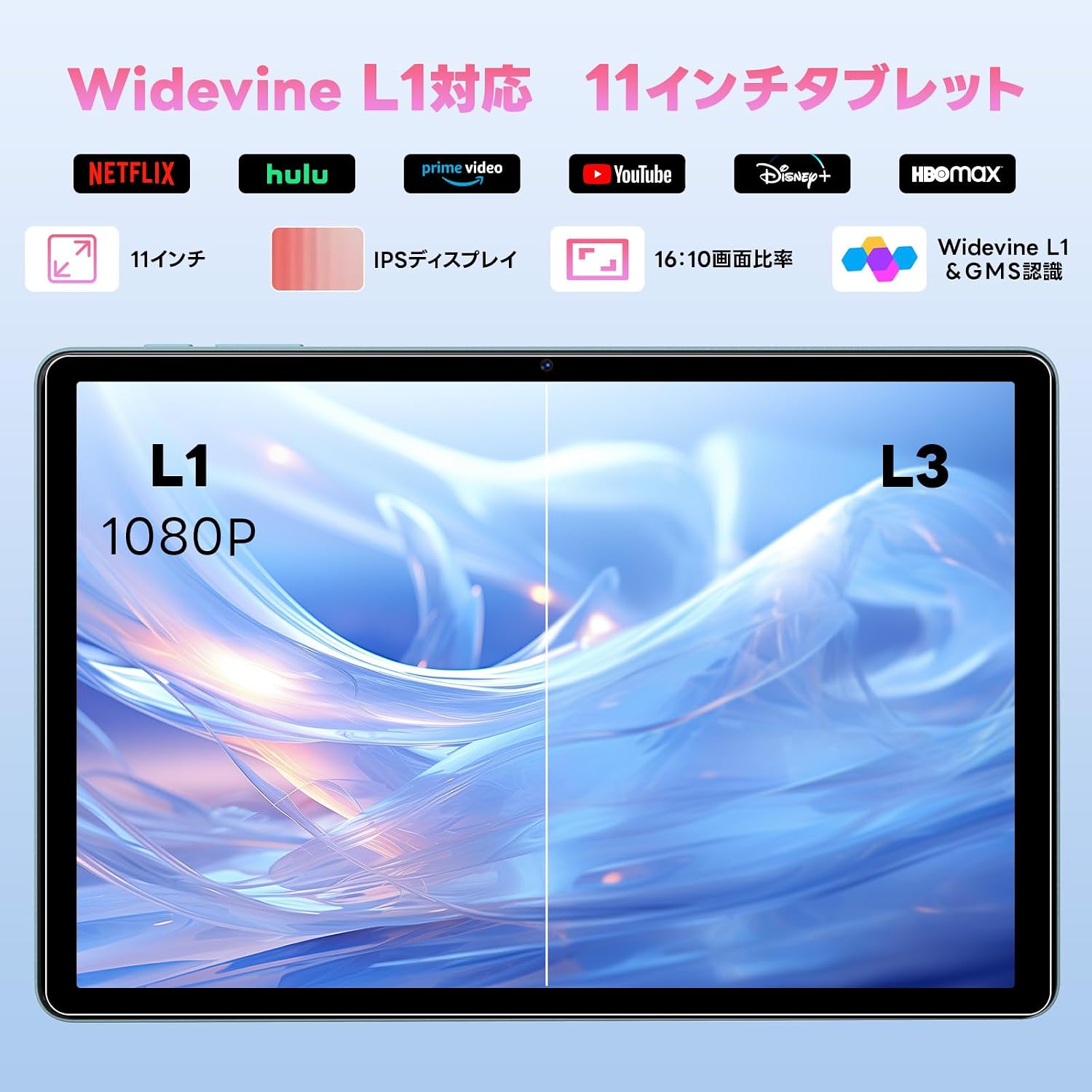
Image: Side view of the COLORROOM C5L1 tablet, highlighting the USB-C port, headphone jack, and volume/power buttons.

Image: Rear view of the COLORROOM C5L1 tablet, showing the rear camera module and textured back panel.
4. Setup Instructions
4.1 Initial Power On
- Press and hold the Power button (located on the side) until the COLORROOM logo appears on the screen.
- The tablet will boot up and guide you through the initial setup process.
4.2 Language Selection
During the initial setup, you will be prompted to select your preferred language. Follow the on-screen instructions.
Video: This video demonstrates the language setting process on an Android tablet, which is similar for the COLORROOM C5L1. It shows how to navigate through the initial setup to select your desired language.
4.3 Wi-Fi Connection
- Select your Wi-Fi network from the list of available networks.
- Enter the password if prompted and tap 'Connect'.
- If you wish to skip Wi-Fi setup during initial configuration, select the 'Offline setup' option.
4.4 Google Account Setup
Sign in with your Google account to access Google services like Google Play Store, Gmail, and YouTube. If you don't have an account, you can create one during this step or skip it and set it up later.
5. Operating Instructions
5.1 Basic Navigation
- Touchscreen Gestures: Tap to select, swipe to scroll, pinch to zoom.
- Home Screen: Access your apps, widgets, and search bar.
- Notifications: Swipe down from the top of the screen to view notifications and quick settings.
5.2 App Management
The COLORROOM C5L1 is GMS certified, providing full access to the Google Play Store. You can download and install a wide variety of applications.
- Installing Apps: Open the Google Play Store, search for your desired app, and tap 'Install'.
- Uninstalling Apps: Long-press an app icon on the home screen or app drawer, then drag it to 'Uninstall' or select the uninstall option.
5.3 Multimedia Playback
Enjoy high-quality video and audio content on your tablet.

Image: A large screen tablet displaying vibrant multimedia content, ideal for video playback.
- Video Streaming: With Widevine L1 support, stream 1080p+ content from Netflix, Amazon Prime Video, and YouTube seamlessly.
- Audio Playback: Use the built-in dual speakers or connect headphones via the 3.5mm jack for an immersive audio experience.
5.4 Camera Usage & Face Recognition
Capture photos and videos with the 8MP rear and 5MP front cameras. Use face recognition for quick and secure access.

Image: A user interacting with the tablet using a stylus, demonstrating its creative capabilities.
- Taking Photos/Videos: Open the Camera app, select your mode (photo, video), and tap the shutter button.
- Face Recognition Setup: Go to Settings > Security > Face Unlock and follow the instructions to register your face.
5.5 Storage Management
Your tablet comes with 128GB of internal storage, expandable up to 2TB via a microSD card.

Image: Illustrates the tablet's storage capabilities, including RAM, internal storage, and expandable storage.
- Inserting a microSD Card: Locate the card slot on the side of the tablet, insert the microSD card until it clicks into place.
- Managing Files: Use the 'Files' app to browse, organize, and transfer files between internal storage and your microSD card.
5.6 Connectivity
- Bluetooth: Connect to Bluetooth headphones, speakers, or other devices via Settings > Connected devices > Bluetooth.
- GPS: The integrated GPS allows for precise location tracking and navigation.
- Wireless Projection: Cast your tablet's screen to a compatible TV or display for a larger viewing experience.
Video: This video demonstrates wireless projection from a tablet to a larger screen, showcasing how to enjoy content on a TV.
5.7 Multitasking
Android 16 allows for efficient multitasking, including split-screen mode.
Video: This video illustrates the split-screen functionality on a tablet, allowing users to run multiple applications simultaneously for enhanced productivity.
6. Maintenance
6.1 Battery Charging
Use the provided Type-C cable to charge your tablet. The 8000mAh battery provides extended usage time.

Image: A tablet displaying a charging battery icon, indicating its 8000mAh battery capacity.
6.2 Software Updates
Regularly check for and install software updates to ensure optimal performance, security, and access to new features. Go to Settings > System > System updates.
6.3 Cleaning
Use a soft, lint-free cloth to clean the screen and body of the tablet. Avoid using harsh chemicals or abrasive materials.
7. Troubleshooting
If you encounter any issues with your tablet, try the following steps:
- Restart the Device: A simple restart can often resolve minor software glitches.
- Check Wi-Fi Connection: Ensure your Wi-Fi is enabled and connected to a stable network. If issues persist, try restarting your router.
- Free Up Storage: If your device is running slow, check your storage in Settings > Storage and delete unnecessary files or apps.
- Factory Reset: As a last resort, you can perform a factory reset (Settings > System > Reset options). Warning: This will erase all data on your device. Back up important data before proceeding.
8. Specifications
| Feature | Specification |
|---|---|
| Brand | COLORROOM |
| Model Name | C5L1 |
| Memory Storage Capacity | 128 GB (Expandable up to 2TB) |
| Screen Size | 11 Inches |
| Display Max Resolution | 1280x800 Pixels |
| Operating System | Android 16 |
| CPU | Unisoc UMS9230 Octa-core (1.8 GHz) |
| RAM | 4GB (expandable to 32GB virtual RAM) |
| Battery Capacity | 8000 mAh (9 hours average battery life) |
| Rear Camera Resolution | 8 MP |
| Front Camera Resolution | 5 MP |
| Connectivity | Bluetooth 5.0, 802.11ac (Dual-band Wi-Fi), GPS |
| Ports | USB-C, 3.5mm Audio Jack |
| Special Features | USB OTG, Stylus Support, Face Recognition, Widevine L1, Fast Charging |
| Weight | 0.5 kg |
| Dimensions | 25 x 16 x 0.7 cm |
9. Warranty and Support
Your COLORROOM C5L1 tablet comes with a one-year manufacturer's warranty from the date of purchase.
For any inquiries regarding usage or product defects, please contact our support team. We aim to respond within 12 hours. If a product defect is confirmed, we offer a full refund and cover all return shipping costs.
Contact Information:
Please log in to your Amazon account, select 'Order History', choose the relevant order, and contact us via 'Contact Seller'.
Support Hours: 10:00 - 19:00 (excluding Saturdays, Sundays, and public holidays)
Important Notes:
- Warranty does not cover damage from appraisal, repair, or modification.
- Warranty does not cover damage from human error, improper use, or poor storage.
- Warranty does not cover damage from natural disasters such as earthquakes, floods, or lightning.
10. Safety Information
Please read the following safety guidelines carefully to ensure safe and proper use of your device:
- Do not expose the device to extreme temperatures, direct sunlight, or high humidity.
- Avoid dropping or subjecting the device to strong impacts.
- Use only approved chargers and accessories.
- Keep the device away from children and pets.
- Do not attempt to disassemble or repair the device yourself.