
Introduction
This manual provides detailed instructions for the setup, operation, and maintenance of your Wisoqu Wireless Gaming Earbuds. These earbuds feature dual-mode connectivity (2.4G wireless and Bluetooth 5.4), low latency, 3D sound, and an ENC microphone, designed for an immersive audio experience across various devices.
Package Contents
Please verify that all items are present in your package:
- Wireless Gaming Earbuds (Left and Right)
- Charging Case
- 2.4G USB-C Wireless Dongle
- USB-A to USB-C Charging Cable
- Silicone Ear Tips (various sizes)

Figure 1: Included components of the Wisoqu Wireless Gaming Earbuds.
Product Overview
The Wisoqu Wireless Gaming Earbuds are designed for versatility and performance. Key features include:
- Dual-Mode Connectivity: Seamlessly switch between 2.4G wireless for ultra-low latency gaming and Bluetooth 5.4 for general use.
- Active Noise Cancellation (ANC) & Environmental Noise Cancellation (ENC): Reduces ambient noise for clear audio and calls.
- Low Latency: Experience synchronized sound with minimal delay, crucial for gaming.
- Immersive 3D Sound: Dual 13mm dynamic drivers provide powerful bass and clear highs for enhanced spatial awareness.
- Game and Music Dual Modes: Optimize sound performance based on your activity.
- Hall Switch: Open the charging case lid to automatically connect to a previously paired device.
- Magnetic Suction Design: Earbuds securely fit into the charging case.

Figure 2: Dual-Mode Earbuds and Charging Case.
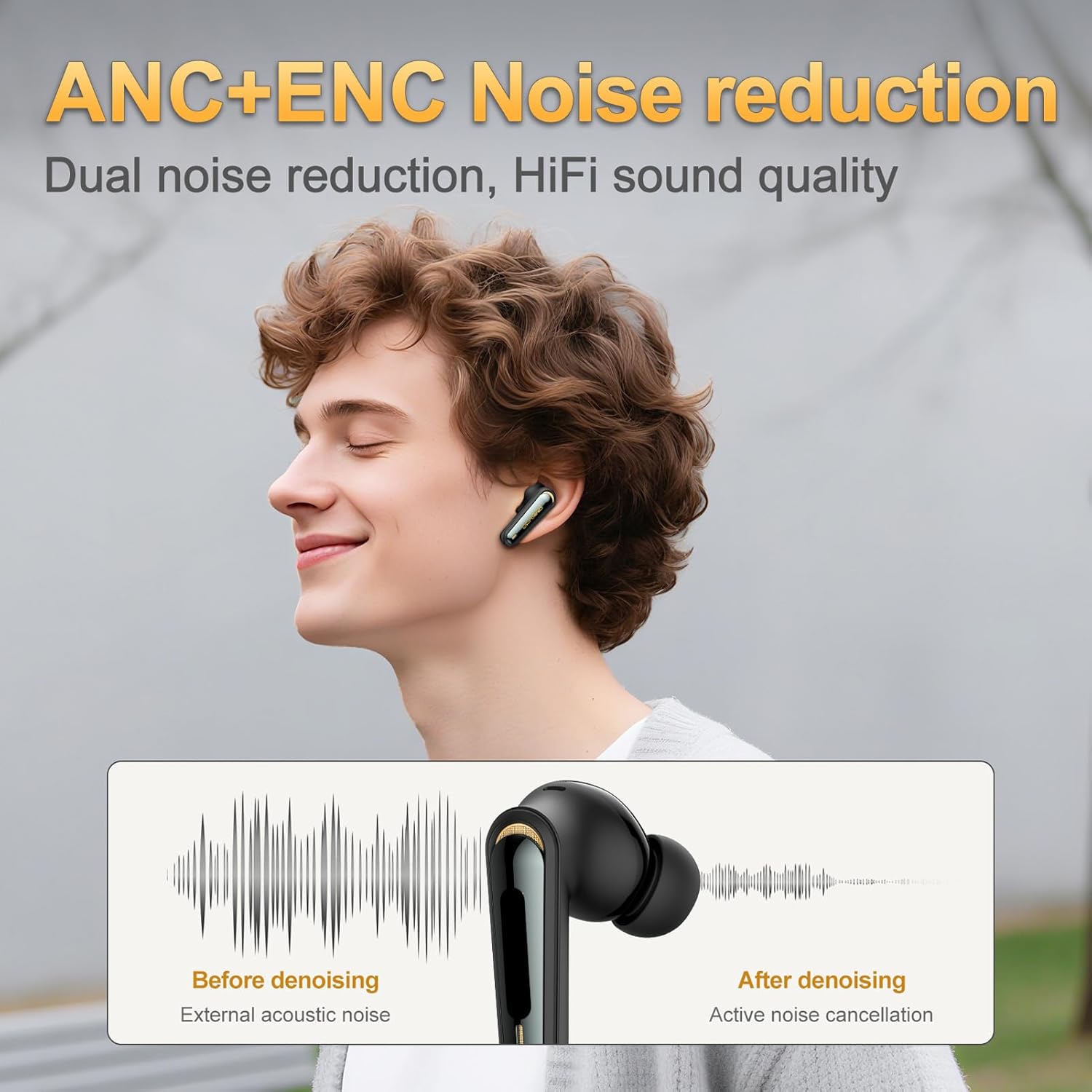
Figure 3: ANC+ENC Noise Reduction in action.

Figure 4: Low Latency Performance.
Setup
1. Charging the Earbuds and Case
Before first use, fully charge the earbuds and charging case.
- Place the earbuds into the charging case.
- Connect the USB-C charging cable to the charging port on the case and a power source.
- The indicator light on the case will show charging status.

Figure 5: Charging via Type-C port.
2. Connecting to Devices
The earbuds support two connection methods: 2.4G wireless via dongle and Bluetooth 5.4.
2.1. 2.4G Wireless Connection (for PC, Laptop, PS5, Steam Deck, VR)
- Insert the 2.4G USB-C wireless dongle into your device's USB-C port. If your device only has USB-A, use the provided USB-C to USB-A adapter.
- Open the charging case lid. The earbuds will automatically connect to the dongle.
- A successful connection is indicated by a stable light on the dongle.

Figure 6: 2.4G Wireless and Bluetooth Dual Connection.

Figure 7: Plug-and-Play with simultaneous charging.
2.2. Bluetooth 5.4 Connection (for Phone, Tablet, Xbox, Switch)
- Open the charging case lid. The earbuds will enter pairing mode (indicator lights will flash).
- On your device, go to Bluetooth settings and search for "Wisoqu Earbuds".
- Select the earbuds to pair. A voice prompt will confirm successful connection.

Figure 8: Automatic connection via Hall Switch.

Figure 9: Device Compatibility.
Operating Instructions
Power On/Off
- Power On: Open the charging case lid, or take the earbuds out of the case.
- Power Off: Place the earbuds back into the charging case and close the lid.
Game Mode and Music Mode
The earbuds feature optimized sound profiles for gaming and music. Refer to the product's specific touch control guide (usually provided on packaging or a quick start guide) for instructions on how to switch between these modes. In Game Mode, audio cues like footsteps are enhanced. In Music Mode, HiFi sound quality is prioritized.
Call Management
Utilize the touch controls on the earbuds to manage calls:
- Answer/End Call: Single tap on either earbud.
- Reject Call: Press and hold either earbud for 2 seconds.
Audio Playback
Control your music and media playback:
- Play/Pause: Single tap on either earbud.
- Next Track: Double tap the right earbud.
- Previous Track: Double tap the left earbud.
Maintenance
To ensure the longevity and optimal performance of your earbuds:
- Cleaning: Regularly clean the earbuds and charging case with a soft, dry, lint-free cloth. Do not use harsh chemicals or abrasive materials.
- Ear Tips: Remove and clean the silicone ear tips with mild soap and water, then dry thoroughly before reattaching.
- Storage: When not in use, store the earbuds in their charging case to protect them from dust and damage.
- Avoid Moisture: Keep the earbuds and case away from water and excessive humidity.
Troubleshooting
If you encounter issues with your earbuds, try the following solutions:
| Problem | Solution |
|---|---|
| Earbuds not connecting |
|
| No sound or low volume |
|
| Microphone not working |
|
| Charging issues |
|
Specifications
| Feature | Detail |
|---|---|
| Model Number | Wisoqun1utgy6zgk-11 |
| Brand | Wisoqu |
| Connectivity Technology | Bluetooth 5.4, 2.4G Wireless (USB-C Dongle) |
| Ear Placement | In Ear |
| Noise Control | Active Noise Cancellation (ANC), Environmental Noise Cancellation (ENC) |
| Audio Driver Type | Dynamic Driver (13mm) |
| Control Method | Touch |
| Battery Capacity (Case) | 400mAh (Approx. 7H single endurance, 35H with charging case) |
| Compatible Devices | Smartphones, VR Devices, Gaming Consoles (PS5, Xbox, Switch), Computers (PC, Laptop) |
| Material | Plastic |
| Color | Black |

Figure 10: Battery Capacity and Endurance.
Warranty Information
This product is covered by a manufacturer warranty for 90 days from the date of purchase. Please retain your proof of purchase for warranty claims. For details regarding returns or replacements, refer to the retailer's return policy.
Customer Support
For further assistance, technical support, or warranty inquiries, please contact the manufacturer, Wisoqu, through their official channels or the retailer where the product was purchased.