
1. Introduction
This manual provides essential information for the safe and effective use of your HUGEROCK H81 5G Rugged Tablet. The H81 is an 8-inch industrial tablet designed for demanding environments, featuring ATEX certification for explosion-proof operation, IP68 waterproofing, and military-grade ruggedness. It runs on Android 14, offers 5G connectivity, and is equipped with an ultra-bright 1000 Nits display for sunlight readability.

Image: The HUGEROCK H81 5G Rugged Tablet in an industrial environment, showcasing its robust design.
2. Safety Information
The HUGEROCK H81 is ATEX Certified Explosion-Proof and designed for use in hazardous environments. Adherence to safety guidelines is critical to prevent accidents and ensure proper device function.
- ATEX Certification: This device is certified for use in specific hazardous areas. Always verify that the environment's classification matches the tablet's certification before use. Do not open or modify the device in hazardous locations.
- Explosion-Proof: The tablet is engineered to prevent ignition in potentially explosive atmospheres. Any damage to the device's casing or seals may compromise its explosion-proof properties.
- IP68 Waterproof & Dustproof: While IP68 rated, ensure all port covers are securely closed before exposing the device to water or dust. Do not intentionally submerge the device beyond specified limits.
- Battery Safety: The 12000mAh battery is removable. Use only HUGEROCK approved chargers and batteries. Do not puncture, heat, or disassemble the battery. Dispose of batteries according to local regulations.
- Temperature: Operate the tablet within its specified temperature range. Extreme temperatures can affect performance and safety.

Image: The HUGEROCK H81 tablet highlighting its ATEX & IECEx Zone 2 certification for explosion-proof operation.
3. Package Contents
Upon opening the package, verify that all items are present and undamaged. If any items are missing or damaged, contact your vendor immediately.
- HUGEROCK H81 5G Rugged Tablet
- USB Type-C Cable
- Power Adapter
- User Manual (this document)
- Warranty Card
4. Device Layout and Components
Familiarize yourself with the physical features and ports of your HUGEROCK H81 tablet.
4.1 Front View
- 8-inch FHD IPS Touch Screen: High-resolution display with 1920x1200 pixels and 1000 Nits brightness for clear visibility in direct sunlight.
- Front Camera: 8 MP sensor for video calls and selfies.
4.2 Rear View
- Rear Cameras: Dual cameras, including a 48 MP main sensor.
4.3 Side Views and Ports
- Power Button: To turn the device on/off or wake/sleep the screen.
- Volume Buttons: To adjust audio volume.
- USB Type-C Port: For charging and data transfer.
- USB Type-A Port: For connecting external USB devices.
- TF Card Slot: For microSD card expansion (up to 2TB).
- SIM Card Slot: For 5G cellular connectivity.
- Magnetic Charging Port: For convenient charging.

Image: Detailed view of the HUGEROCK H81 tablet's various ports, including USB Type-A, Type-C, TF card slot, and magnetic charging port.
5. Setup
5.1 Charging the Battery
- Connect the provided USB Type-C cable to the tablet's USB Type-C port or use the magnetic charging port.
- Connect the other end of the cable to the power adapter, then plug the adapter into a power outlet.
- The charging indicator will illuminate. Allow the tablet to fully charge before first use. The 12000mAh battery provides extended operation.

Image: The HUGEROCK H81 tablet illustrating its 12000mAh removable battery and charging capabilities.
5.2 Inserting SIM and TF Cards
- Locate the SIM/TF card slot cover on the side of the tablet.
- Carefully open the cover, ensuring not to damage the seal.
- Insert the Nano-SIM card(s) and/or microSD (TF) card into the designated slots, following the orientation indicated on the tray.
- Close the cover firmly to maintain the IP68 waterproof seal.
5.3 Powering On/Off
- To Power On: Press and hold the Power button until the HUGEROCK logo appears.
- To Power Off: Press and hold the Power button until the power options appear on screen, then select 'Power off'.
- To Restart: Press and hold the Power button, then select 'Restart'.
5.4 Initial Android 14 Setup
Follow the on-screen prompts to complete the initial setup of your Android 14 operating system. This includes selecting your language, connecting to Wi-Fi, setting up your Google account, and configuring security features.
6. Operating Instructions
The HUGEROCK H81 runs on Android 14, providing a familiar and intuitive user experience.
6.1 Basic Navigation
- Touch Gestures: Use taps, swipes, pinches, and long presses to interact with the screen.
- Home Screen: Access your apps, widgets, and notifications.
- Notification Panel: Swipe down from the top of the screen to view notifications and quick settings.
6.2 Connectivity
- Wi-Fi 6: Go to Settings > Network & internet > Wi-Fi to connect to available Wi-Fi networks.
- 5G Cellular: If a SIM card is inserted, 5G connectivity will be automatically enabled. Manage mobile data in Settings > Network & internet > Mobile network.
- Bluetooth 5.2: Pair with Bluetooth devices (e.g., headphones, external sensors) via Settings > Connected devices > Bluetooth.
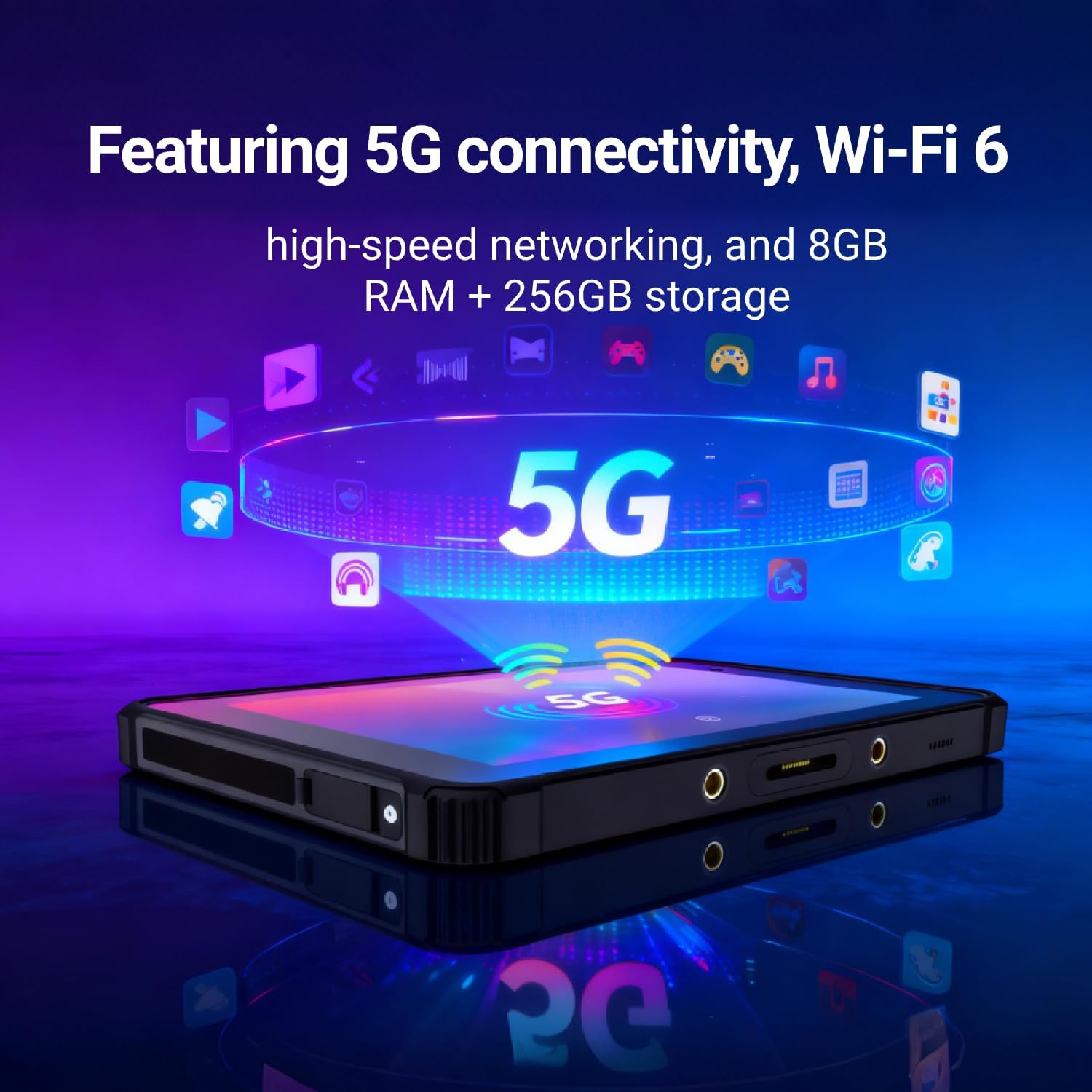
Image: The HUGEROCK H81 tablet displaying its 5G and Wi-Fi 6 connectivity features.
6.3 Using the Display
The 1000 Nits sunlight readable display ensures clear visibility even in bright outdoor conditions. Adjust brightness settings in the notification panel or Settings > Display.

Image: A user interacting with the HUGEROCK H81 tablet's 8-inch 1920x1200 display in an outdoor setting.
6.4 Camera Usage
Open the Camera app to capture photos and videos. The 48 MP rear camera and 8 MP front camera are suitable for documentation and communication in industrial environments.
7. Maintenance
Proper maintenance ensures the longevity and reliable performance of your HUGEROCK H81 tablet, especially in harsh conditions.
7.1 Cleaning
- Wipe the screen and body with a soft, damp cloth. Avoid abrasive cleaners or solvents.
- Ensure all port covers are closed before cleaning with water.
- For stubborn dirt, a mild soap solution can be used, followed by rinsing with clean water and thorough drying.

Image: The HUGEROCK H81 tablet being sprayed with water, illustrating its IP68 waterproof capability.
7.2 Battery Care
- The 12000mAh battery is removable. If replacement is needed, use only genuine HUGEROCK batteries.
- Avoid fully discharging the battery frequently to prolong its lifespan.
- Store the tablet in a cool, dry place if not used for extended periods.
7.3 Software Updates
Regularly check for and install system updates to ensure optimal performance, security, and access to the latest features of Android 14. Go to Settings > System > System update.
7.4 Storage Management
The tablet comes with 256GB of internal storage, expandable up to 2TB via a microSD card. Regularly manage your files and applications to maintain performance. Go to Settings > Storage to view usage and free up space.
8. Troubleshooting
If you encounter issues with your HUGEROCK H81 tablet, refer to the following common solutions.
- Device Not Powering On: Ensure the battery is charged. Connect the charger and wait a few minutes before attempting to power on again.
- Screen Unresponsive: Try restarting the device. If the issue persists, perform a forced restart by holding the Power button for approximately 10-15 seconds.
- Connectivity Issues (Wi-Fi/5G/Bluetooth): Toggle the respective connectivity option off and on in Quick Settings or the Settings menu. Ensure you are within range of a network or paired device.
- Apps Crashing/Freezing: Close and reopen the app. If the problem continues, clear the app's cache (Settings > Apps > [App Name] > Storage & cache > Clear cache).
- Slow Performance: Close unnecessary background apps, clear cache, or free up storage space. Consider a factory reset as a last resort (Settings > System > Reset options > Erase all data). Note: A factory reset will delete all data on the device. Back up important information first.
For issues not resolved by these steps, please contact HUGEROCK customer support.
9. Specifications
Detailed technical specifications for the HUGEROCK H81 5G Rugged Tablet.
| Feature | Specification |
|---|---|
| Brand | HUGEROCK |
| Model Name | H81 |
| Operating System | Android 14 |
| Processor | Octa-core MediaTek Kompanio (2.4 GHz) |
| RAM Memory | 8 GB |
| Storage Capacity | 256 GB (expandable via microSD up to 2TB) |
| Screen Size | 8 Inches |
| Display Resolution | 1920x1200 Pixels (FHD IPS) |
| Maximum Display Brightness | 1000 Nits |
| Cellular Technology | 5G |
| Wireless Connectivity | Wi-Fi 6 (802.11ax), Bluetooth 5.2 |
| Rear Camera | 48 MP |
| Front Camera | 8 MP |
| Battery Capacity | 12000 mAh (Removable Lithium Polymer) |
| Certifications | ATEX Certified Explosion-Proof, IP68 Waterproof, Dustproof, Shockproof |
| Dimensions (L x W x Thickness) | 8.78" x 5.75" x 0.9" |
| Specific Uses | Industrial, Hazardous Environments, Outdoor Field Work, Construction Sites, Military Deployments |
10. Warranty and Support
10.1 Warranty Information
The HUGEROCK H81 5G Rugged Tablet comes with a 1 Year Manufacturer Warranty. This warranty covers defects in materials and workmanship under normal use. Please retain your proof of purchase for warranty claims. The warranty does not cover damage caused by misuse, accidents, unauthorized modifications, or use outside of specified operating conditions.
10.2 Customer Support
For technical assistance, warranty claims, or any questions regarding your HUGEROCK H81 tablet, please contact HUGEROCK customer support through their official website or the contact information provided with your purchase. When contacting support, please have your model number (H81) and purchase details ready.
