
1. Introduction
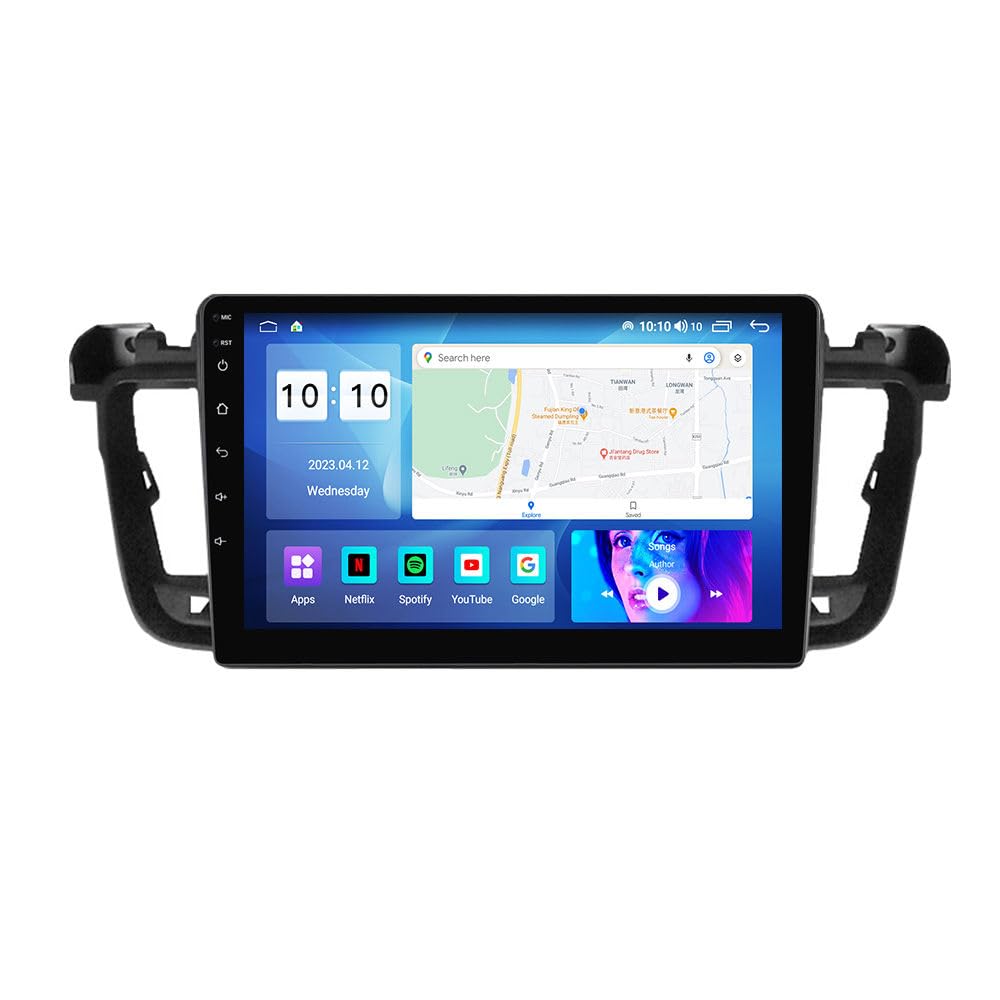
Thank you for choosing the MekedeTech Android Car Radio. This 9-inch touch screen head unit is designed specifically for the Peugeot 508, offering an upgrade with wireless CarPlay/Android Auto, GPS navigation, WiFi, and AM/FM radio. This manual provides detailed instructions for installation, operation, maintenance, and troubleshooting to ensure optimal performance and user experience.
2. Safety Information
- Always ensure the vehicle is parked safely with the engine off and parking brake engaged before attempting installation or maintenance.
- Disconnect the vehicle's battery before starting any electrical work to prevent short circuits or damage.
- Improper installation can lead to vehicle damage or personal injury. If you are unsure about any step, seek professional assistance.
- Do not operate the device in a way that distracts you from driving. Always prioritize road safety.
- Keep the device away from water, moisture, and extreme temperatures.
3. Package Contents
Please verify that all items listed below are included in your package:
- Android Head Unit (Main Machine)
- Power Cable + Canbus Box
- RCA Cable
- Reversing Camera Input Cable
- USB Cables (multiple)
- Microphone (MIC)
- GPS Antenna
- 4G Antenna
- Audio Out Cable

If any items are missing or damaged, please contact customer support immediately.
4. Installation
This unit is designed for direct compatibility with the Peugeot 508. No cutting or modification of original car wiring is typically required.
4.1. Pre-Installation Steps
- Park your vehicle on a level surface and engage the parking brake.
- Turn off the engine and remove the key from the ignition.
- Disconnect the negative terminal of the car battery to prevent electrical shorts.
- Carefully remove the original car radio and trim panels as per your vehicle's service manual.
4.2. Connecting the Head Unit
- Connect the provided power cable and Canbus box to the corresponding ports on the new head unit and the vehicle's wiring harness.
- Connect the GPS antenna and 4G antenna to their respective ports on the head unit. Position the antennas in a location with clear signal reception, typically on the dashboard or under the windshield.
- Connect the RCA cables, USB cables, and microphone as needed for your desired accessories (e.g., external amplifier, USB devices, hands-free calling).
- If installing a reversing camera, connect its input cable to the designated port on the head unit.
4.3. Securing the Unit
- Carefully slide the new head unit into the dashboard opening, ensuring all cables are tucked away and not pinched.
- Secure the unit using the original mounting brackets or provided screws.
- Reinstall the trim panels and dashboard components.
4.4. Post-Installation
- Reconnect the negative terminal of the car battery.
- Turn on the vehicle's ignition and power on the head unit to test its functionality.
5. Initial Setup and Configuration
5.1. First Power On
Upon first power-on, the system will boot into the Android operating system. Follow any on-screen prompts for initial language and time zone settings.
5.2. Wi-Fi and 4G Connectivity
To access online features, connect the unit to the internet:
- Wi-Fi: Go to Settings > Network & Internet > Wi-Fi. Select your desired network and enter the password.
- 4G LTE: Insert a compatible 4G SIM card into the designated slot. The unit supports two SIM card slots: one on the back of the main unit and one on the RCA cable. Ensure your SIM card is activated and has a data plan.

5.3. GPS Navigation
The unit comes with built-in GPS. Ensure the GPS antenna is properly installed and positioned for optimal signal reception. You can use pre-installed offline maps or download online maps via Wi-Fi/4G.
5.4. Bluetooth Pairing
To pair your mobile phone for hands-free calling and audio streaming:
- Go to Settings > Connected devices > Bluetooth.
- Enable Bluetooth on both the head unit and your mobile phone.
- Search for available devices on your phone and select the head unit's name (e.g., "CarBT").
- Confirm the pairing code on both devices.
5.5. Wireless CarPlay / Android Auto
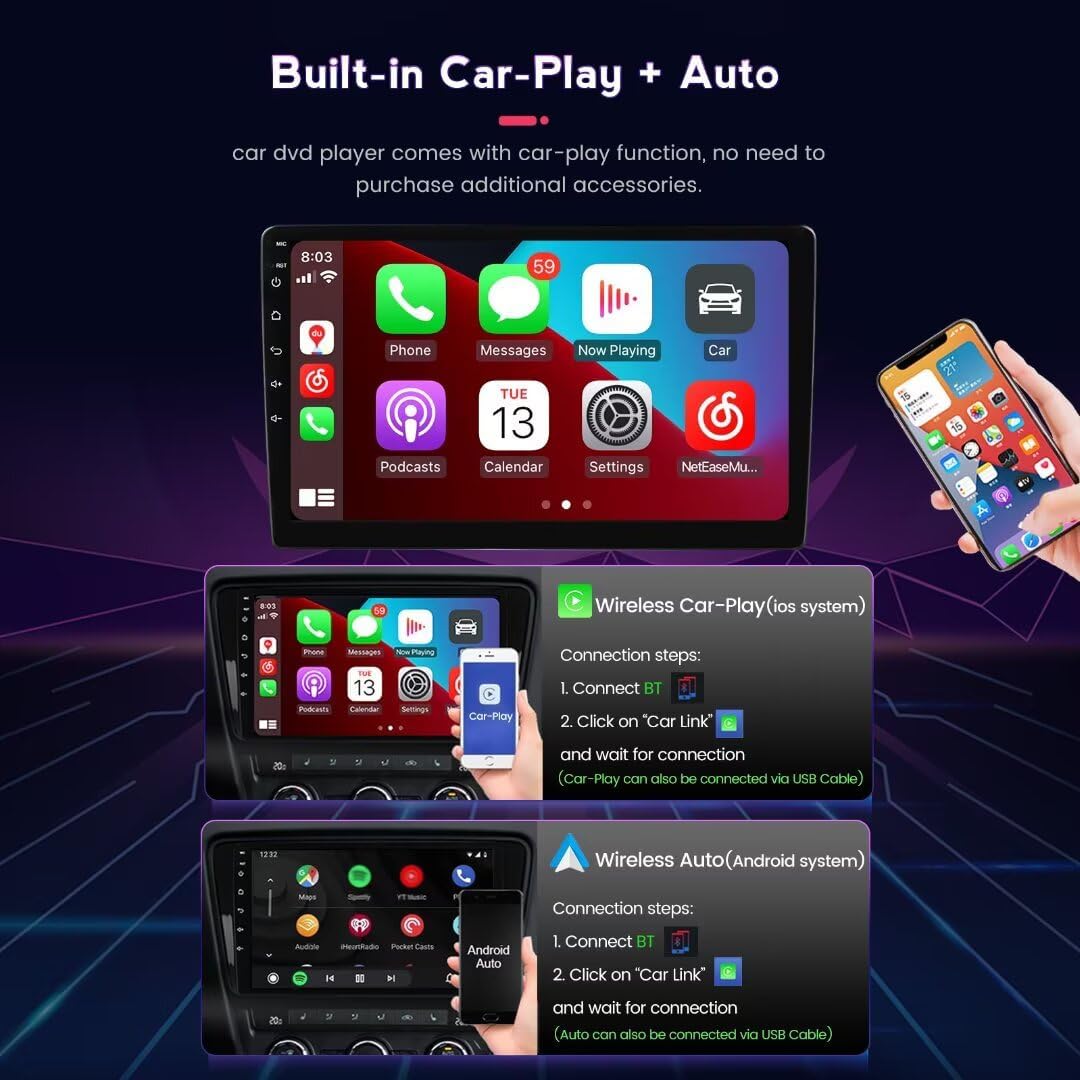
The unit supports wireless CarPlay for iOS devices and wireless Android Auto for Android devices.
For Wireless CarPlay (iOS System):
- Connect your iPhone to the head unit via Bluetooth.
- Open the "Car Link" application on the head unit.
- Wait for the connection to establish. CarPlay can also be connected via a USB cable.
For Wireless Android Auto (Android System):
- Connect your Android phone to the head unit via Bluetooth.
- Open the "Car Link" application on the head unit.
- Wait for the connection to establish. Android Auto can also be connected via a USB cable.
5.6. Cooling Fan Setup (If Applicable)
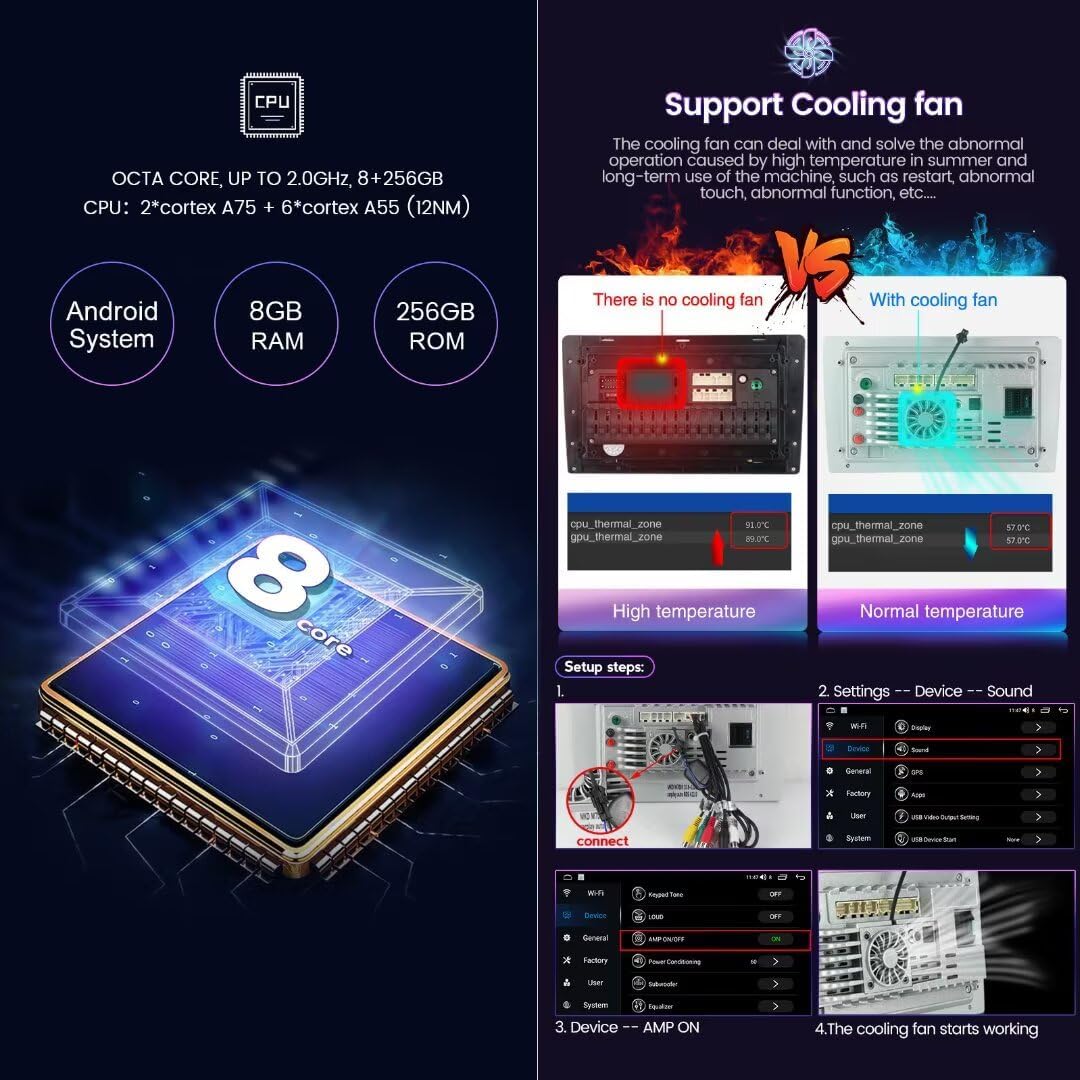
If your unit includes a cooling fan, ensure it is properly connected. The cooling fan helps manage the device's temperature, especially during prolonged use or in hot environments.
- Connect the cooling fan cable to the designated port on the head unit.
- Navigate to Settings > Device > Sound.
- Locate the 'AMP ON' setting under Device.
- Ensure the cooling fan is activated through the system settings.
6. Operating Instructions
6.1. Touch Screen Navigation
The 9-inch QLED touch screen (1280x720 resolution) allows for intuitive control. Tap icons to open applications, swipe to navigate menus, and use pinch-to-zoom gestures where applicable.
6.2. Radio (AM/FM/RDS)
Access the Radio application from the main menu. You can scan for stations, save presets, and enjoy Hi-Fi sound quality with RDS (Radio Data System) support.
6.3. Media Playback
Play audio and video files from USB drives, internal storage, or streaming services via connected Wi-Fi/4G. Use the pre-installed media player or download your preferred apps from the Google Play Store.
6.4. GPS Navigation
Open the Navigation application to access maps and plan routes. The built-in GPS supports both offline and online maps, with Wi-Fi/4G connectivity enabling live traffic updates.
6.5. Hands-Free Calling
Once your phone is paired via Bluetooth, you can make and receive calls directly from the head unit. The built-in microphone ensures clear communication.
6.6. Steering Wheel Control
The unit supports your vehicle's original steering wheel controls, allowing you to manage essential functions like volume, track skipping, and call answering without taking your hands off the wheel. Configuration may be required in the system settings.
6.7. Split Screen Display
Utilize the split-screen feature to display two applications simultaneously, such as navigation on one side and music playback on the other.
6.8. Reverse Image Input
If a reversing camera is connected, the display will automatically switch to the camera view when the vehicle is put into reverse gear, providing practical driving assistance.
7. Features Overview
- Operating System: Android 13 OS
- CPU: 8-Core A53 2.0GHz
- Memory: 8GB RAM, 256GB ROM
- Display: 9-inch IPS touch screen with 1280*720 resolution
- Connectivity: Built-in WiFi module, 4G LTE support (with SIM card)
- Navigation: Built-in GPS navigation with support for offline/online maps
- Smartphone Integration: Wireless CarPlay and Android Auto
- Audio: Hi-Fi sound quality FM RDS radio, built-in DSP Processor for multi-dimensional surround lossless sound effects
- Control: Support for original steering wheel controls, voice command via buttons, keyboard, and touchscreen
8. Maintenance
- Cleaning the Screen: Use a soft, lint-free cloth slightly dampened with water or a screen cleaner specifically designed for electronics. Do not use abrasive cleaners or solvents.
- Software Updates: Periodically check for system software updates to ensure optimal performance and access to new features. Updates can usually be found in the system settings under "About device" or "System updates."
- Temperature: Avoid exposing the unit to extreme temperatures. While designed for automotive use, prolonged exposure to direct sunlight or freezing conditions can affect its lifespan.
9. Troubleshooting
| Problem | Possible Cause | Solution |
|---|---|---|
| Unit does not power on | Loose power connection, blown fuse, vehicle battery issue | Check all power connections. Inspect vehicle fuses. Ensure car battery is charged. |
| No sound | Volume too low, mute activated, incorrect audio output settings, loose speaker wires | Increase volume. Check mute status. Verify audio settings. Inspect speaker connections. |
| GPS signal lost or inaccurate | GPS antenna improperly placed or disconnected, environmental interference | Ensure GPS antenna has a clear view of the sky. Check antenna connection. Move away from tall buildings or tunnels. |
| Bluetooth connection issues | Bluetooth off, device not discoverable, interference | Ensure Bluetooth is enabled on both devices. Make sure the phone is in pairing mode. Try restarting both devices. |
| CarPlay/Android Auto not connecting | Incorrect setup, app not running, phone compatibility | Follow the specific connection steps in Section 5.5. Ensure the "Car Link" app is open. Check phone compatibility and software version. |
| Touch screen unresponsive | System freeze, dirt on screen | Restart the unit. Clean the screen. If issue persists, contact support. |
For issues not covered here, please refer to the online support resources or contact MekedeTech customer service.
10. Specifications
- Operating System: Android 13
- CPU: 8-Core A53 2.0GHz
- Memory: 8GB RAM, 256GB ROM
- Display Size: 9 inches
- Display Resolution: 1280*720
- Display Type: IPS LCD, Capacitive Touchscreen
- Connectivity: Wireless (Bluetooth, Wi-Fi, 4G LTE)
- Special Features: Bluetooth, Touchscreen, Wired Android Auto, Wireless CarPlay, GPS Navigation
- Map Type: Worldwide
- Human Interface Input: Buttons, Keyboard, Touchscreen
- Control Method: Touch
11. Warranty and Support
This MekedeTech Android Car Radio comes with a 1-Year Warranty from the date of purchase. This warranty covers manufacturing defects and malfunctions under normal use.
The warranty does not cover damage caused by:
- Improper installation or unauthorized repairs.
- Accidents, misuse, abuse, or neglect.
- Natural disasters or external causes.
For warranty claims or technical support, please contact MekedeTech customer service through the retailer where the product was purchased or visit the official MekedeTech website for contact information.
