
1. Introduction
This manual provides comprehensive instructions for the setup, operation, and maintenance of your PYY Cash Register. Designed for small businesses, this electronic commercial cash register features a built-in scanner, lockable cash drawer, 48 keys, and an 8-digital dual display, making it ideal for restaurants, supermarkets, and various retail environments.
2. What's in the Box
Upon unpacking, please ensure all the following items are present:
- Electronic Cash Register
- Wired Scanner
- 2-1/4 Inches Thermal Papers (10 rolls)
- Cash Box Keys (6 keys)
- Power Cable
3. Setup
Follow these steps to set up your PYY Cash Register for initial use.
3.1 Physical Placement and Power Connection
Place the cash register on a stable, flat surface. Connect the power cable to the cash register and then to a suitable power outlet (AC 100–240V, DC 12V/3A).

Image Description: A white PYY cash register with a black cash drawer underneath. The image highlights the dimensions of the unit (15 inches length, 13.2 inches width, 8.2 inches height) and lists included accessories: power cable, USB cable, cash box keys, and thermal paper rolls. A wired barcode scanner is also shown next to the unit.
3.2 Connecting Peripherals
The cash register offers multiple ports for connecting external devices:
- 2 RS232 Ports: For connecting a scale or an external printer.
- 1 USB Port: For connecting to a PC for data management.
- 1 PS2 Port: For connecting an external keyboard.

Image Description: A rear view of the PYY cash register, illustrating the various connectivity ports. Labels point to the power switch, power input, RS232 ports for scale/scanner, USB port for computer, and PS2 port for keyboard, emphasizing its universal interface for multi-device connection.
3.3 Barcode Scanner Setup
The included high-speed barcode scanner supports 3 scan modes for efficient checkout. Simply connect the scanner to one of the RS232 ports. No additional drivers or software are typically needed for basic operation.

Image Description: A hand holding the included barcode scanner, demonstrating its "Super Decoding Ability" by showing it can scan blurred, colorful, underwater, tilted, and damaged 1D/2D QR codes. This highlights its versatility and plug-and-play functionality across Linux, Mac, and Windows systems.
4. Operating Instructions
This section covers the basic operations of your PYY Cash Register.
4.1 Basic Checkout Process (Non-Member)
For non-member transactions, follow these steps:
- Enter the product price or scan the barcode.
- Press the corresponding department key (if applicable).
- Repeat for all items.
- Press the SUBTOTAL key to view the total.
- Enter the cash received from the customer.
- Press the CASH key to complete the transaction and calculate change.
Video Description: This video demonstrates the process of a non-member checkout on the PYY Cash Register. It shows how to input item prices, calculate the subtotal, enter the amount received, and process the transaction to display change due, simulating a quick and efficient checkout flow.
4.2 Dual Display Functionality
The cash register features a dual display system:
- 2.8-inch TFT LCD for Cashier: Provides a clear interface for managing sales and settings.
- 8-digit LED Display for Customers: Shows the transaction total and change due, enhancing transparency.

Image Description: A PYY cash register displaying its dual-screen checkout feature. The top screen, a 2.8-inch TFT LCD, shows the cashier's system main menu, while the front-facing 8-digital LED screen displays the price for the customer, ensuring clear visibility for both.
4.3 Receipt Printing
The built-in thermal printer offers a print speed of up to 90mm/s, ensuring quick receipt generation. Receipts can be customized with header, footer, and detailed transaction information.

Image Description: A PYY cash register actively printing a receipt, highlighting its 90mm/s speedy printing capability. The receipt shows customizable elements like header, time & order ID, clerk & seller details, sale details, settlement details, tax details, and a customizable bottom message.
4.4 Cash Drawer Operation
The integrated cash drawer automatically opens during transactions. It features 4 slots for bills and 5 for coins, along with a removable tray for organized cash management. Six keys are provided for enhanced security.
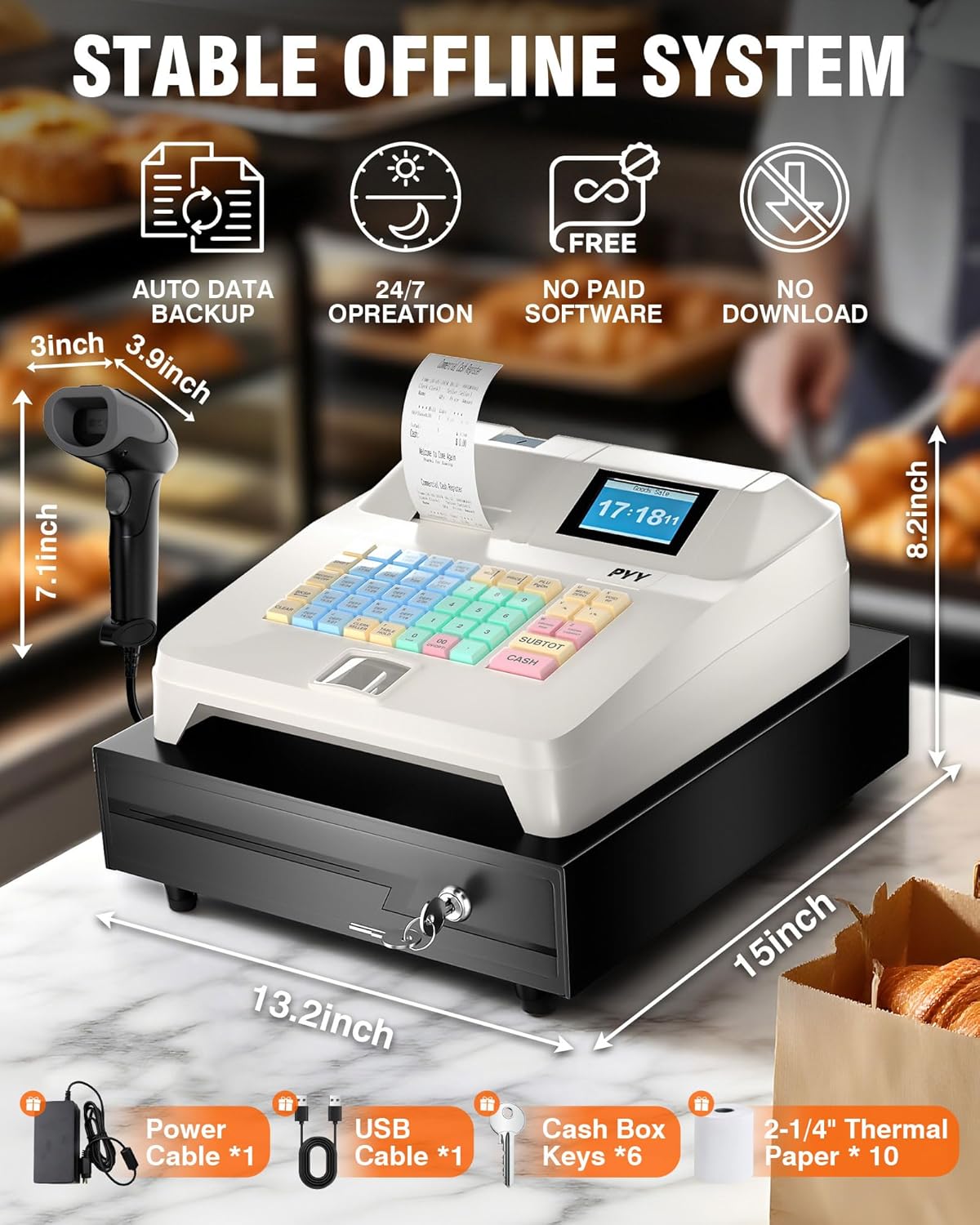
Image Description: An open cash drawer of the PYY cash register, illustrating its "Large Secure Cash Drawer" design. It features 4 bill slots, 5 coin slots, a 6.6-inch check/bill slot, and a removable tray for efficient money management.
5. Programming and Settings
The PYY Cash Register offers extensive programming options to customize its functionality for your business needs.
5.1 Accessing Help System
The cash register includes a built-in help system to guide you through various setup processes. You can print a help receipt for reference.
Video Description: This video demonstrates how to access and use the help system on the PYY Electronic Cash Register. It shows navigating through the menu to select "Help" and then "Subtotal" to print a help receipt, outlining the 12 functional modules available for assistance.
5.2 Department (DEPT) Settings
Configure product categories, names, prices, and tax rates for up to 200 departments.
Video Description: This video guides users on how to set up departments (DEPT) on the PYY Electronic Cash Register. It illustrates the steps to enter product settings, select category numbers (1-200), customize names, set unit prices, and confirm tax codes for each department.
5.3 Product Look-Up (PLU) Settings
Set up to 10,000 PLUs for individual products, including name, department number, price, VIP price, stock, and warning levels. This is recommended for businesses with many products.
Video Description: This video demonstrates how to configure Product Look-Up (PLU) settings on the PYY Electronic Cash Register. It shows how to enter the menu, select DEPT, then PLU Program, input product codes (either manually or via scanner), and set details like name, department number, price, VIP price, stock, and warning levels for up to 10,000 products.
5.4 VIP Account Settings
Manage up to 1,000 VIP members, assigning unique codes, names, phone numbers, and discount rates.
Video Description: This video illustrates the process of setting up VIP accounts on the PYY Electronic Cash Register. It guides through selecting "Settings," then "VIP Program," entering a member code, confirming the member's name, entering their phone number, and setting a discount rate (e.g., 10% off) for up to 1,000 VIP members.
5.5 Tax Settings
Set up to 9 different types of taxes, defining custom names, rates, and whether the tax is included or excluded from the product price.
Video Description: This video demonstrates how to configure tax settings on the PYY Electronic Cash Register. It shows how to navigate to "Settings," then "Tax Program," select a tax number (1-9), enter a custom name and rate (e.g., 5%), and specify whether the tax is included ("Contain") or excluded ("NoContain") from the product price.
5.6 Inventory Alert Settings
Enable product inventory alerts to prevent stock depletion and ensure smooth operations.
Video Description: This video explains how to set up inventory alerts on the PYY Electronic Cash Register. It shows the steps to access "Settings," then "Base Program," select "PLU Stock Alarm," and turn the alert function "ON" to enable notifications for low stock levels.
5.7 Additional Charge Settings
Learn how to apply additional charges, such as service fees, to transactions.
Video Description: This video demonstrates how to set an additional charge on the PYY Cash Register. It shows how to press a department key (e.g., Department 1) to add a percentage-based service charge (e.g., 10%) to the transaction, then use the subtotal and cash keys to complete the process.
5.8 Editing Department with Barcode Scanner
This video shows how to edit department settings using the barcode scanner for efficiency.
Video Description: This video demonstrates how to edit department (DEPT) settings using the barcode scanner on the PYY Cash Register. It guides through accessing the DEPT program, scanning a product barcode to identify its department, and then modifying its associated settings.
6. Maintenance
Proper maintenance ensures the longevity and optimal performance of your cash register.
- Cleaning: Regularly wipe the exterior with a soft, damp cloth. Avoid abrasive cleaners or solvents.
- Printer Maintenance: Ensure the thermal paper is correctly loaded. Clean the printer head periodically with a specialized cleaning pen or isopropyl alcohol to prevent print quality issues.
- Cash Drawer: Keep the cash drawer free of debris. The ABS housing is resistant to water and oil, making it suitable for demanding environments.
- Storage: When not in use for extended periods, store the cash register in a cool, dry place.
7. Troubleshooting
If you encounter issues with your PYY Cash Register, refer to the following common problems and solutions:
| Problem | Possible Cause | Solution |
|---|---|---|
| Cash Register Not Powering On | Power cable not connected, power outlet issue. | Check power cable connection. Try a different power outlet. |
| Printer Not Printing | No thermal paper, paper jammed, printer head dirty. | Load new thermal paper. Clear any paper jams. Clean the printer head. |
| Scanner Not Reading Barcodes | Scanner not connected, barcode damaged/unclear, incorrect scan mode. | Ensure scanner is connected. Try scanning a clear barcode. Check scanner settings. |
| Cash Drawer Not Opening | Transaction not completed, drawer lock engaged, mechanical issue. | Complete the transaction. Ensure the drawer is unlocked. Contact support if issue persists. |
For further assistance, please refer to the "Worry-Free Service" section or contact PYY technical support.
8. Specifications
- Product Dimensions: 15 x 13.2 x 8.2 inches
- Item Weight: 14.1 pounds
- Power: 36W, AC 100–240V, DC 12V/3A
- Display: 2.8-inch TFT LCD (cashier), 8-digit LED (customer)
- Printer: Built-in thermal printer, 90mm/s print speed
- Connectivity: 2 RS232 ports, 1 USB port, 1 PS2 port
- Scanner: High-speed barcode scanner (30 FPS), 3 scan modes
- Capacity: Supports 200 departments, 10,000 products, 1,000 members, 200 sessions
- Security: Up to 50 cashiers with passwords, 6 cash drawer keys
- Cash Drawer: 4 bill slots, 5 coin slots, removable tray
- Material: ABS housing (water and oil resistant)
- Certifications: RoHS, FCC certified
9. Warranty and Support
PYY offers a one-year coverage for your cash register. For any technical issues or inquiries, professional one-on-one technical support is available. Please reach out to us directly if you encounter any problems.
For more information, visit the PYY Store on Amazon.