
1. Introduction
This manual provides detailed instructions for the FULODE X1-16C 16-Channel Audio Mixer. Please read this manual thoroughly before operating the device to ensure proper usage and to maximize its performance and longevity. This professional audio console is designed for various applications including studio recording, live performances, DJ events, and karaoke.

2. Safety Information
To prevent electric shock, fire, or damage to the device, please observe the following safety precautions:
- Do not open the device casing. Refer all servicing to qualified personnel.
- Ensure the power supply voltage matches the requirements specified on the device.
- Keep the device away from water, moisture, and excessive heat.
- Do not operate the device if the power cord is damaged or frayed.
- Always disconnect the power supply before cleaning or performing maintenance.
- Use only attachments/accessories specified by the manufacturer.
3. Package Contents
Verify that all items are present in the package:
- FULODE X1-16C 16-Channel Audio Mixer
- Power Adapter (AC 90-240V, 50-60Hz)
- User Manual
4. Product Overview: Controls and Connections
The FULODE X1-16C mixer features a comprehensive layout for intuitive control over your audio. Familiarize yourself with the various inputs, outputs, and control elements.

4.1 Front Panel Controls
- Composite Interface: Combination XLR/TRS input for microphones and line-level signals.
- Phantom Switch: Activates +48V phantom power for condenser microphones.
- Gain Adjustment: Controls the input sensitivity of each channel.
- Treble/Midrange/Bass Adjustment (3-Band EQ): Equalization controls for high, mid, and low frequencies on each channel.
- AUX Adjustment: Controls the auxiliary send level for external effects or monitor mixes.
- Adjustment of Effect: Controls the amount of internal DSP effect applied to the channel.
- Pan Balance: Adjusts the stereo position of the channel signal.
- Channel Mute Switch: Mutes or unmutes the individual channel.
- Channel Volume Pusher: Fader to control the output level of each channel.
- Reverberation Effect Selection: Knob to select from 99 built-in DSP effects.
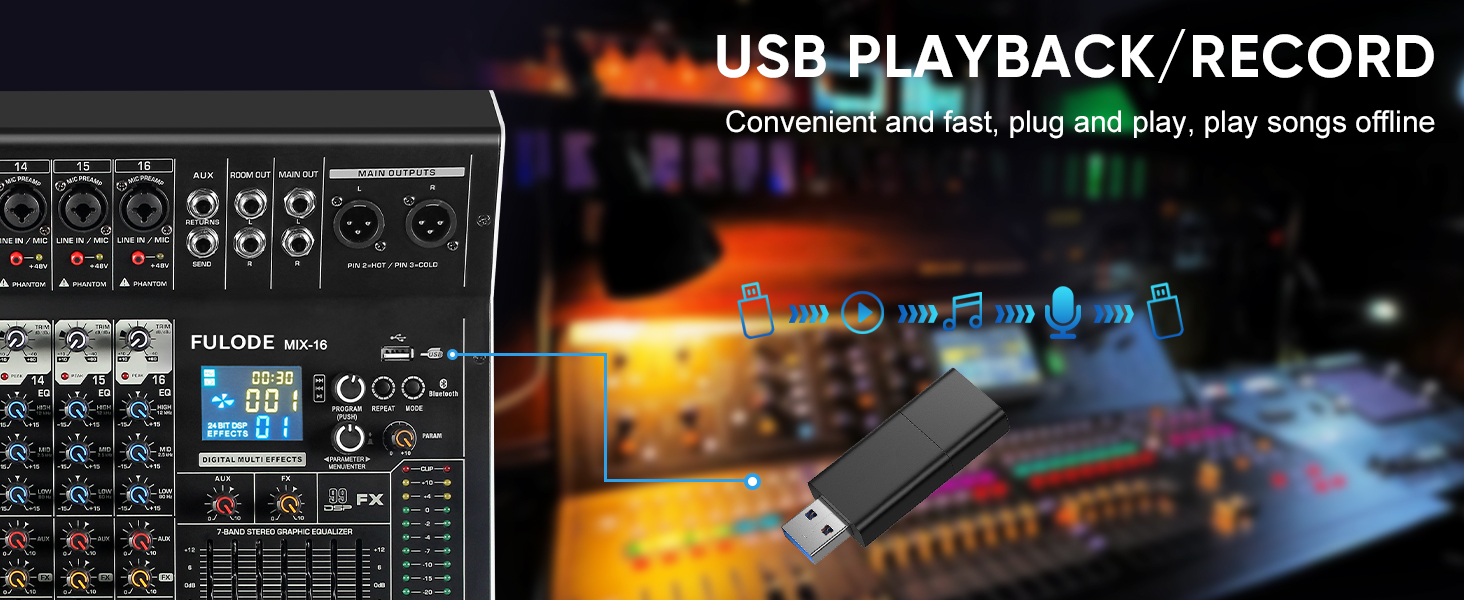
- USB/MP3 Playback: Section for USB drive and Bluetooth audio input, with transport controls and digital display.
- Level Indicator Light: Visual display of output levels.
- Main Channel Seven Segment Balance: Graphic equalizer for the main stereo output.
- Monitor Volume Adjustment: Controls the volume of the headphone output.
- Effect Main Volume Adjustment: Controls the overall level of the selected DSP effect.
- Left/Right Main Volume Adjustment: Faders for the main stereo output.
- Earphone Monitoring Interface: 1/4" jack for headphone monitoring.
- MP3 Main Volume Adjustment: Controls the output level of the USB/MP3/Bluetooth section.
4.2 Rear Panel Connections
- Power Switch: Turns the mixer on or off.
- Power Interface: Connects to the provided power adapter.
5. Setup
Follow these steps for initial setup of your FULODE X1-16C Audio Mixer.
5.1 Power Connection
- Ensure the mixer's power switch is in the OFF position.
- Connect the power adapter to the Power Interface on the rear panel of the mixer.
- Plug the power adapter into a suitable AC power outlet (110V).
- Turn the mixer's power switch to the ON position. The digital display should illuminate.
5.2 Connecting Microphones and Instruments
- For microphones or line-level instruments, connect them to the Composite Interface (XLR or 1/4" TRS) on the desired channel.
- If using a condenser microphone, press the Phantom Switch (+48V) for that specific channel. An indicator light will confirm activation.
- Adjust the Gain Adjustment knob for each input channel to achieve an optimal signal level without clipping.

5.3 Connecting Output Devices
- Connect your main speakers or amplifier to the Main Output Interface (XLR or 1/4" TRS) on the top right of the mixer.
- For monitoring, connect headphones to the Earphone Monitoring Interface.
6. Operating Instructions
6.1 Channel Control
- Gain: Adjust the input gain for each channel to prevent clipping (indicated by the PEAK LED) and ensure a strong signal.
- 3-Band EQ: Use the HI, MID, and LOW knobs to shape the tone of each input.
- AUX: Control the amount of signal sent to the auxiliary output for external effects or monitor mixes.
- FX: Adjust the level of the internal DSP effect applied to the channel.
- PAN: Position the channel's signal in the stereo field (left to right).
- Mute: Press the MUTE button to instantly silence a channel.
- Channel Fader: Use the fader to control the overall volume of the channel in the main mix.
6.2 DSP Effects
The mixer includes 99 built-in 24-bit DSP effects for enhancing your sound.
- Use the Reverberation Effect Selection knob to browse through the 99 available effects (e.g., Warm Room, Bright Room, Hall, Plate, Chorus, Delay). The digital display will show the selected effect number.
- Press the knob to confirm your selection.
- Adjust the Effect Main Volume Adjustment to control the overall wet/dry mix of the effects.
- Use the individual channel's FX knob to send more or less of that channel's signal to the effects processor.

6.3 USB/MP3/Bluetooth Playback
The mixer supports audio playback from USB drives and Bluetooth-enabled devices.
- USB Playback: Insert a USB drive containing MP3 files into the USB port. Use the transport controls (Play/Pause, Skip) and the MP3 Main Volume Adjustment to control playback.
- Bluetooth Connection: Press the MODE button on the USB/MP3 section until 'BT' appears on the digital display. On your smart device, search for 'MIX-BT' (or similar) and pair. Once connected, you can stream audio wirelessly to the mixer.


6.4 Main Output and Monitoring
- Use the Left/Right Main Volume Adjustment faders to control the overall output level of the mix.
- The Level Indicator Light provides visual feedback on the main output levels. Adjust faders to keep levels within the optimal range (avoiding red/clipping).
- The Main Channel Seven Segment Balance (graphic EQ) allows for fine-tuning the overall frequency response of your main mix.
- Adjust the Monitor Volume Adjustment for comfortable listening through headphones.

6.5 Official Product Video Demonstration
Watch this video for a visual demonstration of the FULODE mixer's features and operation. Note: The video features a MIX-12 model, which shares many similar functionalities with the X1-16C.
7. Maintenance
Proper maintenance ensures the longevity and optimal performance of your mixer.
- Cleaning: Use a soft, dry cloth to wipe the surface of the mixer. Do not use liquid cleaners or solvents, as they may damage the finish or internal components.
- Storage: Store the mixer in a cool, dry place away from direct sunlight and extreme temperatures. If storing for extended periods, cover the unit to protect it from dust.
- Ventilation: Ensure proper ventilation around the mixer to prevent overheating. Do not block ventilation openings.
8. Troubleshooting
If you encounter issues with your FULODE X1-16C mixer, refer to the following common problems and solutions:
| Problem | Possible Cause | Solution |
|---|---|---|
| No power | Power cable not connected; Power switch off; Faulty power adapter/outlet | Check power cable connection; Ensure power switch is ON; Try a different power outlet or adapter. |
| No sound from a channel | Channel muted; Gain too low; Cable issue; Phantom power not activated (for condenser mics) | Check MUTE button; Increase Gain; Verify cable connections; Activate +48V phantom power if needed. |
| No sound from main output | Main faders down; Output cables disconnected; Amplifier/speakers off | Raise Main Volume faders; Check output cable connections; Ensure amplifier/speakers are powered on and connected. |
| Bluetooth not connecting | Mixer not in Bluetooth mode; Device too far; Already connected to another device | Press MODE until 'BT' appears; Ensure device is within 33 ft; Disconnect from other devices. |
| Distorted sound | Gain too high (clipping); EQ settings extreme; Faulty cable/microphone | Reduce Gain (ensure PEAK LED is not constantly lit); Adjust EQ to neutral or moderate settings; Test with different cables/microphones. |
9. Specifications
Technical specifications for the FULODE X1-16C 16-Channel Audio Mixer:
- Model: X1-16C
- Number of Channels: 16
- DSP Effects: 99 built-in 24-bit effects
- Equalization: 3-band EQ per channel, 7-band graphic EQ on main output
- Phantom Power: +48V (switchable per channel)
- Connectivity: USB (playback/recording), Bluetooth, XLR, 1/4" TRS
- Power Source: Corded Electric
- Voltage: 110 Volts (AC)
- Product Dimensions: 15.55"D x 18.9"W x 4.13"H (39.5 cm D x 48 cm W x 10.5 cm H)
- Item Weight: 18.16 pounds (8.24 kg)
10. Warranty and Support
For warranty information and technical support, please refer to the documentation included with your purchase or contact FULODE customer service through their official channels. Keep your proof of purchase for any warranty claims.

