
Introduction
Thank you for choosing the Generisch TVR3 Android 15 Smart 4K TV Stick. This device transforms your television into a smart entertainment hub, offering access to a vast array of streaming content and applications. Equipped with Android 15.0, it provides a user-friendly interface, voice search capabilities, and support for stunning 4K resolution. This manual will guide you through the setup, operation, maintenance, and troubleshooting of your TVR3 Smart TV Stick.
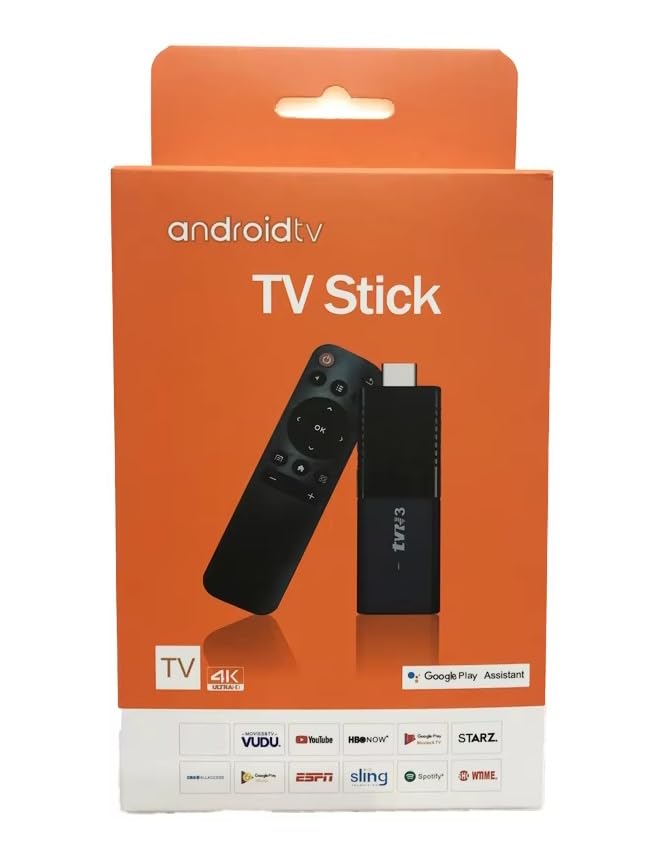
Image: The Generisch TVR3 Android 15 Smart 4K TV Stick, a compact black device with ports visible.
Package Contents
Please check the box for the following items:
- 1 x TVR3 Android 15 Smart 4K TV Stick
- 1 x HD 2.0 Cable
- 1 x USB Type-C Power Cable
- 1 x IR Cable (for remote control signal extension)
- 1 x User Manual
- 1 x Remote Control
Setup
1. Connecting the TV Stick
- Connect to TV: Plug the TVR3 Smart TV Stick directly into an available HDMI port on your television. If direct connection is not feasible due to space, use the provided HD 2.0 cable.
- Connect Power: Insert the USB Type-C power cable into the TV Stick's power port. Connect the other end of the USB cable to a suitable power adapter (not always included).
- Power Adapter Requirements: The ideal voltage for the power adapter is 4.8V to 5.3V, and the input current must be at least 1A. Avoid using certain fast charging adapters, as their output voltage can be excessively high during operation, which may damage the device.
- IR Cable (Optional): If the TV Stick is hidden behind the TV or in a cabinet, connect the IR cable to the TV Stick and position the IR receiver in a location where it has a clear line of sight to your remote control.

Image: An illustrative diagram showing the TVR3 TV Stick connected to a TV via HDMI and to a power adapter via USB-C. (Illustrative placeholder)
2. Initial Boot and Network Setup
- Power On: Turn on your television and select the correct HDMI input source corresponding to where the TVR3 Stick is connected.
- Follow On-Screen Prompts: The TV Stick will boot up. Follow the on-screen instructions to complete the initial setup, which typically includes language selection, time zone, and network configuration.
- Connect to Wi-Fi: During setup, select your Wi-Fi network from the list and enter the password. Ensure a stable internet connection for optimal performance.
Operating
Remote Control Functions
The included remote control allows you to navigate the Android 15 interface. Familiarize yourself with its buttons:
- Power Button: Turns the device on or off.
- Navigation Pad (Up/Down/Left/Right/OK): Used to move through menus and select items.
- Back Button: Returns to the previous screen.
- Home Button: Returns to the main Android home screen.
- Volume Buttons: Adjusts the audio volume.
- Menu/Options Button: Accesses context-sensitive menus.
- Voice Search Button: Activates voice input for searching content (if supported by the app).

Image: A generic remote control for a TV stick, showing common navigation and function buttons. (Illustrative placeholder)
Android 15 Interface Navigation
The Android 15 operating system provides an intuitive interface. Use the remote's navigation pad to browse through apps, settings, and content. The home screen typically displays frequently used apps and recommended content.
App Installation
- Google Play Store: Access the Google Play Store app from your home screen to download and install a wide variety of applications, including streaming services, games, and utilities. A Google account is required.
- APK Installation: For applications not available on the Play Store, you can manually install them using an APK file. Ensure you download APKs from trusted sources to avoid security risks. You may need to enable 'Install unknown apps' in the device settings.
Media Playback
The TVR3 Stick supports various media formats for streaming and local playback. Use installed streaming apps (e.g., Netflix, YouTube) or a media player app to access your content. You can also connect external storage devices via the USB interface to play local media files.
Maintenance
Cleaning
To maintain your device, gently wipe the exterior with a soft, dry cloth. Avoid using liquid cleaners or abrasive materials, as they can damage the device.
Software Updates
Periodically check for software updates to ensure optimal performance and access to the latest features and security patches. Navigate to the 'Settings' menu on your TV Stick, then look for 'About Device' or 'System Updates' to check for and install available updates.
Troubleshooting
If you encounter issues with your TVR3 Smart TV Stick, refer to the following common problems and solutions:
- No Power / Device Not Turning On:
- Ensure the USB Type-C power cable is securely connected to both the TV Stick and the power adapter.
- Verify that the power adapter meets the specified voltage (4.8V-5.3V) and current (minimum 1A) requirements.
- Try a different power outlet or USB port on your TV (if it provides sufficient power).
- No Signal / Blank Screen:
- Confirm the TV Stick is firmly plugged into the HDMI port on your TV.
- Check that your TV is set to the correct HDMI input source.
- Try connecting the TV Stick to a different HDMI port on your TV.
- Wi-Fi Connection Issues:
- Ensure your Wi-Fi router is powered on and functioning correctly.
- Go to 'Settings' > 'Network & Internet' on the TV Stick and re-enter your Wi-Fi password.
- Move the TV Stick closer to your Wi-Fi router or reduce interference from other electronic devices.
- Applications Crashing or Freezing:
- Restart the TV Stick by unplugging it from power for a few seconds and plugging it back in.
- Clear the cache of the problematic app: Go to 'Settings' > 'Apps' > select the app > 'Clear Cache'.
- If the issue persists, try uninstalling and reinstalling the app.
- Remote Control Not Responding:
- Ensure the batteries in the remote control are fresh and correctly inserted.
- Check for any obstructions between the remote control and the TV Stick (or its IR receiver).
- If using the IR cable, ensure it is properly connected and positioned.
Specifications
| Feature | Specification |
|---|---|
| Model Name | TVR3 Stick |
| Operating System | Android 15.0 |
| CPU | Amlogic ARM Quad 64-bit Cortex-A35 |
| GPU | Mali-450 |
| RAM | 8 GB |
| ROM (Storage) | 128 GB |
| Video Output Resolution | Up to 4Kp60 Pixels |
| Video Codec | H.264 |
| Wi-Fi | 2.4 GHz |
| Connectivity Technology | Bluetooth, HDMI, Wi-Fi |
| Connector Type | HDMI |
| Special Features | RK3528 Chip, Android 15, USB interface, TF card slot, IR isolation remote control |
| Item Dimensions (L x W x H) | 10L x 3.5W x 1H centimeters |
| Compatible Devices | Television |
Warranty and Support
Specific warranty information for the Generisch TVR3 Android 15 Smart 4K TV Stick is not provided in the product details. For warranty claims, technical support, or service inquiries, please contact the retailer or manufacturer directly. Keep your purchase receipt as proof of purchase.