1. Product Overview
The GOWENIC Wireless Security Camera is designed for comprehensive home and outdoor surveillance. It features a 1080P HD resolution, dual lenses for simultaneous viewing of two areas, and a 360° rotating capability to ensure wide coverage. With 2.4GHz WiFi connectivity, two-way audio, and flexible storage options, this camera provides reliable monitoring and peace of mind.

Image 1.1: Front view of the GOWENIC Dual Lens Wireless Security Camera, highlighting its key features such as 360° pan/tilt, two-way intercom, dual mirror, full-color night vision, human detection, Wi-Fi connection, cloud storage, and alarm push.
Key Features:
- 1080P HD Resolution: Provides clear real-time video and images.
- Dual Lens Design: Enables simultaneous views of two different areas.
- 360° Rotation: Features 355° horizontal rotation and 90° vertical tilt for comprehensive coverage.
- 2.4GHz WiFi: Ensures stable and uninterrupted video streaming.
- Two-Way Intercom: Allows for communication through the camera.
- Night Vision: Equipped with full-color night vision for clear visibility in low light.
- Human Detection: Advanced detection capabilities to minimize false alarms.
- Flexible Storage: Supports cloud storage (30-day trial) and local backup via a storage card (up to 128GB, not included).
- O-KAM Pro APP: Easy access and sharing with family or roommates.

Image 1.2: Detailed diagram showing the components of the GOWENIC camera, including Camera 1, Infrared light, White light, Photosensitive sensor, Camera 2, Reset key, and the Micro SD card slot.
2. What's in the Box
Please check the package contents upon unboxing to ensure all items are present:
- 1 x Wireless Security Camera (Small memory card not included)
- 1 x USB Cable (Type C)
- 1 x Reset Pin
- 2 x Screws
- 2 x Anchors
3. Setup Instructions
3.1 Powering On the Camera
- Unpack the camera and all accessories.
- Connect the provided USB cable to the camera's Type C power port.
- Plug the other end of the USB cable into a compatible power adapter (not included) and then into a power outlet. The camera will power on and initiate its startup sequence.
3.2 App Download and Installation
- Download the O-KAM Pro application from your smartphone's app store (iOS App Store or Android Google Play Store). Alternatively, scan the QR code provided in the quick start guide (if available) to download the app.
- Install the O-KAM Pro app and create a new user account or log in if you already have one.
3.3 Network Connection
The camera supports 2.4G WiFi (802.11b/g/n). Ensure your router is broadcasting a 2.4GHz network.
- Open the O-KAM Pro app and tap 'Add Device' or the '+' icon.
- Select your camera model or choose 'Smart Camera'.
- Follow the in-app instructions for network setup. Common methods include:
- WiFi Smartlink Setup: The app will guide you to connect your phone to the camera's temporary Wi-Fi hotspot, then configure the camera to connect to your home Wi-Fi.
- AP Hotspot Setup: Connect your phone directly to the camera's Wi-Fi hotspot (usually named 'IPC-XXXXX') and then use the app to configure your home Wi-Fi details.
- QR Code Scan: The app will generate a QR code containing your Wi-Fi information. Hold this QR code in front of the camera lens for it to scan and connect.
- Once connected, the camera will indicate a successful connection (e.g., a voice prompt or LED indicator change).
3.4 Mounting Options
The camera offers versatile mounting options to suit various environments:
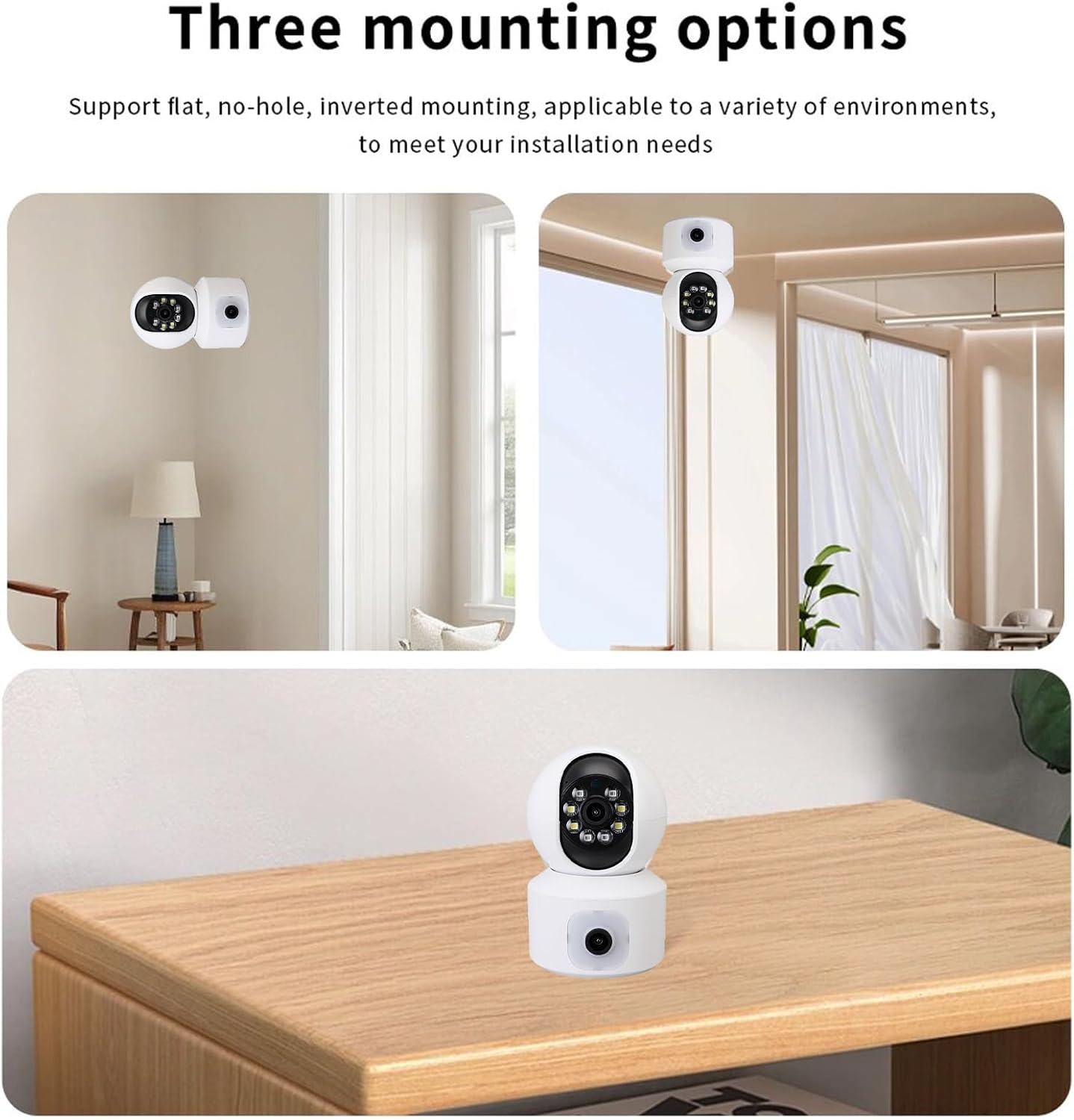
Image 3.1: Illustration of the three available mounting options: flat surface placement, wall mounting (no-hole), and inverted ceiling mounting.
- Flat Surface Placement: Simply place the camera on a flat, stable surface like a table or shelf.
- Wall Mount: Use the provided screws and anchors to securely mount the camera to a wall.
- Inverted Mounting: For ceiling installation, the camera can be mounted inverted. Ensure to adjust the image orientation in the O-KAM Pro app settings after installation.
4. Operating Instructions
4.1 Live View and Remote Control
- Open the O-KAM Pro app and select your camera from the device list.
- You will see the live video feed from the camera.
- Use the on-screen controls to pan (355° horizontal) and tilt (90° vertical) the camera lens to adjust the viewing angle.

Image 4.1: The GOWENIC camera demonstrating its 355° horizontal rotation and 90° vertical tilt capabilities, providing extensive coverage.
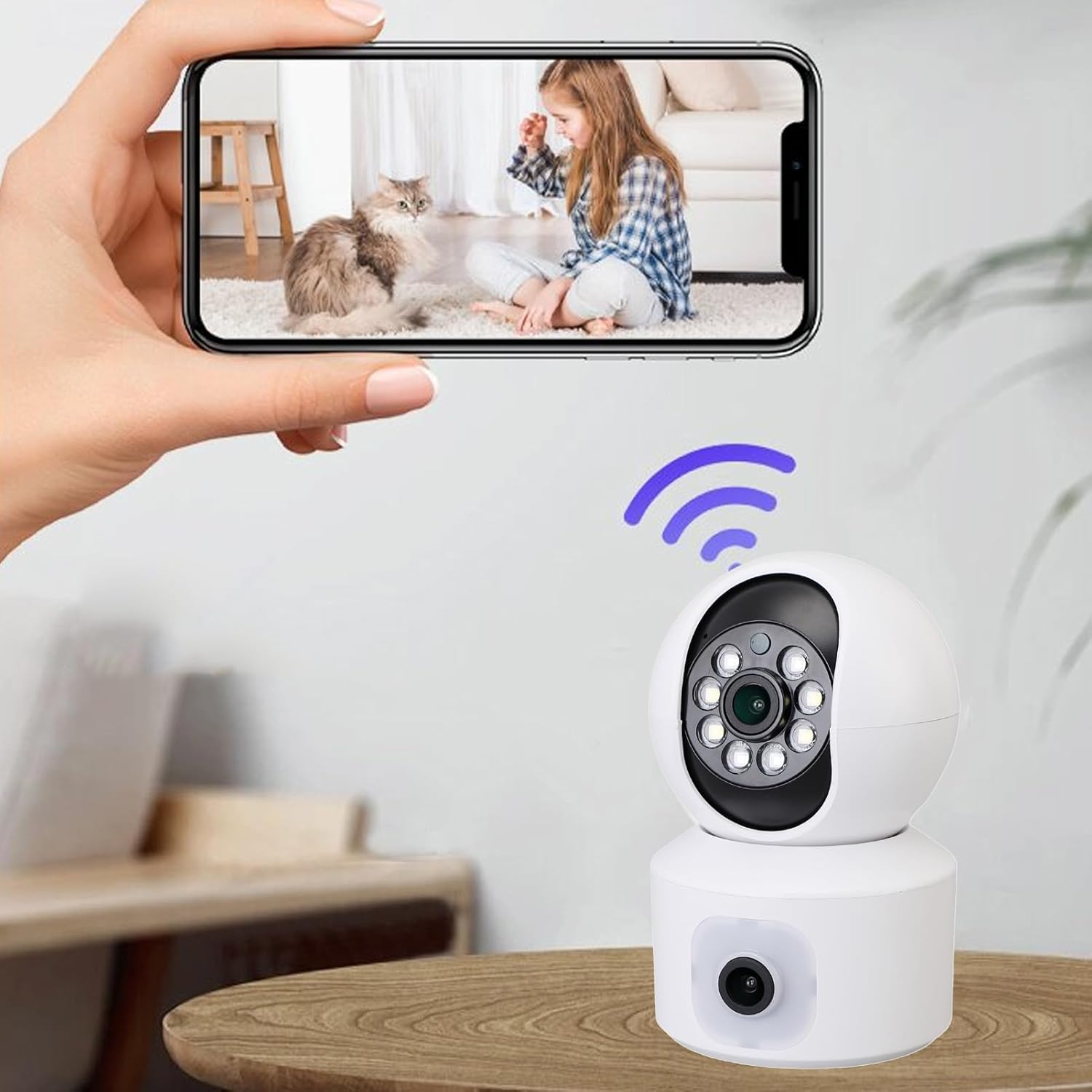
Image 4.2: A smartphone screen showing the live video feed from the GOWENIC camera, capturing an indoor scene with a child and a cat.
4.2 Two-Way Audio
To use the two-way intercom feature:
- While in live view, tap the microphone icon in the O-KAM Pro app.
- Speak into your phone's microphone to transmit audio through the camera's speaker.
- Release the microphone icon to listen through the camera's built-in microphone.
4.3 Recording and Storage
The camera supports 24/7 continuous recording and offers two storage options:
- Micro SD Card Storage: Insert a Micro SD card (up to 128GB, not included) into the designated slot on the camera (refer to Image 1.2). The camera will automatically begin recording to the card. You can view recordings via the O-KAM Pro app.
- Cloud Storage: The camera offers a 30-day no-fee trial for cloud storage. After the trial, subscription plans are available through the O-KAM Pro app. Cloud storage provides secure off-site backup of your recordings.
4.4 Motion Detection and Alerts
The camera features human detection and can send alerts to your smartphone:
- In the O-KAM Pro app settings for your camera, enable 'Motion Detection' or 'Human Detection'.
- Adjust sensitivity levels as needed.
- Ensure 'Alarm Push' notifications are enabled in the app and your phone's system settings to receive real-time alerts.
4.5 Sharing Access
You can easily share camera access with family or roommates:
- In the O-KAM Pro app, navigate to the camera settings.
- Look for a 'Share Device' or 'Family Management' option.
- Follow the prompts to invite other users via their O-KAM Pro account or email.
5. Maintenance
Proper maintenance ensures the longevity and optimal performance of your security camera:
- Lens Cleaning: Gently wipe the camera lenses with a soft, dry, lint-free cloth to remove dust or smudges. Avoid abrasive cleaners.
- Housing Cleaning: Clean the camera's exterior housing with a slightly damp cloth. Do not use harsh chemicals or allow water to enter the camera.
- Firmware Updates: Regularly check the O-KAM Pro app for available firmware updates. Keeping the firmware updated ensures the camera has the latest features and security patches.
- Power Supply: Ensure the camera is connected to a stable power source. Avoid frequent power interruptions.
- Environmental Protection: While designed for outdoor use, protect the camera from extreme weather conditions if possible, such as direct heavy rain or prolonged exposure to intense sunlight, to extend its lifespan.
6. Troubleshooting
If you encounter issues with your GOWENIC security camera, refer to the following common problems and solutions:
- Camera Offline:
- Check if the camera is powered on and the power adapter is working correctly.
- Ensure your Wi-Fi network is active and the camera is within range of the router.
- Restart the camera by unplugging and replugging the power cable.
- If the issue persists, try resetting the camera using the reset pin (refer to Image 1.2) and re-pairing it with the O-KAM Pro app.
- Poor Video Quality:
- Ensure your Wi-Fi signal strength is adequate. Move the camera closer to the router or consider a Wi-Fi extender.
- Clean the camera lenses with a soft cloth.
- Check the video resolution settings in the O-KAM Pro app.
- No Recording/Playback Issues:
- For Micro SD card storage: Ensure a compatible card (up to 128GB) is inserted correctly and formatted within the app. Check if the card is full.
- For Cloud Storage: Verify your cloud subscription status in the O-KAM Pro app.
- Ensure recording schedules or motion detection settings are correctly configured.
- Motion Detection Not Working:
- Verify that motion detection and alarm push notifications are enabled in the O-KAM Pro app settings.
- Adjust the motion detection sensitivity.
- Ensure there are no obstructions blocking the camera's view.
- Cannot Connect to App:
- Ensure your phone is connected to a 2.4GHz Wi-Fi network during the setup process.
- Double-check your Wi-Fi password.
- Try resetting the camera and attempting the connection process again.
7. Specifications
Detailed technical specifications for the GOWENIC Wireless Security Camera:
| Model Name | GOWENICwntm05gcfb |
| Video Capture Resolution | 1080p (1920 x 1080P) |
| Sensor | CMOS |
| Lens Viewing Angle | 100° Wide Angle |
| Camera Adjustable Angle | Horizontal 355°, Vertical 90° |
| Wireless Network | 2.4G WIFI 802.11b/g/n |
| Connectivity Technology | Ethernet (for initial setup/fallback), Wireless |
| Storage Options | Cloud Storage, Micro SD Card (Max 128GB, not included) |
| Power Source | AC/DC (via Type C port) |
| Minimum Illumination | 0.01LX/F1.2 |
| APP Compatibility | O-KAM Pro |
| Indoor/Outdoor Usage | Indoor/Outdoor |
| Mounting Type | Wall Mount, Flat Surface, Inverted |
| Product Dimensions (L x W x H) | 5.51 x 4.72 x 3.54 inches (14 x 12 x 9 cm) |
| Item Weight | 10.7 ounces (approx. 303g) |

Image 7.1: Diagram illustrating the dimensions of the GOWENIC security camera, showing a height of 12cm (4.72in) and a base width of 7.6cm (2.99in).

Image 7.2: Visual comparison demonstrating the superior clarity and detail of 1080P HD video quality compared to 720P, as provided by the GOWENIC camera.
8. Warranty and Support
GOWENIC is committed to providing high-quality products. For warranty information, technical support, or any inquiries regarding your GOWENIC Wireless Security Camera, please refer to the contact information provided with your purchase or visit the official GOWENIC website. Please retain your proof of purchase for warranty claims.