
EDUP EP-BE1703
EDUP USB WiFi 7 Adapter BE6500M Instruction Manual
Model: EP-BE1703
1. Introduction
This manual provides detailed instructions for the installation, operation, and maintenance of your EDUP USB WiFi 7 Adapter BE6500M (Model: EP-BE1703). This device is designed to provide high-speed wireless connectivity for desktop PCs and laptops, leveraging the latest WiFi 7 (IEEE 802.11be) technology across tri-band frequencies (6GHz, 5GHz, and 2.4GHz). Please read this manual thoroughly before using the product to ensure optimal performance and proper usage.

Figure 1: EDUP USB WiFi 7 Adapter BE6500M. This image displays the compact design of the USB WiFi adapter with its dual external antennas and USB 3.0 connector.
2. Package Contents
Verify that all items listed below are present in your product package. If any items are missing or damaged, please contact customer support.
- 1x EDUP USB WiFi 7 Adapter BE6500Mbps
- 1x U Disk Driver
3. Setup and Installation
Follow these steps to install and configure your EDUP USB WiFi 7 Adapter.
3.1 Driver Installation
The EDUP USB WiFi 7 Adapter requires a driver for proper functionality.
- Insert the provided U Disk Driver into an available USB port on your computer.
- Locate the driver program (e.g., "Setup.exe") on the U Disk.
- Double-click the driver program to initiate the installation process. Follow the on-screen prompts to complete the installation.
- Alternatively, if you do not have a U Disk drive or encounter issues, you can download the latest driver from the official EDUP website: szedup.com/usb-adapters/EPBE1703.html. Ensure you have decompression software installed to extract the driver files if necessary.

Figure 2: Easy Setup Steps. This image illustrates the three main steps for setup: inserting the adapter, installing the driver from the U disk, and connecting to a Wi-Fi network.
3.2 Hardware Connection
- After driver installation, insert the EDUP USB WiFi 7 Adapter into an available USB 3.0 port on your desktop PC or laptop. For optimal performance, use a USB 3.0 port (typically blue inside).
- Ensure the adapter is securely seated in the USB port.
- Adjust the dual antennas to an upright position or as needed for optimal signal reception. The antennas are 90° rotatable.

Figure 3: Plug and Play Functionality. This image shows the adapter plugged into a laptop's USB port, highlighting its driver-free (after initial installation), no download, and easy installation aspects.
3.3 Connecting to a Wireless Network
- Once the adapter is installed and recognized by your operating system (Windows 10/11), open your computer's network settings.
- Scan for available wireless networks.
- Select your desired Wi-Fi network from the list and enter the network password (if required).
- The adapter will connect to the network, providing internet access.
4. Operation and Features
4.1 WiFi 7 Tri-Band Connectivity
The EDUP BE6500M adapter utilizes the latest WiFi 7 (IEEE 802.11be) standard, offering high-speed wireless connectivity across three frequency bands:
- 6GHz Band: Provides interference-free bandwidth with increased throughput, ideal for demanding applications.
- 5GHz Band: Offers high speeds for streaming and gaming.
- 2.4GHz Band: Provides wider coverage and compatibility with older devices.
This tri-band capability allows for simultaneous connections for multiple devices, ensuring a stable and lag-free wireless experience. The maximum combined transmission rate is up to 6500Mbps.

Figure 4: Tri-Band Speed Capabilities. This image illustrates the theoretical maximum speeds for each band: 2882 Mbps on 6GHz, 2882 Mbps on 5GHz, and 688 Mbps on 2.4GHz, totaling 6452 Mbps.
4.2 Enhanced Signal Coverage
The adapter features dual external antennas designed to enhance signal strength and extend wireless range. These antennas are rotatable, allowing for flexible adjustment to optimize signal reception and minimize dead zones.
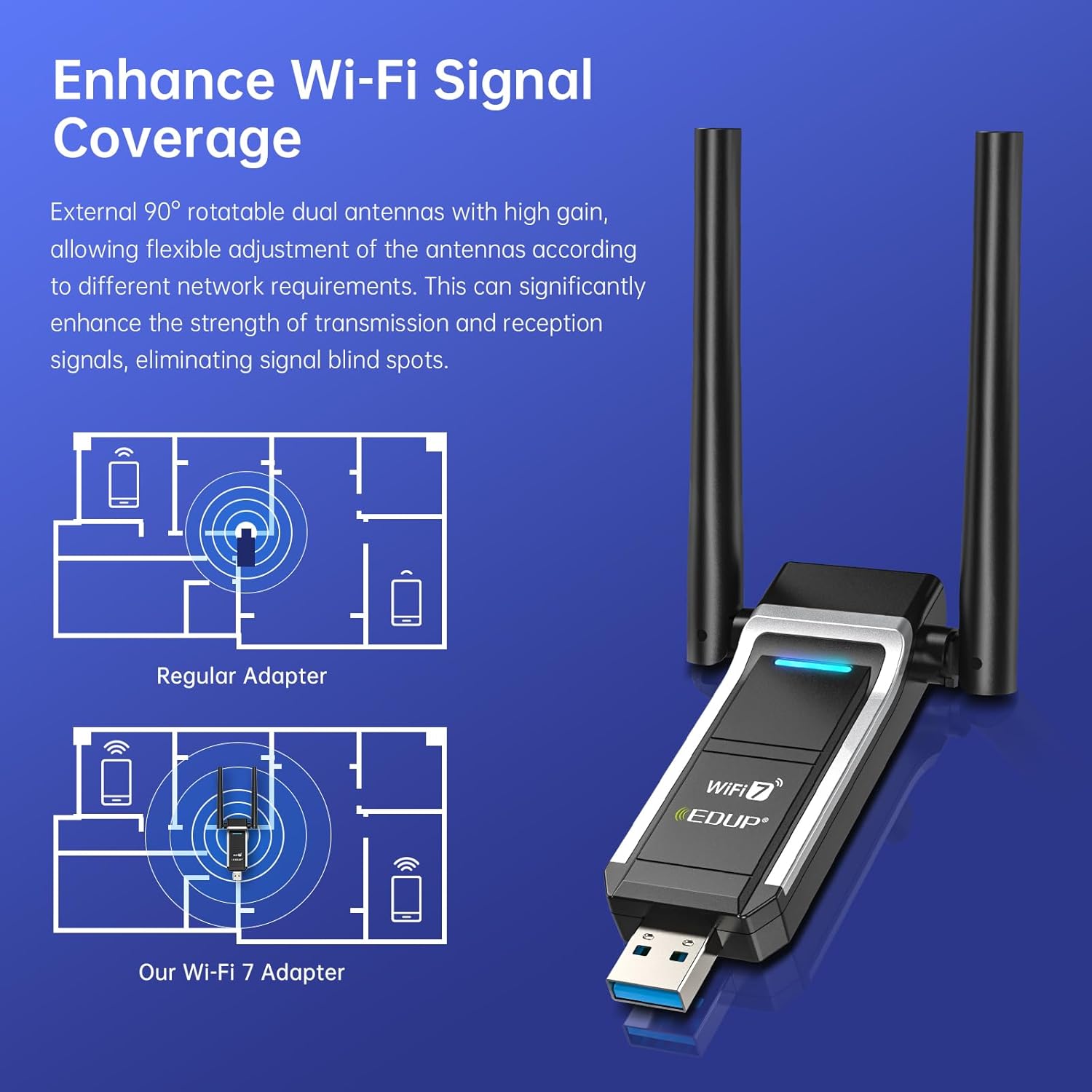
Figure 5: Signal Coverage Enhancement. This diagram compares the signal coverage of a regular adapter versus the EDUP Wi-Fi 7 adapter, showing improved range and reduced signal blind spots with the dual antennas.
4.3 USB 3.0 Interface
Equipped with a USB 3.0 interface, the adapter provides data transfer speeds up to 10 times faster than USB 2.0. This ensures quicker response times for data transfers, smooth video streaming, and responsive online gaming.
4.4 Advanced WiFi 7 Technologies (OFDMA & MU-MIMO)
The adapter incorporates advanced WiFi 7 features to optimize network performance:
- OFDMA (Orthogonal Frequency-Division Multiple Access): When paired with a compatible router, OFDMA allows your PC to receive data simultaneously with other devices on the same stream. This significantly reduces latency and improves efficiency, especially in busy network environments, leading to minimal lag for videos and games.
- MU-MIMO (Multi-User, Multiple-Input, Multiple-Output): MU-MIMO enables the network to efficiently manage bandwidth for multiple devices concurrently. This results in seamless streaming, gaming, and uploads, enhancing overall network efficiency and reducing congestion.
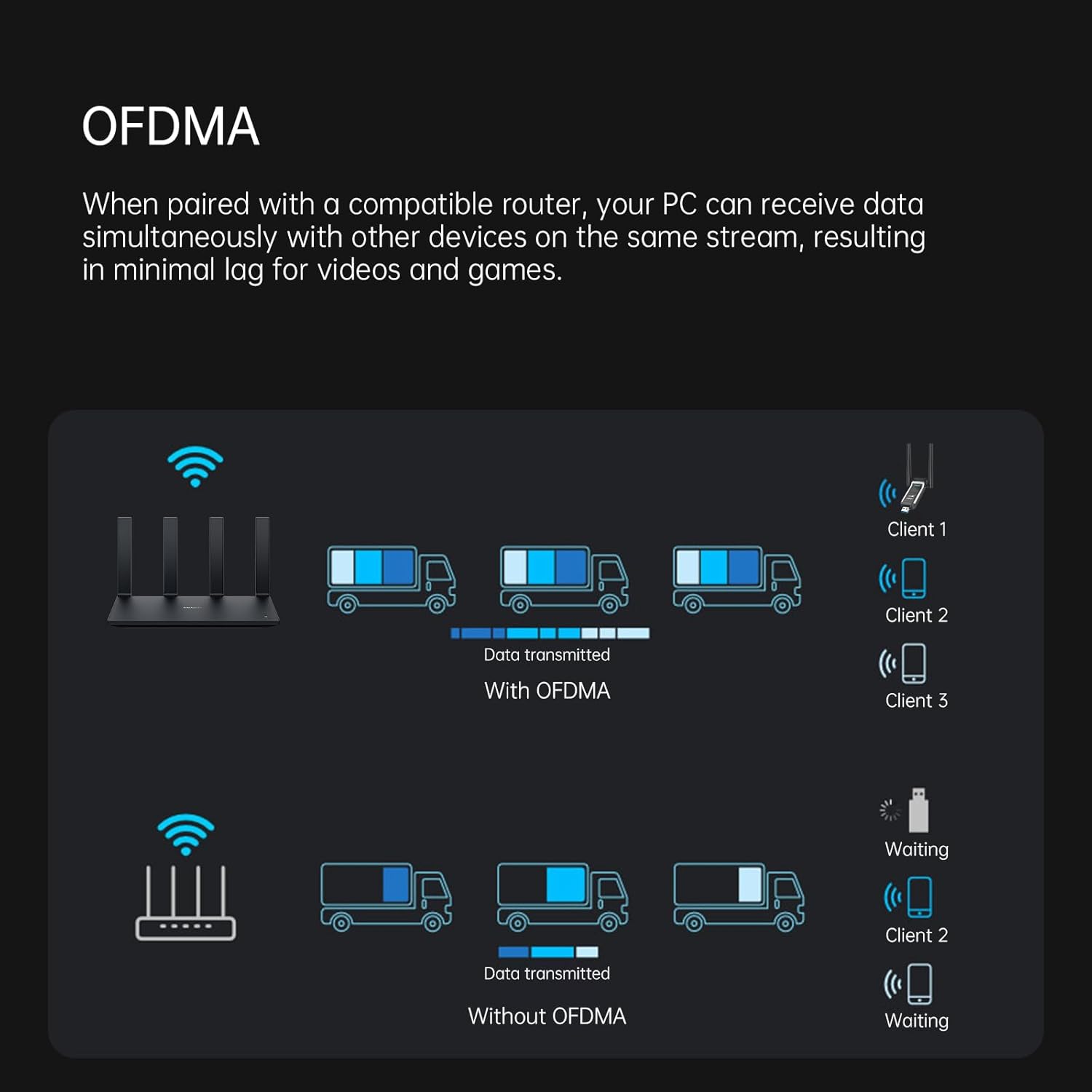
Figure 6: OFDMA for Low Latency. This diagram illustrates how OFDMA allows a router to transmit data to multiple clients simultaneously, reducing waiting times compared to traditional methods.
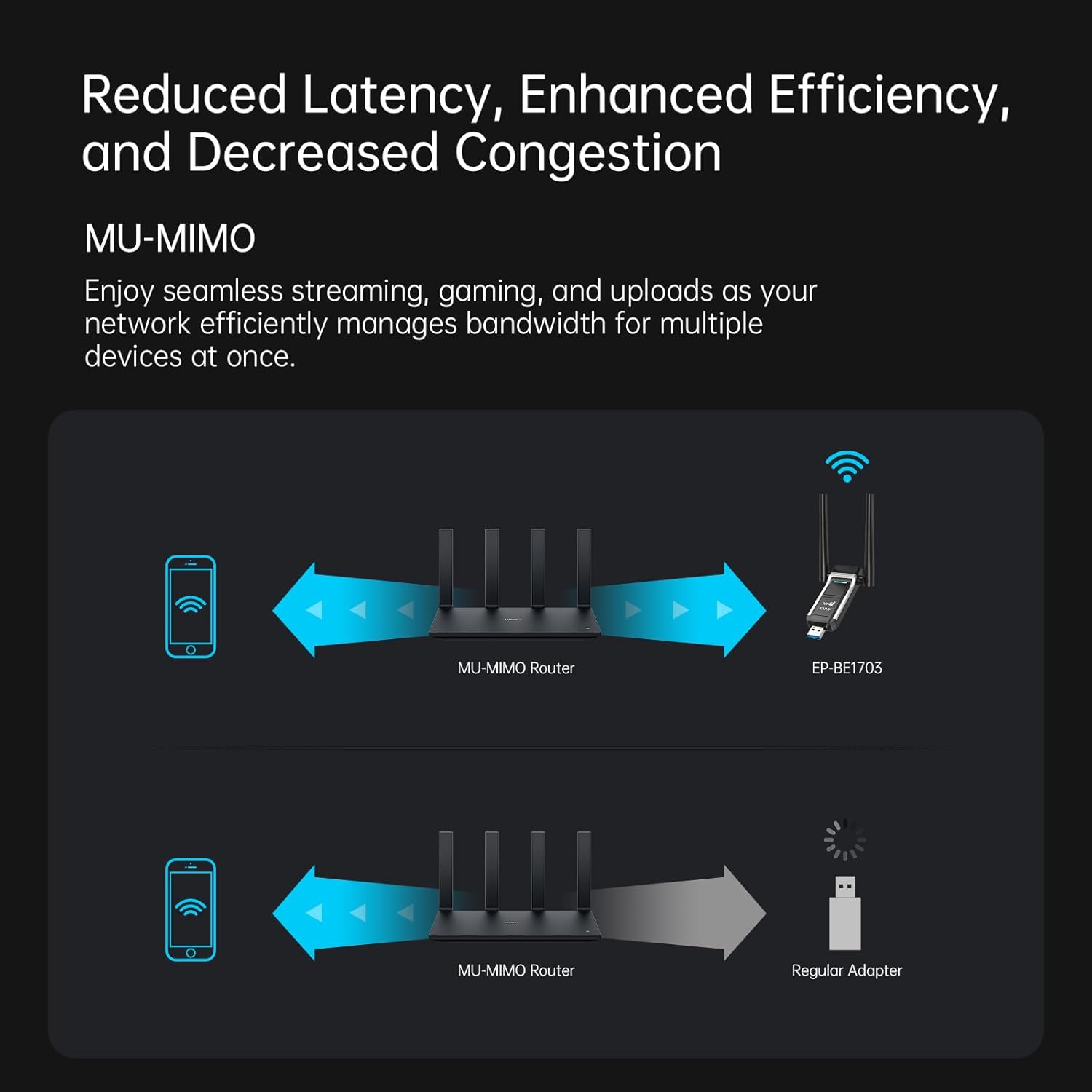
Figure 7: MU-MIMO for Enhanced Efficiency. This diagram shows how MU-MIMO enables a router to communicate with multiple devices (like the EP-BE1703 adapter) simultaneously, improving overall network performance compared to a regular adapter.
5. Maintenance
To ensure the longevity and optimal performance of your EDUP USB WiFi 7 Adapter, consider the following maintenance tips:
- Keep Clean: Periodically clean the adapter's exterior with a soft, dry cloth. Avoid using liquid cleaners or solvents.
- Proper Storage: When not in use, store the adapter in a cool, dry place away from direct sunlight and extreme temperatures.
- Firm Connection: Ensure the adapter is always securely plugged into the USB port to prevent intermittent connections or damage.
- Driver Updates: Regularly check the EDUP website (szedup.com/usb-adapters/EPBE1703.html) for the latest driver updates to ensure compatibility and performance improvements.
6. Troubleshooting
If you encounter issues with your EDUP USB WiFi 7 Adapter, refer to the following common troubleshooting steps:
- No Wi-Fi Connection:
- Ensure the adapter is securely plugged into a USB 3.0 port.
- Verify that the drivers are correctly installed. Reinstall if necessary.
- Check if your Wi-Fi network is broadcasting and visible.
- Restart your computer and your wireless router.
- Slow Connection Speed:
- Ensure you are connected to the 5GHz or 6GHz band if available, as these offer higher speeds.
- Adjust the adapter's antennas for optimal signal reception.
- Reduce interference by moving the adapter away from other electronic devices.
- Update your router's firmware and the adapter's drivers to the latest versions.
- Ensure your router supports WiFi 7 (802.11be) for maximum performance.
- Adapter Not Recognized:
- Try plugging the adapter into a different USB port.
- Check Device Manager (Windows) to see if the adapter is listed without errors.
- Reinstall the drivers from the U Disk or the official website.
- Intermittent Connection:
- Ensure the adapter is firmly seated in the USB port.
- Check for physical obstructions or sources of interference between the adapter and the router.
- Update drivers and router firmware.
If these steps do not resolve your issue, please contact EDUP customer support.
7. Specifications
| Feature | Detail |
|---|---|
| Model Number | EP-BE1703 |
| Hardware Interface | USB 3.0 |
| Wireless Standard | IEEE 802.11be (WiFi 7), 802.11ax/ac/a/b/g/n |
| Frequency Bands | 6GHz, 5GHz, 2.4GHz (Tri-Band) |
| Data Transfer Rate | Up to 6500 Mbps (Combined) |
| Compatible Operating Systems | Windows 10 (64-bit), Windows 11 (64-bit) |
| Compatible Devices | Laptop, Desktop PC |
| Antennas | Dual External, 90° Rotatable |
| Color | Black |
| Item Weight | 20 Grams (0.705 ounces) |
| Package Dimensions | 4.49 x 3.74 x 0.87 inches |
8. Warranty and Support
EDUP provides the following warranty and support for this product:
- Manufacturer Warranty: 3 years replacement warranty.
- Return Policy: 90 days no-questions-asked return policy.
- Customer Support: For any assistance or inquiries, please contact us via Amazon message.
Related documentsEP-BE1703


Ask a question about this manual
Ask about setup, troubleshooting, compatibility, parts, safety, or missing instructions. Manuals+ will review the question and use this page’s manual context to help answer it.