1. Introduction
The PAKCQNH Air Tracker Tags are versatile Bluetooth tracking devices designed to help you locate your essential items quickly and efficiently. Compatible with both Apple Find My and Google Find Hub applications, these tags offer a reliable solution for keeping track of keys, wallets, luggage, backpacks, and more. This manual provides detailed instructions for setting up, operating, and maintaining your Air Tracker Tags.
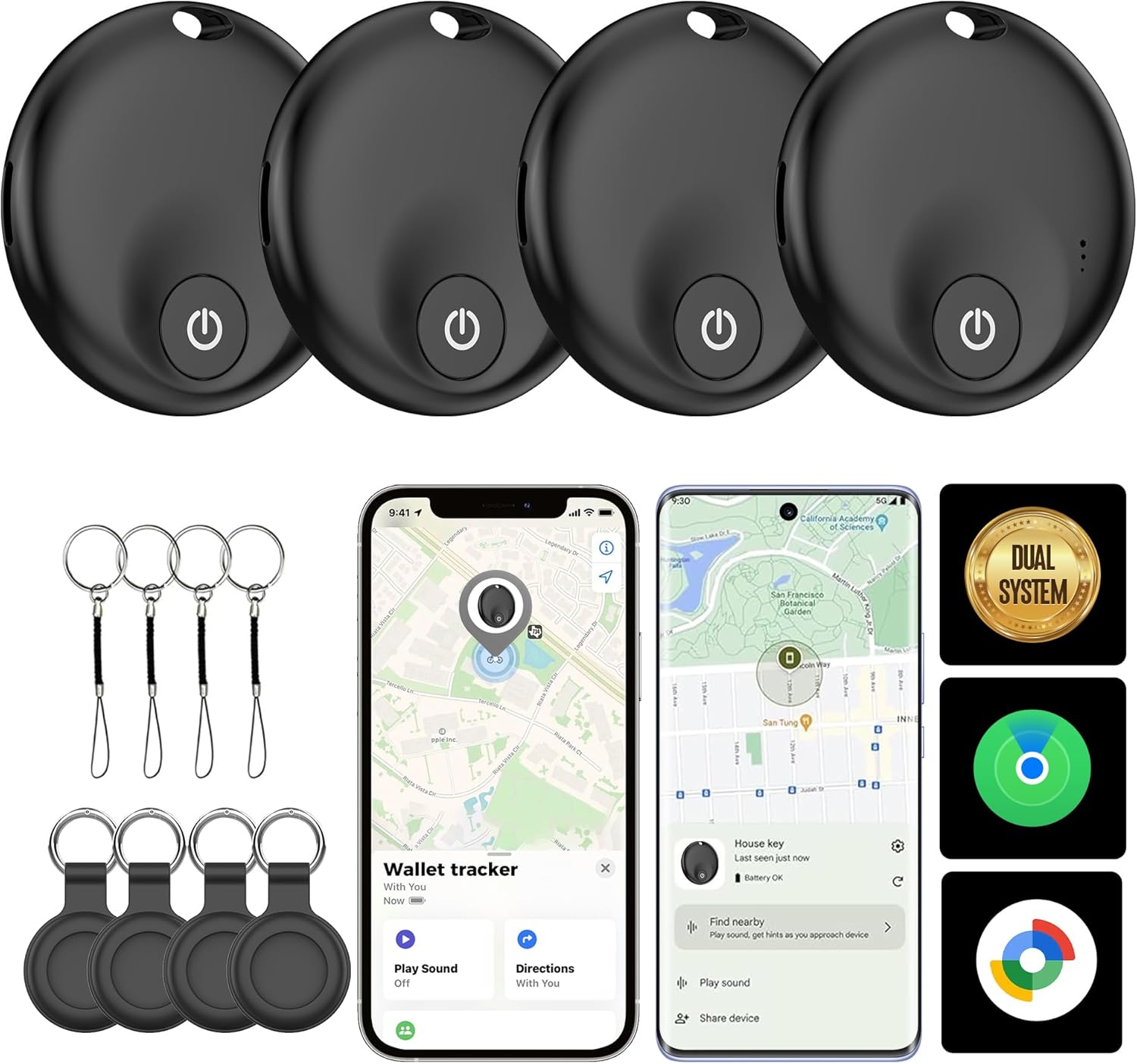
2. Key Features
- Dual System Compatibility: Works seamlessly with both Apple Find My (iOS) and Google Find Hub (Android) applications.
- Loud Sound Alert: Emits a sound up to 110dB (some sources indicate 120dB) to help locate items even when buried under blankets or deep in a couch.
- Global Tracking: Provides fast location updates, ideal for travel and everyday use.
- Replaceable Battery: Features a user-replaceable CR2 battery with a lifespan of up to one year.
- Compact and Lightweight Design: Thin and durable, making it easy to attach to various items without adding bulk.


3. Package Contents
Your PAKCQNH Air Tracker Tags package includes:
- 4 x Air Tracker Tags (Model: Ntag-dual-Black)
- 4 x Keyrings/Lanyards
- 1 x Battery opening tool (blue pick)
- 1 x Instruction Manual
4. Setup
4.1. For Apple Find My (iOS Devices)
- Ensure your iOS device's Bluetooth is turned on.
- Open the Find My app on your iPhone or iPad.
- Navigate to the 'Items' tab and tap 'Add New Item'.
- Select 'Other Supported Item'.
- Press the button on your Air Tracker Tag to activate pairing mode.
- Your device will detect the tag. Tap 'Connect'.
- Follow the on-screen prompts to name your item and assign an emoji.
- Agree to the terms and conditions to link the tag to your Apple ID.

4.2. For Google Find Hub (Android Devices)
- Ensure your Android device's Bluetooth is turned on.
- Download and open the Google Find Hub (or Find My Device) app from the Play Store.
- Press the button on your Air Tracker Tag to activate pairing mode.
- Place the tag near your phone. A pairing window should automatically appear.
- Tap 'Connect' and follow the on-screen instructions to pair the device.
- Once connected, you can manage the device name and category within the app.

4.3. Video Guide: Pairing with Android
5. Operation
5.1. Finding Your Items
Once your Air Tracker Tag is paired, you can use the respective app (Apple Find My or Google Find Hub) to locate your items:
- View Location on Map: The app displays the last known location of your tag on a map.
- Play Sound: If your item is nearby, tap the 'Play Sound' option in the app. The tag will emit a loud sound, guiding you to its exact location.
- Find Nearby (Precision Finding): For closer proximity, some apps offer a 'Find Nearby' feature that provides visual cues (like a growing flower icon) to indicate how close you are to the tag.
- Siri Integration: For Apple users, you can ask Siri to locate your items (e.g., "Siri, where are my keys?").

5.2. Sharing Device Location
You can share the location of your Air Tracker Tag with family and friends through the app, allowing multiple people to help locate a lost item.

6. Maintenance
6.1. Battery Replacement
The Air Tracker Tag uses a standard CR2 battery, which can be easily replaced when depleted. A battery opening tool (blue pick) is included in your package for this purpose.
- Locate the small indentation on the side of the tracker tag.
- Insert the provided blue pick tool into the indentation.
- Gently twist or pry the tool to separate the two halves of the tracker.
- Carefully remove the old CR2 battery.
- Insert a new CR2 battery, ensuring correct polarity.
- Align the two halves of the tracker and press them firmly together until they snap shut.
7. Troubleshooting
| Issue | Possible Solution |
|---|---|
| Tag not pairing/connecting |
|
| Sound is too low or not playing |
|
| Inaccurate location tracking |
|
| Cannot remove device from app |
|
8. Specifications
- Model Number: Ntag-dual-Black
- Dimensions: Approximately 1.7 inches (42mm) diameter, 0.3 inches (8mm) thickness (inferred from image)
- Item Weight: 0.353 ounces (10 Grams)
- Battery: 1 x CR2 battery (included, replaceable)
- Battery Life: Up to 365 days
- Sound Level: 110dB (some sources indicate 120dB)
- Connectivity: Bluetooth (Wireless)
- Compatibility: Apple Find My (iOS), Google Find Hub (Android)
- Manufacturer: PAKCQNH
9. Warranty and Support
For warranty information, technical support, or further assistance with your PAKCQNH Air Tracker Tags, please refer to the contact details provided on the product packaging or visit the official PAKCQNH website. Keep your purchase receipt for warranty claims.


