
Canon ELPH 360 HS
Canon PowerShot ELPH 360 HS Digital Camera User Manual
Model: ELPH 360 HS (7283C001)
Introduction
This manual provides essential instructions for the safe and effective use of your Canon PowerShot ELPH 360 HS digital camera. Please read this manual thoroughly before using the camera and keep it for future reference.
The PowerShot ELPH 360 HS is a compact digital camera designed for capturing high-quality photos and videos. It features a 12x optical zoom, a 20.2 Megapixel CMOS sensor, and a DIGIC 4+ Image Processor for detailed images even in low light. Built-in Wi-Fi and NFC enable easy sharing.
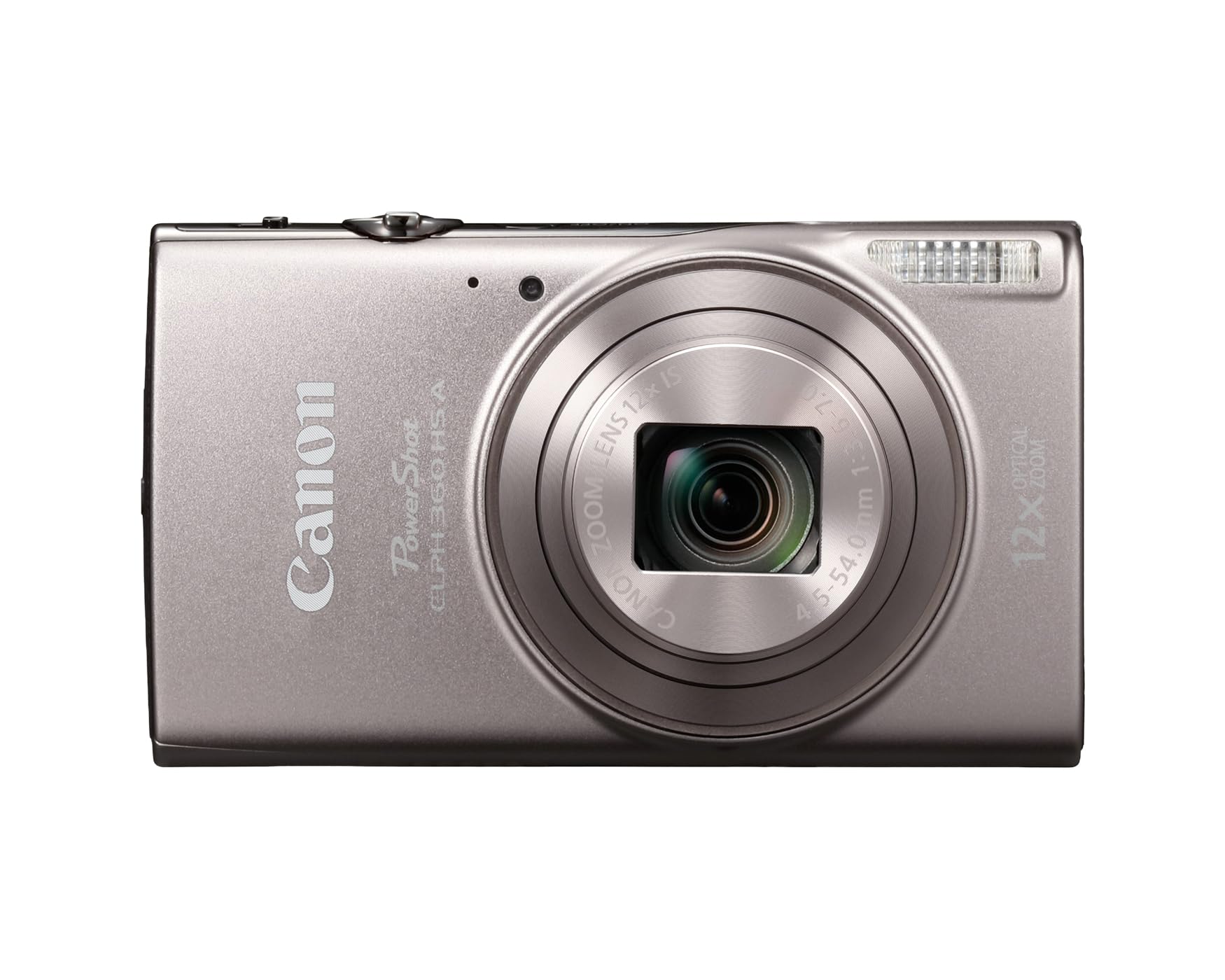
Figure 1: Front view of the Canon PowerShot ELPH 360 HS A Silver camera.
Setup
1. Unpacking
Verify that all items are present in the box:
- Canon PowerShot ELPH 360 HS Digital Camera
- Battery Pack
- Battery Charger
- Wrist Strap
- User Manual (this document)

Figure 2: Included accessories with the camera.
2. Charging the Battery
- Insert the battery into the battery charger.
- Plug the charger into a power outlet.
- The charging indicator light will show the charging status. Charge until the light indicates a full charge.
Caution: Use only the specified battery charger.
3. Inserting the Battery and Memory Card
- Open the battery/card compartment cover on the bottom of the camera.
- Insert the charged battery with the correct orientation until it clicks into place.
- Insert a compatible SD memory card into the card slot until it clicks.
- Close the compartment cover securely.

Figure 3: Battery and memory card compartment.
4. Initial Power On and Settings
- Press the ON/OFF button to power on the camera.
- Follow the on-screen prompts to set the date, time, and language.

Figure 4: Top controls including the ON/OFF button.
Operating Instructions
1. Taking Photos
- Turn on the camera by pressing the ON/OFF button.
- Select your desired shooting mode using the mode dial or menu. The camera features Hybrid Auto mode, which records a short video before each photo.
- Frame your shot using the 3.0-inch LCD screen.
- Use the zoom lever to adjust the 12x optical zoom.
- Press the shutter button halfway to focus, then press fully to take the picture.

Figure 5: Rear controls and LCD screen.
2. Recording Videos
- With the camera powered on, press the dedicated Movie Button (red dot icon) to start recording.
- Press the Movie Button again to stop recording.
- Videos are recorded in 1080p Full HD resolution.
3. Using Wi-Fi and NFC
The camera features built-in Wi-Fi and NFC for easy transfer of images and videos to a smartphone or other compatible devices.
- Install the Canon Camera Connect app on your smartphone.
- On the camera, select the Wi-Fi function from the menu.
- Follow the on-screen instructions to connect to your smartphone via Wi-Fi or NFC.
- Once connected, you can browse, transfer, and share your photos and videos.
Maintenance
1. Cleaning the Camera
- Use a soft, lint-free cloth to clean the camera body.
- For the lens, use a lens brush or a blower to remove dust, then gently wipe with a lens cleaning cloth.
- Do not use organic solvents or strong chemicals.
2. Battery Care
- Store the battery in a cool, dry place when not in use.
- Avoid exposing the battery to extreme temperatures.
- Recharge the battery regularly, even if not used, to maintain its life.
3. Storage
When storing the camera for extended periods, remove the battery and memory card. Store the camera in a dry, well-ventilated area, away from direct sunlight and high humidity.
Troubleshooting
| Problem | Solution |
|---|---|
| Camera does not power on. | Ensure the battery is fully charged and inserted correctly. Check if the battery contacts are clean. |
| Cannot take pictures. | Check if a memory card is inserted and has sufficient free space. Ensure the lens cap is removed. |
| Images are blurry. | Ensure the lens is clean. Hold the camera steady or use a tripod. Check focus settings. |
| Wi-Fi connection fails. | Ensure the Canon Camera Connect app is installed and updated. Restart both the camera and smartphone. Check Wi-Fi settings on both devices. |
| Battery drains quickly. | Reduce screen brightness. Turn off Wi-Fi/NFC when not in use. Limit continuous video recording. |
Specifications
| Feature | Detail |
|---|---|
| Model Name | Canon PowerShot ELPH 360 HS |
| Model Number | 7283C001 |
| Color | Silver |
| Photo Sensor Resolution | 20.2 MP |
| Optical Zoom | 12x |
| Image Stabilization | Optical |
| Video Resolution | 1080p (Full HD) |
| Screen Size | 3.0 inches LCD |
| Connectivity | Wi-Fi, NFC |
| Battery Type | Lithium Ion |
| Supported File Format | JPEG, MP4 |
| UPC | 013803387711 |
Warranty Information
This Canon PowerShot ELPH 360 HS camera comes with a 1 Year Manufacturer Warranty. Please retain your proof of purchase for warranty claims. For detailed terms and conditions, refer to the warranty card included with your product or visit the official Canon website.
Support
For further assistance, technical support, or to download the latest software and drivers, please visit the official Canon support website:
Canon USA Support
You can also find FAQs and community forums on the Canon website.
Related documentsELPH 360 HS


Ask a question about this manual
Ask about setup, troubleshooting, compatibility, parts, safety, or missing instructions. Manuals+ will review the question and use this page’s manual context to help answer it.