
Introduction
This manual provides essential instructions for setting up, operating, maintaining, and troubleshooting your Motorola Razr 2024 smartphone. Please read this guide thoroughly to ensure proper use and to maximize the device's capabilities.
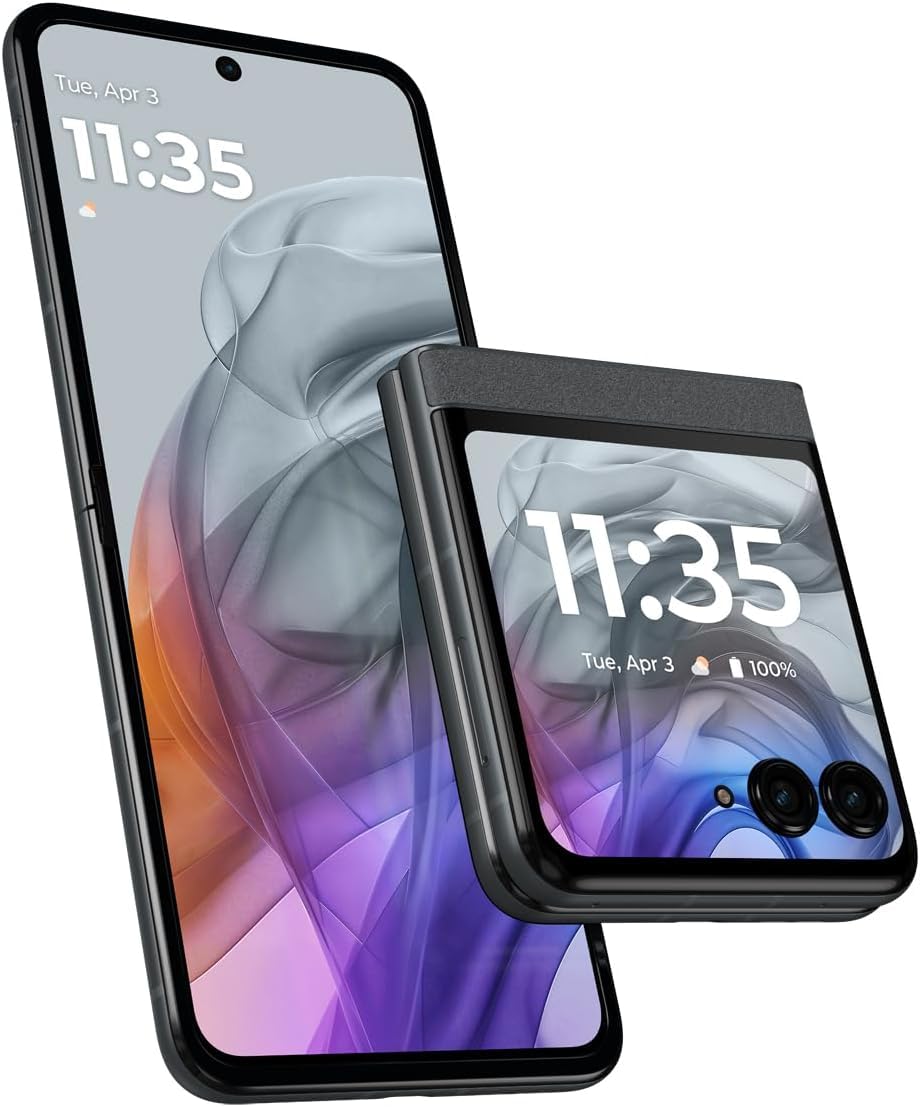
Image: The Motorola Razr 2024 in its folded state, showcasing the external display.
1. Setup
1.1 Unboxing and Initial Charge
Carefully remove all components from the packaging. Before first use, it is recommended to fully charge your device using the provided USB Type-C cable and a compatible power adapter (sold separately).
1.2 SIM Card Installation
- Locate the SIM card tray on the side of your device.
- Insert the SIM ejector tool (or a small paperclip) into the small hole on the tray and press firmly until the tray pops out.
- Place your Nano-SIM card into the tray with the gold contacts facing down, ensuring it fits securely.
- Carefully reinsert the tray into the device.
Note: This device supports a single Nano-SIM card.
1.3 Powering On and Initial Configuration
Press and hold the Power button until the Motorola logo appears. Follow the on-screen prompts to complete the initial setup, which includes selecting your language, connecting to a Wi-Fi network, setting up your Google account, and configuring security features.
2. Operating Your Device
2.1 Folding Design and Displays
The Motorola Razr 2024 features a unique foldable design. It has two main displays:
- External Display: A 3.6-inch screen visible when the phone is folded. This display allows you to check notifications, view the time, control music, and access quick settings without opening the device.
- Main Display: A 6.9-inch pOLED screen that becomes accessible when the phone is unfolded. This is your primary interface for apps, browsing, and media consumption.
2.2 Navigation and Android 14
Your device runs on Android 14. You can navigate using gestures (swiping from edges) or traditional three-button navigation (Back, Home, Recents). Customize your navigation preferences in the Settings menu.
2.3 Camera Functions
The device is equipped with a 50MP rear camera system. To open the camera, tap the camera icon on your home screen or external display. Key features include:
- Photo Modes: Standard, Portrait, Night Vision, Pro Mode.
- Video Recording: Supports up to 4K resolution at 30 frames per second (fps).
- Moto AI Stabilization: Enhances video smoothness, especially during movement.
- Flex View: Utilize the foldable design to prop the phone at various angles for hands-free photography and video calls.
2.4 Audio and Media
Experience immersive sound with Dolby Atmos technology. Connect headphones via the USB Type-C port or wirelessly via Bluetooth. The device supports various media formats for playback.
2.5 Battery Management
The Motorola Razr 2024 is powered by a 4200 mAh Lithium-Ion battery. To optimize battery life, adjust screen brightness, close unused applications, and utilize power-saving modes available in the Settings menu.
3. Maintenance
3.1 Cleaning Your Device
To clean your phone, gently wipe it with a soft, lint-free cloth. For stubborn smudges, slightly dampen the cloth with water or a screen cleaner specifically designed for electronics. Avoid using harsh chemicals or abrasive materials.
3.2 Water Resistance
The device features a water-resistant design. This means it is protected against splashes and light rain, but it is not waterproof. Avoid submerging the device in water or exposing it to pressurized water. Damage due to liquid exposure is not covered under warranty.
3.3 Software Updates
Regularly check for and install software updates to ensure your device has the latest features, security patches, and performance improvements. You can find update options in Settings > System > System updates.
3.4 Foldable Screen Care
The foldable display is a delicate component. Avoid pressing hard on the screen, especially near the crease. Keep the screen free of debris before folding. Do not apply screen protectors not specifically designed for foldable displays.
4. Troubleshooting
4.1 Device Not Powering On
- Ensure the battery is charged. Connect the device to a charger for at least 15 minutes before attempting to power it on.
- Perform a force restart by pressing and holding the Power button for approximately 10-15 seconds.
4.2 Network Connectivity Issues
- Check if your SIM card is properly inserted.
- Toggle Airplane Mode on and off (Settings > Network & internet > Airplane mode).
- Reset network settings (Settings > System > Reset options > Reset Wi-Fi, mobile & Bluetooth).
- Contact your carrier (T-Mobile) to verify your service plan and network status.
4.3 Apps Crashing or Freezing
- Close and reopen the app.
- Clear the app's cache and data (Settings > Apps > See all apps > [App Name] > Storage & cache).
- Ensure the app is updated to its latest version from the Google Play Store.
- If the issue persists, uninstall and reinstall the app.
4.4 Factory Reset
If you encounter persistent software issues, a factory reset may resolve them. Warning: This will erase all data on your device. Back up important data before proceeding. To perform a factory reset, go to Settings > System > Reset options > Erase all data (factory reset).
5. Specifications
| Feature | Detail |
|---|---|
| Brand | Motorola |
| Model Name | Razr 2024 |
| Operating System | Android 14 |
| RAM | 8 GB |
| Internal Storage | 256 GB (Maximum Flash Memory Supported) |
| Main Screen Size | 6.9 Inches pOLED |
| Main Screen Resolution | 1080 x 2640 Pixels |
| External Display | 3.6 Inches |
| Rear Camera | 50 MP |
| Video Capture Resolution | 4K at 30 fps |
| Battery Capacity | 4200 mAh Lithium-Ion |
| Connectivity | 5G, USB Type C |
| SIM Card Type | Single Nano SIM |
| Water Resistance | Water Resistant |
| Dimensions (Unfolded) | 0.28 x 2.91 x 6.74 inches (approximate) |
| Weight | 6.63 Ounces |
6. Warranty Information
This Motorola Razr 2024 device comes with a 90-day limited warranty. This warranty covers manufacturing defects under normal use. It does not cover damage caused by accidents, misuse, unauthorized modifications, or liquid exposure. For detailed terms and conditions, please refer to the warranty documentation provided with your purchase or visit the official Motorola support website.
7. Support
For further assistance, technical support, or to access additional resources, please refer to the following:
- Motorola Support Website: Visit www.motorola.com/support for FAQs, user guides, and contact information.
- T-Mobile Support: As this device is made for T-Mobile, you can also contact T-Mobile customer service for network-related issues or device support specific to your carrier plan.
- Online Forums: Community forums may offer solutions to common issues and tips from other users.


