1. Introduction
This manual provides essential information for the proper use and maintenance of your HOTWAV R9 Ultra 5G Rugged Tablet. Please read it thoroughly before operating the device to ensure optimal performance and longevity. The HOTWAV R9 Ultra is designed for durability and high performance, featuring 5G connectivity, a large display, and robust construction.
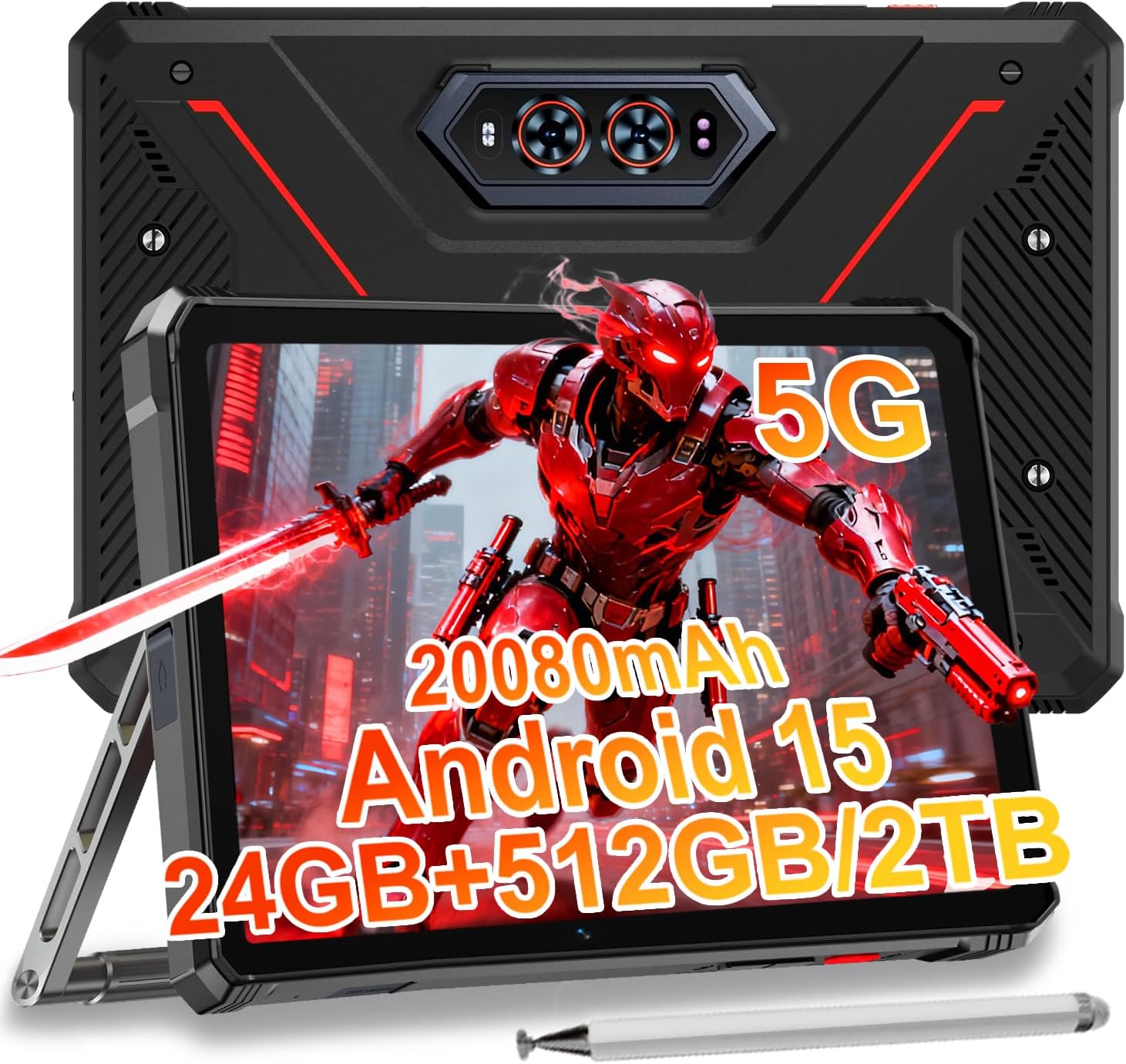
Image 1.1: The HOTWAV R9 Ultra 5G Rugged Tablet with its included stylus and stand.
2. What's in the Box
Verify that all items are present upon unboxing:
- 1 x R9 Ultra Tablet
- 1 x Instruction Manual
- 1 x Tablet Protective Film (pre-installed or separate)
- 1 x Tablet Charger Accessory
- 1 x Tablet Stand + Strap + Electronic Pen
3. Device Overview
Familiarize yourself with the physical components of your tablet.
3.1 Physical Components
- Display: 11-inch FHD+ 2K screen.
- Front Camera: 16MP for video calls and selfies.
- Rear Cameras: 64MP main camera, 20MP night vision camera.
- Ports: USB-C charging/data port, Dual SIM/MicroSD card slot.
- Buttons: Power button, Volume up/down buttons.
- Speakers: Integrated stereo speakers.
- Camping Light: Integrated high-performance light on the rear.

Image 3.1: Rear view of the tablet highlighting the camera system and integrated camping light.
4. Setup
4.1 SIM Card and MicroSD Installation
- Locate the SIM/MicroSD card slot on the side of the tablet.
- Use the provided SIM ejector tool to open the tray.
- Carefully place your Nano-SIM cards (up to two) and/or a MicroSD card (up to 2TB) into the tray, ensuring correct orientation.
- Insert the tray back into the tablet until it clicks into place.
Important Notice Before Purchase: HOTWAV rugged tablets are not compatible with AT&T, Cricket, or Verizon networks. They fully support T-Mobile, Mint, Boost, and Google Fi. Verify your carrier compatibility to ensure seamless connectivity.
4.2 Initial Power On and Android 15 Setup
- Press and hold the Power button until the HOTWAV logo appears.
- Follow the on-screen prompts to complete the initial setup, including language selection, Wi-Fi connection, Google account login, and security settings.
- The tablet runs on Android 15, offering enhanced features and security.

Image 4.1: Overview of the Android 15 operating system interface.
5. Operating the Tablet
5.1 Basic Navigation
- Touch Gestures: Use taps, swipes, and pinches to interact with the screen.
- Home Screen: Access apps and widgets.
- Notifications: Swipe down from the top of the screen to view notifications and quick settings.
5.2 Connectivity
- 5G Network: Insert a compatible 5G SIM card for high-speed mobile data.
- Wi-Fi 5: Connect to wireless networks for internet access.
- Bluetooth 5.0: Pair with Bluetooth devices such as headphones or speakers.
- GPS: Utilize multi-system navigation (Beidou, GPS, Galileo, Glonass) and a geomagnetic sensor for accurate positioning.

Image 5.1: The tablet's GPS functionality in use for navigation.
5.3 Camera Usage
The tablet features a versatile camera system:
- 64MP Main Camera: For high-resolution photos.
- 20MP Night Vision Camera: For clear images in low-light conditions.
- 16MP Front Camera: For video calls and self-portraits.
Camera modes include Night Mode, Pro Mode, Panorama Mode, and Underwater Mode for diverse shooting scenarios.

Image 5.2: Demonstrating the tablet's underwater and night vision camera capabilities.
5.4 Battery Management
The tablet is equipped with a 20080mAh battery for extended use.
- Charging: Use the included 20W fast charger for efficient power replenishment.
- OTG Reverse Charging: The tablet can act as a power bank to charge other devices.

Image 5.3: Visual representation of the 20080mAh battery and 20W fast charging.
5.5 Stylus Usage
The included stylus allows for precise interaction with the screen, ideal for drawing, note-taking, or navigating with gloves on.

Image 5.4: The stylus pen, designed for precise input.
5.6 Special Features
- Camping Light: Activate the rear camping light for illumination in dark environments.
- Gemini AI: Utilize Gemini AI for advanced reasoning, creative solutions, and deeper conversations.
- Glove Mode: The display supports operation while wearing gloves.
- Face ID: Unlock your tablet using facial recognition.
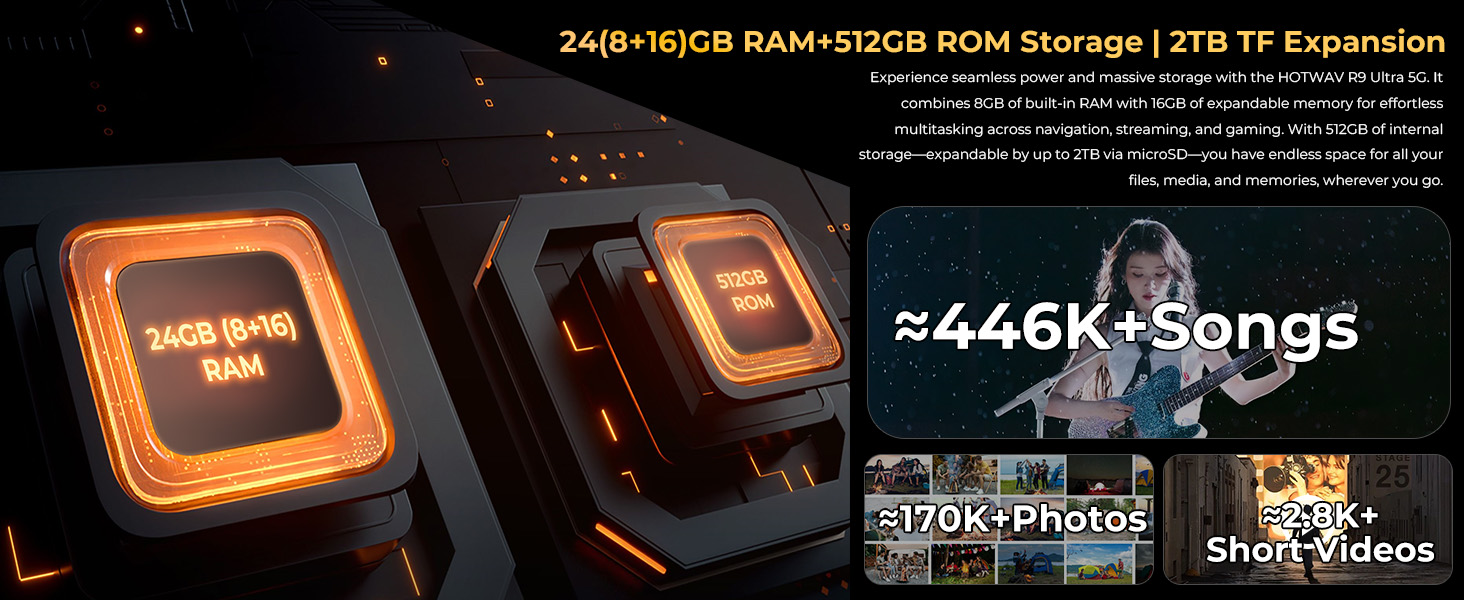
Image 5.5: The tablet's integrated camping light providing illumination.
5.7 Durability Features
The HOTWAV R9 Ultra is built to withstand challenging conditions:
- IP68 & IP69K Rated: Fully dust-tight and protected against high-pressure, high-temperature water jets.
- MIL-STD-810H Certified: Meets military standards for shock and drop resistance.
- Corning Gorilla Glass 3: Provides enhanced screen protection against scratches and impacts.

Image 5.6: The tablet's robust design, highlighting its resistance to drops, water, and dust.
6. Maintenance
6.1 Cleaning
To clean your tablet, use a soft, lint-free cloth. For stubborn dirt, slightly dampen the cloth with water. Avoid using harsh chemicals or abrasive materials.
6.2 Software Updates
Regularly check for and install software updates to ensure your tablet has the latest features, security patches, and performance improvements. Navigate to Settings > System > System update to check for available updates.
6.3 Storage Management
Periodically review your tablet's storage. Delete unnecessary files, uninstall unused apps, and transfer large media files to external storage or cloud services to maintain optimal performance. The tablet supports up to 2TB of expandable storage via MicroSD.
7. Troubleshooting
If you encounter issues with your tablet, refer to the following common solutions:
- Tablet not powering on: Ensure the battery is charged. Connect the tablet to its charger and wait a few minutes before attempting to power it on again.
- Slow performance: Close unused applications, clear cache, or restart the tablet. Check for available software updates.
- Connectivity issues (Wi-Fi/5G): Toggle Wi-Fi or mobile data off and on. Restart your router for Wi-Fi issues. Verify SIM card installation and carrier compatibility for 5G issues.
- Screen unresponsive: Perform a forced restart by holding the power button for approximately 10-15 seconds.
- Apps crashing: Clear the app's cache and data in Settings > Apps, or reinstall the app.
For persistent issues, contact customer support.
8. Specifications
| Feature | Specification |
|---|---|
| Brand | HOTWAV |
| Model Name | R9 Ultra |
| Operating System | Android 15 |
| Screen Size | 11 Inches |
| Screen Resolution | 1200 x 1920 Pixels (2K FHD+) |
| Processor Brand | Unisoc |
| Graphics Coprocessor | Mali-G57 MC2 |
| RAM | 24GB (8GB physical + 16GB virtual) |
| Internal Storage | 512GB |
| Expandable Storage | Up to 2TB via MicroSD |
| Rear Webcam Resolution | 64 MP (Main) + 20 MP (Nightvision) |
| Front Webcam Resolution | 16 MP |
| Battery Capacity | 20080mAh |
| Charging | 20W Fast Charging, OTG Reverse Charging |
| Durability Ratings | IP68, IP69K, MIL-STD-810H |
| Connectivity | 5G, Wi-Fi 5, Bluetooth 5.0, GPS (Beidou, Galileo, Glonass) |
| Item Weight | 2.64 pounds |
| Product Dimensions | 10.6 x 7.1 x 0.7 inches |
9. Warranty and Support
9.1 Warranty Information
The HOTWAV R9 Ultra comes with a comprehensive 2-year hardware warranty. This warranty covers manufacturing defects and ensures the reliability of your device. Please retain your proof of purchase for warranty claims.
9.2 Customer Support
For technical assistance, troubleshooting, or warranty inquiries, please contact HOTWAV customer support. Support options typically include:
- 24/7 Online Support
- Lifetime Technical Support
Refer to the official HOTWAV website or your purchase documentation for specific contact details.

Image 9.1: Representation of HOTWAV's customer support services.


