
1. Introduction
Thank you for choosing the HEBEOT HD 1080p Portable Video Camera. This manual provides essential information for setting up, operating, and maintaining your device. Please read it thoroughly before use to ensure optimal performance and longevity of your camera.
2. Safety Information
- Do not expose the camera to water or moisture.
- Avoid extreme temperatures, direct sunlight, or dusty environments.
- Do not attempt to disassemble or repair the device yourself. Contact qualified personnel for service.
- Keep out of reach of children.
- Use only the provided data cable for charging.
3. Package Contents
Please check the package for the following items:
- 1 x HEBEOT HD 1080p Portable Video Camera
- 1 x Data Cable (USB Type-C)
- 1 x Instruction Manual
4. Product Overview
The HEBEOT Portable Video Camera is a compact device designed for capturing high-definition video and photos. It features a 1080p camera module, built-in supplementary lights for low-light conditions, and WiFi connectivity for easy content management.


5. Setup
5.1 Charging the Camera
Before first use, fully charge the camera. Connect the provided USB Type-C data cable to the camera's charging port and the other end to a USB power adapter (not included) or a computer USB port. The charging indicator will show the charging status.
5.2 Inserting a TF Card
The camera requires a TF (microSD) card for storing recordings. Locate the TF card slot on the side of the camera. Gently insert the TF card with the gold contacts facing down until it clicks into place. Ensure the card is inserted correctly to avoid damage.
5.3 Powering On/Off
To power on the camera, slide the power switch to the 'ON' position. To power off, slide the switch to the 'OFF' position.
6. Operating Instructions
6.1 One-Touch Recording and Photo Taking
The camera features dedicated buttons for quick recording and photo capture. Press the designated button (refer to Figure 4.2) once to start recording video or take a photo. Press again to stop recording or take another photo.
6.2 Adjusting Camera Angle
The camera lens can be rotated 360 degrees. Gently rotate the lens module to achieve the desired shooting angle. This flexibility allows for capturing footage from various perspectives, whether mounted or handheld.
6.3 Mounting Options
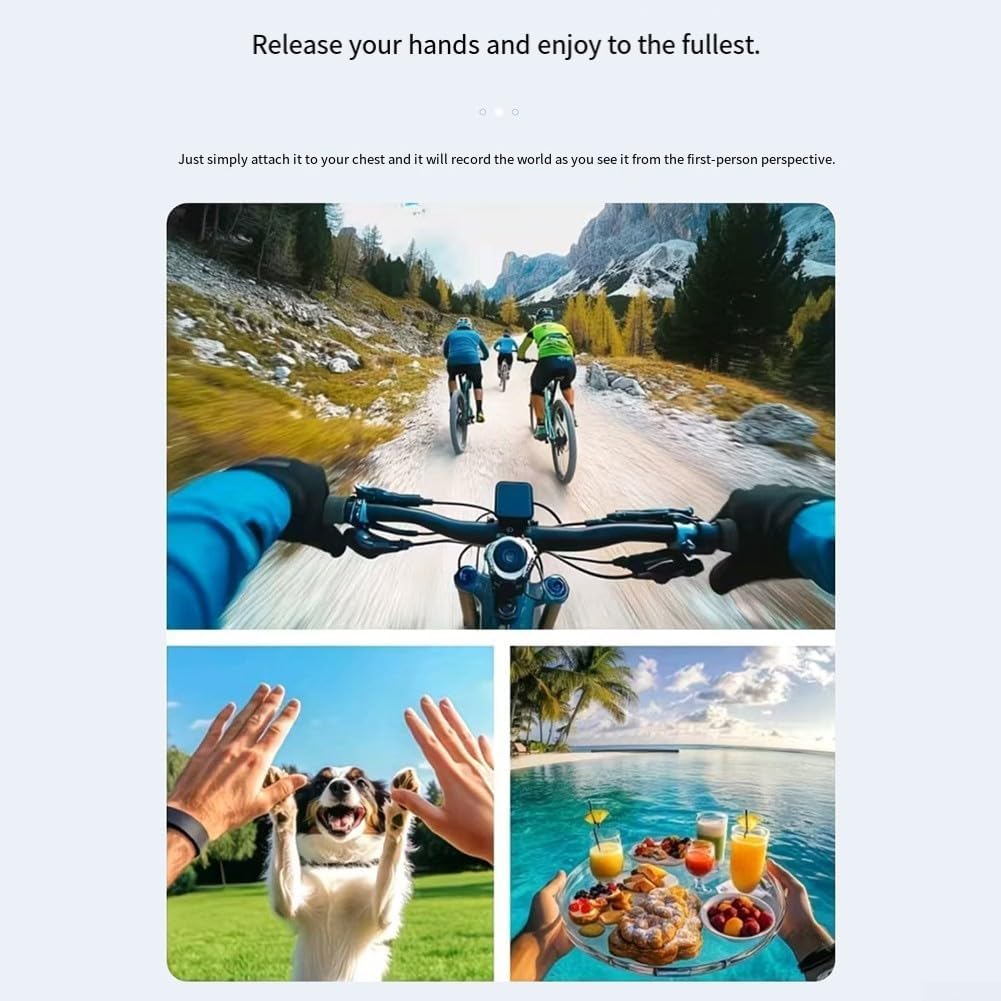
The camera includes a fixed back clip for attaching it to clothing, bags, or other surfaces. Additionally, it features a 1/4 inch expansion socket, making it compatible with standard tripods and other mounting accessories for stable recording.

7. WiFi Connectivity
The camera supports WiFi connectivity, allowing you to connect your smartphone to its built-in WiFi hotspot. This feature enables seamless playback and downloading of recorded videos and photos directly to your smartphone without consuming mobile data. Refer to the camera's on-screen menu or a dedicated app (if applicable, check product packaging for app details) for WiFi setup instructions.
8. Low Light / Night Recording
Equipped with integrated supplementary lights, this camera is designed to deliver clear video quality even in low-light environments. This makes it suitable for use during nighttime or in dimly lit indoor settings, ensuring your recordings maintain detail and visibility.
9. Maintenance
- Cleaning: Use a soft, dry cloth to clean the camera body. For the lens, use a specialized lens cleaning cloth and solution. Do not use harsh chemicals or abrasive materials.
- Storage: When not in use, store the camera in a cool, dry place away from direct sunlight and extreme temperatures.
- Battery Care: For optimal battery life, avoid fully discharging the battery frequently. Charge the camera regularly, even if not in active use, to maintain battery health.
10. Troubleshooting
10.1 Camera Not Turning On
- Ensure the battery is charged. Connect the camera to a power source and allow it to charge for at least 30 minutes.
- Verify the power switch is in the 'ON' position.
10.2 Cannot Record Video/Take Photos
- Check if a TF card is inserted correctly and has sufficient free space.
- Ensure the TF card is formatted correctly (usually FAT32). Format the card if necessary (this will erase all data).
- The battery level might be too low. Charge the camera.
10.3 WiFi Connection Issues
- Ensure the camera's WiFi hotspot is enabled.
- Restart both the camera and your smartphone.
- Make sure you are within the effective range of the camera's WiFi signal.
11. Specifications
| Feature | Specification |
|---|---|
| Brand | HEBEOT |
| Model | M22T1UQO235FIZDV759Y5JN4M |
| Video Resolution | 1080p HD |
| Dimensions (L x W x H) | 10 x 8 x 6 cm |
| Weight | 150 Grams |
| Connectivity | WiFi |
| Storage | TF Card (not included) |
| Special Features | Night Recording (built-in supplementary lights), 360° Rotatable Lens, One-touch Recording, Fixed Back Clip, 1/4 inch Tripod Socket |
12. Warranty and Support
For warranty information and technical support, please refer to the documentation provided with your purchase or contact the retailer/manufacturer directly. Keep your proof of purchase for any warranty claims.