1. Introduction
This manual provides essential information for the proper use and maintenance of your ORICO EB05 Dual USB-C & USB-A USB 3.2 Gen 1 Flash Drive. Please read it carefully before using the product to ensure optimal performance and longevity.
2. Product Overview
The ORICO EB05 is a versatile and portable flash drive designed for high-speed data transfer between a wide range of devices. Its dual interface allows for seamless connectivity with both USB-A and USB-C ports.
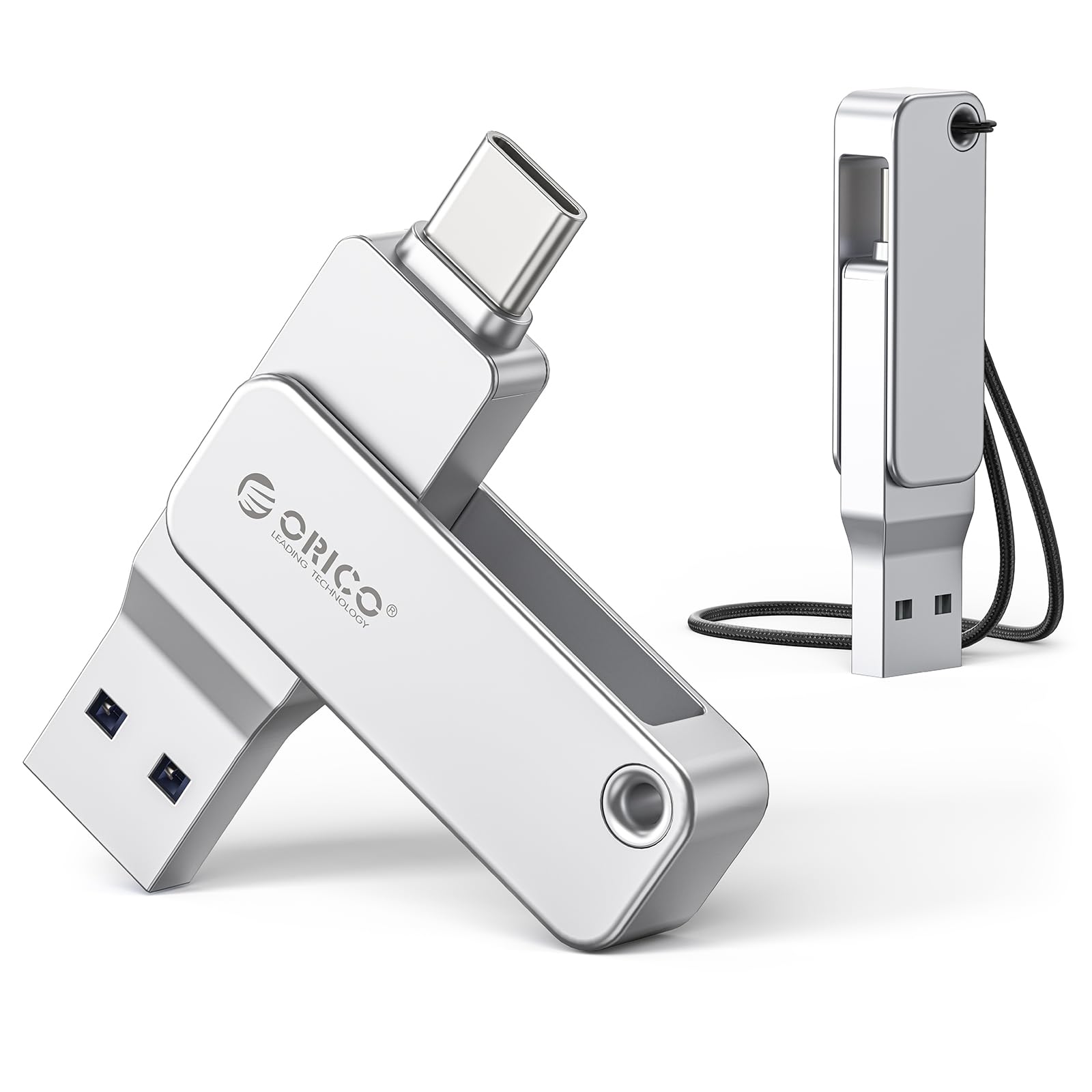
Image: The ORICO EB05 Dual USB Flash Drive, showcasing its compact design and dual connectors.
Key Features:
- Dual USB-A and USB-C Design: Easily switch between USB-A and USB-C ports, enabling compatibility with a broad spectrum of devices including laptops, smartphones, and tablets.
- High-Speed Performance: Experience rapid data transfers with read speeds up to 150 MB/s and write speeds of approximately 70 MB/s, suitable for 4K videos, high-resolution photos, and large files.
- 360° Rotating Metal Body: Constructed from elegant zinc alloy, the drive features a 360° rotating design to protect the connectors. A 90° locking mechanism ensures stability during use.
- Compact and Portable: Its mini size and integrated keychain loop make it easy to carry, ensuring your data is always accessible on the go.
- Universal Device Compatibility: Supports plug-and-play functionality across various operating systems, including Windows, Mac, Linux, Android, and iPadOS.

Image: Visual representation of the ORICO EB05's USB 3.2 Gen 1 accelerated data transfer capabilities, showing speeds up to 150 MB/s.

Image: Diagram illustrating the powerful compatibility of the ORICO EB05 with both USB-C (laptops, tablets, Android, iPhone) and USB-A (computers, Smart TVs, car audio, projectors) devices.

Image: Close-up of the ORICO EB05 highlighting its chic minimalist design, aluminum alloy construction, dual interface, and 360-degree rotation with a 90-degree lock for port protection.

Image: Graphic demonstrating the ORICO EB05's compatibility with multiple operating systems, including Mac OS, Windows, Linux, and Android.

Image: The ORICO EB05 next to a smartphone, illustrating its ingenious design and compact dimensions (5.99cm length, 1.39cm width, 0.8cm thickness).
3. Setup
The ORICO EB05 Flash Drive is designed for plug-and-play functionality, requiring no special drivers or software installation for most operating systems.
- Identify the Correct Port: Determine if your device (computer, smartphone, tablet) has a USB-A port or a USB-C port.
- Connect the Drive:
- For USB-A: Rotate the metal casing to expose the standard USB-A connector. Insert it into an available USB-A port on your device.
- For USB-C: Rotate the metal casing to expose the USB-C connector. Insert it into an available USB-C port on your device.
- Device Recognition: Your operating system should automatically detect the flash drive. It will typically appear as a removable storage device (e.g., "ORICO EB05" or "Removable Disk") in your file explorer or desktop.
The drive comes pre-formatted and ready for immediate use.
4. Operating Instructions
4.1. Transferring Files
- Connect the ORICO EB05 to your device as described in the "Setup" section.
- Open your device's file manager (e.g., File Explorer on Windows, Finder on Mac, Files app on Android/iPadOS).
- Locate the ORICO EB05 drive in the file manager.
- To copy files to the flash drive: Drag and drop files or folders from your device's storage to the ORICO EB05 drive icon or its open folder. Alternatively, right-click (or long-press) the files, select "Copy," navigate to the flash drive, and select "Paste."
- To copy files from the flash drive: Drag and drop files or folders from the ORICO EB05 drive to a desired location on your device's storage.
4.2. Safely Ejecting the Drive
To prevent data corruption, always safely eject the flash drive before physically removing it from your device.
- Windows: Right-click the drive icon in "This PC" or the system tray (bottom right corner), then select "Eject" or "Safely Remove Hardware." Wait for the "Safe to Remove Hardware" notification before unplugging.
- Mac: Drag the drive icon from the desktop to the Trash, or click the "Eject" icon next to the drive name in Finder. Wait for the icon to disappear before unplugging.
- Android/iPadOS: In the Files app or storage settings, look for an "Eject" or "Unmount" option next to the drive.
5. Maintenance
Proper care will extend the life of your ORICO EB05 Flash Drive and protect your data.
- Physical Protection: Avoid dropping the drive or subjecting it to strong impacts. The rotating metal casing provides some protection, but extreme force can cause damage.
- Environmental Conditions: Store the drive in a cool, dry place. Avoid exposure to extreme temperatures, direct sunlight, moisture, and strong magnetic fields.
- Cleaning: If necessary, gently wipe the exterior of the drive with a soft, dry, lint-free cloth. Do not use liquid cleaners or solvents.
- Data Backup: Regularly back up important data stored on the flash drive to another storage medium (e.g., computer hard drive, cloud storage) to prevent data loss in case of unforeseen issues.
- Firmware Updates: Periodically check the official ORICO website for any available firmware updates for your model.
6. Troubleshooting
6.1. Drive Not Recognized
- Check Connection: Ensure the flash drive is fully inserted into the USB port. Try a different USB port on your device.
- Try Another Device: Connect the flash drive to another computer or compatible device to determine if the issue is with the drive or the original device.
- Restart Device: Sometimes a simple restart of your computer or smartphone can resolve recognition issues.
- Check Device Manager (Windows) / System Information (Mac): Verify if the drive appears in your system's device list, even if it's not showing in File Explorer/Finder. This can indicate a driver issue (though unlikely for plug-and-play devices).
- Formatting: If the drive is recognized but inaccessible, it might require reformatting. Warning: Reformatting will erase all data on the drive.
6.2. Slow Transfer Speeds
- USB Port Type: Ensure you are using a USB 3.0/3.1/3.2 port on your device for optimal speeds. Connecting to a USB 2.0 port will result in significantly slower transfers.
- File Size and Type: Transferring many small files is generally slower than transferring a few large files of the same total size.
- Device Performance: The speed of your computer's hard drive or SSD can affect transfer rates.
- Background Processes: Other applications or processes running on your device might be consuming system resources, affecting transfer speeds.
6.3. Error Messages
If you encounter specific error messages, consult your operating system's documentation or online resources for troubleshooting steps related to that error.
7. Specifications
| Model Number | EB05 |
| Brand | ORICO |
| Capacity | 128 GB |
| Interface | USB 3.2 Gen 1 (USB-C & USB-A Dual Interface) |
| Read Speed | Up to 150 MB/s |
| Write Speed | Approximately 70 MB/s |
| Material | Zinc Alloy |
| Color | Silver |
| Compatibility | Windows, Mac, Linux, Android, iPadOS |
| Plug and Play | Yes |
8. Warranty Information
ORICO products typically come with a manufacturer's warranty. Based on product information, a 3-year warranty is generally offered for this product. For specific warranty terms and conditions, including coverage details and how to make a claim, please refer to the warranty card included with your product or visit the official ORICO website.
Please retain your proof of purchase for warranty service.
9. Support
For technical assistance, product inquiries, or further support, please visit the official ORICO website. You can usually find FAQs, driver downloads, and contact information for customer service there.
Official ORICO Website: www.oricotech.com (Please note: This is a placeholder URL. Refer to your product packaging or official documentation for the exact support website.)


