
Introduction
The Zelaclock Sunrise Alarm Clock (Model YF01-C) is a versatile 4-in-1 device designed to enhance your sleep and wake-up experience. It functions as a sunrise alarm clock, white noise sound machine, night light, and Bluetooth speaker. This manual provides detailed instructions for setting up and operating your device, ensuring you can fully utilize its features for a peaceful morning and restful night.
Key Features:
- Sunrise Simulation: Gradually brightens before your alarm, mimicking a natural sunrise.
- White Noise & Nature Sounds: Features 30 non-looping sounds for relaxation and sleep.
- RGB Night Light: Offers 9 dynamic light themes and 20 adjustable brightness levels.
- Bluetooth 5.3 Speaker: Connects seamlessly to your phone for music playback and automatic time synchronization.
- Smart Sleep Timer: Allows setting a fade-out timer for lights and sounds (10-480 minutes).
Safety Information
- This device must be plugged into a power source to operate. It is not battery-operated.
- Do not expose the device to water or excessive moisture.
- Avoid placing the device near heat sources or in direct sunlight for prolonged periods.
- Use only the provided power adapter.
- Keep out of reach of children and pets.
- Do not attempt to disassemble or repair the device yourself. Contact customer support for assistance.
Product Overview
Familiarize yourself with the components and controls of your Zelaclock Sunrise Alarm Clock.

Image: The Zelaclock Sunrise Alarm Clock, highlighting its functions as an alarm clock, wake-up light, white noise machine, and Bluetooth speaker. It is shown plugged into a wall outlet, emphasizing that it requires continuous power.
Video: An official Zelaclock video demonstrating the features and operation of the Sunrise Alarm Clock, including its light and sound functions.
The device features intuitive buttons and a scroll wheel for easy navigation and setting adjustments. The LED display shows the time and various indicators for active functions.

Image: Close-up view of the Zelaclock Sunrise Alarm Clock, illustrating the various buttons and their corresponding functions for light, sound, and alarm settings.
Setup
- Power Connection: Connect the provided USB cable to the device and plug the adapter into a standard wall outlet. The device will power on automatically.
- Time Setting:
- Press and hold the Time Set button (often indicated by a clock icon) for 2 seconds to enter time setting mode.
- Rotate the scroll wheel to adjust the hour, then press the Time Set button to confirm.
- Rotate the scroll wheel to adjust the minute, then press the Time Set button to confirm.
- The time will be set.
- Bluetooth Pairing:
- Press and hold the Bluetooth button (often indicated by a Bluetooth icon) for 2 seconds to enable Bluetooth pairing mode. The Bluetooth indicator on the display will flash.
- On your smartphone or other Bluetooth-enabled device, search for "Zelaclock YF01-C" (or similar name) in the Bluetooth settings.
- Select the device to pair. Once connected, the Bluetooth indicator will stop flashing and remain solid.
Operating Instructions
Setting the Alarm and Sunrise Simulation
- Set Alarm Time:
- Press and hold the Alarm button (bell icon) for 2 seconds. The hour display will flash.
- Rotate the scroll wheel to set the desired hour, then press the Alarm button to confirm.
- Rotate the scroll wheel to set the desired minute, then press the Alarm button to confirm.
- Set Sunrise Duration:
- After setting the alarm time, the display will show the sunrise duration (e.g., "00").
- Rotate the scroll wheel to select a sunrise duration from 10 to 60 minutes. This determines how long the light will gradually brighten before your alarm time.
- Press the Alarm button to confirm.
- Enable/Disable Alarm: Press the Alarm button briefly to toggle the alarm on or off. An alarm icon will appear/disappear on the display.
- Snooze Function: When the alarm sounds, press the scroll wheel (or a dedicated snooze button if present) to activate snooze. The alarm will sound again after 5-20 minutes (duration may be configurable, refer to specific button diagram).
- Stop Alarm: To stop the alarm completely, press and hold the Alarm button for 3 seconds.

Image: Illustration of the sunrise simulation feature, showing the alarm clock gradually increasing light intensity from dim to bright over a set period before the alarm time.
Using White Noise and Nature Sounds
- Select Sound: Press the Sound button (wave icon) to cycle through the 30 available white noise and nature sounds.
- Adjust Volume: Rotate the scroll wheel to increase or decrease the volume of the selected sound.
- Turn Off Sound: Press and hold the Sound button for 3 seconds to turn off the sound.
Image: The Zelaclock Sunrise Alarm Clock displaying sound options, with a person sleeping peacefully in the background, illustrating the white noise feature.
Adjusting Light Themes and Brightness
- Turn On/Off Light: Press the Light button (sun icon) briefly to turn the light on or off.
- Change Light Theme: With the light on, press the Light button repeatedly to cycle through the 9 dynamic light themes, including music-reactive modes.
- Adjust Brightness: Rotate the scroll wheel to adjust the light brightness through 20 levels.

Image: The Zelaclock Sunrise Alarm Clock showcasing its 9 dynamic light themes, including gradient and solid color options.
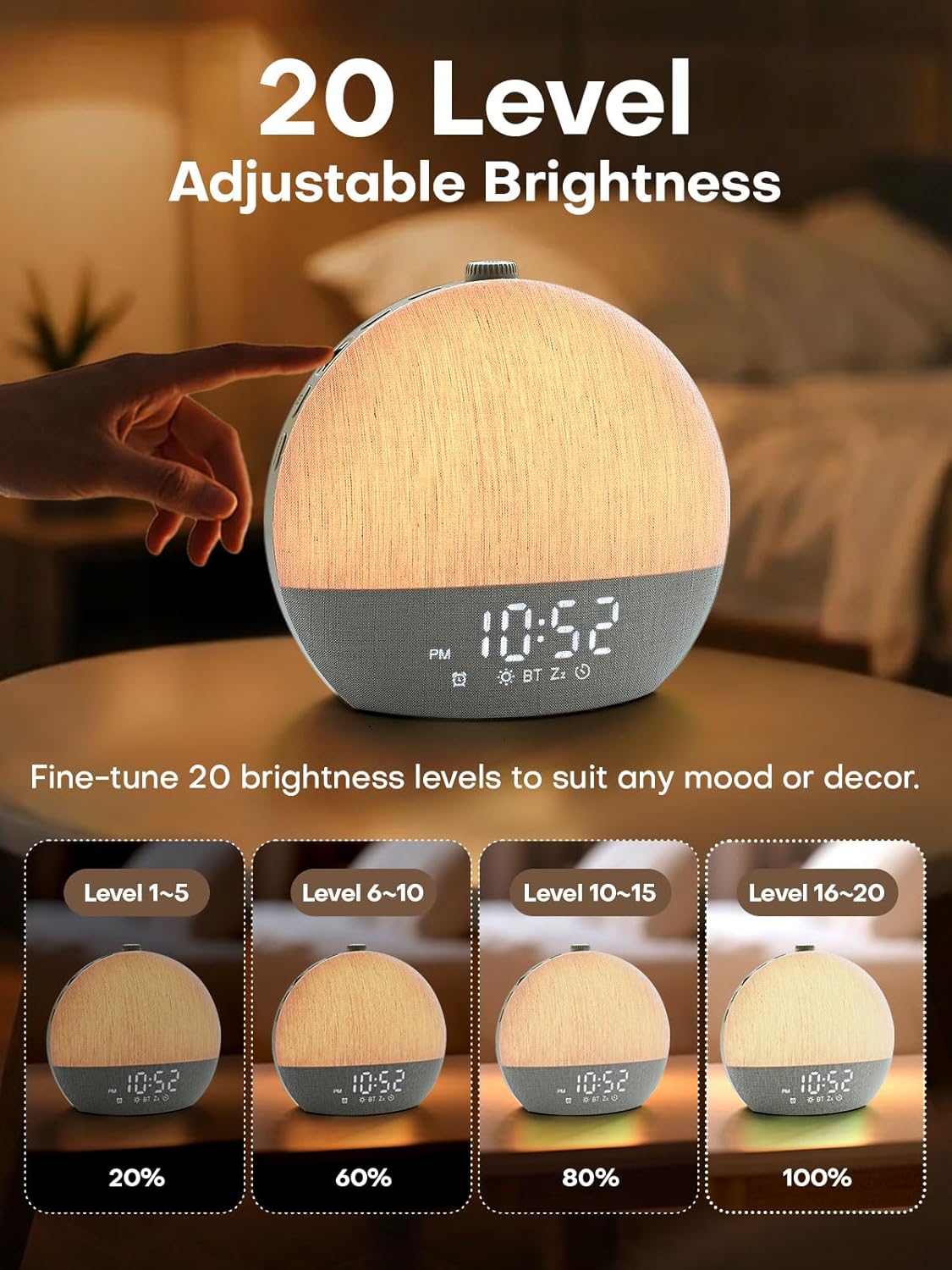
Image: Visual representation of the 20 adjustable brightness levels of the Zelaclock Sunrise Alarm Clock, from 20% to 100% illumination.
Using the Smart Sleep Timer
- Set Sleep Timer: Press the Sleep Timer button (moon icon) to activate the sleep timer.
- Adjust Duration: Rotate the scroll wheel to set the desired fade-out duration from 10 to 480 minutes. Both light and sound will gradually decrease and turn off after this period.
- Cancel Sleep Timer: Press and hold the Sleep Timer button for 3 seconds to cancel the active sleep timer.

Image: The Zelaclock Sunrise Alarm Clock in a bedroom setting, illustrating the gradual fade-out timer for both light and sound, with a person sleeping.
Bluetooth Speaker Function
Once paired with your device (see Setup section), you can use the Zelaclock as a Bluetooth speaker.
- Play music directly from your phone or tablet.
- Use the scroll wheel on the Zelaclock to adjust the playback volume.
- To disconnect Bluetooth, press and hold the Bluetooth button for 2 seconds.

Image: A couple relaxing on a couch, with the Zelaclock Sunrise Alarm Clock playing music via Bluetooth from a smartphone.
Maintenance
- Cleaning: Wipe the device with a soft, dry cloth. Do not use abrasive cleaners or solvents.
- Storage: Store the device in a cool, dry place when not in use for extended periods.
- Power: Always ensure the device is unplugged before cleaning or moving.
Troubleshooting
| Problem | Possible Cause | Solution |
|---|---|---|
| Device does not power on. | Not plugged in; power adapter faulty. | Ensure the device is properly plugged into a working power outlet. Check the power adapter and cable for damage. |
| Alarm does not sound. | Alarm is disabled; volume is too low. | Check if the alarm is enabled (alarm icon on display). Increase the alarm volume using the scroll wheel. |
| Sunrise light does not work. | Sunrise feature not enabled for alarm; light brightness set too low. | Ensure sunrise duration is set during alarm setup. Adjust light brightness using the scroll wheel. |
| Cannot connect via Bluetooth. | Bluetooth not in pairing mode; device too far; interference. | Ensure the device is in Bluetooth pairing mode (flashing icon). Move your phone closer to the alarm clock. Try restarting both devices. |
| Sound quality is poor. | Low quality audio source; device placement. | Ensure the audio source (e.g., phone) is playing high-quality audio. Adjust device placement to avoid obstructions. |
Specifications
| Feature | Detail |
|---|---|
| Model Number | YF01-C |
| Brand | Zelaclock |
| Display Type | LED |
| Power Source | Corded Electric |
| Product Dimensions | 6"W x 6"H |
| Connectivity | Bluetooth 5.3, USB |
| Light Features | Sunrise Simulation, 9 Dynamic RGB Light Themes, 20 Brightness Levels |
| Sound Features | 30 Non-Looping Sleep Sounds (10 White Noise, 20 Nature Sounds/Melodies) |
| Timer Functions | Alarm Clock, Smart Sleep Timer (10-480 minutes) |
| Material | Plastic |
Warranty and Support
For warranty information and customer support, please refer to the official Zelaclock website or contact their customer service directly. Details are typically provided on the product packaging or the manufacturer's official online channels.
Manufacturer: Zelaclock
ASIN: B0FPRL993V
For further assistance, you may visit the Zelaclock Store on Amazon.