
1. Introduction
This manual provides comprehensive instructions for the installation, operation, and maintenance of your Carpuride V92R Portable Car Display. Please read this manual thoroughly before use to ensure proper functionality and to maximize your driving experience. The Carpuride V92R offers a 10.26-inch 1080P HD touchscreen, wireless CarPlay and Android Auto, Bluetooth 5.0 connectivity, and support for a rearview camera, enhancing convenience and safety in your vehicle.
2. Package Contents
Verify that all items listed below are included in your package:
- Carpuride V92R Portable Car Display
- Self-adhesive Bracket
- Suction Mount Bracket
- Suction Cup Gasket
- User Manual
- 3.5mm Audio Cable
- Car Charger (Type-C 5V 2A)
- Rear View Camera & Cable

Figure 2.1: Carpuride V92R Package Contents
3. Setup
3.1 Mounting the Display
The Carpuride V92R offers two mounting options:
- Self-adhesive Bracket: For a permanent installation on your dashboard. Ensure the surface is clean and dry before applying.
- Suction Mount Bracket: For flexible placement on your windshield or dashboard. Clean the surface and press firmly to secure.

Figure 3.1: Mounting Options for the Carpuride V92R
3.2 Power Connection
Connect the provided Type-C car charger to the display's Type-C port and plug the other end into your vehicle's cigarette lighter socket. The display requires a 5V 2A power input.
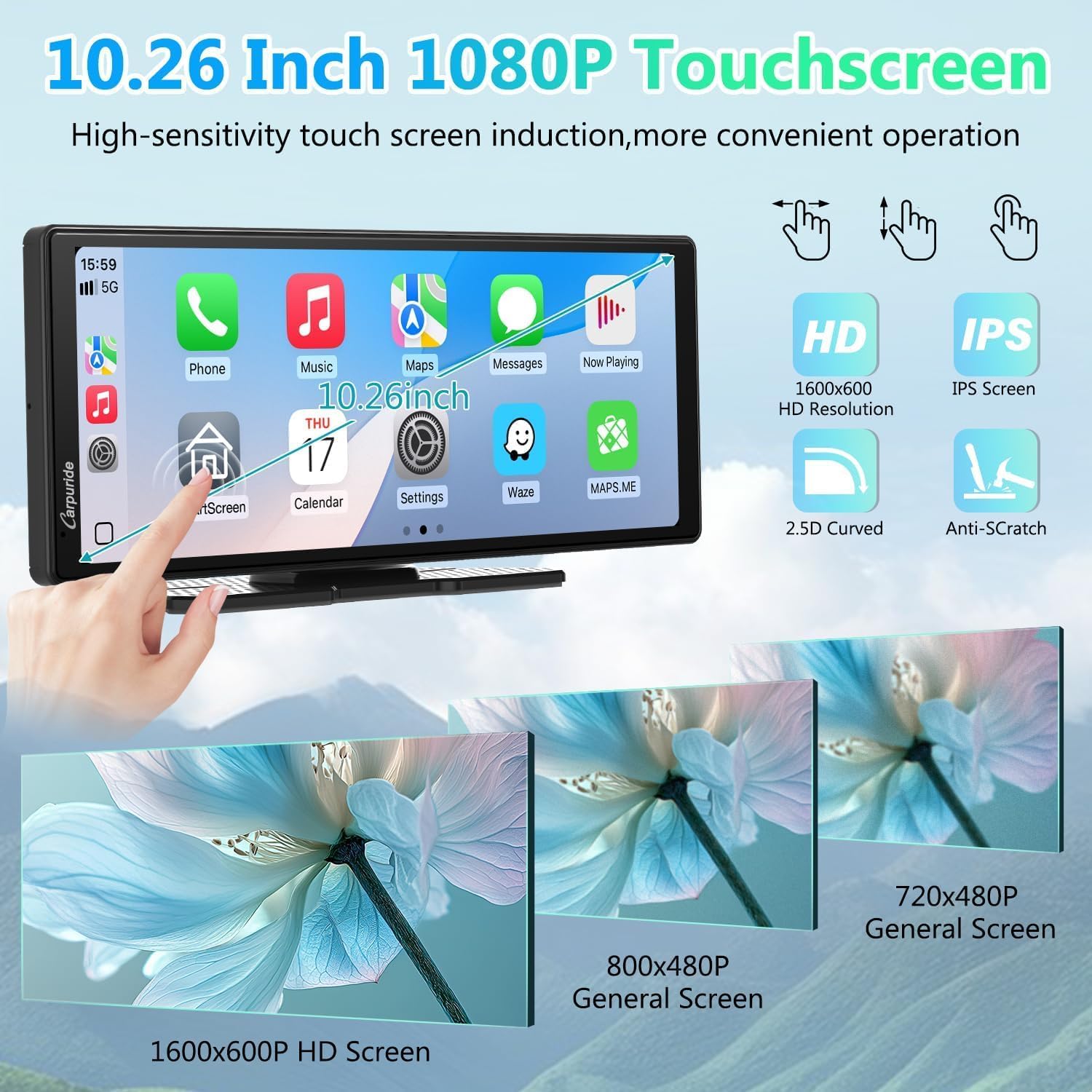
Figure 3.2: Powering the Carpuride V92R
3.3 Rearview Camera Installation
The included 720P rearview camera requires wiring to your vehicle's reverse light for automatic activation. Professional installation is recommended for optimal performance and to avoid damage to your vehicle's electrical system.
4. Operating Instructions
4.1 Wireless CarPlay and Android Auto
After powering on, the display will automatically search for nearby Bluetooth devices. Pair your smartphone to the Carpuride V92R via Bluetooth to enable wireless CarPlay (for iPhone) or Android Auto (for Android phones). This allows access to navigation, music, calls, and messages directly on the display.
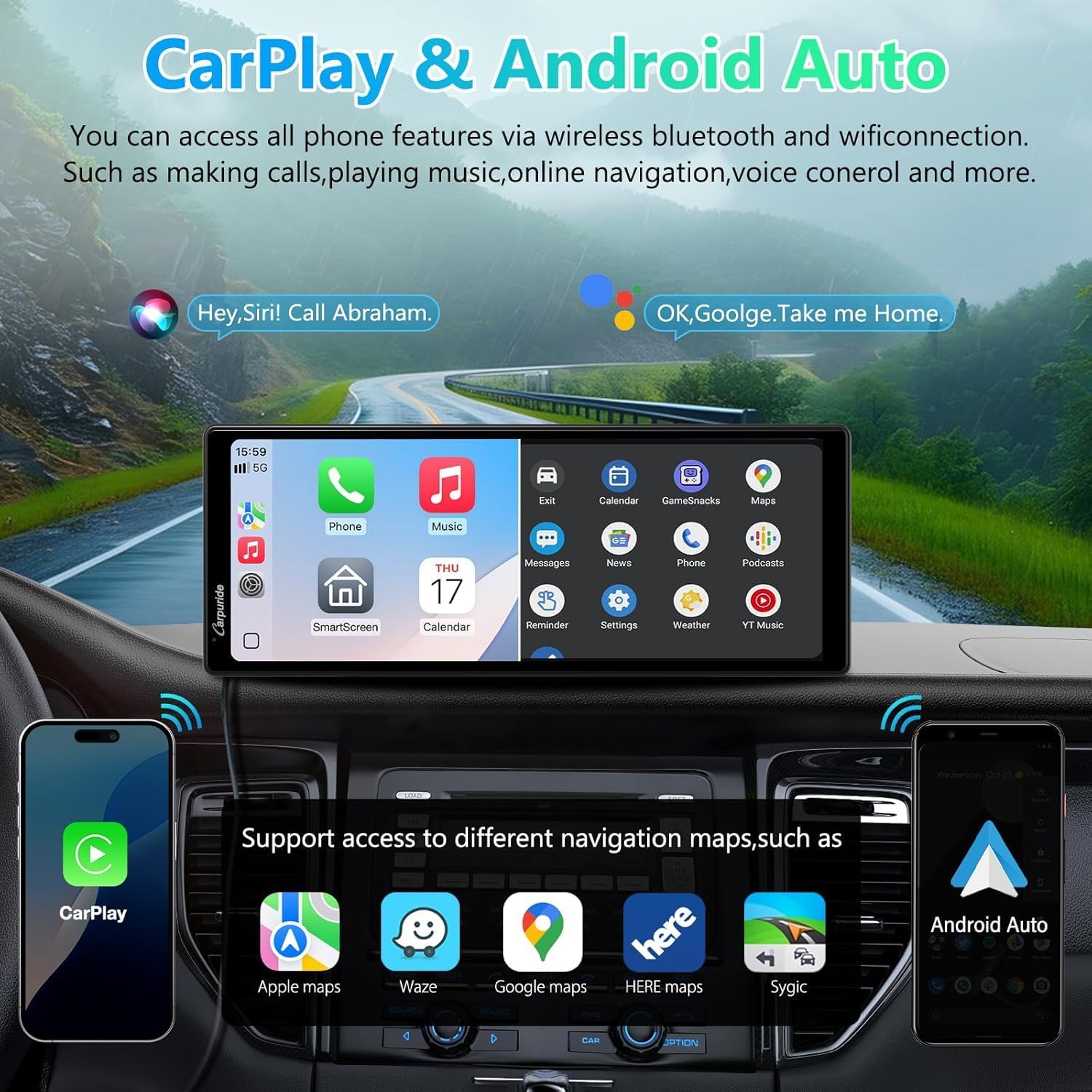
Figure 4.1: Wireless CarPlay and Android Auto Interface
4.2 Voice Control
Utilize voice commands for hands-free operation. Activate Siri (for CarPlay) or Google Assistant (for Android Auto) by saying "Hey Siri" or "OK Google" to control navigation, make calls, play music, and more.

Figure 4.2: GPS Navigation and Voice Control
4.3 Audio Output Methods
The Carpuride V92R offers multiple ways to output audio to your vehicle's sound system:
- Bluetooth Audio: Stream audio wirelessly to your car's Bluetooth-enabled stereo.
- FM Transmission: Transmit audio to your car's FM radio by tuning both devices to the same FM frequency.
- AUX Connection: Use the provided 3.5mm audio cable to connect the display to your car's AUX input.
- Local Speaker: The display has a built-in 8Ω2W speaker for direct audio output.

Figure 4.3: Audio Output Options
4.4 Hands-Free Calling
The integrated Bluetooth 5.0 chip and front microphone design ensure clear hands-free calls. The dedicated mic port further enhances sound collection for better call quality.
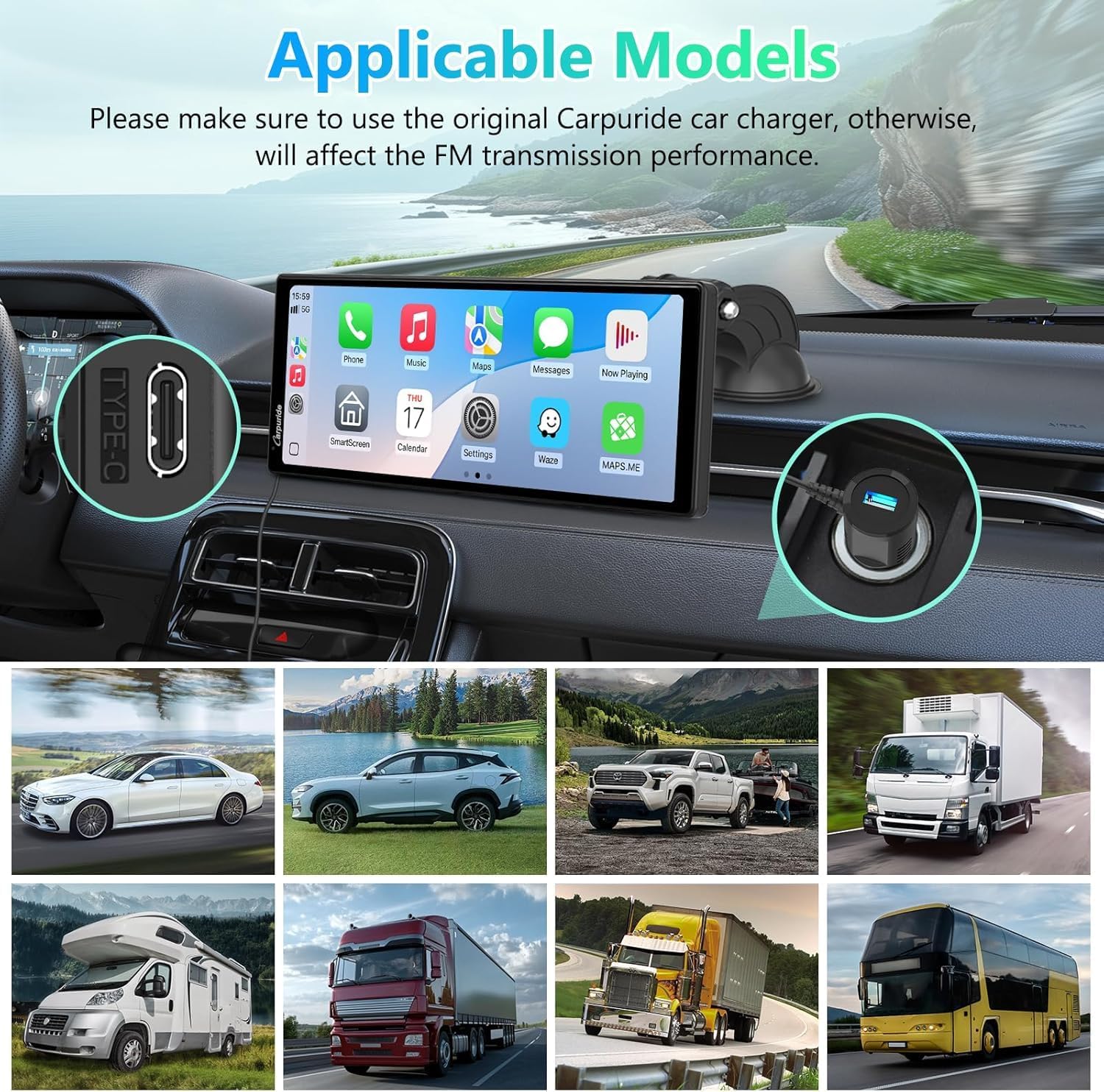
Figure 4.4: Enhanced Call Quality with Mic Port
4.5 Touchscreen Operation
The 10.26-inch 1080P HD IPS touchscreen provides a responsive and intuitive user experience. Its 1600x600 HD resolution and 2.5D curved anti-scratch design ensure durability and clear visuals.

Figure 4.5: High-Sensitivity Touchscreen
4.6 Mirror Link (Super Link)
For Android phones, the Super Link function allows you to mirror your phone's screen onto the Carpuride V92R display, enabling you to view online videos, download content, or use other applications.
5. Maintenance
To ensure the longevity and optimal performance of your Carpuride V92R display, follow these maintenance guidelines:
- Cleaning: Use a soft, dry, lint-free cloth to clean the screen. For stubborn smudges, lightly dampen the cloth with water or a screen-safe cleaner. Avoid harsh chemicals or abrasive materials.
- Temperature: Avoid exposing the device to extreme temperatures, both hot and cold, as this can affect its electronic components and screen.
- Liquids: Keep the device away from liquids. In case of accidental spills, immediately power off the device and allow it to dry completely before use.
- Storage: When not in use for extended periods, store the device in a cool, dry place, away from direct sunlight.
6. Troubleshooting
If you encounter issues with your Carpuride V92R, refer to the following common problems and solutions:
- No Power:
- Ensure the car charger is securely plugged into both the display's Type-C port and the vehicle's cigarette lighter socket.
- Check if the vehicle's cigarette lighter socket is functioning correctly. - No Audio Output:
- Verify the selected audio output method (Bluetooth, FM, AUX, Local Speaker) in the display's settings.
- If using FM transmission, ensure the display and your car radio are tuned to the same clear frequency.
- If using AUX, ensure the 3.5mm cable is properly connected to both the display and your car's AUX input. - CarPlay/Android Auto Not Connecting:
- Ensure your smartphone's Bluetooth is enabled and paired with the Carpuride V92R.
- Restart both your smartphone and the Carpuride V92R.
- Forget the device in your phone's Bluetooth settings and re-pair. - Poor Microphone Quality During Calls:
- Ensure the microphone port on the display is not obstructed.
- Adjust the microphone sensitivity settings if available. - Display Not Responding to Touch:
- Restart the device.
- Ensure the screen is clean and free of debris.
7. Specifications
| Brand | Carpuride |
| Model | V92R |
| Screen Size | 10.26 Inches |
| Screen Type | IPS LCD |
| Display Resolution | 1920 x 1080 (1080P HD) |
| Rear Camera Resolution | 720P |
| Connectivity Technology | Bluetooth 5.0 |
| Compatible Devices | Mobile Phone |
| Power Input | Type-C 5V 2A |
| Product Dimensions | 2.4 x 24 x 9.3 cm |
| Product Weight | 900 g |
8. Warranty and Support
Carpuride products are designed for reliability and performance. For any issues not covered in the troubleshooting section or for warranty inquiries, please contact Carpuride customer support. Refer to the contact information provided with your purchase or visit the official Carpuride website for assistance.


