
1. Introduction
The ORIGBELIE External CD/DVD Drive (Model TP888-NEW) is a versatile peripheral designed to provide optical disc reading and writing capabilities to devices lacking an internal drive. It features high-speed USB 3.0 connectivity, a multi-port USB hub, and integrated TF/SD card slots, making it a comprehensive solution for data management and media playback.
Product Overview

Figure 1: The ORIGBELIE External CD/DVD Drive connected to a laptop, showcasing its compact design and how it integrates into a workspace.
2. Package Contents
Verify that all items listed below are included in your package:
- 1 x External Optical Drive
- 1 x USB A to DC Power Supply Cable
- 1 x Storage Bag
- 1 x User Manual

Figure 2: All components included in the ORIGBELIE External CD/DVD Drive package.
3. Product Features and Components
Key Features
- USB 3.0 High-Speed: Supports up to 5 Gbps data transfer rates, 8x DVD read/write, and 24x CD read/write speeds.
- Plug & Play: No drivers or external power supply typically required for basic operation.
- Supports All Disc Formats: Compatible with CD±R/RW, CD-ROM, DVD±R/RW, DVD-ROM, DVD-RAM, DVD+R DL, DVD-R DL, VCD, and SVCD.
- 6-in-1 USB 3.0 Hub: Includes 1 USB-A 3.0 port, 1 USB-A 2.0 port, 2 USB-C ports, and TF/SD card slots.
- 2-in-1 USB 3.0 Data Cable: Integrated Type-A/C data cable for versatile connectivity.
- Compact & Portable: Ultra-slim design with integrated cable and included storage bag for easy transport.
Component Identification
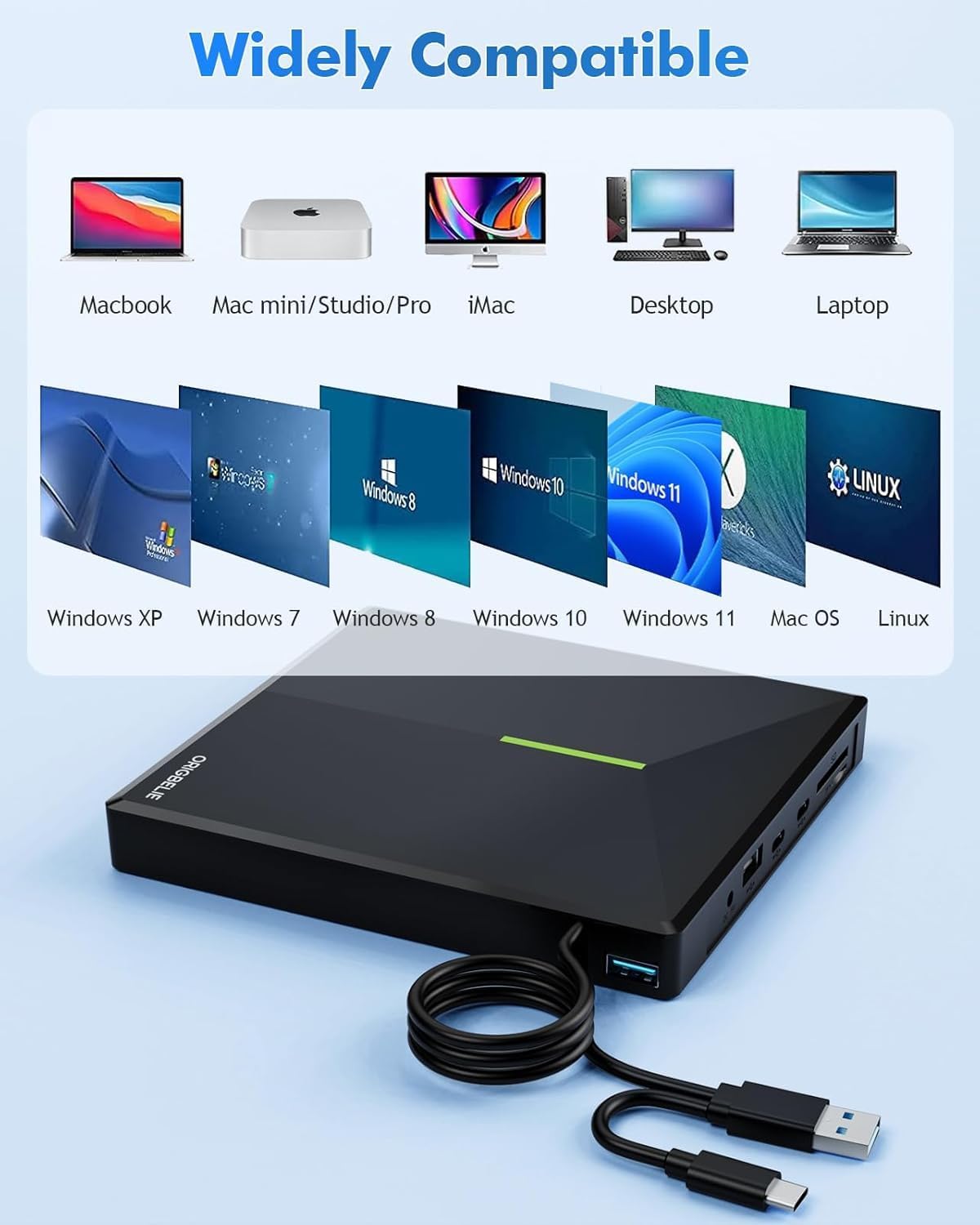
Figure 3: Front and side view of the drive, highlighting the pop-up button, forced ejection hole, USB-A data cable, USB-C data cable, DC 5V port, USB-A 3.0 port, USB-C ports, TF slot, SD slot, and RGB LED indicator light.
4. Setup Instructions
Connecting the Drive
- Locate the integrated 2-in-1 USB 3.0 data cable on the back of the drive.
- Connect the appropriate connector (USB Type-A or Type-C) to an available USB port on your computer (laptop, desktop, Mac).
- The drive is typically plug-and-play, meaning your computer should automatically detect and install necessary drivers.
- If your computer's USB port does not provide sufficient power, connect the included USB A to DC Power Supply Cable to the DC 5V port on the drive and then to a 5V charger or power bank (not included) for additional power.

Figure 4: Connecting the external CD/DVD drive to a laptop using the integrated USB 3.0 data cable.
Setup Video Guide
Video 1: This video demonstrates the simple plug-and-play setup and high-speed data transfer capabilities of the ORIGBELIE External CD/DVD Drive.
5. Operating Instructions
Inserting and Ejecting Discs
- To open the disc tray, gently press the 'IN/OUT' button located on the front of the drive.
- Place the disc onto the tray with the label side facing up. Ensure the disc is seated correctly on the spindle.
- Gently push the tray back into the drive until it clicks shut.
- To eject a disc, press the 'IN/OUT' button again. In case of power failure or if the button does not respond, use a thin, pointed object (like a paperclip) to gently push into the small forced ejection hole next to the button.
Using as a USB Hub and Card Reader
- The drive features 1 USB-A 3.0 port, 1 USB-A 2.0 port, and 2 USB-C ports for connecting various USB computer accessories such as hard drives, flash drives, mice, and keyboards.
- Insert SD cards into the SD slot and TF (Micro SD) cards into the TF slot to transfer photos and videos.
- Note: The SD and TF card slots cannot be used simultaneously.

Figure 5: The external drive serving as a multi-functional hub with various devices connected.
Supported Disc Formats and Functions
This external DVD drive supports a wide range of disc formats for both reading and writing:
- CD Formats: CD±R/RW, CD-ROM, VCD, SVCD
- DVD Formats: DVD±R/RW, DVD-ROM, DVD-RAM, DVD+R DL, DVD-R DL
It can be used for various tasks including playing music, watching movies, backing up data, and installing software.
Product Overview Video
Video 2: This video provides a comprehensive overview of the ORIGBELIE External CD/DVD Drive, showcasing its features, connectivity options, and compact design.
6. Compatibility
Supported Systems and Devices
The ORIGBELIE External CD/DVD Drive is compatible with a wide range of operating systems and devices:
- Operating Systems: Windows 11/10/8/7/XP, Vista 7/8, Linux, Mac OS 10.6 or above.
- Devices: MacBook, iMac, Notebook, Desktop PC, Laptop.
Note for Windows 11 users: A media player (such as VLC) and an active network connection may be required for optimal functionality.
Note for Mac users: The device icon will only appear after a disc is successfully inserted and read.
Incompatible Systems and Devices
This drive is not supported by the following:
- Cars, TVs, Tablets, Phones, iPads
- PS4/5, Xbox, Nintendo Switch, Projectors
- Chromebook, partial Surface models, Ubuntu system
- Blu-ray discs (this drive does not support Blu-ray format)

Figure 6: Visual representation of compatible and incompatible devices and operating systems.
7. Maintenance and Care
To ensure the longevity and optimal performance of your ORIGBELIE External CD/DVD Drive, follow these maintenance guidelines:
- Keep the drive clean and free from dust. Use a soft, dry cloth for cleaning the exterior.
- Avoid exposing the drive to extreme temperatures, humidity, or direct sunlight.
- Handle discs carefully to prevent scratches or damage. Always store discs in their cases when not in use.
- Do not attempt to disassemble or repair the drive yourself, as this will void the warranty.
- When transporting, use the provided storage bag to protect the drive from scratches and impacts.
8. Troubleshooting
If you encounter issues with your external CD/DVD drive, refer to the following common solutions:
- Drive Not Recognized:
- Ensure the USB cable is securely connected to both the drive and your computer.
- Try connecting to a different USB port on your computer.
- If using a desktop PC, connect the drive to a USB port on the back of the computer, as front ports may not provide sufficient power.
- Connect the additional USB A to DC Power Supply Cable to a 5V power source if the drive is not receiving enough power.
- Disc Not Reading/Writing:
- Ensure the disc is clean and free of scratches or smudges.
- Verify that the disc format is supported by the drive (refer to Section 5).
- For Mac users, the drive icon will only appear after a disc is inserted and successfully read.
- For Windows 11, ensure a compatible media player (e.g., VLC) is installed and a network connection is active.
- Insufficient Current Supply:
- Some computers, especially older models or certain laptops, may not provide enough power through their USB ports.
- Use the provided USB A to DC Power Supply Cable to connect the drive to an external 5V power source (e.g., a wall adapter or power bank).

Figure 7: Illustrations of common issues: device incompatibility and insufficient power supply, with suggested solutions.
9. Technical Specifications
| Feature | Specification |
|---|---|
| Brand | ORIGBELIE |
| Model Number | TP888-NEW |
| Hardware Platform | Laptop, Mac, PC |
| Item Weight | 11.5 ounces (approx. 326g) |
| Product Dimensions | 6 x 5.6 x 0.7 inches (15.3 x 14.3 x 1.9 cm) |
| Color | RGB Black |
| Optical Storage Write Speed | Max 24x CD / 8x DVD |
| Optical Storage Read Speed | Max 24x CD / 8x DVD |
| Hardware Interface | USB 3.0, USB 3.0 Type A, USB 3.0 Type C |
| Special Features | Backward Compatible, Error Correction, Noise Reduction Technology, Plug & Play |
10. Warranty and Support
The ORIGBELIE External CD/DVD Drive (Model TP888-NEW) comes with a 90-day warranty from the date of purchase. This warranty covers manufacturing defects and ensures the product functions as described under normal use.
For technical assistance, troubleshooting, or warranty claims, please contact ORIGBELIE customer support through the retailer's platform or the official ORIGBELIE website. Please have your purchase details and product model number (TP888-NEW) ready when contacting support.


