1. Setup
The E-YOOSO Z-101 keyboard offers versatile connectivity options to suit various devices and operating systems. Before initial use, ensure the keyboard is charged or connected via USB-C.
1.1 Tri-Mode Connection
This keyboard supports three connection modes: Bluetooth 5.0, 2.4GHz wireless, and USB wired. You can connect to up to five devices simultaneously and switch between them using FN key combinations.

Image: Tri-Mode Connection options for the E-YOOSO Z-101 keyboard.
1.1.1 USB Wired Mode
Connect the keyboard directly to your computer using the provided USB-C cable. This mode provides a stable connection and charges the keyboard simultaneously.
1.1.2 2.4GHz Wireless Mode
To use 2.4GHz wireless mode, plug the USB receiver into your device. Switch the mode selector on the keyboard to 2.4G. The keyboard should automatically connect. The USB dongle can be stored in a dedicated slot on the side of the keyboard when not in use.
1.1.3 Bluetooth Mode
Switch the mode selector on the keyboard to BT. The keyboard can store up to three Bluetooth connections (BT1, BT2, BT3). To pair, press FN + 1/2/3 until the indicator light flashes, then search for the keyboard on your device's Bluetooth settings and connect.
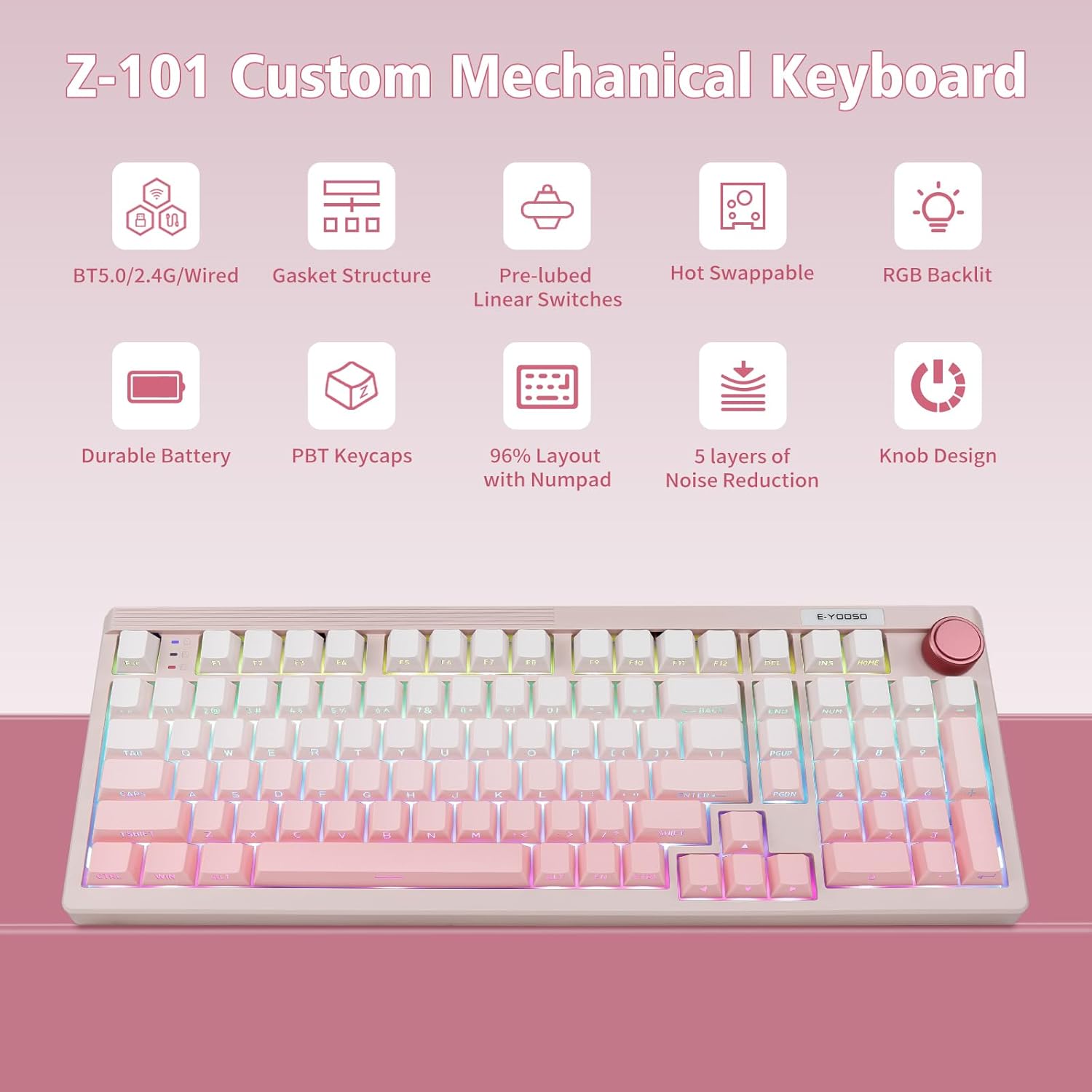
Image: Key features of the E-YOOSO Z-101 Custom Mechanical Keyboard.
1.2 Operating System Compatibility
The keyboard includes a switch to toggle between Windows and Mac layouts. Ensure this switch is set correctly for your operating system to utilize all functions properly.
Video: An overview of the E-YOOSO Z-101 Wireless Mechanical Keyboard, demonstrating its features and functionality.
2. Operating Instructions
2.1 Multi-Function Knob
The knob located on the top right of the keyboard serves dual purposes: volume control and lighting adjustment.
- Volume Control Mode: Rotate the knob to adjust the system volume. Short press the knob to mute or unmute audio.
- Lighting Control Mode: Long press the knob for 3 seconds until the backlight flashes twice to switch to lighting mode. In this mode, rotate the knob to adjust backlight brightness. Short press to cycle through 15 RGB lighting effects. Long press for 2 seconds until the backlight flashes twice to switch back to volume control mode.
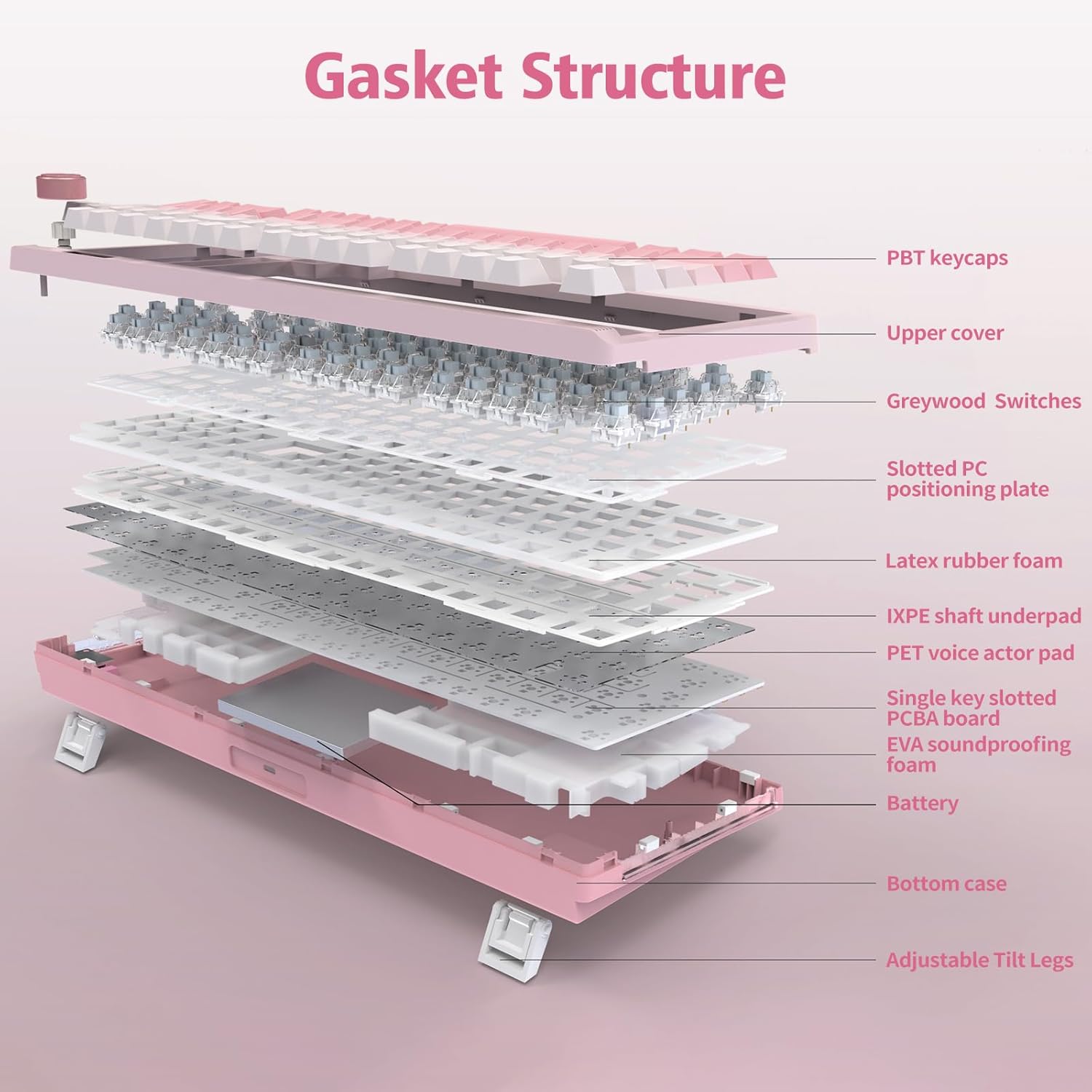
Image: Multi-function knob operation for volume and RGB backlight control.
2.2 RGB Backlight
The keyboard features 16 RGB lighting effects and supports over 16.8 million colors, enhancing the user experience.
- Change RGB Modes: Use FN + Shift to cycle through different RGB backlight modes.
- Adjust Brightness: Use FN + ↑ (Up Arrow) to increase brightness and FN + ↓ (Down Arrow) to decrease brightness.
- Adjust Light Speed: Use FN + ← (Left Arrow) to decrease light speed and FN + → (Right Arrow) to increase light speed.
- Backlight On/Off: Press FN + Space to toggle the backlight on or off.
- Switch Sidelight: Press FN + R_Ctrl to switch the sidelight effect.
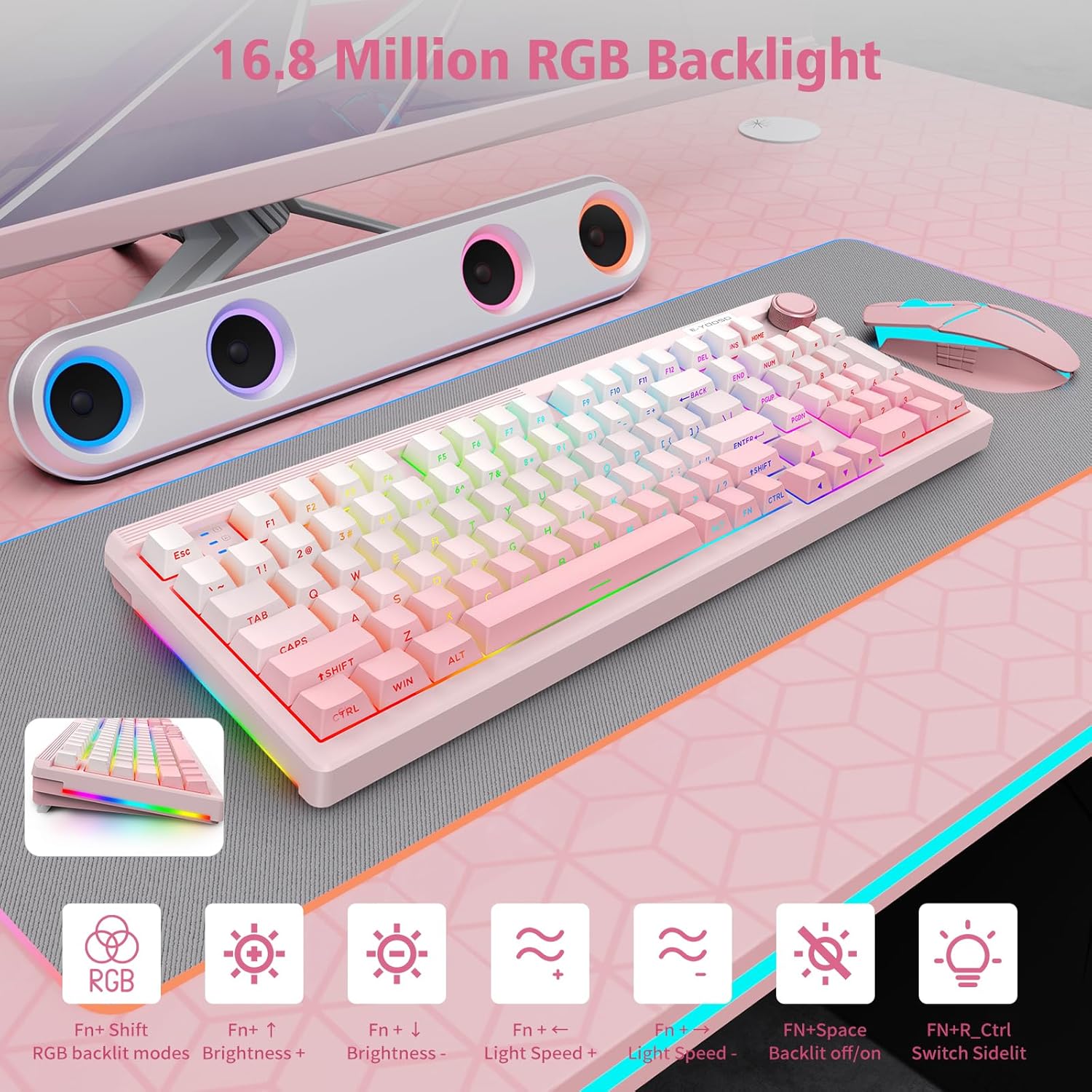
Image: RGB Backlight features and control shortcuts.
2.3 FN Shortcuts
The keyboard includes various FN key combinations for quick access to functions on both Windows and Mac operating systems.
FN Shortcuts for WINDOWS System
- FN+F1: Screen brightness-
- FN+F2: Screen brightness+
- FN+F3: Multiple task
- FN+F4: Voice (Up to WIN10)
- FN+F5: Computer desk
- FN+F6: Search
- FN+I: HOME
- FN+O: END
- FN+WIN: Lock/Unlock Win keys
- FN+P: SCRLK
- FN+L: PAUSE
- FN+ESC: Reset (3 seconds)
FN Shortcuts for MAC OS
- F1=FN+F1: Screen brightness-
- F2=FN+F2: Screen brightness+
- F3=FN+3: Multiple task
- F4=FN+4: Siri
- F5=FN+F5: Computer desk
- F6=FN+F6: Search
- F7=FN+F7: Previous track
- F8=FN+F8: Play/pause
- F9=FN+9: Next track
- F10=FN+10: Mute
- F11=FN+11: Volume -
- F12=FN+12: Volume +
- FN+ESC: Reset (3 seconds)

Image: FN shortcuts for Windows and Mac.
2.4 Battery Status and Power Saving
The keyboard is equipped with a 4000mAh high-capacity battery. To check the battery level, press FN + ALT. The indicator lights will show the approximate charge level (e.g., 1-3 for 30%, 1-5 for 50%, 1-9 for 100%).
For power saving, the backlight will automatically turn off after 3 minutes of inactivity in wireless mode. Press any button to wake up the keyboard.
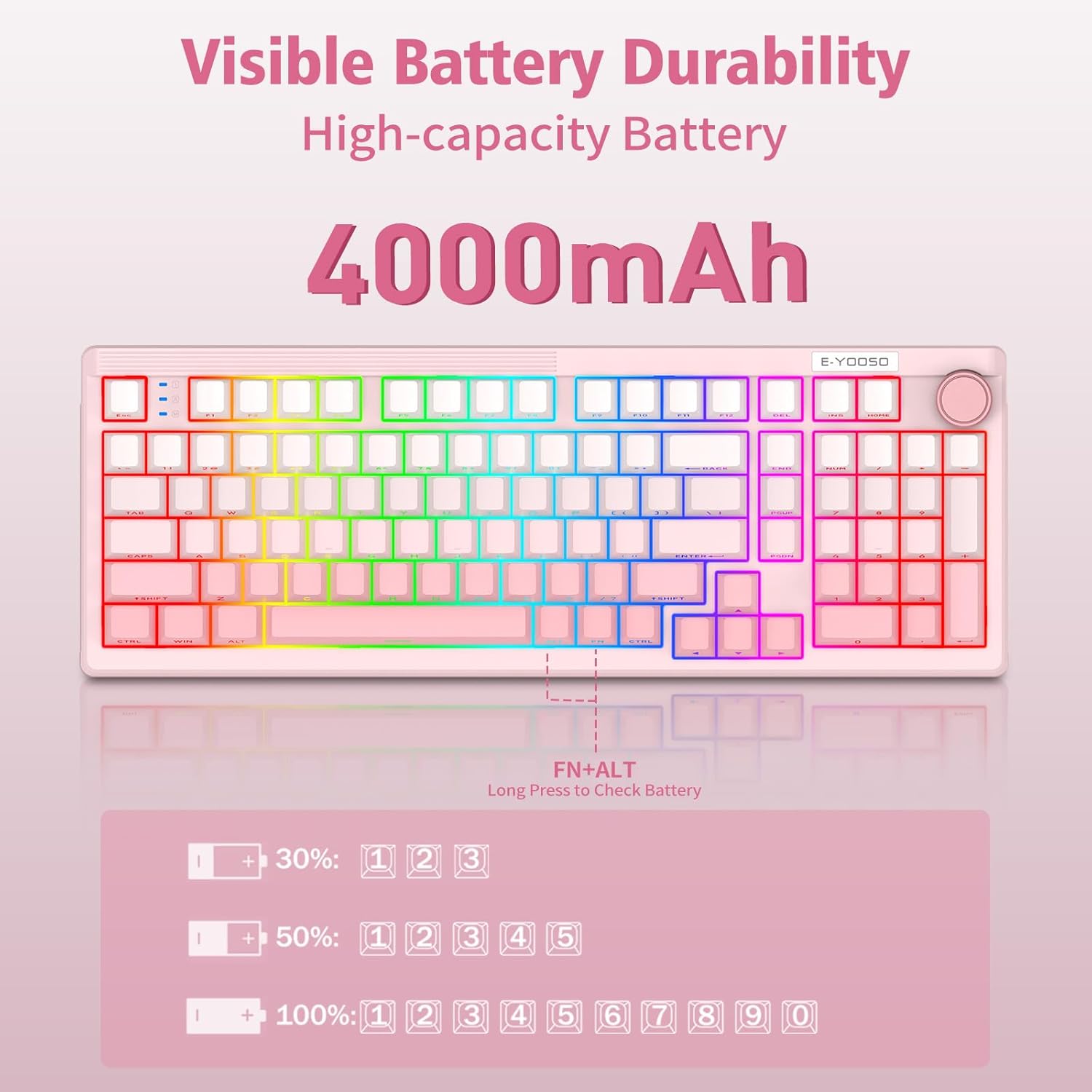
Image: Visible Battery Durability and status check.
3. Maintenance
3.1 Hot-Swappable Switches
The E-YOOSO Z-101 features a hot-swappable PCB, supporting both 3-pin and 5-pin mechanical switches. This allows for easy customization and replacement of switches without soldering.

Image: Hot-swappable switch sockets and switch specifications.
3.2 PBT Keycaps
The keyboard comes with durable PBT keycaps, known for their resistance to shine and wear over time, ensuring a long-lasting aesthetic and tactile experience.
3.3 Gasket Structure
The keyboard incorporates an advanced five-layer filling structure with an integrated silicone pad and precise PCB slotting. This design optimizes key resilience, board stability, and effectively dampens hollow cavity sounds, providing a consistent and pure typing sound.
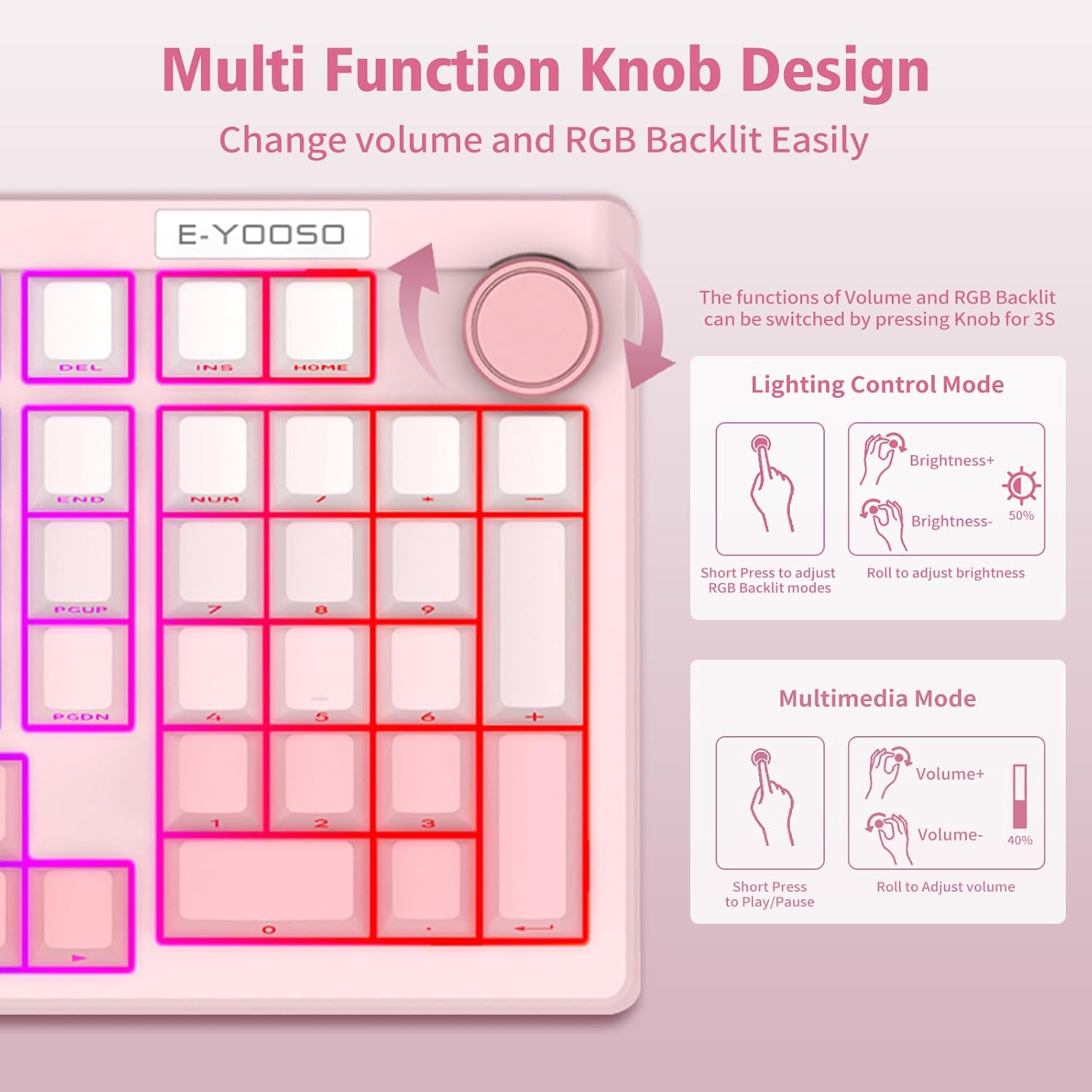
Image: Gasket Structure components.
4. Troubleshooting
- Keyboard not responding: Ensure the keyboard is charged or connected via USB-C. Check the connection mode switch (2.4G, BT, or Wired) is set correctly.
- Bluetooth pairing issues: Make sure the keyboard is in Bluetooth pairing mode (FN + 1/2/3 flashing). Remove previous pairings from your device and try pairing again.
- 2.4GHz connection issues: Ensure the USB receiver is securely plugged into your device. Try a different USB port.
- Backlight not working: Check if the backlight is turned off (FN + Space). Adjust brightness using the knob or FN + ↑/↓.
- Keys not registering: If specific keys are not working, ensure the switches are properly seated. For hot-swappable switches, gently remove and reinsert them.
- Unexpected behavior: Perform a factory reset by long-pressing FN + ESC for 3 seconds.
5. Specifications
| Feature | Detail |
|---|---|
| Model Number | Z-101 |
| Connectivity | Bluetooth 5.0, 2.4GHz Wireless, USB-C Wired |
| Keyboard Type | Mechanical |
| Switches | Pre-lubed Linear, Hot-Swappable (3-pin/5-pin) |
| Keycaps | PBT |
| Backlighting | RGB (16 effects, 16.8 million colors) |
| Battery Capacity | 4000mAh |
| Product Dimensions | 15.2 x 5.3 x 1.5 inches |
| Item Weight | 2.57 pounds |
| Compatible Devices | Laptop, PC |
| Special Features | Backlit, Ergonomic, Hot-Swappable, Multi-Function Knob, Gasket Structure |
| Material | Plastic |
6. Warranty and Support
For software drivers and further customization options, please visit: bit.ly/Z-101Driver
For warranty information or technical assistance, please contact E-YOOSO customer support through your retailer or the official E-YOOSO website.


