
1. Introduction
Thank you for choosing the MERCUSYS MC510 2K 3MP Outdoor WiFi Camera. This manual provides detailed instructions for the installation, operation, and maintenance of your security camera. Please read this manual carefully before use to ensure proper functionality and safety. The MC510 offers 2K 3MP resolution, 360-degree panoramic view, color night vision, two-way audio, smart motion detection, and IP65 weather resistance for reliable outdoor surveillance.

Image: MERCUSYS MC510 2K Pan/Tilt Wi-Fi Camera mounted on a wall, highlighting its 2K resolution and IP65 weather resistance.
2. Safety Information
- Ensure the power adapter is suitable for your local power supply.
- Do not expose the camera to extreme temperatures, humidity, or corrosive environments.
- Avoid placing the camera near strong electromagnetic fields.
- Keep the camera and its accessories out of reach of children.
- Only use accessories specified by the manufacturer.
- Disconnect power before cleaning or performing maintenance.
- The camera is IP65 rated for outdoor use, but avoid submerging it in water.
3. Package Contents
Verify that all items are present in your package:
- MC510 Camera × 1
- Power Adapter × 1
- Mounting Sticker × 1
- Mounting Bracket × 1
- Mounting Screws × 4 + Bracket Screws × 2
- Mounting Anchors × 4
- Waterproof Gasket × 1
- Quick Start Guide
4. Product Overview
The MERCUSYS MC510 is a versatile outdoor security camera designed to provide comprehensive surveillance with advanced features.
Key Features:
- 2K QHD with 360° View: Provides clear 2K 3MP video and full 360° horizontal coverage to see every corner and detail.
- Smart Motion Detection and Person Tracking: Automatically detects and tracks motion or people, ensuring key activities remain in focus.
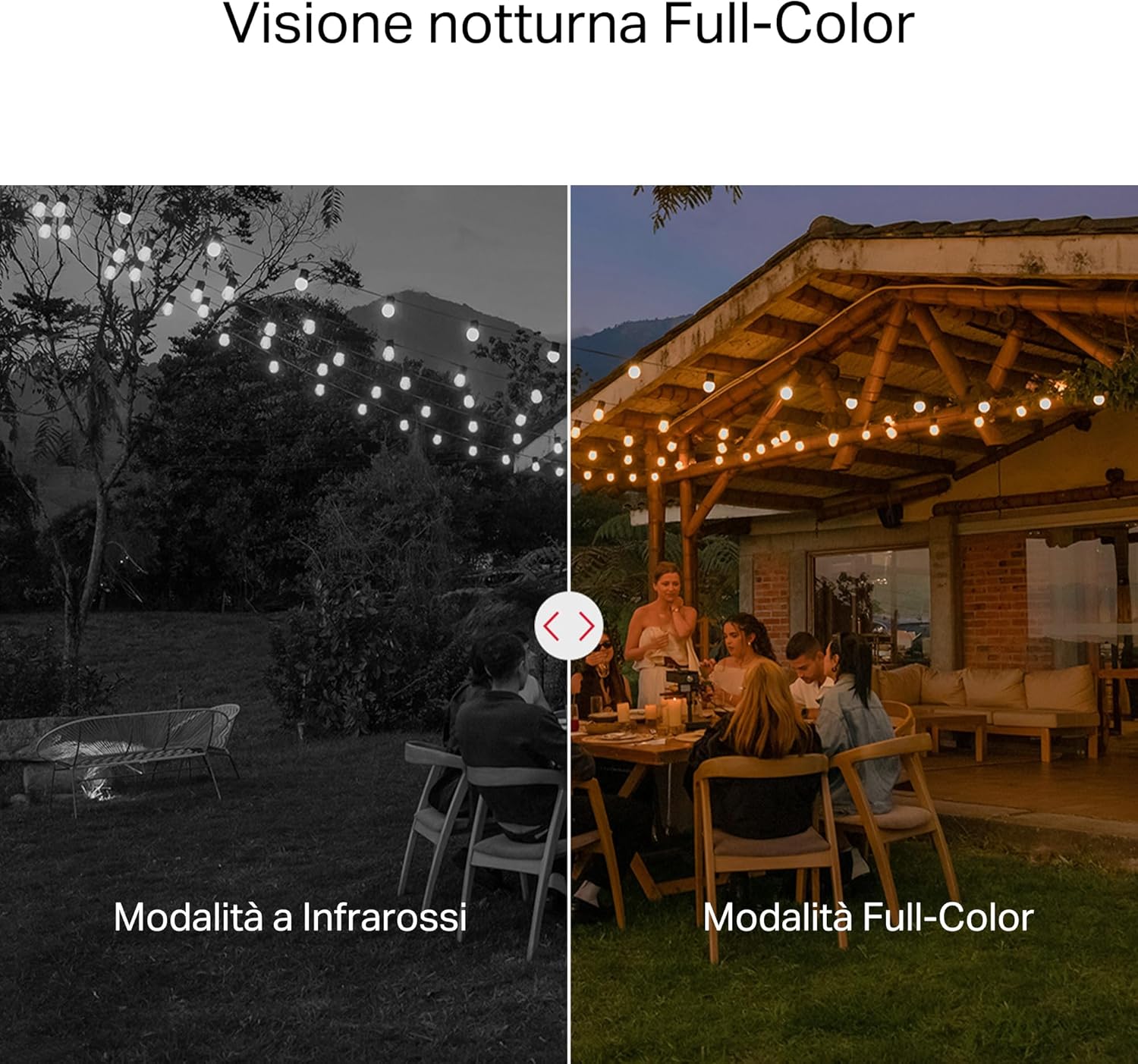
- Color Night Vision: Provides vivid and detailed images even at night for 24/7 protection.
- Customizable Activity Zones: Helps filter out irrelevant events and sends alerts only when necessary.
- Local and Cloud Storage: Supports microSD cards up to 512GB and cloud storage for secure and flexible video backup.
- Weatherproof for Outdoor Use: IP65 certified for reliable performance in rain, dust, or snow. Easily mounts on walls, ceilings, or poles.
- Privacy Protection with Lens Shield: Activate the physical lens cover when surveillance is not needed for greater peace of mind at home.
- Two-Way Audio: Communicate directly through the camera.
Visual Features:

High-resolution 2K 3MP video capture.
360-degree panoramic rotation for full coverage.
Full-Color Night Vision for clear images in low light.

Physical lens shield for enhanced privacy.
5. Setup
5.1 Physical Installation
The MC510 camera is designed for outdoor use and can be mounted on walls, ceilings, or poles. Its IP65 rating ensures protection against dust and water jets.
- Choose a Location: Select a suitable outdoor location that provides the desired viewing angle and has a stable Wi-Fi signal.
- Mounting: Use the provided mounting sticker to mark drill holes. Drill holes, insert anchors, and secure the mounting bracket with screws. Attach the camera to the bracket.
- Power Connection: Connect the power adapter to the camera and plug it into a power outlet. Ensure the waterproof gasket is properly installed for outdoor power connections.

Image: The camera is shown mounted outdoors, demonstrating its weather-resistant design.
5.2 App Installation & Connection
The MC510 connects exclusively via Wi-Fi. An Ethernet port is not available.
- Download the App: Download the official MERCUSYS app from your smartphone's app store (iOS or Android).
- Create Account: Open the app and create a new account or log in if you already have one.
- Add Camera: Follow the in-app instructions to add your MC510 camera. This typically involves scanning a QR code on the camera and connecting it to your home Wi-Fi network.
5.3 MicroSD Card Installation
For local storage, install a microSD card (up to 512GB, not included).
- Power Off: Disconnect the camera from power before inserting or removing the microSD card.
- Locate Slot: Refer to the camera's physical design to locate the microSD card slot, often protected by a cover.
- Insert Card: Gently insert the microSD card into the slot until it clicks into place.
- Format Card: After powering on the camera and connecting it to the app, navigate to the camera settings to format the microSD card.

Image: Close-up of the camera showing the microSD card slot, indicating flexible storage options.
6. Operating Instructions
6.1 Live View & Playback
- Live View: Open the MERCUSYS app and select your MC510 camera to view the live feed.
- Pan/Tilt Control: Use the controls in the app to remotely rotate the camera horizontally (pan) and vertically (tilt) to adjust the viewing angle.
- Playback: Access recorded footage from the app's playback section. You can filter by date and event.

Image: Illustration of 360-degree rotation with motion tracking.
6.2 Motion Detection & Tracking
- Enable Detection: In the app settings, enable motion detection and person tracking.
- Customize Activity Zones: Define specific areas within the camera's view where you want motion to be detected. This helps reduce false alarms.
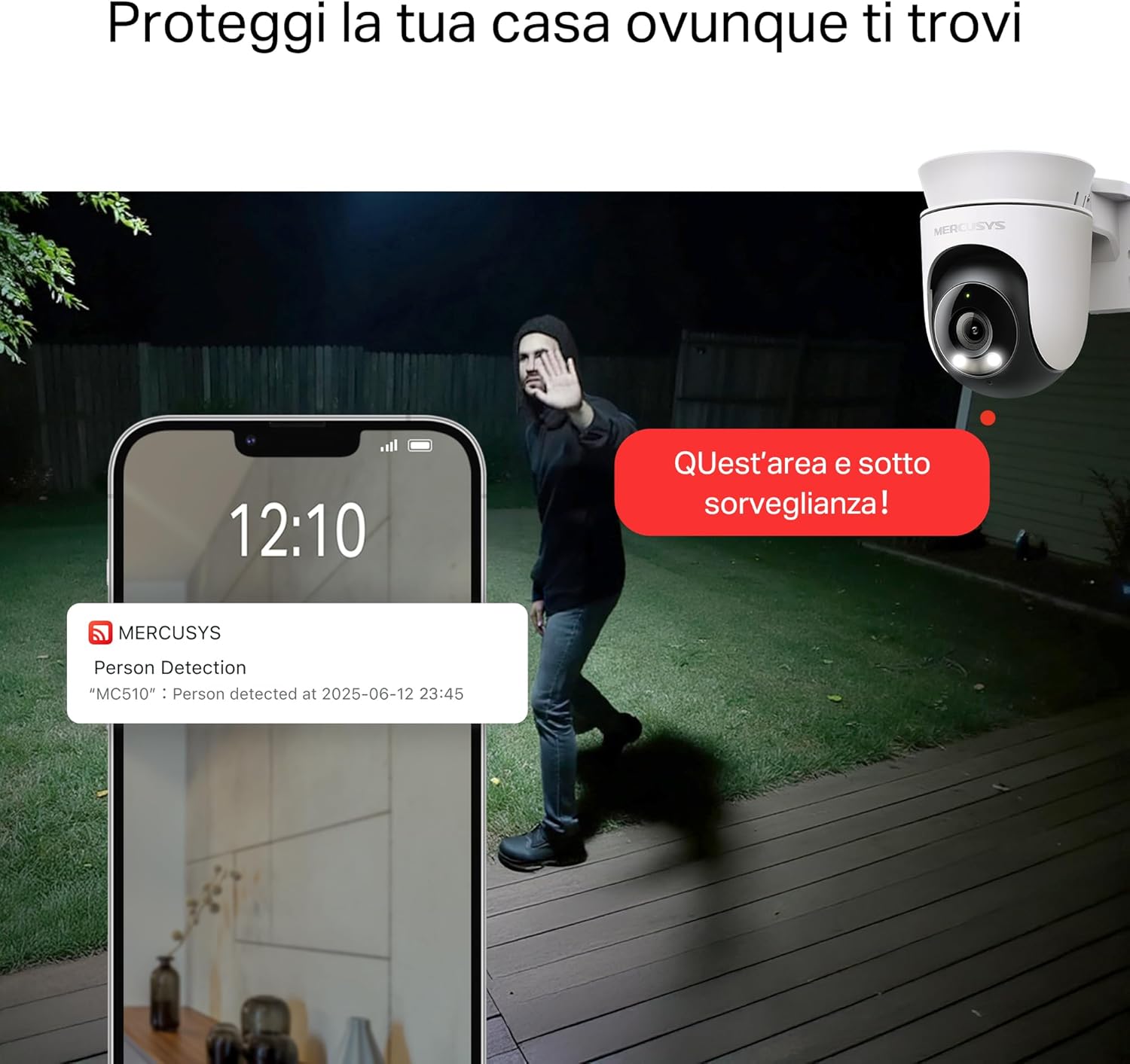
- Receive Alerts: The camera will send notifications to your smartphone when motion or a person is detected in the monitored zones.

Image: A person running in a yard, with detection boxes, demonstrating motion detection and tracking.
6.3 Two-Way Audio
The built-in microphone and speaker allow for two-way communication.
- Activate Audio: In the live view interface of the app, tap the microphone icon to speak through the camera.
- Listen: The speaker icon allows you to hear audio from the camera's vicinity.

Image: A person detected by the camera, with a phone notification and an on-screen alert, demonstrating customizable alarms and two-way audio.
6.4 Color Night Vision
The MC510 provides full-color night vision for enhanced clarity in low-light conditions.
- Automatic Activation: Color night vision activates automatically in low-light conditions.
- Infrared Mode: The camera also supports traditional infrared night vision (black and white) if preferred or in extremely dark environments.

Image: Comparison of infrared (monochrome) and full-color night vision modes.
6.5 Privacy Zone & Lens Shield
Protect your privacy by defining privacy zones or activating the physical lens shield.
- Privacy Zones: In the app, you can set up specific areas within the camera's view to be excluded from recording.
- Lens Shield: For complete privacy, use the app to activate the physical lens shield, which covers the camera lens.
7. Maintenance
7.1 Cleaning
- Ensure the camera is powered off before cleaning.
- Use a soft, dry cloth to wipe the camera body.
- For the lens, use a lens cleaning cloth to avoid scratches. Do not use harsh chemicals or abrasive cleaners.
7.2 Firmware Updates
Regularly check for firmware updates through the MERCUSYS app. Updates provide new features, performance improvements, and security enhancements. Follow the in-app instructions to perform updates.
8. Troubleshooting
If you encounter issues with your MERCUSYS MC510 camera, refer to the following common problems and solutions:
| Problem | Possible Solution |
|---|---|
| Camera not connecting to Wi-Fi | Ensure the camera is within range of your Wi-Fi router. Check Wi-Fi password. Restart the camera and router. The MC510 only supports Wi-Fi connection, no Ethernet. |
| Poor video quality | Check your Wi-Fi signal strength. Ensure the camera lens is clean. Adjust camera placement to avoid glare or obstructions. |
| Motion detection issues | Verify motion detection is enabled in the app. Adjust sensitivity settings. Ensure activity zones are correctly configured. |
| MicroSD card not working | Ensure the card is inserted correctly. Format the microSD card via the app. Try a different compatible microSD card. Power cycle the camera after inserting the card. |
| No two-way audio | Check microphone and speaker settings in the app. Ensure your phone's volume is up. |
9. Specifications
| Feature | Detail |
|---|---|
| Brand | MERCUSYS |
| Model Name | MC510 |
| Indoor/Outdoor Use | Outdoor |
| Connection Protocol | Wi-Fi |
| Mounting Type | Ceiling, Pole, Wall |
| Still Image Resolution | 3 MP |
| International Protection Rating | IP65 |
| Wireless Technology | Wi-Fi |
| Batteries Required | No |
| Video Capture Resolution | 2K 3MP |
| Video Capture Format | MPEG-4 |
| Number of Items | 1 |
| Included Components | MC510 Camera, Power Adapter, Mounting Sticker, Mounting Bracket, Mounting Screws, Mounting Anchors, Waterproof Gasket, Quick Start Guide |
| Country of Origin | China |
| Manufacturer | TP-Link |
| Item Dimensions | 14.1 x 9.3 x 12.2 cm |
10. Warranty and Support
For warranty information and technical support, please refer to the official MERCUSYS website or contact their customer service. Details can typically be found in the Quick Start Guide included with your product or on the manufacturer's website.
Online Support: Visit www.mercusys.com for FAQs, user manuals, and support resources.


