
1. Product Overview
This manual provides essential information for the SGIN 15.6 Inch Laptop Computer, Model SGIN-Y101. It covers initial setup, operation, maintenance, and troubleshooting to ensure optimal performance and longevity of your device.
Key Features:
- Powerful Core i3 Processor: Equipped with an i3 (4-thread) CPU up to 3.9GHz for multitasking.
- Ample Storage and Speed: Features 16GB RAM and 1024GB SSD for quick application loading and smooth operation. Storage is expandable with a TF card up to 1TB.
- 15.6 Inch FHD IPS Display: Full HD 1920×1080 IPS screen with 180° viewing angles for vivid colors and sharp details.
- Backlit Keyboard: White backlit keyboard for improved typing accuracy in low-light conditions. Activate with "FN" + "F5".
- All-Day Battery and Connectivity: 53.2Wh battery (7000mAh) providing up to 8 hours of battery life. Includes USB 3.0, HDMI, Micro SD slot, Kensington lock, and a headphone jack. Features WiFi 6.
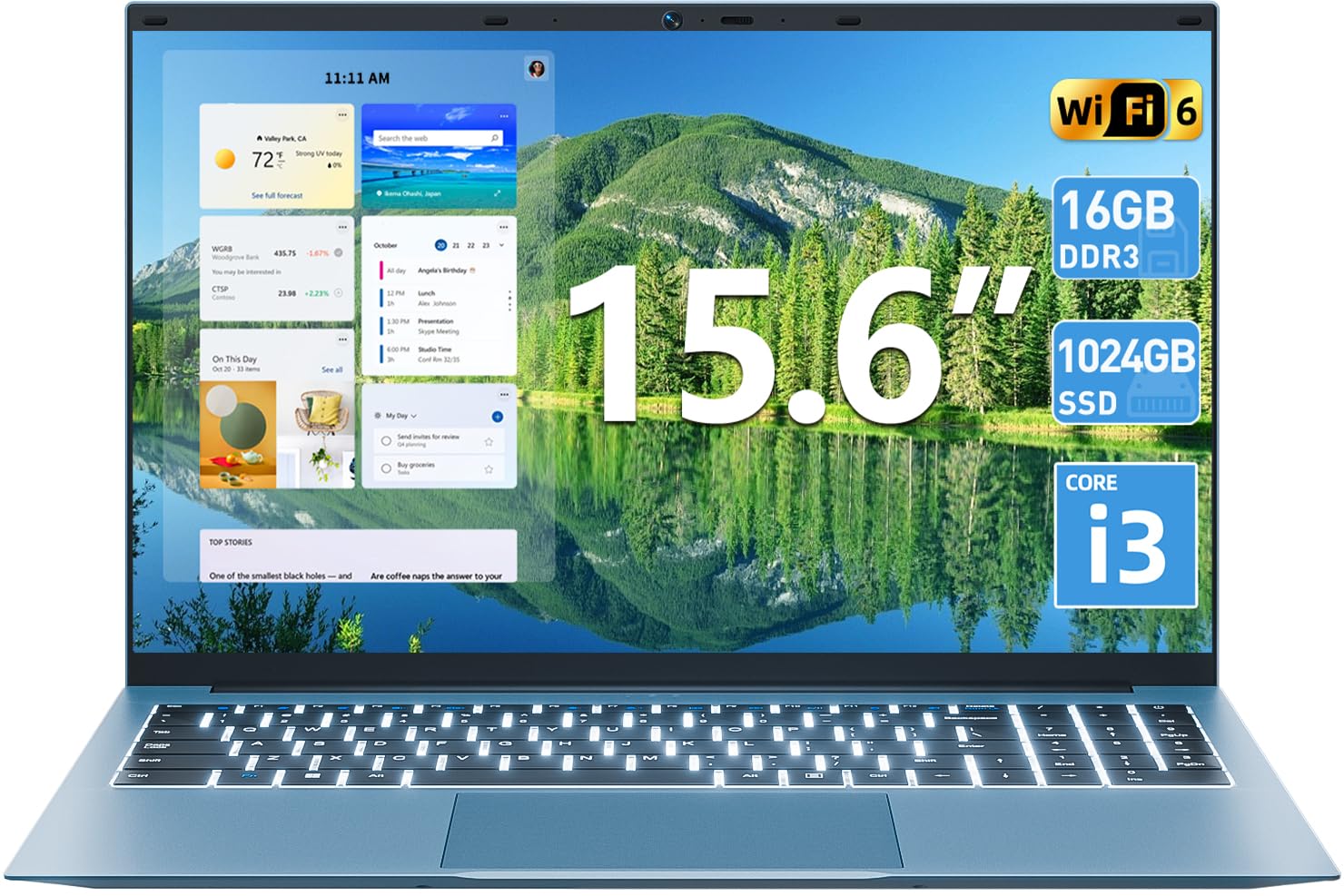
Image 1.1: Overview of the SGIN 15.6 Inch Laptop Computer, highlighting its main features like RAM, SSD, Core i3 processor, Windows 11, battery, backlit keyboard, and WiFi 6.
2. Initial Setup
2.1 Unpacking the Laptop
Carefully remove all components from the packaging. Ensure the following items are present:
- SGIN 15.6 Inch Laptop
- Power Adapter
- User Manual

Image 2.1: The SGIN laptop, power adapter, and user manual as typically found in the package.
2.2 Charging the Battery
Before first use, fully charge the laptop battery.
- Connect the power adapter to the charging port on the laptop.
- Plug the power adapter into a wall outlet.
- Allow the laptop to charge until the battery indicator shows a full charge.
Important: Use only the provided power adapter to avoid damage to the laptop.
2.3 Powering On and Initial Windows Setup
- Open the laptop lid.
- Press the power button located on the keyboard.
- Follow the on-screen instructions to complete the Windows 11 initial setup, including language selection, network connection, and user account creation.
3. Operating the Laptop
3.1 Keyboard and Touchpad
The laptop features a full-size keyboard with a numeric keypad and a large touchpad for navigation.
- Backlit Keyboard: To toggle the keyboard backlight, press the FN key simultaneously with the F5 key.
- Touchpad Gestures: Refer to Windows 11 settings for customizable touchpad gestures.

Image 3.1: The laptop's backlit keyboard and numeric keypad, shown illuminated for use in low-light conditions.
3.2 Connecting Peripherals
The laptop offers various ports for connecting external devices.
- USB Ports: Connect USB devices such as mice, keyboards, or external storage.
- HDMI Port: Connect to an external monitor or TV for extended display.
- Type-C Port: For data transfer and potentially charging (check specific adapter compatibility).
- Micro SD Slot: Insert a Micro SD card for additional storage.
- Headphone Jack: Connect headphones or external speakers.
- Kensington Lock Slot: Use a compatible security cable to secure your laptop.

Image 3.2: The left side of the laptop displaying the power input, Type-C port, HDMI port, and a USB port.
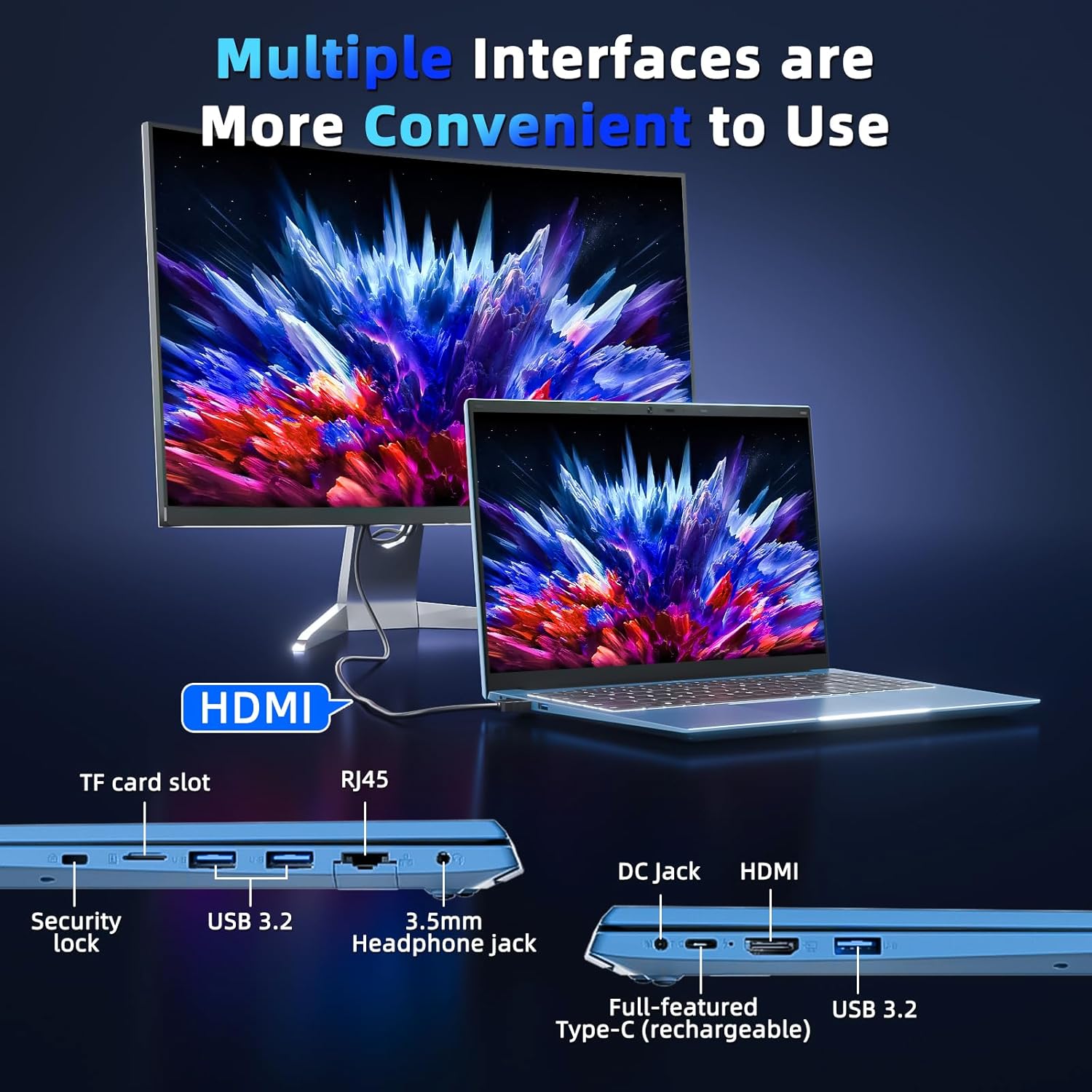
Image 3.3: The right side of the laptop displaying the Kensington lock slot, Micro SD card slot, two USB ports, and the headphone jack.
3.3 Wi-Fi Connectivity
The laptop supports Wi-Fi 6 for fast wireless internet access.
- Click the Wi-Fi icon in the taskbar.
- Select your desired network from the list.
- Enter the network password if prompted and click "Connect".
For wired internet connection, use the Ethernet port.
4. Maintenance and Care
4.1 Cleaning the Laptop
- Use a soft, lint-free cloth to clean the screen and exterior.
- Avoid using harsh chemicals or abrasive materials.
- For stubborn smudges, lightly dampen the cloth with water or a screen-cleaning solution.
4.2 Battery Care
- Avoid fully discharging the battery frequently.
- Store the laptop in a cool, dry place when not in use for extended periods.
- If the laptop will not be used for a long time, charge the battery to about 50-60% before storage.
4.3 Webcam Privacy
The laptop includes a physical webcam switch for privacy. Slide the switch to cover or uncover the webcam lens as needed.
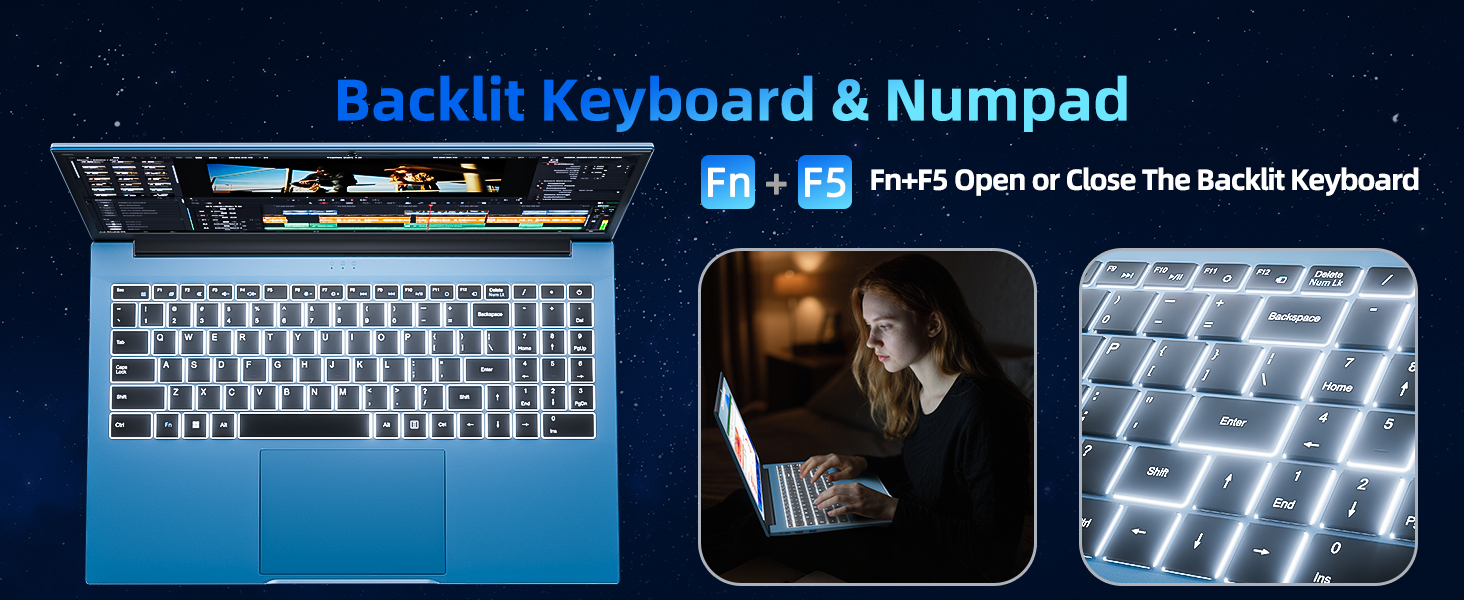
Image 4.1: Illustration of the physical webcam cover, demonstrating how to open and close it for privacy.
5. Troubleshooting
5.1 Power Issues
- Laptop not turning on: Ensure the power adapter is securely connected to both the laptop and a working power outlet. Check if the battery is charged.
- Battery not charging: Verify the power adapter connection. If the issue persists, contact customer support.
5.2 Display Issues
- Screen is blank: Ensure the laptop is powered on. Try adjusting the screen brightness using the function keys. If connected to an external monitor, disconnect it.
- Distorted image: Restart the laptop. Update display drivers if necessary.
5.3 Connectivity Issues
- No Wi-Fi connection: Check if Wi-Fi is enabled in Windows settings. Restart your router and the laptop. Ensure you are within range of a Wi-Fi network.
- Bluetooth device not connecting: Ensure Bluetooth is enabled on both the laptop and the device. Make sure the device is in pairing mode.
6. Specifications
| Feature | Detail |
|---|---|
| Brand | SGIN |
| Model Number | SGIN-Y101 |
| Screen Size | 15.6 Inches |
| Display Resolution | 1920 x 1080 pixels (Full HD IPS) |
| CPU Model | Core i3 (10th Gen, Intel Core i3-10100) |
| CPU Speed (Max) | 3.9 GHz |
| RAM | 16GB DDR3 SDRAM |
| Storage | 1024GB SSD (Expandable with TF card up to 1TB) |
| Operating System | Windows 11 |
| Battery Capacity | 53.2 Wh (7000mAh) |
| Wireless Connectivity | WiFi 6 (802.11ax), Bluetooth |
| Ports | USB 3.0, HDMI, Micro SD slot, Kensington lock, Headphone jack, Type-C |
| Keyboard | Backlit |
| Webcam | Yes (with physical privacy switch) |
| Weight | 2.52 Kilograms |
7. Warranty and Support
The SGIN 15.6 Inch Laptop Computer comes with a 1-year limited protection warranty.
For technical assistance, troubleshooting, or warranty claims, please contact SGIN customer support. They offer 24/7 instant help. Refer to the contact information provided with your product packaging or visit the official SGIN website for support details.
8. Product Video
Video 8.1: An official product video demonstrating the SGIN 15.6 Inch Laptop Computer, including its physical features and some operational aspects. This video is provided by the seller, SGIN Lap US.