
1. Introduction
Thank you for choosing Acer Wireless Earbuds OHR503. These earbuds are designed to provide a high-quality audio experience with advanced features for daily use, sports, and calls. This manual will guide you through the setup, operation, and maintenance of your new earbuds.
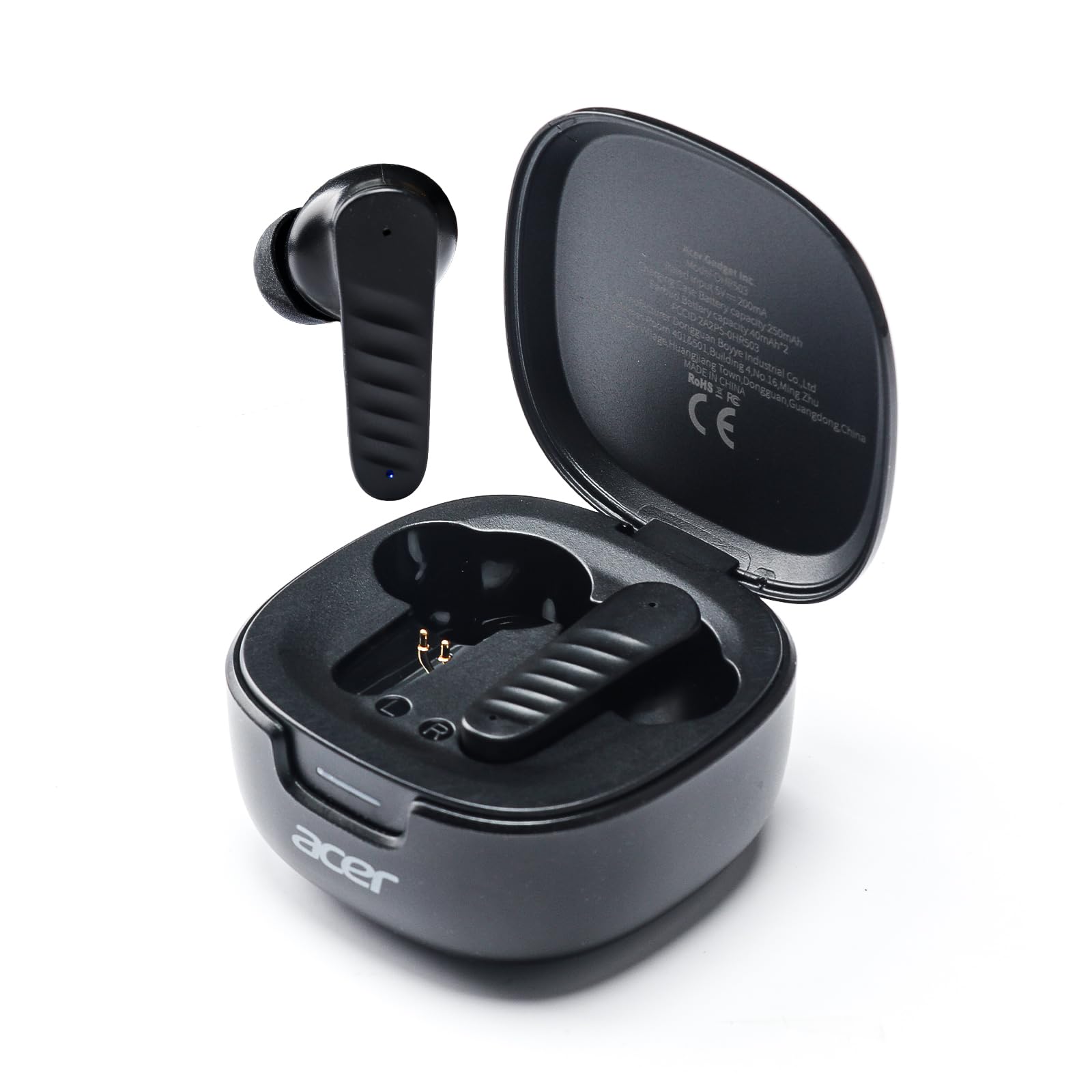
Image 1.1: Acer Wireless Earbuds OHR503 with their charging case, showcasing the compact design.
2. What's in the Box
Please check the package contents:
- Acer Wireless Earbuds (Left and Right)
- Wireless Charging Case
- USB-C Charging Cable (not explicitly listed but standard for charging cases)
- Multiple Ear Tip Sizes (not explicitly listed but mentioned in reviews for comfort)
- User Manual (this document)
3. Setup
3.1 Charging the Earbuds and Case
Before first use, fully charge the earbuds and the charging case. Place the earbuds into the charging case. Connect the charging case to a power source using a USB-C cable. The indicator light on the case will show charging status.

Image 3.1: Earbuds placed inside the charging case, ready for charging.
3.2 Pairing with Your Device
- Ensure the earbuds are charged.
- Open the lid of the charging case. The earbuds will automatically enter pairing mode.
- On your device (smartphone, tablet, etc.), enable Bluetooth.
- Search for available Bluetooth devices and select 'Acer OHR503' (or similar name) from the list.
- Once connected, a confirmation sound will play, and the earbuds will be ready for use.
The latest Bluetooth 5.4 technology ensures faster transmission speeds and effortless pairing. After initial pairing, the earbuds will automatically connect to your last paired device when the case lid is opened.

Image 3.2: Visual representation of the instant connection feature when opening the charging case.
4. Operating the Earbuds
4.1 Audio Playback
The Acer OHR503 earbuds feature oversized 8mm drivers, delivering a powerful deep bass experience and high-fidelity stereo sound. Enjoy an immersive auditory experience with surround sound technology.

Image 4.1: Illustration of the surround sound effect for an immersive listening experience.
4.2 Call Features
Equipped with noise-cancelling technology, advanced microphones, and an AI algorithm, these earbuds provide crystal-clear communication during calls. You can adjust your own voice volume for a balanced conversation.

Image 4.2: Diagram illustrating the noise cancellation feature for clear call quality, showing 'before' noisy ambient sound and 'after' clear human voice.
4.3 Comfort and Fit
The earbuds feature an ultra-lightweight and ergonomic design, ensuring a discreet and comfortable fit. They are designed to stay securely in place during various activities, including sports and workouts.

Image 4.3: Visual demonstrating the comfortable and stable fit of the earbuds in the ear, suitable for active use.
5. Maintenance
5.1 Cleaning
- Regularly clean the earbuds and charging case with a soft, dry, lint-free cloth.
- Remove ear tips and clean them with mild soap and water if necessary. Ensure they are completely dry before reattaching.
- Gently clean the charging contacts on both the earbuds and the case with a dry cotton swab to ensure proper charging.
5.2 Storage
When not in use, store the earbuds in their charging case to protect them from dust and damage. Store the case in a cool, dry place away from direct sunlight and extreme temperatures.
6. Troubleshooting
6.1 Earbuds Not Pairing
- Ensure both earbuds are charged.
- Turn off Bluetooth on your device and turn it back on.
- Forget the 'Acer OHR503' device from your device's Bluetooth settings and attempt to pair again.
- Place earbuds back in the case, close the lid, wait a few seconds, then open to re-initiate pairing mode.
6.2 No Sound or Low Volume
- Check the volume level on both your device and the earbuds.
- Ensure the earbuds are properly connected to your device.
- Clean any debris from the earbud speaker mesh.
- Try resetting the earbuds (refer to manufacturer's website for specific reset instructions if needed).
6.3 Charging Issues
- Ensure the charging cable is securely connected to both the case and the power source.
- Verify that the power source is active.
- Clean the charging contacts on the earbuds and inside the case.
- Try a different USB-C cable or power adapter.
7. Specifications
| Model Name | OHR503 |
| Brand | Acer |
| Connectivity Technology | Wireless (Bluetooth 5.4) |
| Ear Placement | In Ear |
| Form Factor | In Ear |
| Included Components | Wireless Charging Case |
| Item Weight | 2.39 ounces |
| UPC | 195133284950 |
| Battery Life (Single Use) | 5-6 hours (approx.) |
| Total Usage Time (with Charging Case) | Up to 30 hours (approx.) |
Image 7.1: Overview of the V5.4 intelligent chip and super long standby battery performance, indicating up to 30 hours of total usage time.
8. Warranty and Support
Acer products are designed for reliability and performance. For warranty information and customer support, please refer to the warranty card included with your purchase or visit the official Acer support website. Keep your proof of purchase for warranty claims.


