
1. Introduction
Thank you for choosing the FMOUSE M235 PRO Gaming Wireless Mouse. This tri-mode mouse offers versatile connectivity options (2.4G wireless, Bluetooth, and wired Type-C), high-performance features like 4800 DPI and 1000Hz polling rate, and customizable RGB lighting. This manual provides detailed instructions for setup, operation, and maintenance to ensure optimal performance.
2. Package Contents
- FMOUSE M235 PRO Gaming Wireless Mouse
- 2.4G USB Receiver
- Type-C Charging/Data Cable
- User Manual
- Storage Bag
3. Product Overview
The FMOUSE M235 PRO features an ergonomic hollow design for reduced hand fatigue and a lightweight build (approximately 65g). It includes multiple buttons for enhanced functionality and customizable RGB lighting.
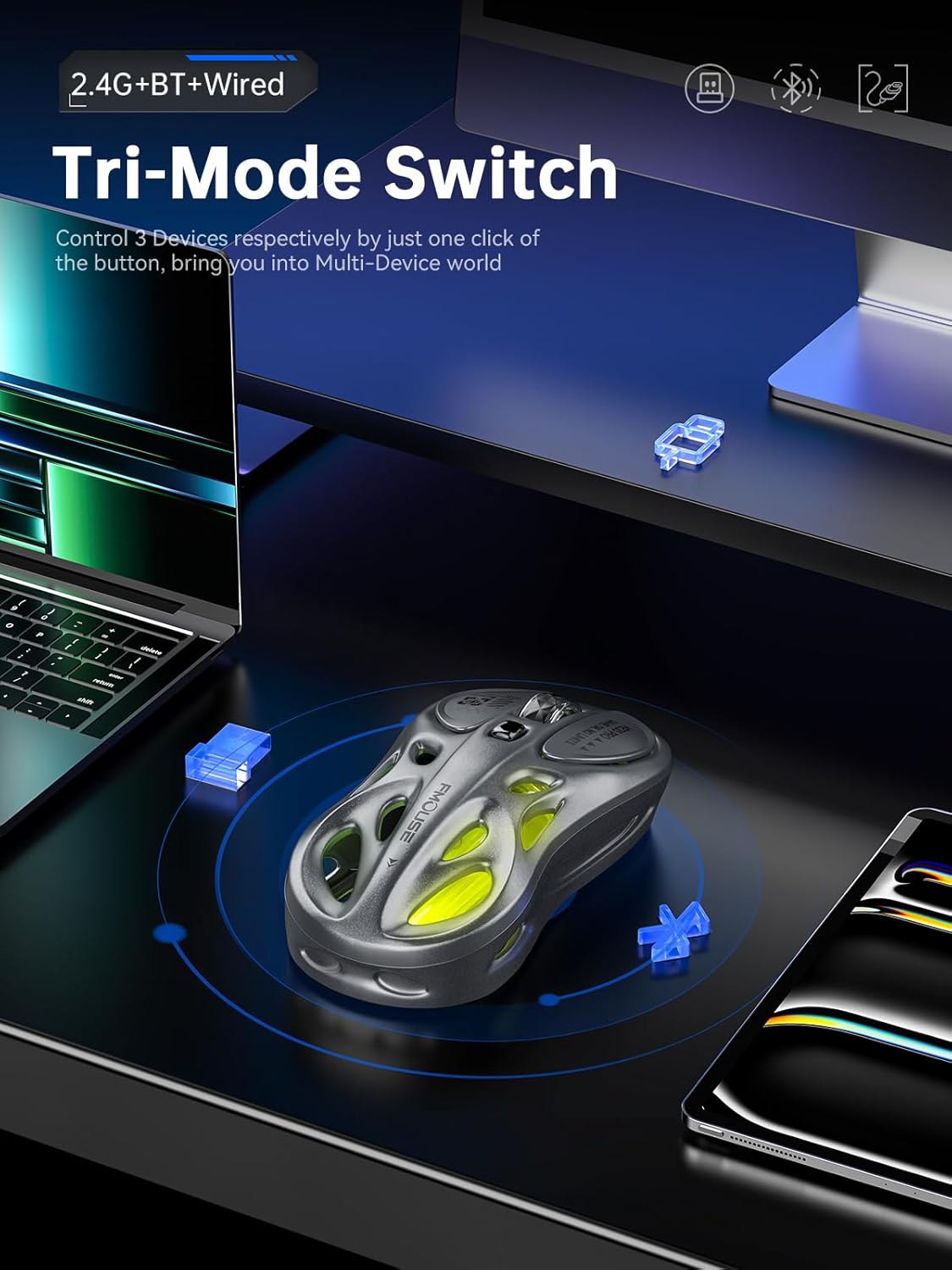
Image: Top view of the FMOUSE M235 PRO Gaming Wireless Mouse.

Image: Lightweight design of the FMOUSE M235 PRO mouse.
Button Functions:
- Left Button: Standard click function.
- Right Button: Standard right-click function.
- Scroll Wheel: Scroll up/down, middle click.
- DPI Button: Cycles through DPI levels.
- Forward Button: Navigates forward in browsers/applications.
- Backward Button: Navigates backward in browsers/applications.
- Mode Switch (Bottom): Switches between 2.4G, Bluetooth, and Wired modes.
- ON/OFF Switch (Bottom): Powers the mouse on or off.

Image: Bottom view of the FMOUSE M235 PRO mouse with labeled components.
4. Setup
The FMOUSE M235 PRO supports three connection modes: Wired, 2.4G Wireless, and Bluetooth. You can seamlessly switch between up to 3 devices.
4.1 Wired Connection
- Connect the Type-C end of the charging/data cable to the mouse.
- Connect the USB-A end of the cable to your computer's USB port.
- Ensure the mouse's ON/OFF switch is in the 'ON' position. The mouse will automatically switch to wired mode.
4.2 2.4G Wireless Connection
- Locate the 2.4G USB receiver in the package.
- Plug the 2.4G USB receiver into an available USB port on your computer.
- Flip the mouse's ON/OFF switch to 'ON'.
- Press the 'MODE' switch button on the bottom of the mouse until the indicator light turns green. This indicates 2.4G mode.
- The mouse should now be connected.
4.3 Bluetooth Connection
- Flip the mouse's ON/OFF switch to 'ON'.
- Press the 'MODE' switch button on the bottom of the mouse until the indicator light turns blue (for Bluetooth 1) or red (for Bluetooth 2).
- On your device (computer, laptop, iPad, etc.), go to Bluetooth settings and enable Bluetooth.
- Search for new devices. The mouse should appear as "BT Mouse" or similar.
- Select the mouse to pair. The indicator light will stop flashing once successfully paired.
- To switch between two paired Bluetooth devices, press the 'MODE' switch button to toggle between blue and red indicator lights.
Video: Demonstrates the tri-mode connection process (wired, 2.4G, Bluetooth) for the FMOUSE M235 PRO Gaming Wireless Mouse. Shows how to plug in the data cable, insert the 2.4G USB receiver, and pair via Bluetooth with different devices.
5. Operating Instructions
5.1 DPI Adjustment
The mouse features 5 adjustable DPI levels (800-4800) for precise control. Press the DPI button located on the top of the mouse to cycle through the available DPI settings. Each DPI level may correspond to a different RGB color indicator for easy identification.

Image: Illustration of 5-level adjustable DPI settings.
5.2 RGB Lighting Control
The mouse features customizable RGB backlighting. Long press the DPI button to switch between multiple lighting modes and effects. Experience dynamic RGB track synchronization.
5.3 Customization and Macro Programming
For advanced customization, including button remapping, macro programming, and detailed lighting effects, download the official FMOUSE software (FMOUSE Futura) from the official website. The software allows you to adjust various parameters to personalize your mouse for specific tasks or games.

Image: Screenshot of the FMOUSE software for macro programming and customization.
6. Charging
The FMOUSE M235 PRO is equipped with a 500mAh rechargeable lithium-ion battery. Use the provided Type-C cable to charge the mouse.
- Connect the Type-C end of the cable to the mouse's charging port.
- Connect the USB-A end to a power source (e.g., computer USB port, USB wall adapter).
- The mouse's indicator light will typically show charging status (e.g., pulsing green).
- A full charge takes approximately 2 hours.

Image: Type-C charging illustration.
7. Maintenance
- Cleaning: Use a soft, dry cloth to clean the mouse. Avoid using harsh chemicals or abrasive materials.
- Storage: Store the mouse in a cool, dry place away from direct sunlight and extreme temperatures.
- Battery Care: To prolong battery life, avoid fully discharging the mouse frequently. Charge it regularly.
- Receiver Storage: When not in use, store the 2.4G USB receiver in a safe place to prevent loss. Note that there is no dedicated storage slot on the mouse itself.
8. Troubleshooting
| Issue | Possible Solution |
|---|---|
| Mouse not responding in 2.4G mode | Ensure the 2.4G USB receiver is securely plugged in. Check if the mouse is switched to 2.4G mode (green indicator light). Try plugging the receiver into a different USB port. |
| Mouse not pairing via Bluetooth | Ensure the mouse is in Bluetooth pairing mode (blue or red indicator light flashing). Make sure Bluetooth is enabled on your device and it's discoverable. Try restarting both the mouse and your device. |
| Lag or intermittent connection | Reduce distance between mouse and receiver/device. Avoid interference from other wireless devices. Ensure the mouse is fully charged. |
| RGB lighting not working | Ensure the mouse is powered on. Long press the DPI button to cycle through lighting modes. Check software settings if applicable. |
| DPI not changing | Press the DPI button firmly. If using custom software, ensure DPI settings are correctly configured and applied. |
| Mouse not charging | Verify the Type-C cable is properly connected to both the mouse and the power source. Try a different cable or USB port/charger. |
9. Specifications
| Feature | Detail |
|---|---|
| Model Number | M235 PRO |
| Connectivity Technology | 2.4GHz USB / Dual Bluetooth / Wired (Type-C) |
| Movement Detection Technology | Optical (PixArt PAW3212DB-TJDT chip) |
| DPI Levels | 5 adjustable levels, up to 4800 DPI |
| Polling Rate | 1000Hz |
| Battery | 500mAh Lithium Ion (rechargeable) |
| Item Weight | 6.7 ounces (approximately 65g) |
| Dimensions | 4.7 x 2.4 x 1.3 inches (119 x 62 x 33 mm) |
| Special Features | RGB backlight, Customizable buttons, Macro programming, Ergonomic hollow design |
| Compatibility | Windows, Mac, Android (Laptops, iPads, MacBooks) |
10. Warranty and Support
For warranty information and technical support, please refer to the documentation included with your purchase or visit the official FMOUSE website. You can typically find drivers, FAQs, and contact information for customer service there.
Official FMOUSE Website: www.fmouse.com


