
1. Introduction
This manual provides essential information for the safe operation and maintenance of your 4DRC V31 RC Plane with Camera. Please read this manual thoroughly before operating the aircraft to ensure proper function and to avoid damage or injury. Keep this manual for future reference.

Figure 1: 4DRC V31 RC Plane, designed for beginner-friendly operation.
2. Package Contents
Verify that all items listed below are included in your package. If any items are missing or damaged, contact customer support.
- 4DRC V31 RC Plane
- Remote Control Transmitter
- Rechargeable Batteries (2 C batteries included)
- USB Charging Cable
- Spare Propellers
- Screwdriver
- User Manual (this document)
Note: The charger is included as part of the USB charging cable.
3. Product Features
- 360° Flip & Aerial Stunts: Perform aerobatic rolls and 360-degree circling.
- Integrated Camera: Advanced WiFi-enabled camera for real-time video streaming and capturing flight moments.
- Color LED Lights: Equipped with bright LED lights for visibility and aesthetic appeal during evening flights.
- Easy to Use: No assembly required. Features one-key takeoff/landing, altitude hold, and three speed options.
- Safety & Durability: Four built-in propellers with protective structure and sturdy EPP material construction for impact resistance.
- Headless Mode: Simplifies control by eliminating the need to adjust the aircraft's position before flight.
- One-Key Takeoff/Landing: Simplifies starting and ending flights.
- Altitude Hold: Maintains a consistent altitude for stable hovering.
- Three Speed Options: Adjustable flight speeds for different skill levels.
4. Setup
4.1 Charging the Battery
- Connect the USB charging cable to the aircraft's battery port.
- Plug the USB end of the cable into a 5V/1A USB power adapter (not included) or a computer's USB port.
- The indicator light on the USB cable will illuminate during charging and turn off when fully charged.
- Charging time is approximately 60-90 minutes.

Figure 2: The aircraft features a module battery and a low battery alert system. Two batteries provide approximately 40 minutes of flight time.
4.2 Installing Batteries in the Remote Control
- Open the battery compartment on the back of the remote control.
- Insert 2 C batteries (included), ensuring correct polarity (+/-).
- Close the battery compartment securely.
4.3 Pairing the Aircraft with the Remote Control
- Place the aircraft on a flat surface.
- Turn on the aircraft's power switch. The LED lights on the aircraft will flash.
- Turn on the remote control.
- Push the left joystick (throttle) all the way up, then all the way down. The aircraft's LED lights will stop flashing and remain solid, indicating successful pairing.
5. Operating Instructions
5.1 Basic Flight Controls
- Takeoff: Press the One-Key Takeoff button or push both joysticks outwards and downwards simultaneously to start the propellers, then push the left joystick up to ascend.
- Landing: Press the One-Key Landing button or pull the left joystick down to descend.
- Ascend/Descend: Use the left joystick (throttle) up/down.
- Forward/Backward: Use the right joystick up/down.
- Turn Left/Right: Use the left joystick left/right.
- Fly Left/Right (Strafe): Use the right joystick left/right.
- Speed Adjustment: Press the speed button on the remote control to cycle through three speed modes (low, medium, high).

Figure 3: Key flight functions including Headless Mode and One-Click Takeoff/Landing.
5.2 Headless Mode
In Headless Mode, the aircraft's orientation is locked to the remote control's orientation at the time of activation. This means pushing the right joystick forward will always make the aircraft fly away from you, regardless of which way the front of the aircraft is facing.
- To activate Headless Mode, press the Headless Mode button on the remote control. The aircraft's lights will flash to indicate activation.
- To exit Headless Mode, press the Headless Mode button again.
5.3 Altitude Hold
The Altitude Hold function allows the aircraft to maintain a stable altitude without constant throttle input. This makes it easier to control and capture stable photos/videos.

Figure 4: The aircraft's Altitude Hold feature for stable flight and One-Click Quick Stop for emergency landings.
6. Camera and FPV Operation
6.1 Connecting to the App
- Download the "4DRC" app from your smartphone's app store.
- Turn on the aircraft.
- On your smartphone, go to Wi-Fi settings and connect to the Wi-Fi network named "4DRC-V31-XXXX".
- Open the 4DRC app. You should see the live FPV feed from the aircraft's camera.
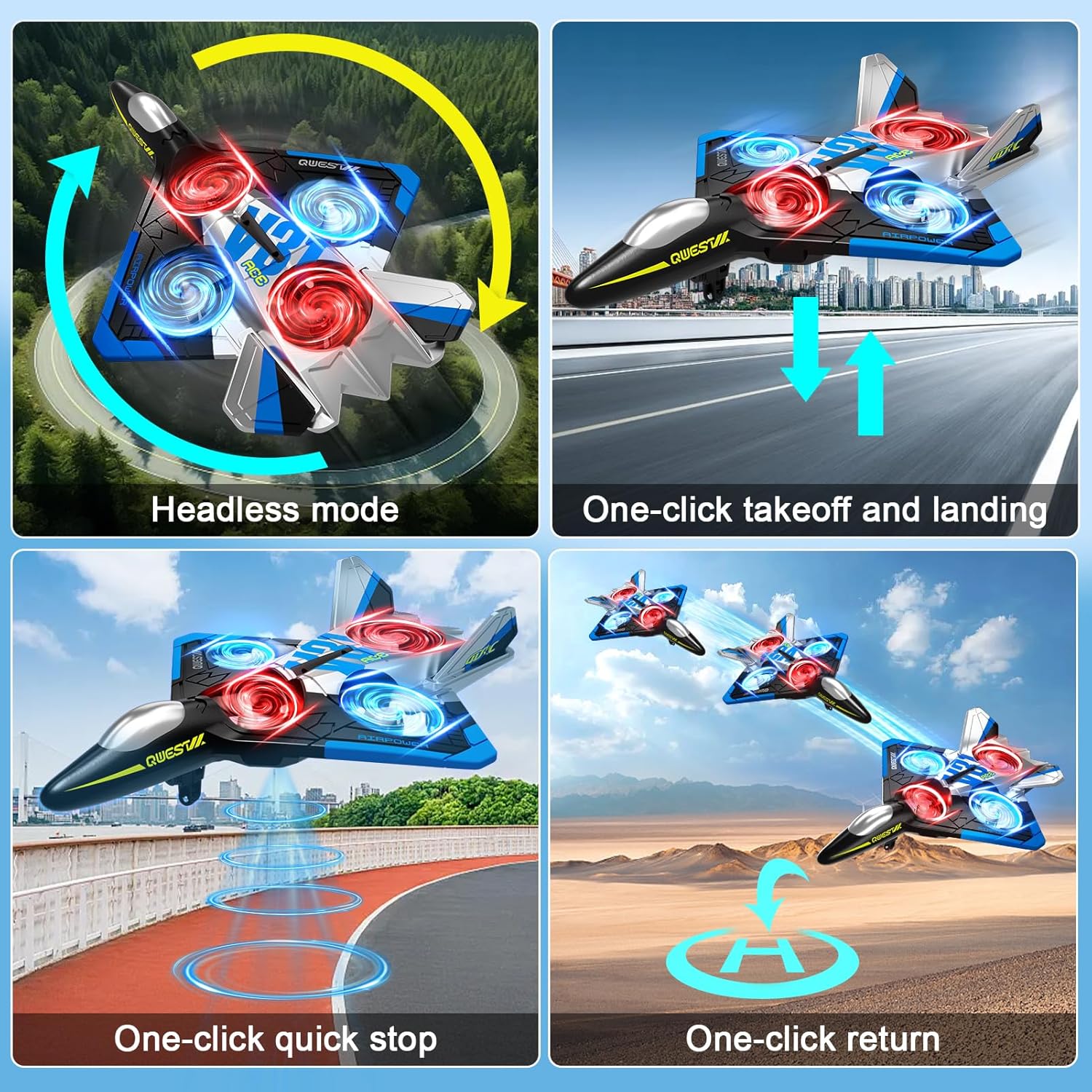
Figure 5: Experience real-time FPV transmission directly to your smartphone.
6.2 Taking Photos and Videos
Once connected to the app, you can use the on-screen controls to capture photos and record videos.
- Photo: Tap the camera icon in the app to take a photo.
- Video: Tap the video icon to start recording. Tap again to stop.
- Gesture Control: The aircraft supports gesture control for taking photos and videos. Refer to the app interface for specific gesture commands.

Figure 6: Utilize gesture control for hands-free photo and video capture.

Figure 7: The camera captures 1080P Full HD aerial images and videos.
7. Special Flight Modes
7.1 360° Flip
To perform a 360° flip:
- Fly the aircraft to a height of at least 3 meters.
- Press the 360° Flip button on the remote control.
- Immediately push the right joystick in the desired direction (forward, backward, left, or right) to execute the flip.

Figure 8: The aircraft is capable of performing exciting 3D flips.
7.2 360° Circling
To perform a 360° circling stunt:
- Ensure the aircraft is flying stably at a sufficient height.
- Press the One-Click Circling button on the remote control. The aircraft will automatically perform a 360-degree circle.
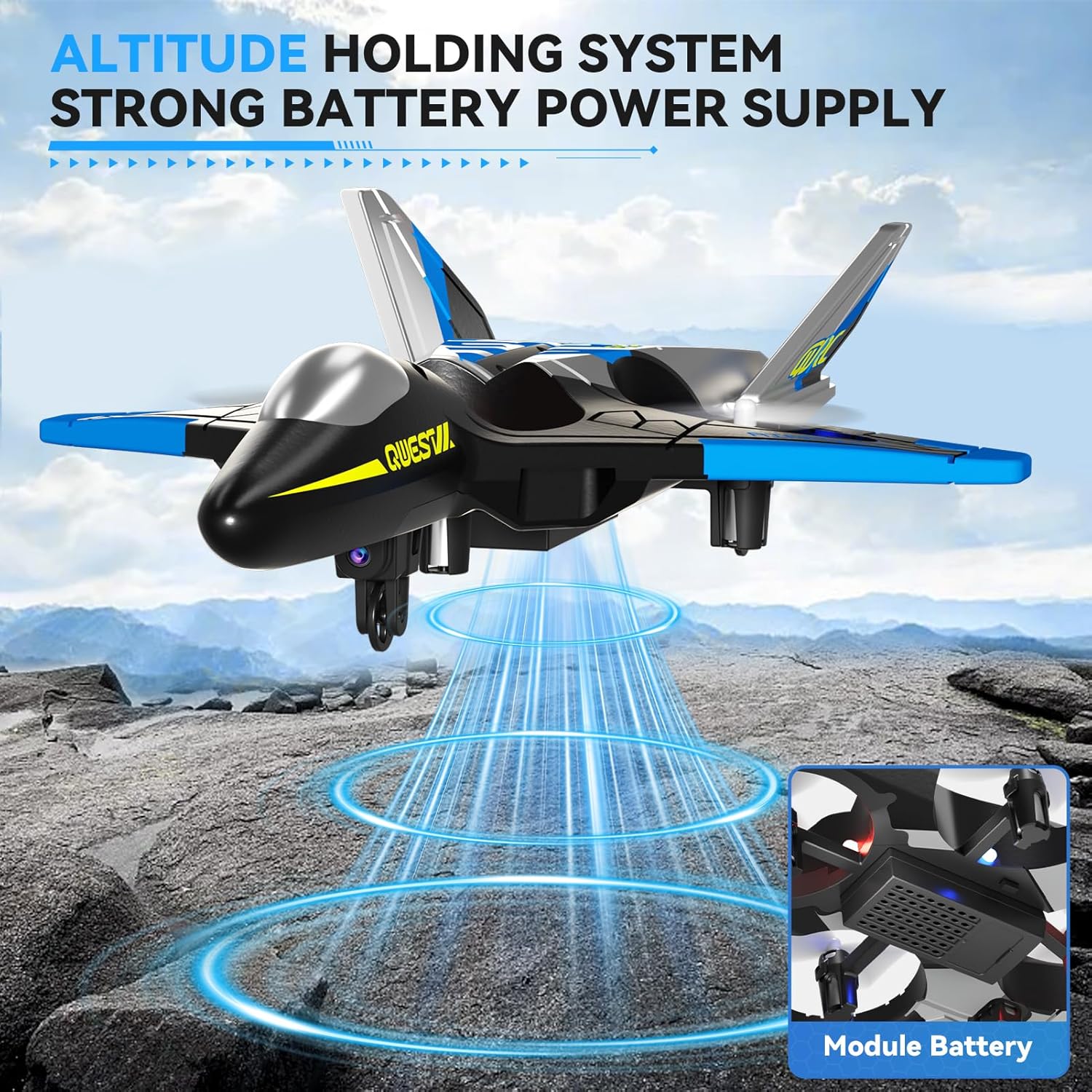
Figure 9: Execute impressive 360° circle flight stunts with ease.
7.3 Trajectory Flight
Using the app, you can draw a flight path on your smartphone screen, and the aircraft will follow it automatically.
- Connect your smartphone to the aircraft's Wi-Fi.
- Open the 4DRC app and enter the flight interface.
- Tap the Trajectory Flight icon.
- Draw your desired flight path on the screen. The aircraft will then fly along the specified route.

Figure 10: Utilize Trajectory Flight and Gesture Control for advanced flight maneuvers.
8. Safety and Durability
The 4DRC V31 RC Plane is designed with safety and durability in mind.
- Propeller Protection: Four built-in propellers are protected by the aircraft's frame, reducing the risk of injury from spinning blades.
- EPP Material: Constructed from soft yet sturdy EPP material, allowing the aircraft to withstand minor impacts and tumbles.
- Omnidirectional Obstacle Avoidance: The aircraft may feature an omnidirectional obstacle avoidance module to prevent collisions.
Video 1: Demonstrates various flight features including LED lights, one-click taxi takeoff, multi-gear speed adjustment, HD camera, real-time transmission, gesture photography/video, gravity induction, bump-proof design, jettisoning mode, optical flow localization, omnidirectional obstacle avoidance, 360° circling, 360° effect tumbling, trajectory flight, and one-touch landing.
9. Maintenance
- Cleaning: Wipe the aircraft with a soft, dry cloth after each use. Avoid using water or harsh chemicals.
- Propeller Inspection: Regularly check propellers for damage (cracks, bends). Replace damaged propellers immediately using the provided spare parts.
- Battery Care:
- Do not overcharge or over-discharge batteries.
- Store batteries in a cool, dry place away from direct sunlight.
- If not used for an extended period, charge the battery to about 50% before storing.
- Storage: Store the aircraft and remote control in a dry, cool environment, away from extreme temperatures and direct sunlight.
10. Troubleshooting
| Problem | Possible Cause | Solution |
|---|---|---|
| Aircraft does not respond to remote control. | Not paired; low battery in aircraft or remote. | Re-pair the aircraft and remote. Charge aircraft battery. Replace remote control batteries. |
| Aircraft flies erratically or drifts. | Uncalibrated gyroscope; damaged propeller. | Perform gyroscope calibration (refer to app or remote instructions). Check and replace damaged propellers. |
| Camera feed is not visible on smartphone. | Not connected to aircraft Wi-Fi; app not open. | Ensure smartphone is connected to the aircraft's Wi-Fi network. Open the 4DRC app. |
| Short flight time. | Battery not fully charged; old battery. | Ensure battery is fully charged. Consider replacing old batteries. |
11. Specifications
- Model Name: 4D-V31-BLUE-WIFI (V31 Series)
- Brand: 4DRC
- Material Type: Plastic (EPP Foam)
- Item Dimensions: 8 x 3 x 11 inches
- Battery Type: Lithium-Ion
- Number of Batteries: 2 C batteries (included)
- Included Components: Charger (USB cable)
- Age Range: Kid Adults (Manufacturer Minimum Age: 96 months)
- Additional Features: RC plane, RC plane with camera, remote control airplane, 360° Flip, Headless Mode, One-Key Takeoff/Landing, Altitude Hold, Three Speed Options, Color LED Light.
12. Warranty and Support
For warranty information and customer support, please refer to the contact details provided on the product packaging or visit the official 4DRC website. Keep your purchase receipt as proof of purchase.
Manufacturer: 4DRC
