
1. Introduction
This manual provides essential instructions for the safe and effective use of your AIMILAR Bluetooth Kitchen Scale. This smart scale is designed to assist with precise food weighing and nutritional tracking, supporting various dietary and health goals.
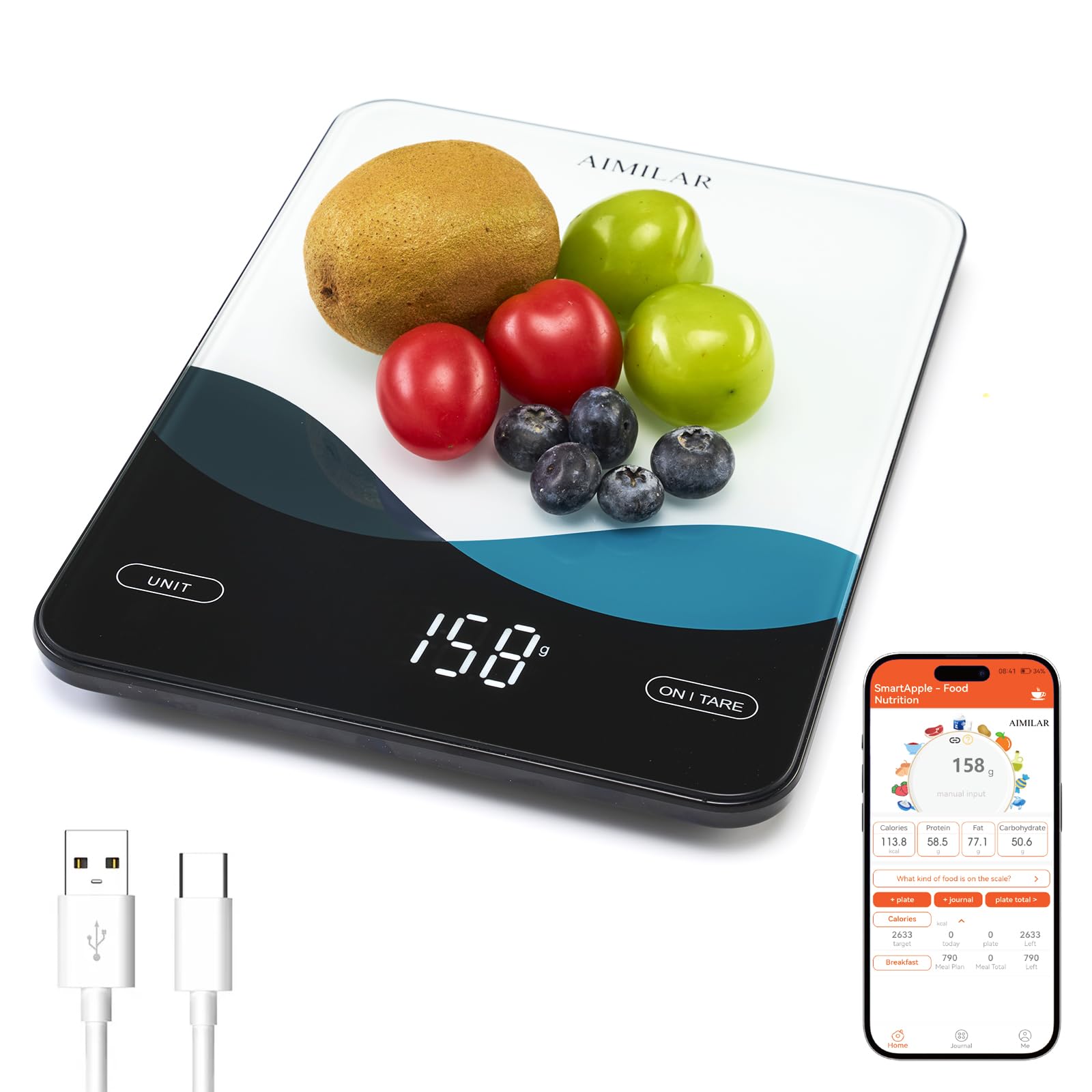
Front view of the AIMILAR Bluetooth Kitchen Scale, showcasing its sleek design and LED display.
2. Product Overview
The AIMILAR Bluetooth Kitchen Scale combines accurate weighing with smart nutrition tracking capabilities. Its tempered glass platform ensures durability and easy cleaning, while the USB-C rechargeable battery offers convenience.
Key Features:
- Bluetooth App Connectivity: Seamlessly pairs with a free app for calorie counting, macro tracking (protein, carbs, fat), and analysis of over 19 nutrients.
- USB-C Rechargeable: Features a built-in rechargeable battery for quick charging via USB-C, eliminating the need for disposable batteries.
- Clear LED Display: A large, easy-to-read LED screen provides clear measurements in any lighting condition.
- Accurate Weighing: Offers 1g precision, measuring from 5g up to 10kg (22lb) in g, lb:oz, oz, and ml units.
- Convenient Touch Controls: Smooth touch buttons for easy operation, including a one-touch tare function.
- Safety Features: Includes auto-off, overload, and low battery alerts.

The scale connected to a smartphone app, displaying nutrition metrics for various foods.
3. Setup
3.1 Initial Charging
Before first use, ensure the scale is fully charged. Connect the provided USB-C charging cable to the scale's USB-C port and a suitable power adapter (not included). A full charge typically takes 2.5-3 hours.

The scale connected via USB-C for charging, highlighting its rechargeable battery feature.
3.2 Powering On/Off
- To Turn On: Locate the physical ON/OFF switch on the side of the scale and slide it to the 'ON' position. Then, press the 'ON/TARE' button on the scale's surface.
- To Turn Off: The scale will auto-off after 120 seconds of inactivity. Alternatively, press and hold the 'ON/TARE' button for 2 seconds, or slide the physical ON/OFF switch to the 'OFF' position.
3.3 App Installation and Connection
Download the free 'SmartApple' app from your device's app store (available on App Store and Google Play). Ensure Bluetooth is enabled on your smartphone. Open the app and follow the on-screen instructions to pair with your AIMILAR Kitchen Scale. One tap is usually sufficient for connection.
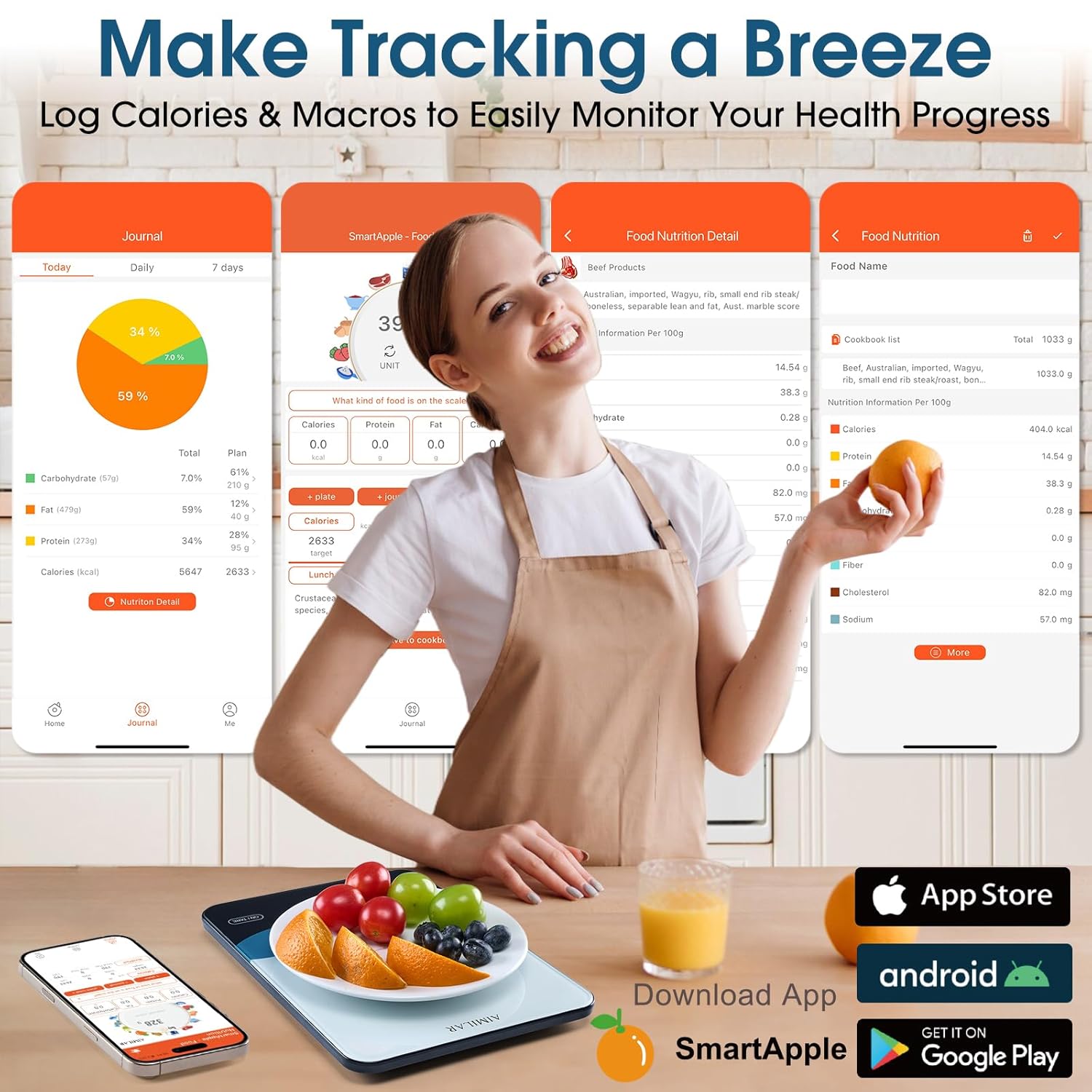
The SmartApple app interface on a smartphone, showing food logging and nutrition analysis.
4. Operating Instructions
4.1 Basic Weighing
- Place the scale on a flat, stable surface.
- Turn on the scale using the side switch and 'ON/TARE' button.
- Press the 'UNIT' button to cycle through available units: grams (g), pounds:ounces (lb:oz), ounces (oz), and milliliters (ml).
- Place the item to be weighed on the center of the scale platform. The weight will be displayed on the LED screen.

The scale displaying various units of measurement: grams, pounds:ounces, ounces, and milliliters.
4.2 Tare Function
The tare function allows you to weigh ingredients in a container by subtracting the container's weight.
- Place an empty container on the scale. The display will show its weight.
- Press the 'ON/TARE' button. The display will reset to zero.
- Add your ingredients to the container. The display will show only the weight of the ingredients.

Visual guide demonstrating the three steps of using the tare function for accurate ingredient measurement.
4.3 Smart Nutrition Tracking with App
Once connected to the 'SmartApple' app:
- Place food on the scale. The weight will sync to the app.
- In the app, select the type of food you are weighing from the database.
- The app will automatically calculate and display the nutritional information (calories, macros, etc.) for the weighed portion.
- You can log your meals, set daily nutrition goals, and review your intake history within the app.
Official product video demonstrating the setup, weighing, and app synchronization features of the AIMILAR Smart Kitchen Scale.
5. Maintenance
5.1 Cleaning
The scale features a tempered glass platform that is easy to clean. Wipe the surface with a damp cloth. Avoid using abrasive cleaners or submerging the scale in water. Ensure no food or debris gets trapped in the touch control areas.

A hand wiping the tempered glass surface of the scale, illustrating its easy-to-clean design.
5.2 Storage
Store the scale in a cool, dry place. Avoid placing heavy objects on the scale when not in use to prevent damage to the sensors.
6. Troubleshooting
- Inaccurate Readings: Ensure the scale is on a flat, stable surface. Avoid placing it near vibrating appliances.
- Scale Not Turning On: Check the physical ON/OFF switch on the side. Ensure the battery is charged.
- App Connectivity Issues: Ensure Bluetooth is enabled on your device and the scale is within range. Restart both the app and the scale if issues persist.
- Fluctuating Readings: For stable results, add at least 3g for the first weighing after power-on or tare. The built-in threshold helps avoid minor fluctuations.
- Overload/Low Battery Alerts: The scale will display alerts for overload or low battery. Recharge the scale if the low battery alert appears.
7. Specifications
| Feature | Detail |
|---|---|
| Brand | AIMILAR |
| Model | AY8007 |
| Weight Capacity Maximum | 10 Kilograms (22lb) |
| Readout Accuracy | 1 Grams (0.05oz) |
| Display Type | LED |
| Connectivity | Bluetooth |
| Power Source | USB-C Rechargeable Battery |
| Material Type | Acrylonitrile Butadiene Styrene, Tempered Glass |
| Item Weight | 0.9 Pounds |
| Included Components | Smart Scale, USB-C Charging Cable |

Detailed view of the scale's dimensions, main power switch, and USB-C charge port.
8. Warranty and Support
The AIMILAR Bluetooth Kitchen Scale comes with a 3-Year Warranty. For any product inquiries, technical support, or warranty claims, please refer to the contact information provided in your product packaging or visit the official AIMILAR website.