1. Introduction
This manual provides essential information for setting up, operating, and maintaining your AOOSTAR GODY Mini Gaming PC. Please read this manual thoroughly before using the product to ensure optimal performance and longevity.
2. Product Overview
The AOOSTAR GODY Mini Gaming PC is a compact computing solution designed for performance. It features an AMD R9 7940HX CPU and an AMD Radeon RX 7600XT graphics card, supporting demanding applications and gaming. Key features include:
- High-Performance Processing: Equipped with an AMD R9 7940HX CPU (16C/32T, up to 5.2GHz) for efficient handling of various tasks.
- Dedicated Graphics: Features an AMD Radeon RX 7600XT graphics card with 8GB GDDR6 VRAM for enhanced visual performance.
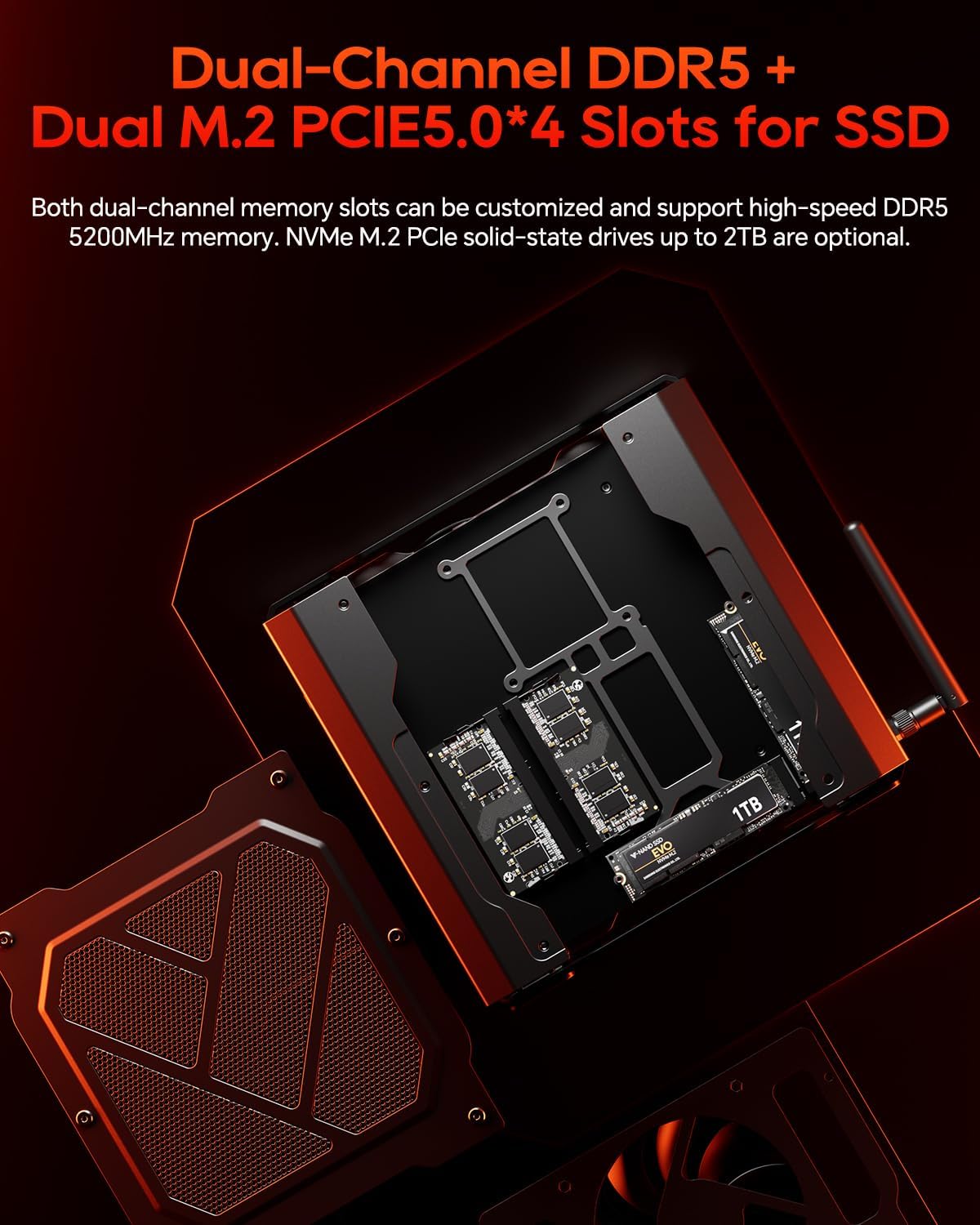
- Expandable Memory and Storage: Two DDR5 SODIMM slots support up to 64GB RAM (5200 MT/s), and two M.2 NVME SSD PCIe 5.0x4 slots allow for up to 8TB SSD storage.
- Extensive Connectivity: Includes HDMI, DisplayPort, 2x Type-C, 2x 2.5G RJ45 Ethernet, 3x USB 3.2 Gen1, 2x USB 3.2 Gen2, 2-in-1 Audio Jack, and Mic Jack. Supports triple 4K display output.
- Advanced Cooling System: Incorporates a VC heat spreader, finned heatsink, dual turbo fans, and a dedicated memory module cooling fan for stable operation under load.
- Modern Wireless: Features WIFI7 (802.11be) for high-speed wireless connectivity and Bluetooth 5.2 for peripheral connections.
Product Visuals



Product Video
3. Setup Guide
- Unpacking: Carefully remove the Mini PC and all accessories from the packaging. Verify that all components listed in the package contents are present: 1x GODY Mini PC, 1x HD Cable, 1x DC Power Adapter.
- Power Connection: Connect the DC Power Adapter to the power input port on the Mini PC, then plug the adapter into a power outlet.
- Display Connection: Connect your monitor(s) to the Mini PC using the provided HD cable or your own DisplayPort/Type-C cables. The PC supports up to three displays simultaneously for 4K resolution.
- Peripheral Connection: Connect your keyboard, mouse, and other USB devices to the available USB 3.2 Gen1 or USB 3.2 Gen2 ports.
- Network Connection: For wired internet, connect an Ethernet cable to one of the two 2.5G RJ45 Ethernet ports. For wireless internet, ensure the Wi-Fi antennas are securely attached (if detachable) and the system is powered on to configure Wi-Fi 7.
- Audio Connection: Connect speakers or headphones to the 2-in-1 Audio Jack, or a microphone to the Mic Jack if needed.
- First Boot: Press the power button on the front panel. The system will initiate the boot process. Follow any on-screen instructions for operating system setup.
4. Operating Instructions
Once the initial setup is complete, your AOOSTAR GODY Mini Gaming PC is ready for use. Here are general operating guidelines:
- Power On/Off: Press the power button to turn the PC on. To shut down, use the operating system's power options. A short press on the power button can put the PC to sleep, while a long press (several seconds) will force a shutdown.
- Display Configuration: To utilize multiple displays, connect them to the HDMI, DisplayPort, and Type-C outputs. Configure display settings within your operating system to extend or duplicate screens.
- Network Usage: The dual 2.5G Ethernet ports can be used for high-speed wired connections or for network configurations like link aggregation. Wi-Fi 7 provides advanced wireless performance for streaming and gaming.
- Storage Expansion: The Mini PC supports two M.2 NVME SSD PCIe 5.0x4 slots for additional storage. Refer to the system's internal layout (Figure 2.2) for slot locations. Installation of internal components should be performed by qualified personnel.
- Memory Upgrade: Two DDR5 SODIMM slots are available for memory upgrades, supporting up to 64GB. Ensure compatible DDR5 5200 MT/s modules are used.
5. Maintenance
Proper maintenance ensures the longevity and optimal performance of your Mini PC.
- Cleaning: Regularly clean the exterior of the PC with a soft, dry cloth. Use compressed air to gently clear dust from ventilation grilles and ports to maintain efficient airflow. Do not use liquid cleaners directly on the device.
- Ventilation: Ensure the PC is placed in a well-ventilated area, free from obstructions that could block airflow to the cooling system. The "Glacier Gaming 4.0" cooling system relies on clear air intake and exhaust.
- Software Updates: Keep your operating system, drivers (especially for AMD CPU and GPU), and applications updated to ensure stability and security.
- Environmental Conditions: Operate the PC within recommended temperature and humidity ranges. Avoid extreme temperatures, direct sunlight, and high humidity.
6. Troubleshooting
If you encounter issues with your AOOSTAR GODY Mini Gaming PC, refer to the following common troubleshooting steps:
| Problem | Possible Cause | Solution |
|---|---|---|
| PC does not power on | Power cable disconnected, faulty power adapter, power outlet issue. | Verify power cable connections. Test the power outlet with another device. Ensure the power adapter is functioning correctly. |
| No display output | Monitor not connected, incorrect input selected on monitor, faulty cable. | Check display cable connections (HDMI, DP, Type-C). Ensure the monitor is set to the correct input source. Try a different cable or monitor if available. |
| System freezing or instability | Overheating, outdated drivers, software conflicts, hardware issues. | Ensure proper ventilation and clean dust from vents. Update graphics and chipset drivers. Check for conflicting software. If issues persist after OS reinstallation, contact support for hardware diagnosis. |
| No internet connection (Wi-Fi/Ethernet) | Cable disconnected, Wi-Fi disabled, driver issues, router problem. | For Ethernet, check cable connection to PC and router. For Wi-Fi, ensure Wi-Fi is enabled in OS settings and antennas are attached. Restart router/modem. Update network drivers. |
7. Specifications
| Feature | Detail |
|---|---|
| Processor | AMD R9 7940HX (16C/32T, up to 5.2 GHz) |
| Graphics | AMD Radeon RX 7600XT (8GB GDDR6) |
| RAM | DDR5 (2x SODIMM slots, up to 64GB, 5200 MT/s) |
| Storage | 2x M.2 NVME SSD PCIe 5.0x4 slots (up to 8TB SSD) |
| Video Output | 1x HDMI, 1x DisplayPort, 2x Type-C (Supports triple 4K display) |
| Ethernet | 2x 2.5G RJ45 LAN |
| USB Ports | 3x USB 3.2 Gen1, 2x USB 3.2 Gen2 |
| Audio | 1x 2-in-1 Audio Jack, 1x Mic Jack |
| Wireless Connectivity | WIFI7 (802.11be), Bluetooth 5.2 |
| Cooling System | "Glacier Gaming 4.0" (VC heat spreader, finned heatsink, dual turbo fans, dedicated memory fan) |
| Dimensions | 9.92 x 9.45 x 6.73 inches (Package Dimensions) |
| Weight | 6.58 pounds (Item Weight) |
8. Warranty and Support
For warranty information and technical support, please refer to the official AOOSTAR website or contact AOOSTAR customer service directly. Contact details are typically provided with your purchase documentation or on the manufacturer's official support page.
If you have any questions or require assistance, you may also email AOOSTAR support as indicated in the product packaging.


