
1. Product Overview
The INNIOASIS Y1 MP3 Player is a portable digital media device designed for high-fidelity audio playback, video viewing, and audiobook listening. It features Bluetooth connectivity, a built-in speaker, and a 2.4-inch LCD screen. With 32GB of internal storage, it supports a wide range of audio and video formats.
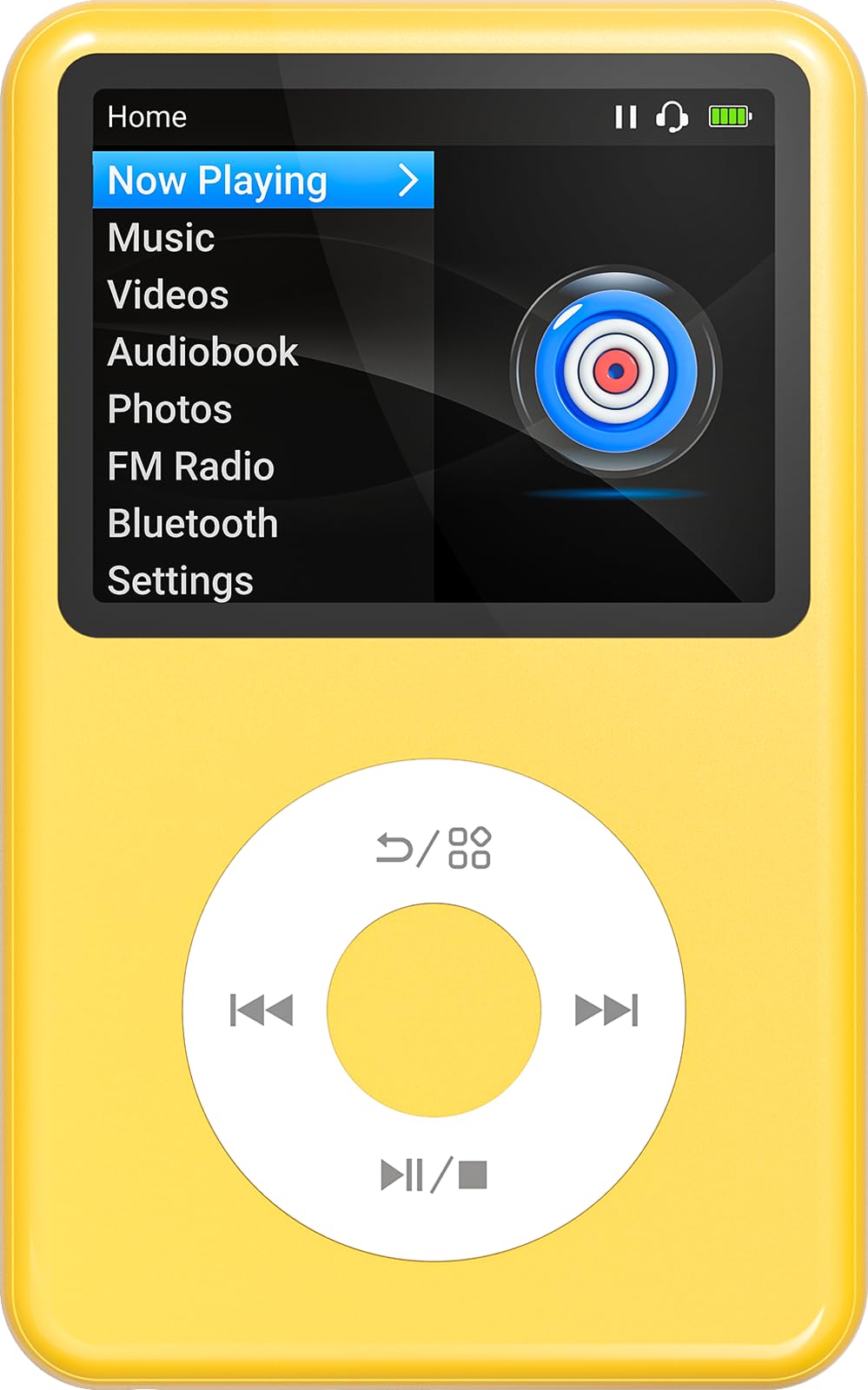
Image: The INNIOASIS Y1 MP3 Player, showcasing its 2.4-inch screen and circular navigation pad.
2. Getting Started (Setup)
2.1 Unpacking
Carefully remove all components from the packaging. The box should contain:
- INNIOASIS Y1 MP3 Player
- Wired Earphones
- USB Charging/Data Cable
- Instruction Manual (this document)
2.2 Charging the Device
Before first use, fully charge the MP3 player. Connect the small end of the USB cable to the player's charging port and the larger end to a USB power adapter (not included) or a computer's USB port. The battery indicator on the screen will show charging status. A full charge typically takes approximately 1.5 hours and provides up to 35 hours of audio playback.

Image: The INNIOASIS Y1 MP3 Player connected to a USB cable for charging, illustrating its long battery life.
2.3 Transferring Files
To transfer music, videos, audiobooks, or photos to your Y1 MP3 Player:
- Connect the MP3 player to your computer using the provided USB cable.
- The player will appear as a removable disk drive on your computer.
- Drag and drop your desired files into the appropriate folders on the player (e.g., 'Music', 'Videos', 'Audiobooks', 'Photos').
- Once files are transferred, safely eject the device from your computer before disconnecting the USB cable.

Image: The Y1 MP3 Player connected to a laptop, demonstrating how to transfer audiobook files into the dedicated 'audiobook' folder.
3. Operating Instructions
3.1 Power On/Off
- To Power On: Press and hold the power button (usually located on the side or top) until the screen illuminates.
- To Power Off: Press and hold the power button until a power-off prompt appears, then confirm.
3.2 Navigation
The Y1 MP3 Player utilizes a circular dial for menu navigation and control:
- Scrolling: Lightly swipe your finger clockwise on the dial to scroll down through menu options. Swipe anticlockwise to scroll up.
- Selection: Press the central button within the dial to select a highlighted option or confirm an action.
- Volume Control: While playing media, swipe your finger clockwise on the dial to increase volume, and anticlockwise to decrease volume.
- Back/Return: Use the dedicated 'Back' button (often labeled with an arrow or 'M') to return to the previous menu or screen.

Image: The Y1 MP3 Player's main interface, showing menu options and the central navigation dial for control.
3.3 Music Playback
From the main menu, select 'Music'. You can browse your music by artist, album, genre, or all songs. Supported audio formats include MP3, WAV, FLAC, APE, OGG, WMA, M4A, AAC, MP2, AMR, MID, M4R, MMF, WV, AIF, AIFF, AU, RA, MKA, AC3, CAF.

Image: The Y1 MP3 Player screen showing music playlist management, allowing users to organize their audio files.
3.4 Video Playback
Select 'Videos' from the main menu. The Y1 MP3 Player supports video playback, offering up to 4 hours of uninterrupted 720p video playback with 50% brightness and wired headphones at maximum volume. Ensure your video files are in compatible formats for optimal performance.

Image: The Y1 MP3 Player screen showing a video playing, highlighting its digital video playback capabilities.
3.5 Audiobook Playback and Bookmarks
Access your audiobooks by selecting 'Audiobook' from the main menu. The device supports bookmarking:
- Creating Bookmarks: During audiobook playback, long-press the central button to create a bookmark.
- Accessing Bookmarks: Bookmarks are listed under the 'Audio Books' menu, allowing you to resume listening from a specific point.

Image: The Y1 MP3 Player screen showing audiobook playback with bookmark management options.
3.6 Bluetooth Connectivity
To connect your Y1 MP3 Player to Bluetooth headphones or speakers:
- Go to the 'Bluetooth' menu from the main screen.
- Ensure your Bluetooth device is in pairing mode.
- The player will scan for available devices. Select your device from the list to pair.
- Once paired, audio will be routed through the connected Bluetooth device.
3.7 FM Radio
To use the FM Radio function, connect wired earphones as they act as the antenna. Select 'FM Radio' from the main menu, then scan for stations or manually tune to a frequency.
3.8 Settings
The 'Settings' menu allows you to customize various aspects of your player, including:
- Equalizer: Adjust audio profiles (e.g., Pop, Rock, Jazz, Classical, Custom).
- Display Settings: Adjust brightness, backlight timer.
- Date & Time: Set the current date and time.
- Language: Change the device's display language.
- System Information: View firmware version and storage details.
4. Maintenance
4.1 Cleaning
Wipe the device with a soft, dry, lint-free cloth. Do not use abrasive cleaners, alcohol, or solvents, as these can damage the screen and casing.
4.2 Battery Care
To prolong battery life:
- Avoid exposing the device to extreme temperatures.
- Charge the device regularly, but avoid leaving it fully discharged for extended periods.
- If storing the device for a long time, charge it to about 50% before storage.
4.3 Storage
Store the MP3 player in a cool, dry place away from direct sunlight and moisture when not in use.
5. Troubleshooting
5.1 Device Not Powering On or Charging
- Ensure the device is fully charged. Connect it to a power source for at least 30 minutes.
- Try a different USB cable or charging adapter.
- Perform a hard reset: Locate the reset pinhole (if available) and gently press it with a thin object, or press and hold the power button for 10-15 seconds.
5.2 Music Playback Issues (Blinking Out, Freezing)
- Restart the device.
- Ensure the audio files are not corrupted and are in supported formats.
- If using a microSD card, ensure it is properly inserted and not corrupted.
5.3 Memory Issues / Unable to Upgrade Storage
The INNIOASIS Y1 MP3 Player comes with 32GB of internal storage. This model does not support user-upgradable storage via an external SD card slot. Manage your files by regularly deleting unwanted content to free up space.
5.4 Bluetooth Pairing Problems
- Ensure both the MP3 player and the Bluetooth device are fully charged and within range (typically 10 meters).
- Make sure the Bluetooth device is in pairing mode.
- Turn Bluetooth off and on again on both devices.
- Delete previous pairings on both devices and try pairing again.
5.5 File Not Playing
Verify that the file format is supported by the Y1 MP3 Player. Refer to the 'Specifications' section for a list of compatible formats.
6. Specifications
| Feature | Detail |
|---|---|
| Brand | innioasis |
| Model Name | Y1 |
| Special Feature | Built-in Speaker |
| Connectivity Technology | Bluetooth |
| Memory Storage Capacity | 32 GB |
| Color | Lemon Yellow |
| Screen Size | 2.4 Inches |
| Compatible Devices | Speaker, Headphones, Smartphone, Personal Computer |
| Media Type | Micro SD (internal, not user-upgradable) |
| Included Components | MP3 Player |
| Supported Audio Standards | MP3, WAV, FLAC, OGG, WMA, APE, M4A, AAC, MP2, AMR, MID, M4R, MMF, WV, AIF, AIFF, AU, RA, MKA, AC3, CAF |
| Item Weight | 2.3 Ounces |
| Battery Life | Up to 35 hours (audio playback) |
7. Warranty and Support
Specific warranty information for the INNIOASIS Y1 MP3 Player is not provided in this manual. For details regarding warranty coverage, technical support, or service, please contact INNIOASIS customer support directly or refer to the product packaging for contact information.
8. Important Notes
No official product videos were available in the provided data to embed in this manual.


