1. Introduction
This manual provides detailed instructions for the installation, operation, and maintenance of your Junsun 4+64G Android Radio Stereo. This unit is specifically designed for Ford F150 models manufactured between 2015 and 2021, excluding vehicles equipped with the B&O Audio System. Please read this manual thoroughly before installation and use to ensure proper functionality and safety.
2. Safety Information
- Professional Installation Recommended: Due to the complexity of vehicle electrical systems, professional installation is highly recommended to prevent damage to the unit or your vehicle.
- Driving Safety: Do not operate the unit in a way that distracts you from driving. Always prioritize road safety.
- Power Supply: Ensure the unit is connected to a 12V DC power supply with negative grounding.
- Avoid Moisture: Do not expose the unit to water or excessive moisture.
- Temperature: Operate the unit within recommended temperature ranges to avoid malfunction.
3. Package Contents
Verify that all components listed below are included in your package:
- Junsun 12.1-inch Android Radio Stereo Unit
- Power Cable
- Vehicle Mount
- Audio Antenna
- 4G Module
- GPS Module
- External Microphone
- Factory USB Cable
- RCA Cable
- Reverse Cable
- Installation Tools
- Instructions Manual (this document)

Figure 3.1: Overview of included assembly parts.

Figure 3.2: Detailed view of assembly parts with labels.
4. Setup and Installation
This section outlines the general steps for installing your Junsun Android Radio Stereo. Due to the specific nature of vehicle electronics, professional installation is strongly recommended.
4.1 Pre-Installation Checks
- Ensure the vehicle's ignition is off and the battery is disconnected before starting installation.
- Confirm compatibility with your Ford F150 model (2015-2021, without B&O Audio System).
- Review the wiring diagram carefully.
4.2 Installation Steps
- Carefully remove the original factory radio and dashboard trim.
- Connect the provided power harness to the vehicle's wiring and the new stereo unit.
- Connect the GPS module, 4G module, audio antenna, and external microphone to their respective ports on the stereo.
- If installing a reversing camera (optional), connect the reverse cable and RCA cable as per the wiring diagram.
- Secure the new Junsun stereo unit into the dashboard opening.
- Reconnect the vehicle's battery and test the unit's functionality before reassembling the dashboard trim.

Figure 4.1: Visual comparison of the dashboard before and after installation.

Figure 4.2: Detailed wiring diagram for component connections.
5. Operating Instructions
5.1 System Overview
Your Junsun stereo operates on the Android 13 system, powered by a Qualcomm 6125 processor. This configuration ensures smooth performance for various applications and multitasking.

Figure 5.1: System specifications: Android 13, 4GB RAM, 64GB ROM, Qualcomm 6125.
5.2 Wireless CarPlay & Android Auto
Connect your iPhone or Android smartphone wirelessly to access features like navigation, music, messages, and contacts directly on the stereo's display.
- Ensure Bluetooth and Wi-Fi are enabled on your smartphone.
- On the stereo, select the CarPlay or Android Auto application.
- Follow the on-screen prompts to pair your device.
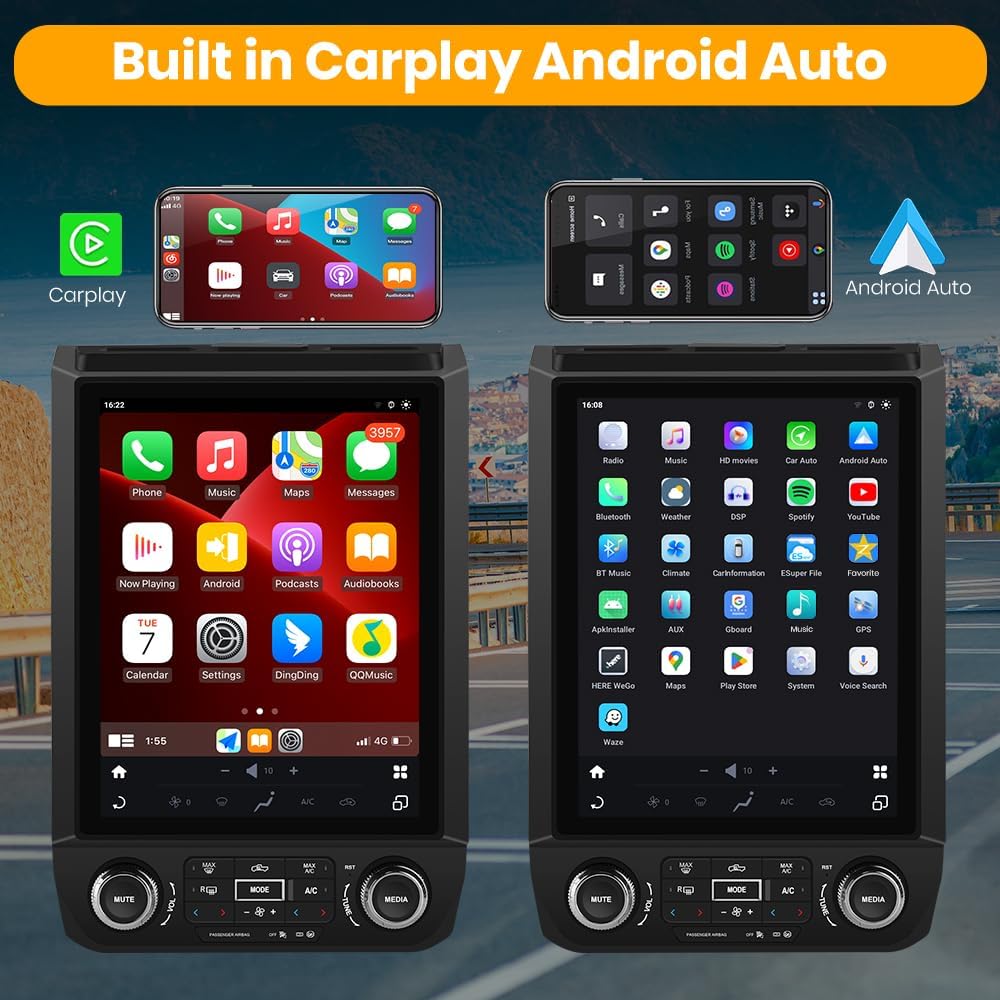
Figure 5.2: CarPlay and Android Auto interfaces.

Figure 5.3: Comparison of CarPlay and Android Auto displays.
5.3 GPS Navigation
The unit supports online maps. Connect to Wi-Fi to use GPS navigation anywhere. You can also download and install navigation apps from the Application Store.

Figure 5.4: GPS navigation interface.
5.4 Bluetooth Connectivity
Pair your phone via Bluetooth for hands-free calling and audio streaming.
- Pairing: Go to Bluetooth settings on the stereo and your phone, search for the stereo's device name, and pair.
- Calls: Answer or make calls directly from the stereo. The external microphone ensures clear voice pickup.
- Music: Stream audio from your phone to the stereo.

Figure 5.5: Dual Bluetooth features for phone and music.
5.5 FM/AM Radio
Access FM/AM radio stations with digital tuning. The unit provides clear reception for news, music, and weather broadcasts.

Figure 5.6: FM Radio interface with frequency display.
5.6 Steering Wheel Control
Utilize your vehicle's existing steering wheel controls to adjust volume, change tracks, and manage calls, enhancing driving safety and convenience.

Figure 5.7: Steering wheel control configuration screen.
5.7 DSP Sound Effects
The built-in Digital Sound Processor (DSP) allows for advanced audio customization, including equalizer adjustments and sound field settings, to optimize your listening experience.

Figure 5.8: DTS sound effects and audio settings interface.

Figure 5.9: Built-in DSP for precise sound adjustments.
5.8 Reversing Camera (Optional)
If an optional reversing camera is connected, the stereo will automatically display a rear view with parking assistance lines when the vehicle is shifted into reverse gear.

Figure 5.10: Reversing image display with parking lines.

Figure 5.11: Optional rear view camera functionality.
6. Maintenance
- Screen Cleaning: Use a soft, lint-free cloth to gently wipe the screen. For stubborn smudges, slightly dampen the cloth with water or a screen-safe cleaner. Avoid harsh chemicals.
- Software Updates: Periodically check for available software updates through the system settings or the manufacturer's website to ensure optimal performance and access to new features.
- General Care: Keep the unit free from dust and debris. Avoid placing heavy objects on the unit.
7. Troubleshooting
This section addresses common issues you might encounter. For more complex problems, contact customer support.
| Problem | Possible Cause | Solution |
|---|---|---|
| Unit does not power on | Loose power connection, blown fuse, incorrect wiring. | Check all power connections. Inspect vehicle fuses and the unit's fuse. Verify wiring against the diagram. |
| No sound | Volume too low, mute activated, speaker wiring issue, incorrect audio source. | Increase volume. Check if mute is active. Verify speaker connections. Select the correct audio input source. |
| GPS signal lost or inaccurate | GPS antenna obstruction, poor satellite reception, software issue. | Ensure GPS antenna has a clear view of the sky. Move to an open area. Restart the unit. Check for software updates. |
| Bluetooth not connecting | Bluetooth off on phone/unit, device not in pairing mode, interference. | Ensure Bluetooth is enabled on both devices. Put the unit in pairing mode. Delete previous pairings and try again. |
| Touch screen unresponsive | Temporary software glitch, screen protector interference. | Restart the unit. Ensure the screen is clean and free of obstructions. |
8. Specifications
- Operating System: Android 13
- Processor: Qualcomm 6125
- RAM: 4GB
- Internal Storage (ROM): 64GB
- Display Size: 12.1 Inches
- Connectivity: Bluetooth, Wi-Fi, 4G (via module)
- Special Features: Wireless CarPlay, Android Auto, DSP Sound Processing, GPS Navigation, FM/AM Radio, Steering Wheel Control compatibility
- Mounting Type: Dashboard Mount
- Vehicle Service Type: Truck (Ford F150 2015-2021)
- Item Weight: Approximately 8.49 pounds
- Package Dimensions: Approximately 17.48 x 13.89 x 8.15 inches
9. Warranty Information
Junsun products are covered by a limited warranty against defects in materials and workmanship. The specific duration and terms of the warranty may vary. Please refer to the warranty card included with your product or visit the official Junsun website for detailed warranty information and registration procedures. Keep your proof of purchase for warranty claims.
10. Customer Support
If you require assistance with installation, operation, or troubleshooting that is not covered in this manual, please contact Junsun customer support. Support contact information can typically be found on the product packaging, the official Junsun website, or through your retailer.
- Online Resources: Check the Junsun website for FAQs, updated manuals, and software downloads.
- Email Support: Contact the support team via email for technical inquiries.
- Phone Support: If available, use the provided phone number for direct assistance.


