
Introduction
The Q10 Smart TV Box Android 14 is an advanced multimedia device designed to transform your television into a smart entertainment hub. Featuring a powerful Allwinner H313 processor, 4GB RAM, and 64GB ROM, it ensures smooth performance for all your applications. Experience extraordinary visual quality with 8K resolution support and HDR10+ technology, delivering vibrant colors and sharp details. Dual-band Wi-Fi (2.4G/5G) and Bluetooth 5.0 provide stable and versatile connectivity. The device offers multiple ports including HDMI, USB 2.0, LAN, AV, and a TF card slot for extensive connection options. It is compatible with Google Assistant for voice control and has Chromecast built-in for easy content streaming. The Android TV interface grants access to thousands of applications, including popular streaming services. Its compact and elegant design seamlessly integrates into any home entertainment setup.
What's in the Box
- Q10 Smart TV Box
- Remote Control
- HDMI Cable
- Power Adapter
- User Manual

Image: The Q10 Smart TV Box, its remote control, an HDMI cable, power adapter, and user manual laid out on a white surface.
Setup Guide
1. Connecting Your Device
Follow these steps to connect your Q10 Smart TV Box to your television and power source:
- Connect to TV: Insert one end of the HDMI cable into the HDMI port on the Q10 Smart TV Box and the other end into an available HDMI port on your television.
- Connect to Power: Plug the power adapter into the DC IN port on the TV Box, then plug the adapter into a power outlet.
- Power On: The device should power on automatically. If not, press the power button on the remote control.
- Select Input: On your television, select the correct HDMI input source using your TV's remote control.

Image: A detailed view of the Q10 Smart TV Box's rear and side ports, including DC IN, LAN, HDMI, AV, SPDIF, IR, USB, and TF card slot.
2. Network Connection
Connect your Q10 Smart TV Box to the internet for full functionality:
- Wi-Fi Connection:
- Navigate to Settings > Network & Internet.
- Select your desired Wi-Fi network (supports 2.4G and 5G).
- Enter the Wi-Fi password and select Connect.
- Ethernet (LAN) Connection:
- Connect an Ethernet cable from your router to the LAN port on the TV Box.
- The device should automatically detect and connect to the wired network.
3. Initial Configuration
Follow the on-screen prompts to complete the initial setup:
- Language Selection: Choose your preferred language.
- Google Account: Sign in with your Google account to access Google Play Store and other services.
- Google Assistant: Set up Google Assistant for voice commands.
- Remote Control Pairing: Follow instructions to pair your remote control via Bluetooth for enhanced functionality.
Operating Instructions
1. Navigating the Android TV Interface
The Android TV interface is designed for easy navigation. Use the directional buttons on your remote control to move between apps and menus. The Home button will always return you to the main screen.

Image: The Android TV home screen displaying various streaming app icons and a remote control, highlighting key features like Google Assistant and Chromecast.
2. Using Google Assistant
Press the Google Assistant button on your remote control and speak into the microphone to issue commands or search for content. For example, you can say "Open Netflix" or "Find action movies."
3. Streaming Content
Access your favorite streaming services directly from the home screen or through the Apps menu. The Q10 Smart TV Box supports popular platforms like Netflix, YouTube, and Prime Video, offering 8K HDR10+ quality where available.

Image: A television screen displaying vibrant 8K Ultra HD content with HDR10+ and H.265 codec support, emphasizing high image quality.
4. Chromecast Built-in
Use the built-in Chromecast feature to cast content from your smartphone, tablet, or computer directly to your TV screen. Ensure your mobile device and the TV Box are connected to the same Wi-Fi network.
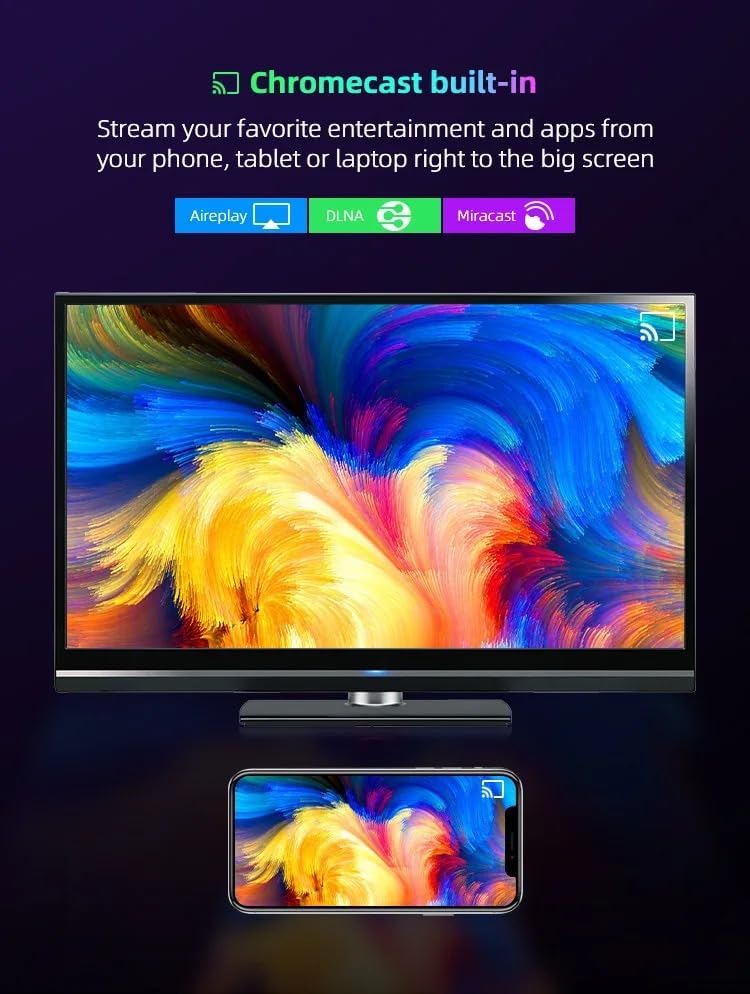
Image: A smartphone displaying content being cast wirelessly to a large television screen, illustrating the Chromecast built-in functionality.
Maintenance and Care
- Cleaning: Use a soft, dry cloth to clean the device. Avoid liquid cleaners.
- Ventilation: Ensure the TV Box is placed in a well-ventilated area to prevent overheating. Do not cover ventilation openings.
- Software Updates: The device will periodically receive software updates to improve performance and add new features. Follow on-screen prompts to install updates.
- Power Cycle: If the device becomes unresponsive, unplug the power adapter, wait 10 seconds, and then plug it back in.
Troubleshooting
- No Power:
- Check if the power adapter is securely connected to the device and the power outlet.
- Ensure the power outlet is functional.
- No Picture/Sound:
- Verify the HDMI cable is correctly connected to both the TV Box and the television.
- Ensure your TV is set to the correct HDMI input source.
- Check TV volume and mute settings.
- Remote Control Not Responding:
- Replace the batteries in the remote control.
- Ensure there are no obstructions between the remote and the TV Box.
- Re-pair the remote control if necessary (refer to initial setup).
- Wi-Fi Connection Issues:
- Restart your Wi-Fi router.
- Ensure the TV Box is within range of your Wi-Fi network.
- Verify the Wi-Fi password is entered correctly.
Specifications
| Feature | Detail |
|---|---|
| Model | Q10 |
| Operating System | Android 14.0 |
| Processor | Allwinner H313 |
| RAM | 4GB |
| ROM (Storage) | 64GB |
| Video Output Resolution | 8K Ultra HD (8192 Pixels) |
| Video Codecs | H.265, HEVC |
| HDR Support | HDR10+ |
| Wi-Fi | Dual-band (2.4G/5G) |
| Bluetooth | 5.0 |
| LAN | Ethernet (Gigabit) |
| Ports | HDMI, 2x USB 2.0, LAN, AV, TF Card Slot |
| Dimensions (L x W x H) | 12 cm x 12 cm x 2.5 cm |
| Weight | 300 Grams |

Image: A close-up of the Allwinner H313 Quad Core processor chip, highlighting its role in delivering high performance and power efficiency.
Warranty Information
This product comes with a 1-year warranty from the date of purchase. Please retain your proof of purchase for any warranty claims. The warranty covers manufacturing defects and malfunctions under normal use. It does not cover damage caused by misuse, accidents, unauthorized modifications, or natural disasters.
Customer Support
For further assistance, technical support, or warranty inquiries, please refer to the contact information provided in your physical user manual or visit the manufacturer's official website. You can also check the online FAQ section for common questions and solutions.


