
Samsung QN32Q8FAAFXZA
Samsung QN32Q8FAAFXZA QLED Q8F 4K Smart TV and AudioQuest Pearl HDMI Cable User Manual
Model: QN32Q8FAAFXZA
1. Introduction
This manual provides essential information for setting up, operating, and maintaining your Samsung QN32Q8FAAFXZA 32-inch Class QLED Q8F 4K Vision AI Smart TV and the included AudioQuest Pearl 2.25M 48G 8K-10K HDMI Digital Cable. Please read these instructions carefully before use to ensure optimal performance and safety.
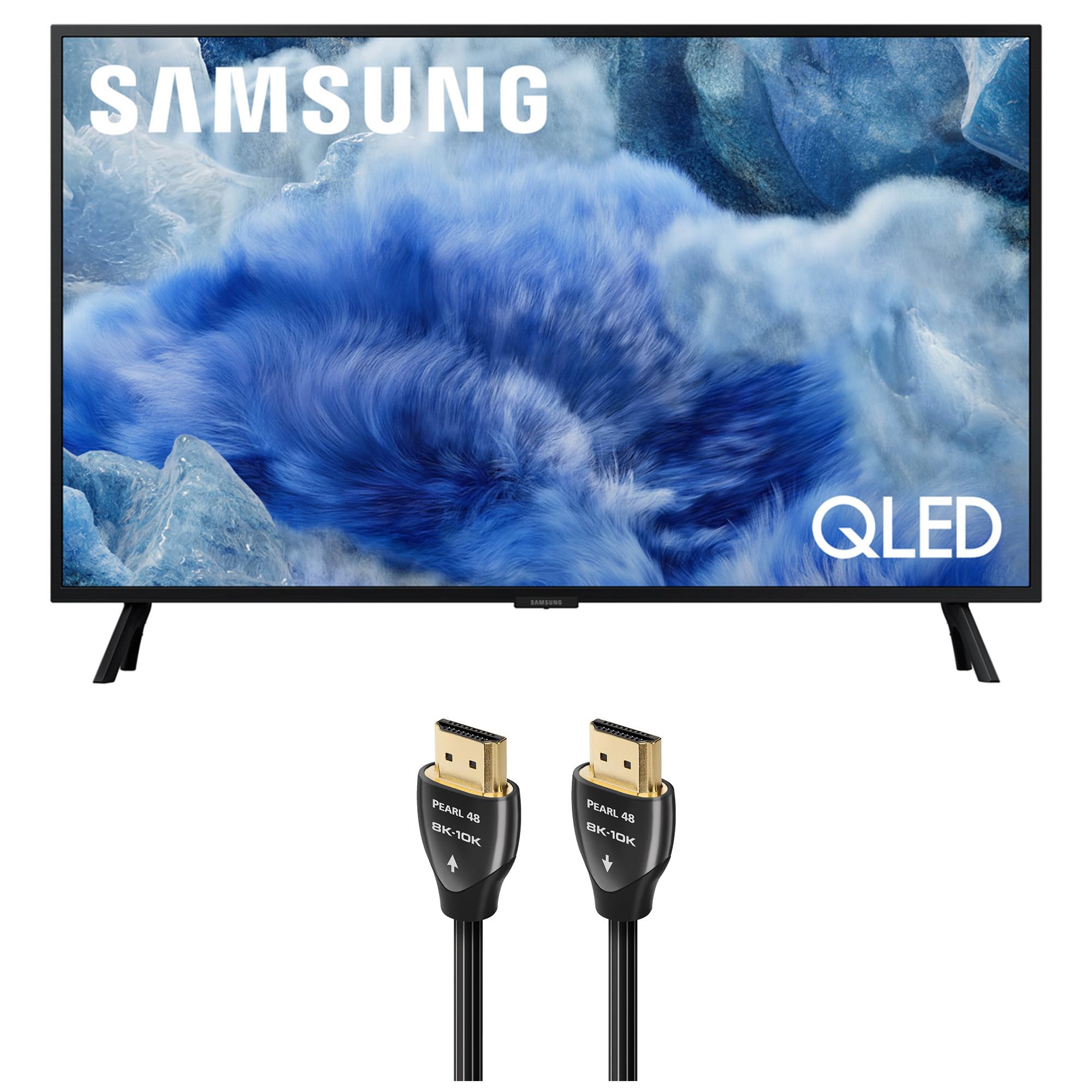
Front view of the Samsung QN32Q8FAAFXZA 32-inch QLED 4K Smart TV.
2. What's in the Box
Verify that all components are present before proceeding with setup:
- Samsung QN32Q8FAAFXZA 32-inch Class QLED Q8F 4K Vision AI Smart TV
- AudioQuest Pearl 2.25M (7.6ft) 48G 8K-10K HDMI Digital Cable
- SolarCell Remote TM2560E
- Power Cable
- TV Stand Components (if applicable)
- User Manual (this document)

Illustration of the Samsung Q8FA Series TV and included AudioQuest HDMI cable.
3. Setup
3.1 TV Placement and Stand Installation
Choose a stable, flat surface for your TV. Ensure adequate ventilation around the TV. If using the included stand, follow these steps:
- Carefully place the TV screen-down on a soft cloth or cushion to prevent scratches.
- Attach the stand components to the TV using the provided screws, ensuring they are securely fastened.
- Carefully lift the TV and place it in your desired location.
Alternatively, the TV supports VESA 100mm x 100mm wall mounting (mounting hardware sold separately).

Side view of the Samsung QN32Q8FAAFXZA TV, showcasing its slim design.

The AirSlim design ensures a sleek, low-profile appearance.
3.2 Connecting the AudioQuest Pearl HDMI Cable
The AudioQuest Pearl 48G HDMI cable is designed for high-bandwidth 8K-10K video and audio. Connect it to your TV and source device (e.g., Blu-ray player, gaming console, streaming box).
- Identify the HDMI ports on your Samsung TV. The QN32Q8FAAFXZA has 3 HDMI ports.
- Connect one end of the AudioQuest Pearl HDMI cable to an HDMI input port on your TV.
- Connect the other end of the HDMI cable to the HDMI output port on your source device.
- Ensure connections are firm.

The AudioQuest Pearl 48G HDMI cable, designed for high-performance connections.

Proper connection of the HDMI cable to the TV's input port.
Video demonstrating features and benefits of AudioQuest HDMI Cables. This video is provided by Walts TV.
3.3 Power Connection
Connect the power cable to the TV's power input and then to a wall outlet. The TV will enter standby mode.
3.4 Initial Setup Wizard
Upon first power-on, the TV will guide you through an initial setup process. This includes:
- Language selection
- Network connection (Wi-Fi or Ethernet)
- Channel scanning (for antenna/cable connections)
- Samsung account login (optional, for full Smart TV features)
4. Operating the TV
4.1 Remote Control Functions
Use the SolarCell Remote to navigate the TV's interface. Key functions include:
- Power: Turn the TV on/off.
- Source: Select input sources (HDMI 1, HDMI 2, etc.).
- Volume: Adjust audio level.
- Channel: Change TV channels.
- Smart Hub: Access streaming apps and smart features.
- Navigation Pad: Move through menus and select items.
4.2 Smart TV Features (One UI Tizen)
Your Samsung QLED TV runs on the One UI Tizen operating system, providing access to a wide range of applications and services:
- Streaming Services: Access Netflix, Prime Video, Disney+, Hulu, Apple TV, YouTube, HBO Max, Peacock, Sling, and more.
- Gaming Hub: Cloud gaming compatible with Auto Low Latency Mode and Game Motion Plus for an enhanced gaming experience.
- Samsung Health: Utilize health and fitness features.
- AI Customization Mode: The Q4 AI Processor and Samsung Vision AI optimize picture and sound settings automatically.

Access endless free content and popular streaming services through the Smart Hub.
4.3 Picture and Sound Settings
Customize your viewing experience through the TV's settings menu:
- Picture Mode: Select from various presets (e.g., Standard, Dynamic, Movie) or customize brightness, contrast, color, and sharpness.
- 100% Color Volume with Quantum Dot: Experience over a billion colors that remain vibrant even in bright scenes.
- Sound Mode: Choose audio presets or adjust equalizer settings. Features like OTS Lite and Q-Symphony enhance audio quality.
- 4K Upscaling: The Q4 AI Processor automatically enhances lower-resolution content to near 4K quality.

The Q4 AI Processor powers clear 4K picture and optimized sound.

100% Color Volume with Quantum Dot technology ensures accurate and vibrant colors.
Video review of the Samsung Q8FA Series TV, highlighting its features. This video is provided by Walts TV.
5. Maintenance
5.1 Cleaning the TV Screen
To clean the screen, gently wipe it with a soft, dry microfiber cloth. For stubborn smudges, lightly dampen the cloth with water or a screen-specific cleaning solution. Do not spray liquid directly onto the screen.
5.2 Cleaning the TV Body
Wipe the TV's body with a soft, dry cloth. Avoid using abrasive cleaners or solvents.
5.3 Software Updates
Your Samsung Smart TV may receive periodic software updates to improve performance and add new features. Ensure your TV is connected to the internet to receive these updates. You can usually check for updates in the TV's settings menu.
6. Troubleshooting
If you encounter issues with your TV, refer to the following common solutions:
6.1 No Power
- Ensure the power cable is securely connected to both the TV and a working electrical outlet.
- Check if the outlet is functioning by plugging in another device.
- Press the power button on the remote or the TV itself.
6.2 No Picture or Poor Picture Quality
- Verify the correct input source is selected (e.g., HDMI 1, HDMI 2).
- Check the HDMI cable connections at both the TV and the source device. Try a different HDMI port or cable if available.
- Ensure the source device (e.g., cable box, Blu-ray player) is powered on and functioning correctly.
- Adjust picture settings (brightness, contrast, sharpness) in the TV menu.
6.3 No Sound or Poor Sound Quality
- Increase the volume on both the TV and any connected audio systems.
- Check audio cable connections (if using external speakers).
- Ensure the TV is not muted.
- Check sound settings in the TV menu.
6.4 Remote Control Not Working
- Ensure there are no obstructions between the remote and the TV.
- The SolarCell Remote charges via indoor lighting or USB-C. Ensure it has sufficient charge.
- Try re-pairing the remote with the TV if it uses Bluetooth.
7. Specifications
| Feature | Detail |
|---|---|
| Model Name | QN32Q8FAAFXZA |
| Screen Size | 32 inches |
| Display Technology | QLED |
| Resolution | 4K (3840 x 2160) |
| Refresh Rate | 60 Hz |
| Processor | Q4 AI Processor |
| Operating System | One UI Tizen |
| HDMI Ports | 3 (4K 60Hz Max Input Rate) |
| USB Ports | 2 (USB-A) |
| Wireless Connectivity | Wi-Fi, Bluetooth |
| Dimensions (D x W x H) | 6.1"D x 28.5"W x 18.8"H |
| Weight | 11.9 pounds |
| VESA Mount Standard | 100mm x 100mm |
| Feature | Detail |
|---|---|
| Length | 2.25 meters (7.6 feet) |
| Data Rate | 48 Gbps |
| Resolution Support | 8K-10K |
| Conductors | 0.5% Silver-Plated Long-Grain Copper (LGC) |

Internal structure of an AudioQuest HDMI cable, highlighting its conductor design.
8. Warranty and Support
For warranty information and technical support, please refer to the official Samsung website or contact Samsung customer service. Keep your purchase receipt for warranty claims.
For support regarding the AudioQuest Pearl HDMI cable, please refer to AudioQuest's official documentation or website.
- Samsung Support: www.samsung.com/us/support/
- AudioQuest Support: www.audioquest.com/support
Related documentsQN32Q8FAAFXZA


Ask a question about this manual
Ask about setup, troubleshooting, compatibility, parts, safety, or missing instructions. Manuals+ will review the question and use this page’s manual context to help answer it.