Introduction
This manual provides essential information for the safe and efficient use of your Thunderobot Zero 16 Pro Gaming Laptop. Please read this manual thoroughly before using the device and retain it for future reference. The Thunderobot Zero 16 Pro is designed for high-performance computing, featuring an Intel Core Ultra 9 275HX processor, NVIDIA GeForce RTX 5070 Ti graphics, a 16-inch QHD+ 360Hz display, 32GB DDR5 RAM, and a 2TB SSD.
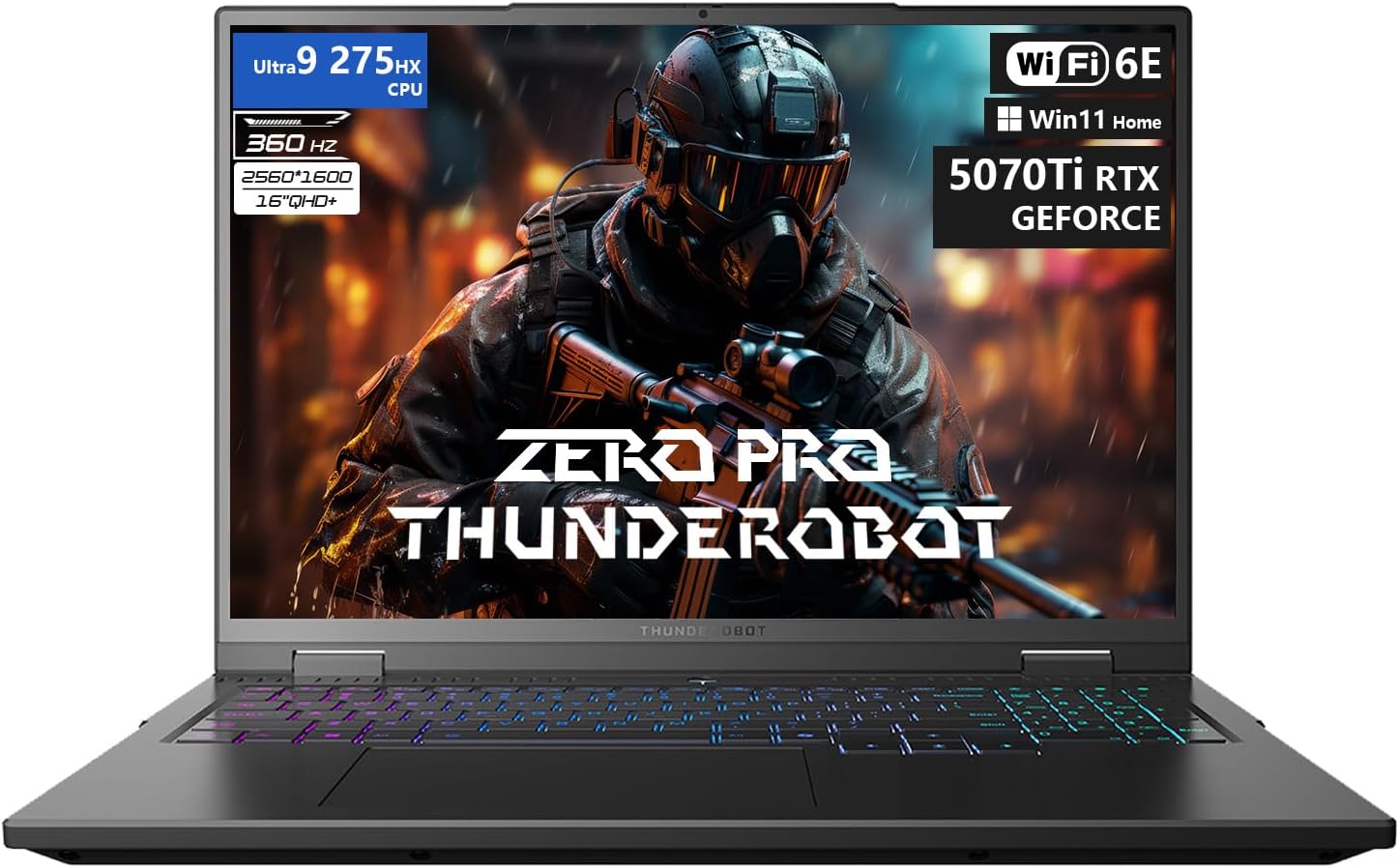
Figure 1: The Thunderobot Zero 16 Pro Gaming Laptop, showcasing its 16-inch QHD+ display and per-key RGB keyboard.
1. Setup
1.1 Initial Power-On
- Unpack the laptop and all accessories from the packaging.
- Connect the power adapter to the laptop's power port and then to a power outlet.
- Open the laptop lid and press the power button to turn on the device.
- Follow the on-screen instructions to complete the initial Windows 11 Home setup.
1.2 Driver Installation and Updates
It is recommended to update all drivers after the initial setup to ensure optimal performance and compatibility. Visit the official Thunderobot support website to download the latest drivers for your Zero 16 Pro model. This process may take some time.
1.3 Connecting Peripherals and External Devices
The Thunderobot Zero 16 Pro offers a variety of ports for connecting external devices. Refer to the diagram below for port locations and types.
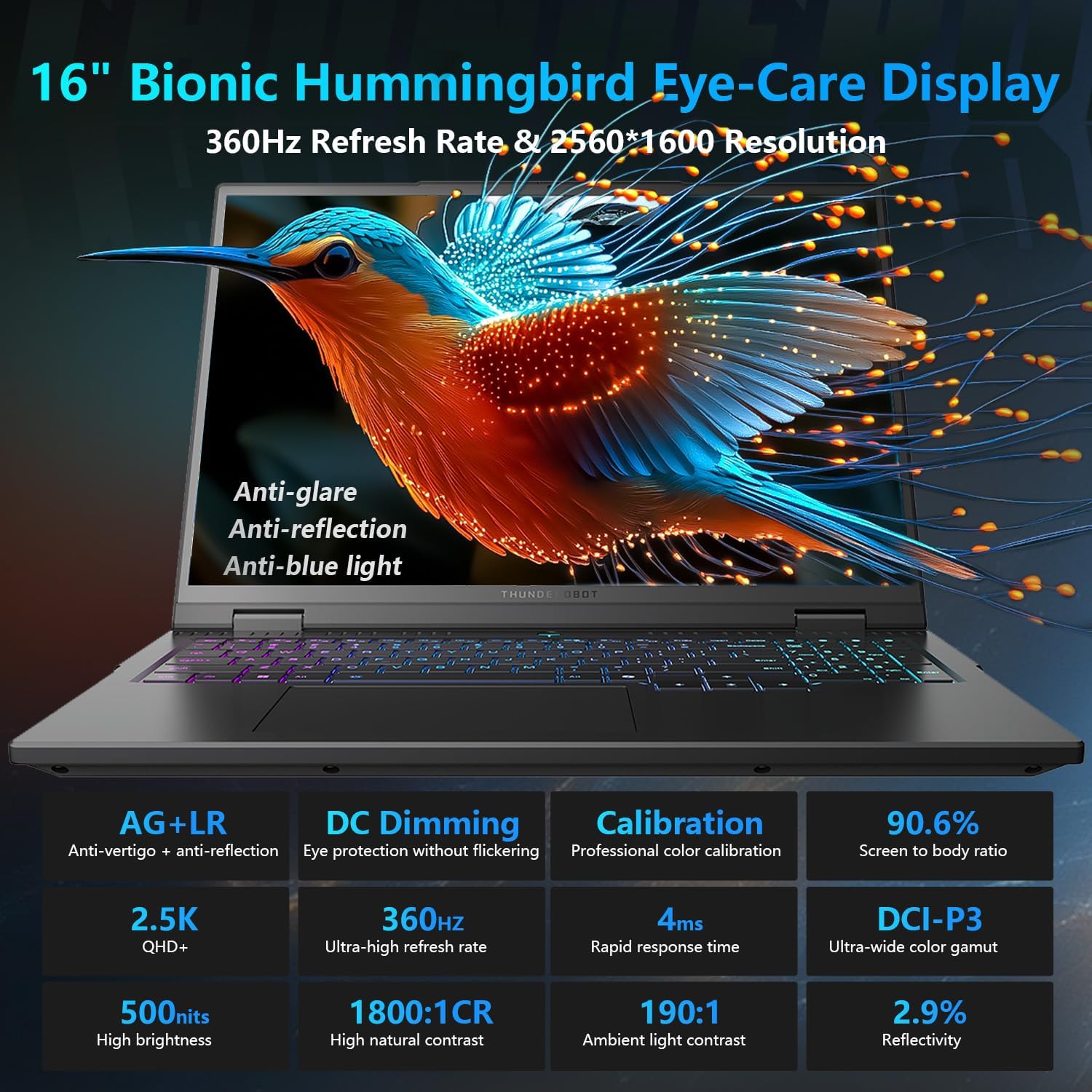
Figure 2: Diagram illustrating the various ports and connectivity options available on the Thunderobot Zero 16 Pro, such as USB-A, USB-C, HDMI, RJ-45, and audio jack.
- USB-A Ports (x3): For connecting USB devices like mice, keyboards, and external storage.
- USB-C Port (Thunderbolt 5): For high-speed data transfer, display output, and power delivery.
- HDMI 2.1 Port: For connecting to external displays or TVs.
- RJ-45 Port: For wired Ethernet network connection.
- 3.5mm Audio Jack: For connecting headphones or external speakers.
2. Operation
2.1 Display Features
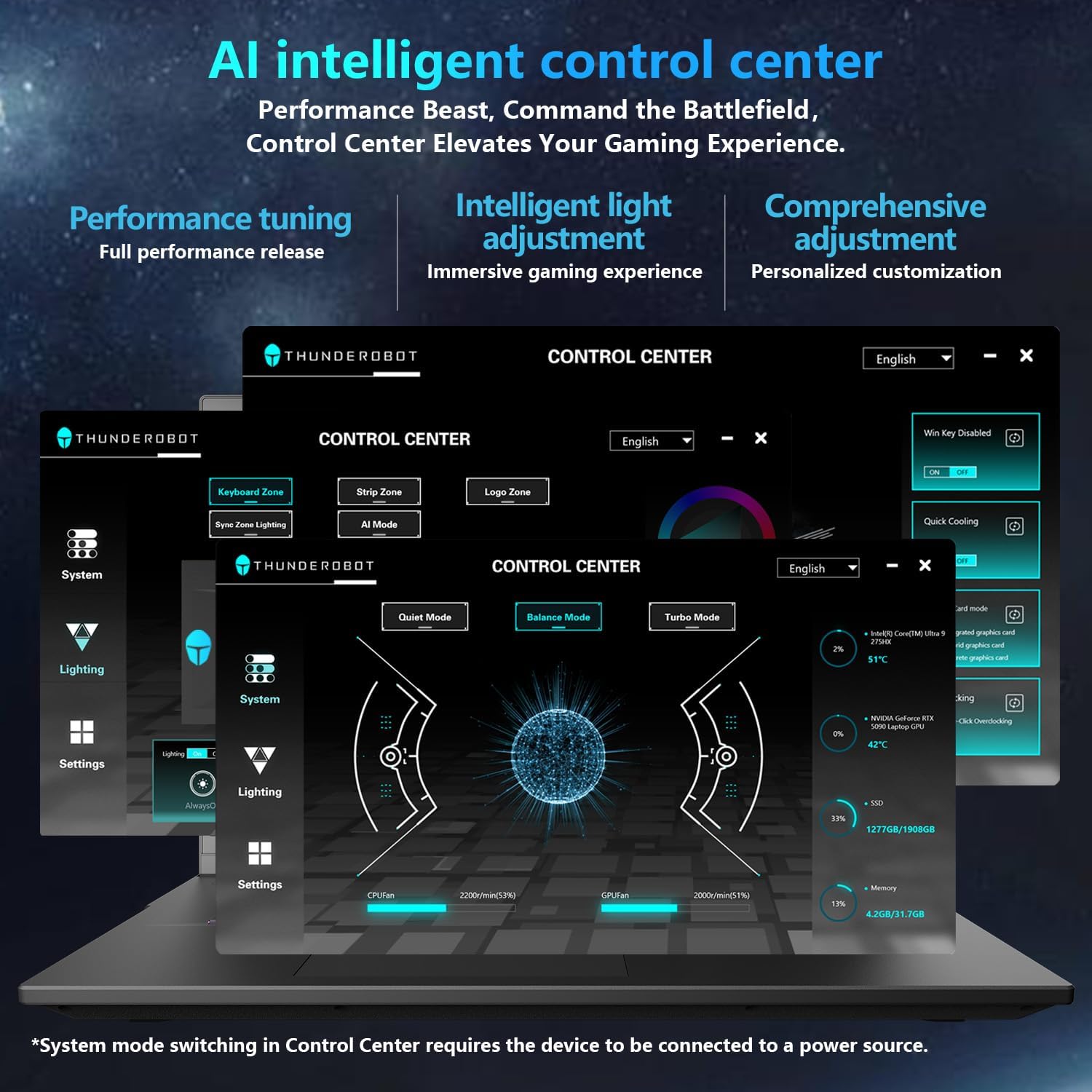
Figure 3: Detailed features of the 16-inch Bionic Eye-Care Display, including QHD+ resolution, 360Hz refresh rate, anti-glare, and anti-blue light technologies.
The 16-inch QHD+ (2560x1600) Bionic Eye-Care Display features a 360Hz refresh rate and 4ms response time for smooth visuals. It includes anti-glare, anti-reflection, and blue-light reduction technologies for comfortable viewing. To utilize the highest refresh rate, ensure the dedicated graphics direct connection mode is enabled in the control center.
2.2 Performance Modes and Cooling
The laptop features dedicated keys for quick switching between performance profiles and activating maximum cooling.
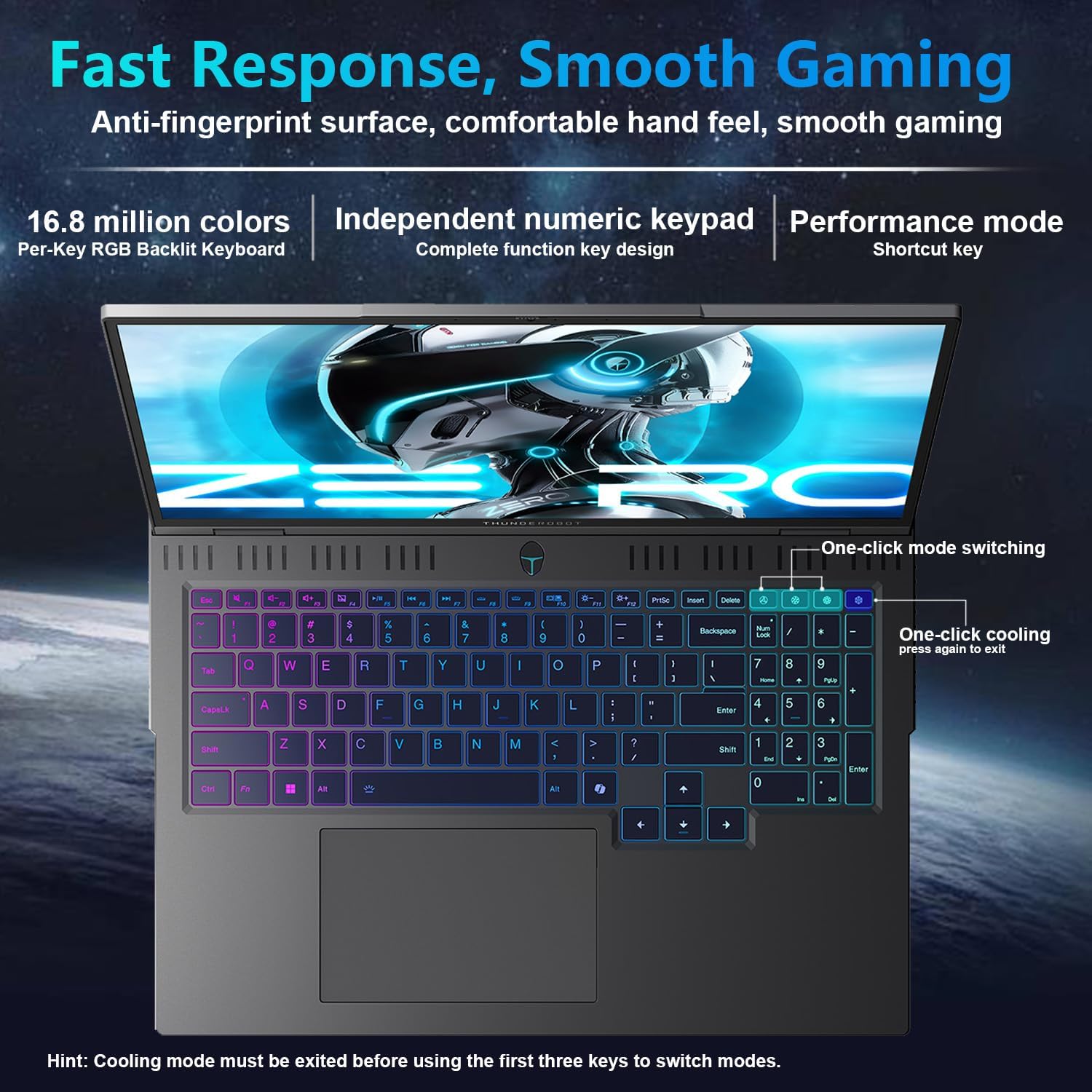
Figure 4: The laptop's per-key RGB backlit keyboard, along with dedicated keys for one-click mode switching and cooling control.
- One-click mode switching: Easily toggle between Quiet, Balance, and Turbo performance profiles.
- One-click cooling: Instantly activate maximum cooling for demanding tasks.
2.3 AI Intelligent Control Center
The AI Intelligent Control Center software allows for detailed customization of performance, lighting, and system settings.
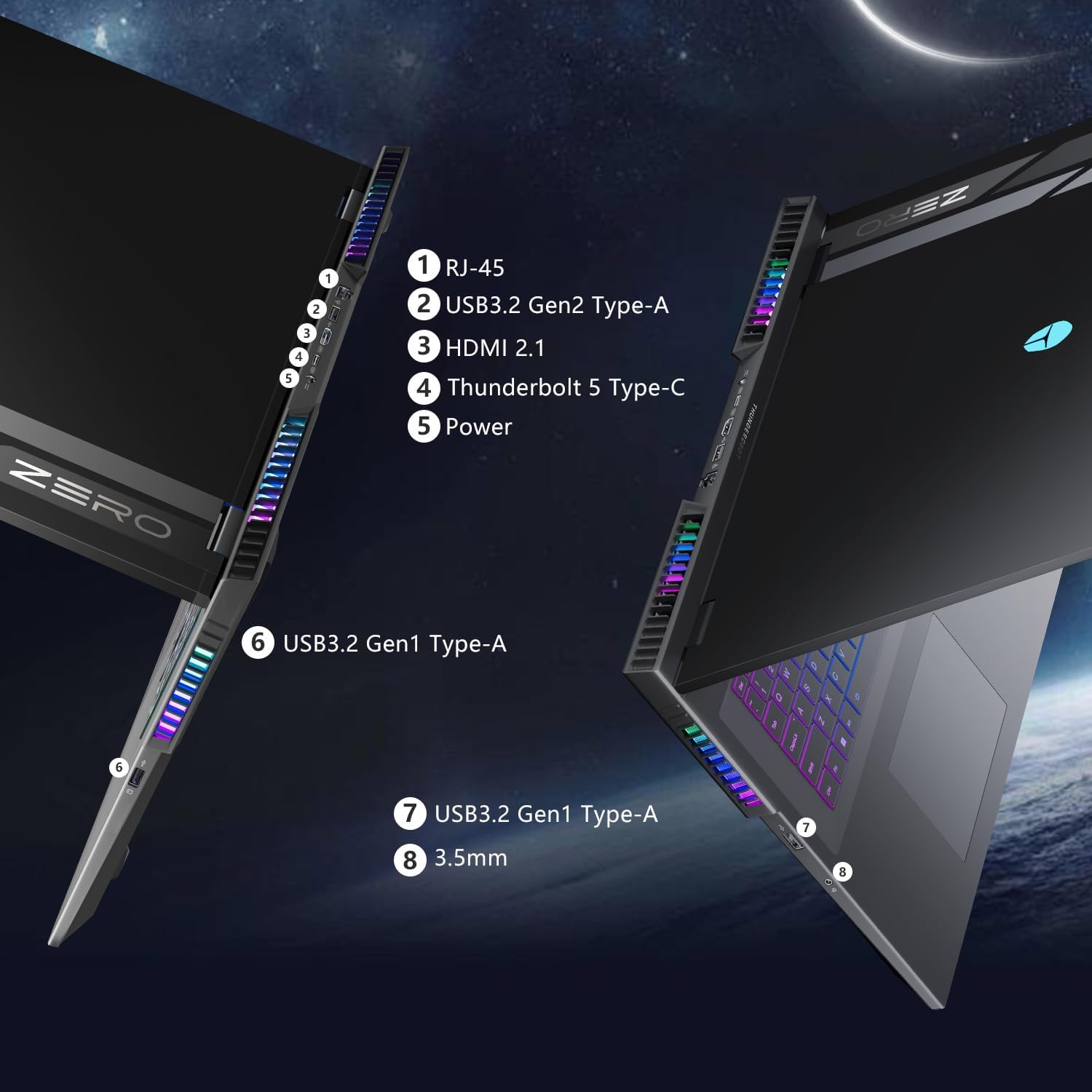
Figure 5: Screenshot of the AI Intelligent Control Center software, showing options for performance tuning, intelligent light adjustment, and comprehensive system customization. Note: System mode switching in Control Center requires the device to be connected to a power source.
- Performance Tuning: Adjust CPU and GPU settings for optimal performance or power saving.
- Intelligent Light Adjustment: Customize the "Spectra" RGB lighting system, including per-key RGB keyboard backlighting and chassis lighting.
- System Monitoring: View real-time CPU and GPU temperatures and fan speeds.
2.4 Keyboard and Input
The laptop features a full-size keyboard with per-key customizable RGB backlighting and an independent numeric keypad.
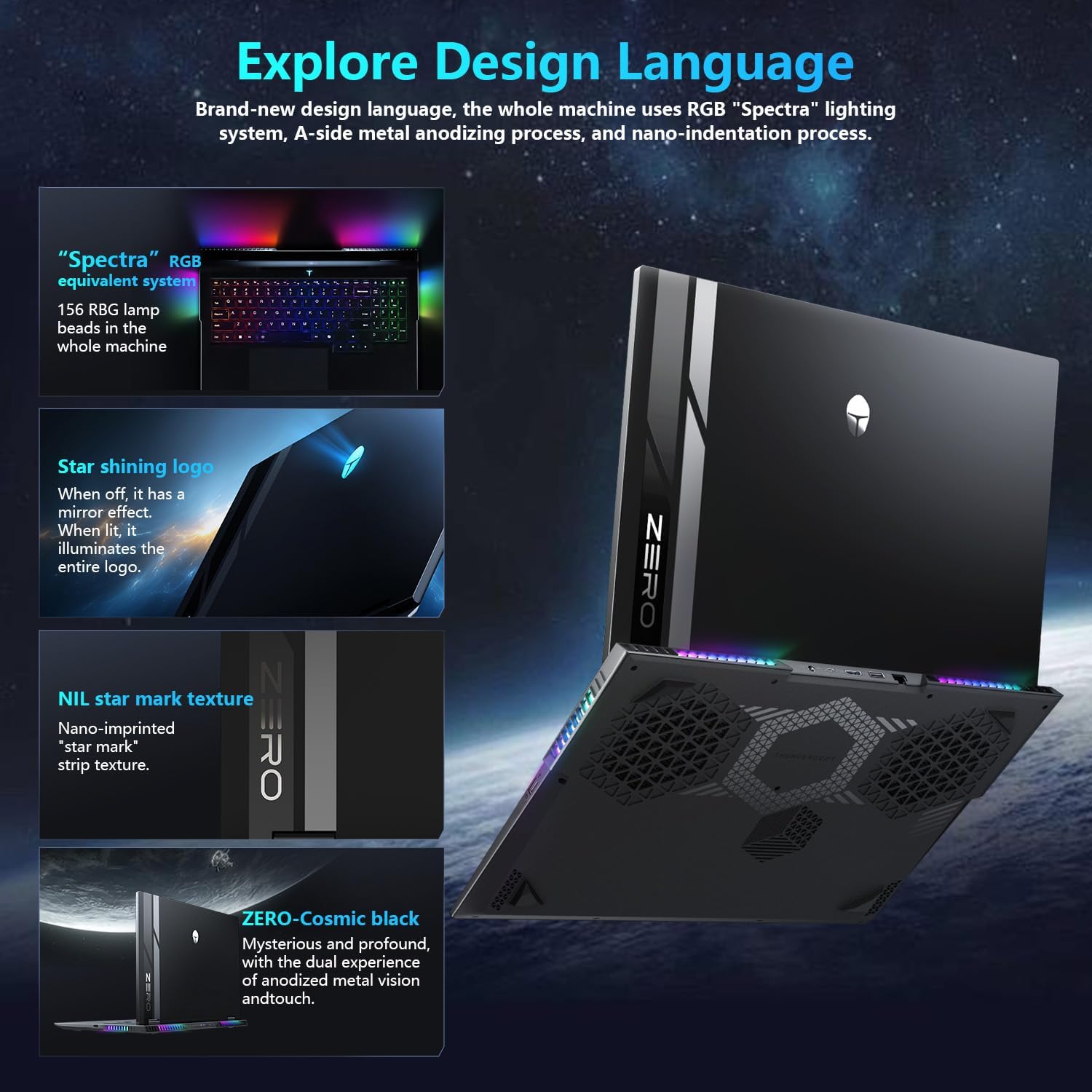
Figure 6: Close-up of the Thunderobot Zero 16 Pro's per-key RGB keyboard and chassis lighting.
2.5 Integrated Camera
The laptop is equipped with an FHD IR Camera, providing high-definition video capabilities and supporting Windows Hello for secure facial recognition login.
3. Maintenance
3.1 Cooling System Care
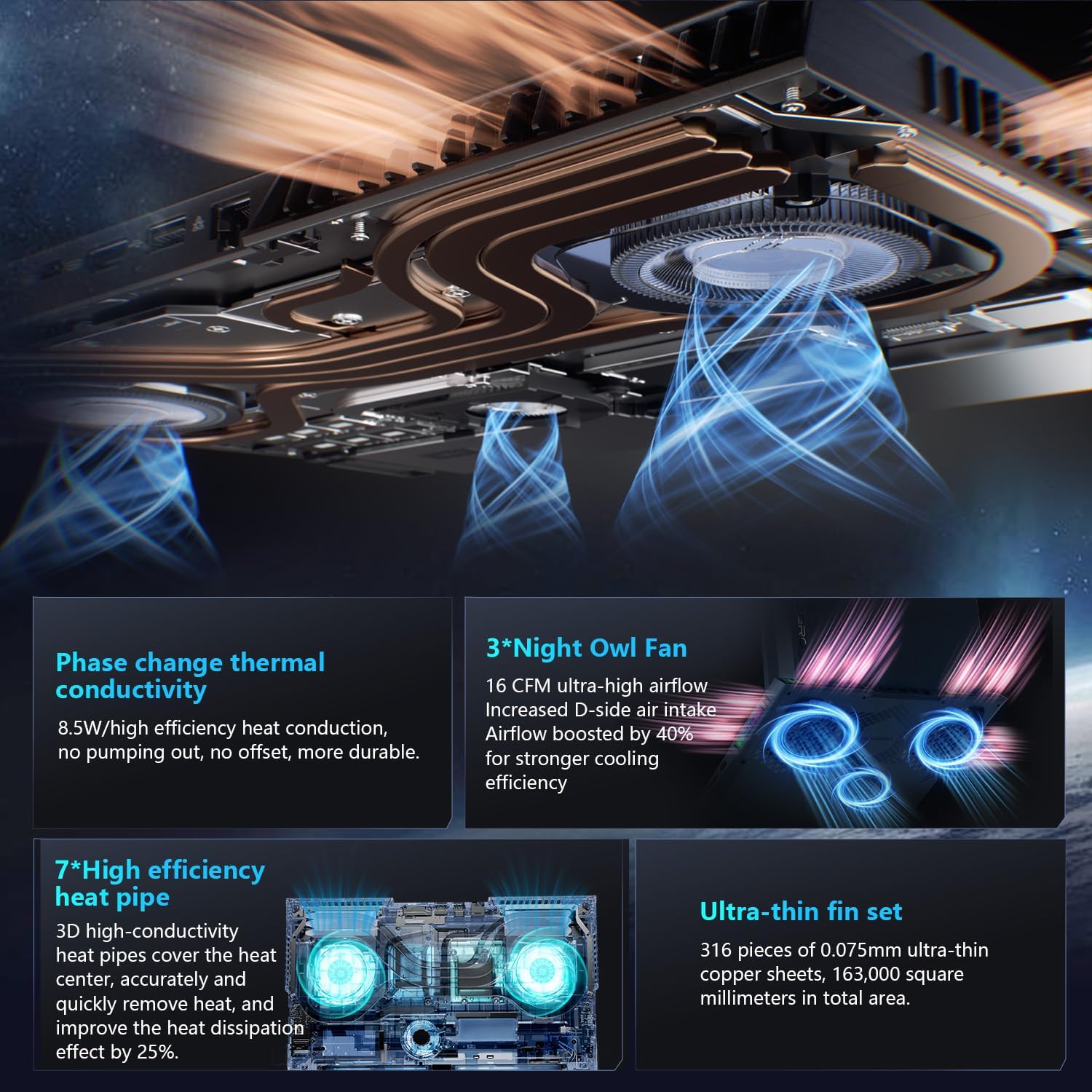
Figure 7: An internal view of the laptop's cooling system, featuring dual Night Owl fans, multiple heat pipes, and ultra-thin copper fins for efficient heat dissipation.
The Thunderobot Zero 16 Pro features a robust cooling system with dual Night Owl fans, 7 extended heat pipes, and 316 ultra-thin copper fins. To maintain optimal cooling performance:
- Ensure the laptop's vents are clear of obstructions.
- Regularly clean dust from the fan vents using compressed air.
- Operate the laptop on a hard, flat surface to allow for proper airflow.
3.2 General Cleaning
- Use a soft, lint-free cloth to clean the screen and chassis.
- Avoid using harsh chemicals or abrasive materials.
- For stubborn smudges, lightly dampen the cloth with water or a screen-safe cleaner.
4. Troubleshooting
4.1 Common Issues and Solutions
- Loud Fan Noise: This is normal during high-performance tasks, especially when "one-click cooling" is activated. Ensure vents are clear and consider using the "Quiet Mode" for less demanding applications.
- Driver-Related Problems: If you experience unexpected behavior, ensure all system and component drivers are up-to-date. Visit the official Thunderobot support website for the latest driver downloads.
- Display Refresh Rate Not Max: Verify that the dedicated graphics direct connection mode is enabled in the AI Intelligent Control Center to achieve the highest refresh rate.
- Short Battery Life: High-performance gaming laptops typically have shorter battery life, especially under heavy load. For extended usage, keep the laptop connected to the power adapter. Adjust power settings in Windows or the AI Control Center to optimize battery usage.
5. Specifications
Below are the key technical specifications for the Thunderobot Zero 16 Pro Gaming Laptop (Model: ZERO 16 Pro).
| Feature | Detail |
|---|---|
| Brand | Thunderobot |
| Model Name | ZERO 16 Pro |
| Standing Screen Display Size | 16 Inches |
| Max Screen Resolution | 2560x1600 Pixels |
| Processor | Intel Core Ultra 9 275HX (5.4 GHz, 24 Cores) |
| RAM | 32 GB DDR5 (4800 MHz) |
| Hard Drive | 2 TB SSD (PCIE x 4) |
| Graphics Coprocessor | GeForce RTX 5070 Ti |
| Operating System | Windows 11 Home |
| Wireless Type | 802.11ax (Wi-Fi 6E) |
| Number of USB 3.0 Ports | 3 |
| Item Weight | 12 pounds |
| Product Dimensions | 14.09 x 10.52 x 1.03 inches |
| Color | Black |
| Special Feature | Numeric Keypad |
6. Warranty and Support
Every Thunderobot laptop includes a 12-month warranty, offering expert support, thorough diagnostics, and genuine parts if a repair is needed. Additionally, a 90-day warranty is provided on all warranty replacement parts, ensuring hassle-free repairs. For technical assistance, driver downloads, or warranty claims, please visit the official Thunderobot support website or contact customer service.
For further information, you may visit the Thunderobot Store on Amazon.


