Introduction
This manual provides essential information for setting up, operating, and maintaining your Gawfolk 28.2 Inch 4K+ UHD IPS Monitor. Please read these instructions carefully before using the product to ensure proper function and longevity.
What's in the Box
Verify that all components are present in the packaging:
- Gawfolk Monitor
- V-shaped Base + Bracket
- Power Adapter (DC 12V 4A)
- User Manual
- DP Cable
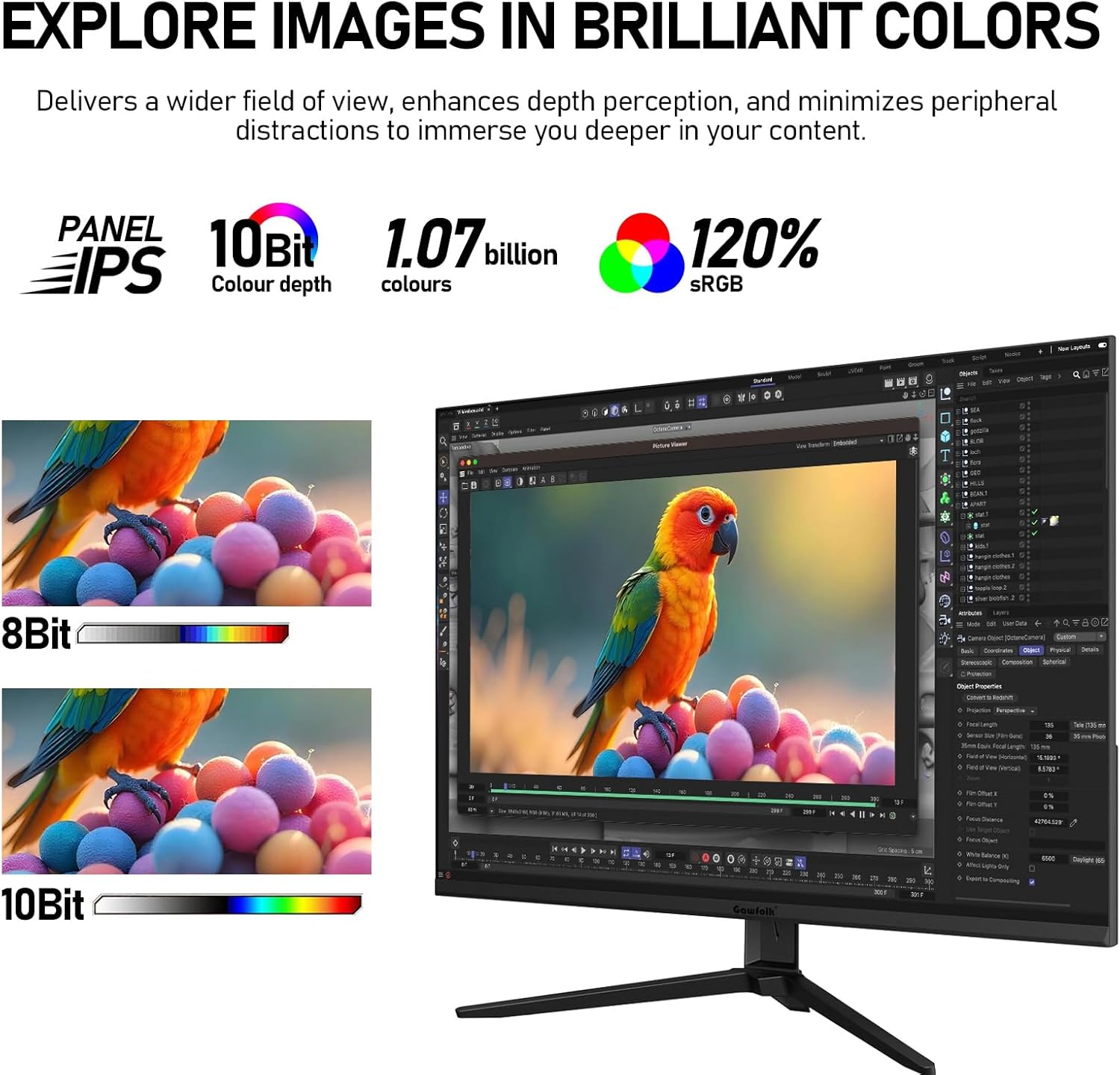
Image: The Gawfolk 28.2 Inch 4K+ UHD IPS Monitor with its stand and various cables, including the power adapter and DP cable, laid out as included accessories.
Setup Instructions
1. Assembling the Stand
- Carefully remove the monitor from its packaging.
- Attach the V-shaped base to the bracket using the provided screw.
- Secure the assembled stand to the back of the monitor.
2. Connecting the Monitor
- Power Connection: Connect the power adapter to the monitor's DC input and then to a power outlet.
- Video Connection:
- For optimal 3840x2560 resolution at 60Hz, use the supplied DisplayPort (DP) cable to connect the monitor to your computer's graphics card.
- Alternatively, use an HDMI 2.0 cable to connect to an HDMI port. Note that HDMI may result in different output behavior to accommodate the screen's unique 3:2 aspect ratio.
- Audio Connection (Optional): If using external speakers or headphones, connect them to the monitor's Audio Out port.

Image: A detailed view of the monitor's rear panel, highlighting the DC power input, two HDMI 2.0 ports, two DisplayPort 1.4 ports, and an Audio Out port. Dimensions for VESA mounting (75x75mm) and tilt angle are also shown.
Operating Instructions
Powering On/Off
Locate the power button, typically on the back or bottom of the monitor. Press it to turn the monitor on or off. An indicator light will show the power status.
On-Screen Display (OSD) Menu
The OSD menu allows you to adjust various display settings. Use the buttons on the monitor (usually on the back or bottom right) to navigate the menu. Common settings include:
- Brightness/Contrast: Adjust image luminance and distinction.
- Color Settings: Modify color temperature, gamma, and individual RGB levels.
- Input Selection: Manually switch between HDMI 1, HDMI 2, DP 1, and DP 2 inputs.
- Audio Settings: Control volume for built-in speakers or connected audio devices.
- Picture Mode: Select preset display modes (e.g., Standard, Game, Movie, Text).
- Low Blue Light: Enable or disable the low blue light feature to reduce eye strain.
Display Features
UHD 4K+ Resolution and IPS Panel
The monitor features a 28.2-inch IPS panel with a 3840x2560 UHD resolution. This provides a high pixel density for sharp images and text. The IPS technology ensures wide viewing angles and consistent color reproduction.
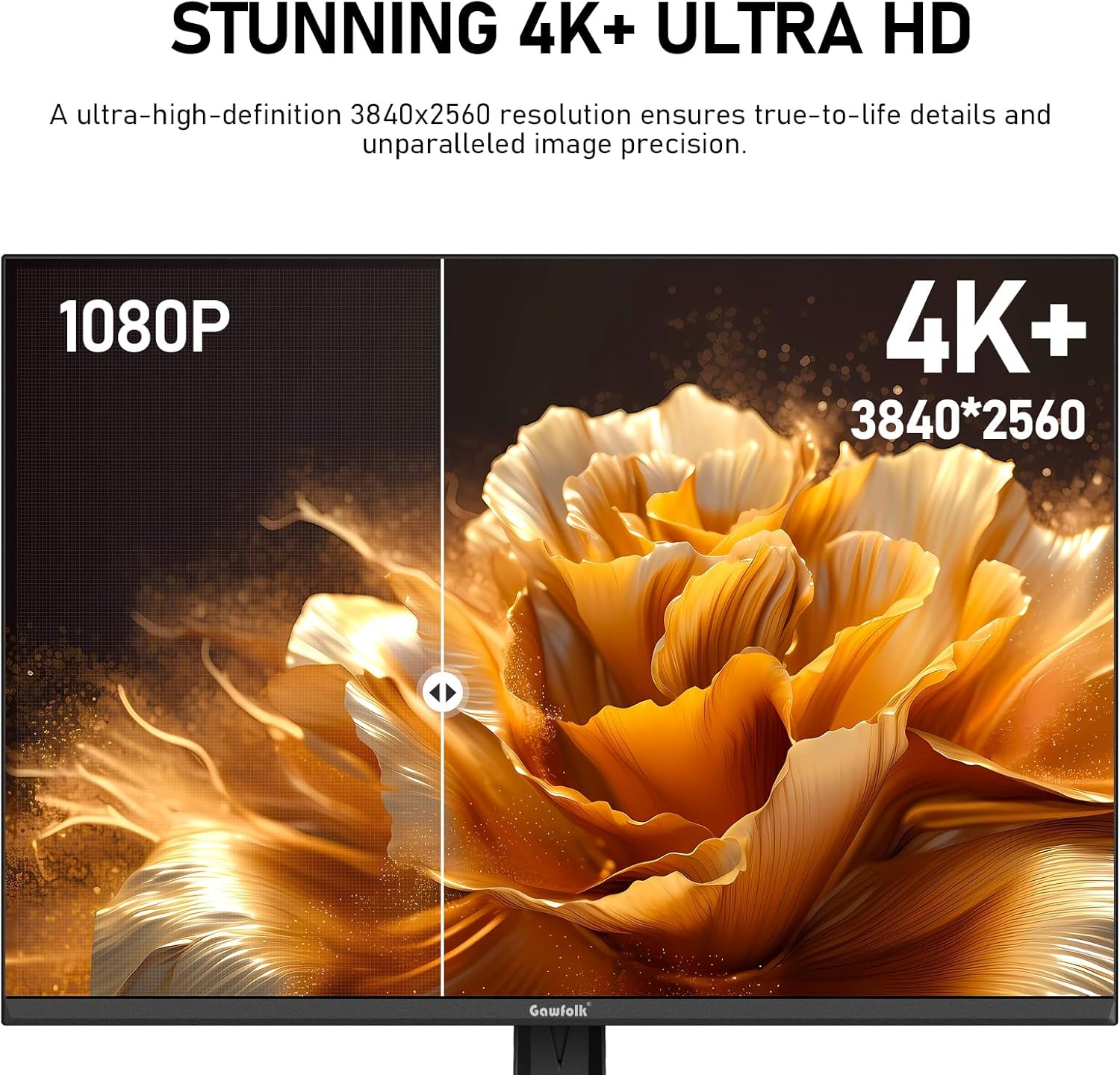
Image: A split-screen comparison demonstrating the clarity difference between 1080P and 4K+ (3840x2560) resolution on the monitor, showing significantly more detail in the 4K+ section.
Color Accuracy
With 10-bit color depth, the monitor displays 1.07 billion colors and covers 120% of the sRGB color gamut. This ensures vibrant and accurate color reproduction, suitable for photo editing, video post-production, and graphic design.
Image: A visual representation of the monitor's color capabilities, highlighting 10-bit color depth, 1.07 billion colors, and 120% sRGB coverage, with a comparison between 8-bit and 10-bit color gradients.
60Hz Refresh Rate and Adaptive Sync
The monitor operates at a stable 60Hz refresh rate, providing smooth performance for office tasks, video playback, and casual gaming. Adaptive Sync technology helps prevent screen tearing and stuttering by synchronizing the monitor's refresh rate with your graphics card.

Image: A side-by-side comparison illustrating the smoothness of a 60Hz refresh rate versus a conventional, lower refresh rate, showing reduced motion blur.
Eye Care Features (DC Dimming & Low Blue Light)
To minimize eye strain during extended use, the monitor incorporates DC dimming technology to reduce flicker and a low blue light panel. These features contribute to a more comfortable viewing experience.

Image: A visual comparison showing the difference between a screen with high blue light and flicker versus one with low blue light and DC dimming, indicating reduced eye strain.
Audio
Built-in Dual Speakers
The monitor includes integrated dual speakers, providing clear audio for video calls and media playback without the need for external speakers. This helps maintain a clutter-free workspace.
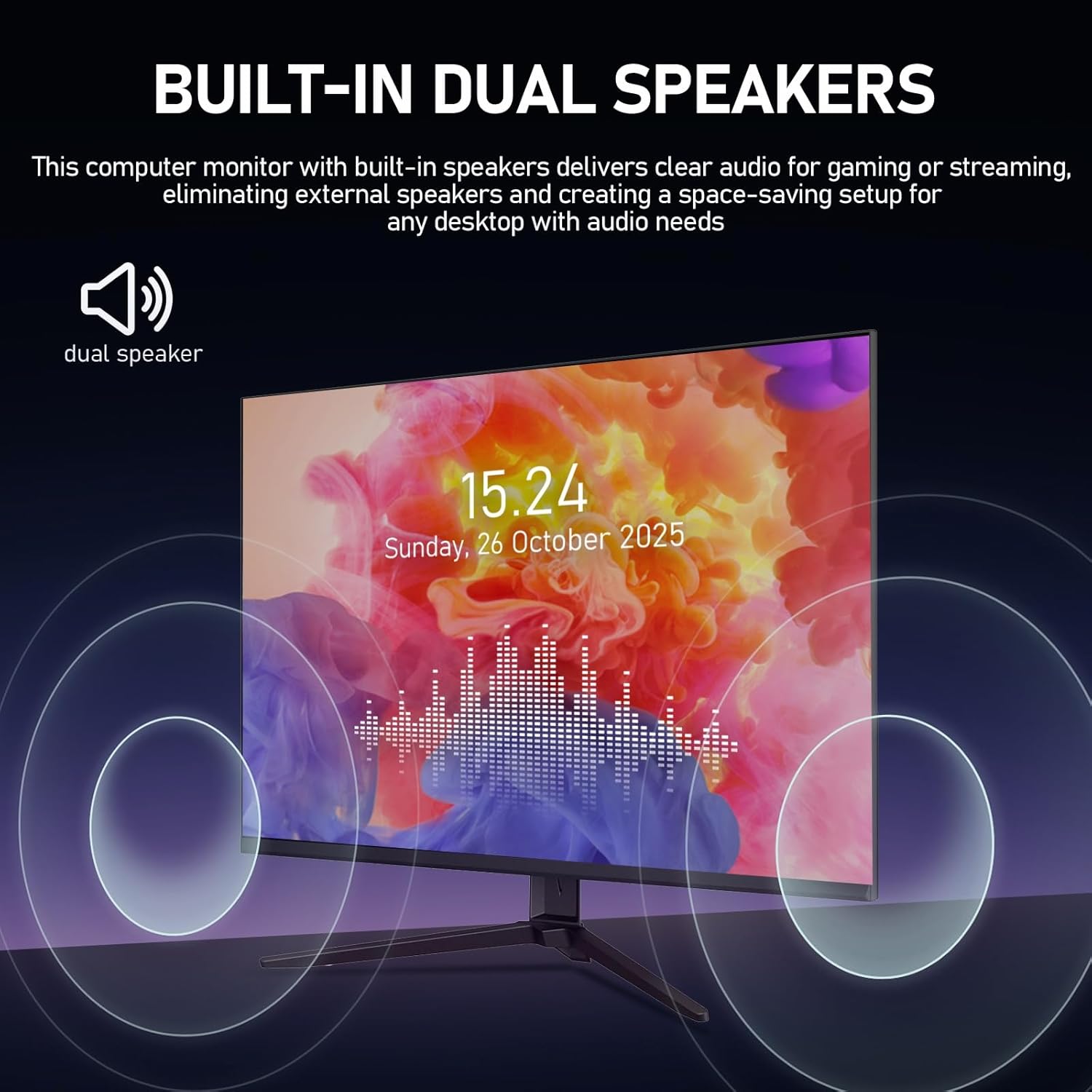
Image: An illustration of the Gawfolk monitor with sound waves emanating from its sides, indicating the presence and function of built-in dual speakers.
Mounting Options
VESA Mount Compatibility
The monitor is compatible with 75x75mm VESA mounts, allowing for flexible installation on a wall or a monitor arm. This feature helps save desk space and allows for customized ergonomic setups.
Image: A detailed view of the monitor's rear panel, clearly indicating the 75x75mm VESA mounting holes for alternative installation methods.
Specifications
| Feature | Specification |
|---|---|
| Product Dimensions | 1.85 x 24.09 x 19.96 inches |
| Item Weight | 7.48 pounds |
| Manufacturer | Gawfolk |
| ASIN | B0FPMBR5SL |
| Item Model Number | GF005 |
| Standing Screen Display Size | 28.2 Inches |
| Aspect Ratio | 3:2 |
| Resolution | 3840 x 2560 |
| Image Brightness | 270 Candela per Square Meter |
| Brand | Gawfolk |
| Screen Surface Description | Matte |
Troubleshooting
- No Power:
- Ensure the power adapter is securely connected to both the monitor and a working power outlet.
- Check if the power indicator light is on.
- No Signal:
- Verify that the video cable (DP or HDMI) is firmly connected to both the monitor and your computer.
- Ensure the correct input source is selected in the monitor's OSD menu.
- Try a different video cable or port if available.
- Image Flickering or Tearing:
- Ensure your graphics card drivers are up to date.
- Check if Adaptive Sync is enabled in your graphics card settings.
- Verify the refresh rate is set to 60Hz in your operating system's display settings.
- Black Bars with 16:9 Content:
- This is normal behavior for a 3:2 aspect ratio monitor when displaying standard 16:9 content. The monitor may also stretch the image to fit, depending on your settings.
- No Sound from Built-in Speakers:
- Check the volume settings in the monitor's OSD menu and your computer's sound settings.
- Ensure the monitor is selected as the audio output device on your computer.
Maintenance
- Cleaning the Screen:
- Turn off the monitor and unplug the power cord.
- Use a soft, lint-free cloth lightly dampened with water or a specialized screen cleaner.
- Do not spray cleaner directly onto the screen.
- Avoid using abrasive cloths or chemical cleaners that may damage the screen surface.
- General Cleaning:
- Wipe the monitor casing with a soft, dry cloth.
- Keep ventilation openings clear of dust and debris.
Warranty and Support
Gawfolk provides high-quality computer monitors and premium services. If you encounter any damage, malfunction, or missing accessories, please contact Gawfolk customer support. We are committed to assisting you with any issues.
For support, please refer to the contact information provided on the official Gawfolk website or your purchase documentation.