1. Introduction
Thank you for choosing the QZT L30 Mini WiFi Camera. This compact and versatile camera is designed for indoor surveillance, offering features such as 1080p video, motion detection, and night vision. This manual provides detailed instructions for setting up, operating, and maintaining your device to ensure optimal performance.
Package Contents:
- QZT L30 Mini WiFi Camera
- USB Charging Cable
- Mounting Bracket
- Instruction Manual (this document)
- (Optional: Micro SD Card, depending on purchase)
2. Safety Information
Please read all safety instructions carefully before using this product. Failure to follow these instructions may result in electric shock, fire, or other hazards.
- This camera is designed for indoor use only. Do not expose it to rain, moisture, or extreme temperatures.
- Keep the device away from direct sunlight, heat sources, and open flames.
- Do not attempt to disassemble, repair, or modify the camera. This will void the warranty.
- Use only the provided charging cable or a certified equivalent.
- Ensure the camera is placed on a stable surface or securely mounted to prevent falling.
- Keep out of reach of children and pets.
- Dispose of batteries and electronic components responsibly according to local regulations.
3. Product Overview
The QZT L30 Mini WiFi Camera is a compact device featuring a magnetic base for flexible placement. It includes a lens, indicator lights, a power button, a reset button, a Micro SD card slot, and a USB charging port.

Image 3.1: The QZT L30 Mini WiFi Camera's compact design, suitable for discreet placement, with a live feed displayed on a smartphone.
Key Features:
- 1080P HD Video: Captures clear, high-definition footage.
- 180° Wide Angle: Provides a broad view of the monitored area.
- 800mAh Battery: Integrated rechargeable Lithium Polymer battery.
- Night Vision: Infrared LEDs for monitoring in low-light conditions.
- Motion Detection: Sends instant notifications with snapshots to your phone.
- Multi-user Sharing: Allows multiple users to view the camera feed.
- Cloud/SD Storage: Supports both cloud storage (subscription may be required) and local Micro SD card storage (up to 128GB, not included).
- Loop Record: Automatically overwrites older files when the SD card is full.
- Magnetic Mount: Easy installation on metallic surfaces.
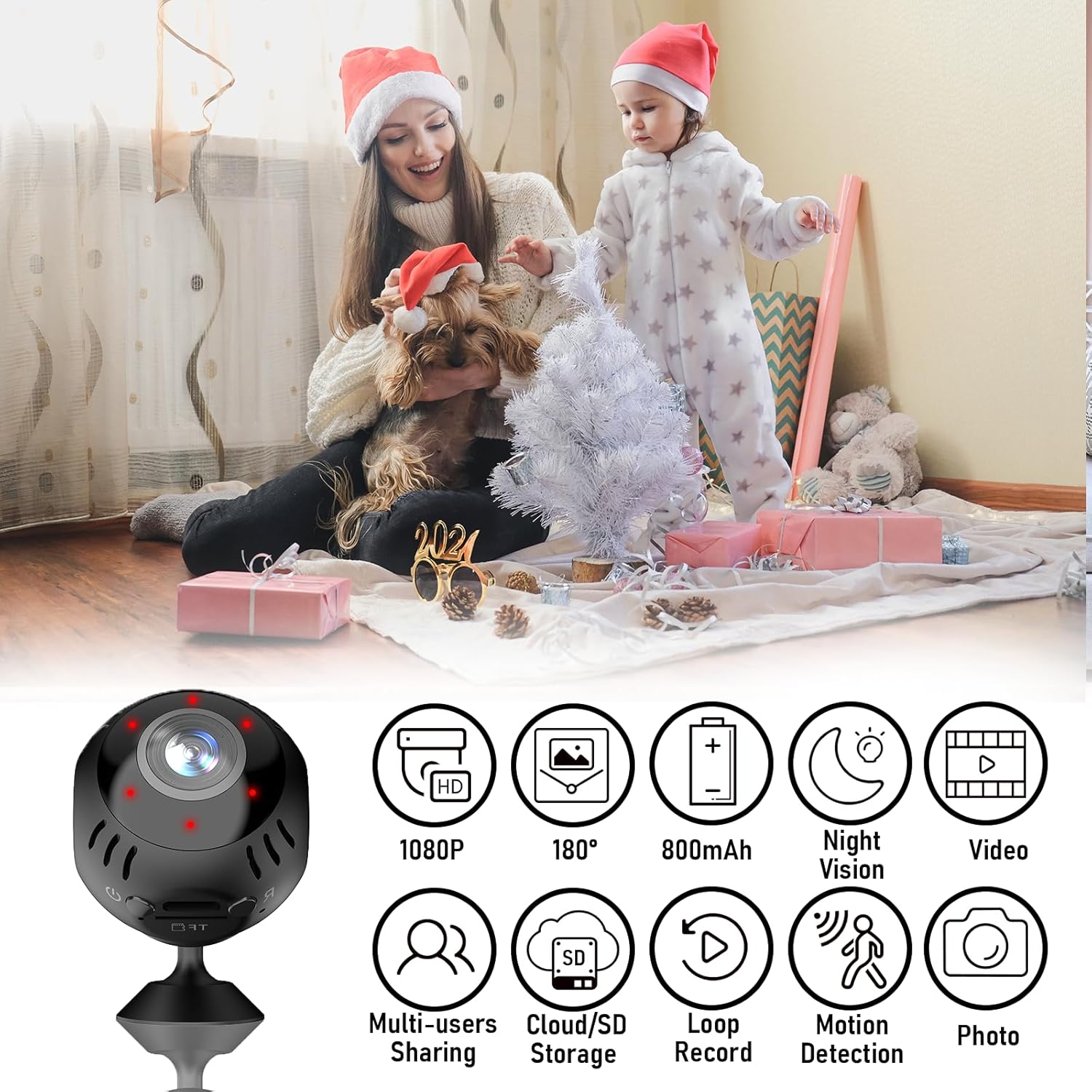
Image 3.2: Visual representation of the QZT L30 Mini WiFi Camera's main features.
4. Setup
4.1. Charging the Camera
- Connect the provided USB charging cable to the camera's charging port.
- Plug the other end of the cable into a 5V/1A USB power adapter (not included) or a computer's USB port.
- The indicator light will show the charging status (e.g., red for charging, off when fully charged). Allow approximately 2-3 hours for a full charge.
4.2. Inserting a Micro SD Card (Optional)
A Micro SD card (Class 10 or higher, up to 128GB, not included) is required for local video storage and loop recording.
- Locate the Micro SD card slot on the camera.
- Gently insert the Micro SD card with the gold contacts facing down until it clicks into place.
- To remove, gently push the card in again until it springs out.
- It is recommended to format the Micro SD card via the mobile application after insertion for optimal performance.
4.3. App Download and Installation
The QZT L30 camera operates via a dedicated mobile application. Search for the app name (e.g., 'O-KAM Pro' or as specified in the packaging) in your device's app store (App Store for iOS, Google Play Store for Android) and install it.
4.4. Connecting to Wi-Fi
- Ensure your smartphone is connected to a 2.4GHz Wi-Fi network. The camera does not support 5GHz Wi-Fi.
- Power on the camera by pressing and holding the power button until the indicator light flashes.
- Open the installed mobile application and create an account or log in.
- Follow the in-app instructions to add a new device. This typically involves scanning a QR code generated by the app with the camera, or connecting to the camera's temporary Wi-Fi hotspot.
- Once connected, the camera's indicator light will change to a steady blue or green, indicating a successful connection.
4.5. Mounting the Camera
The camera features a magnetic base for easy placement. Use the included mounting bracket for more permanent installations.
- Magnetic Surface: Simply attach the camera to any metallic surface.
- Wall/Ceiling Mount: Secure the mounting bracket to a desired location using screws (not included). Then, attach the camera to the magnetic base of the bracket. Adjust the camera angle as needed.
5. Operating Instructions
5.1. Live View
Open the mobile application and select your camera from the device list to access the live video feed. You can view real-time footage, take snapshots, and record video directly from the app interface.
5.2. Recording Video and Taking Photos
- Manual Recording: While in live view, tap the record button in the app to start/stop recording. Videos will be saved to your phone or the Micro SD card.
- Automatic Recording: If a Micro SD card is inserted and formatted, the camera will automatically record based on your settings (e.g., continuous recording, motion-triggered recording).
- Snapshots: Tap the camera icon in the app to capture a still image from the live feed.
5.3. Motion Detection
The camera can detect movement and send alerts to your smartphone.
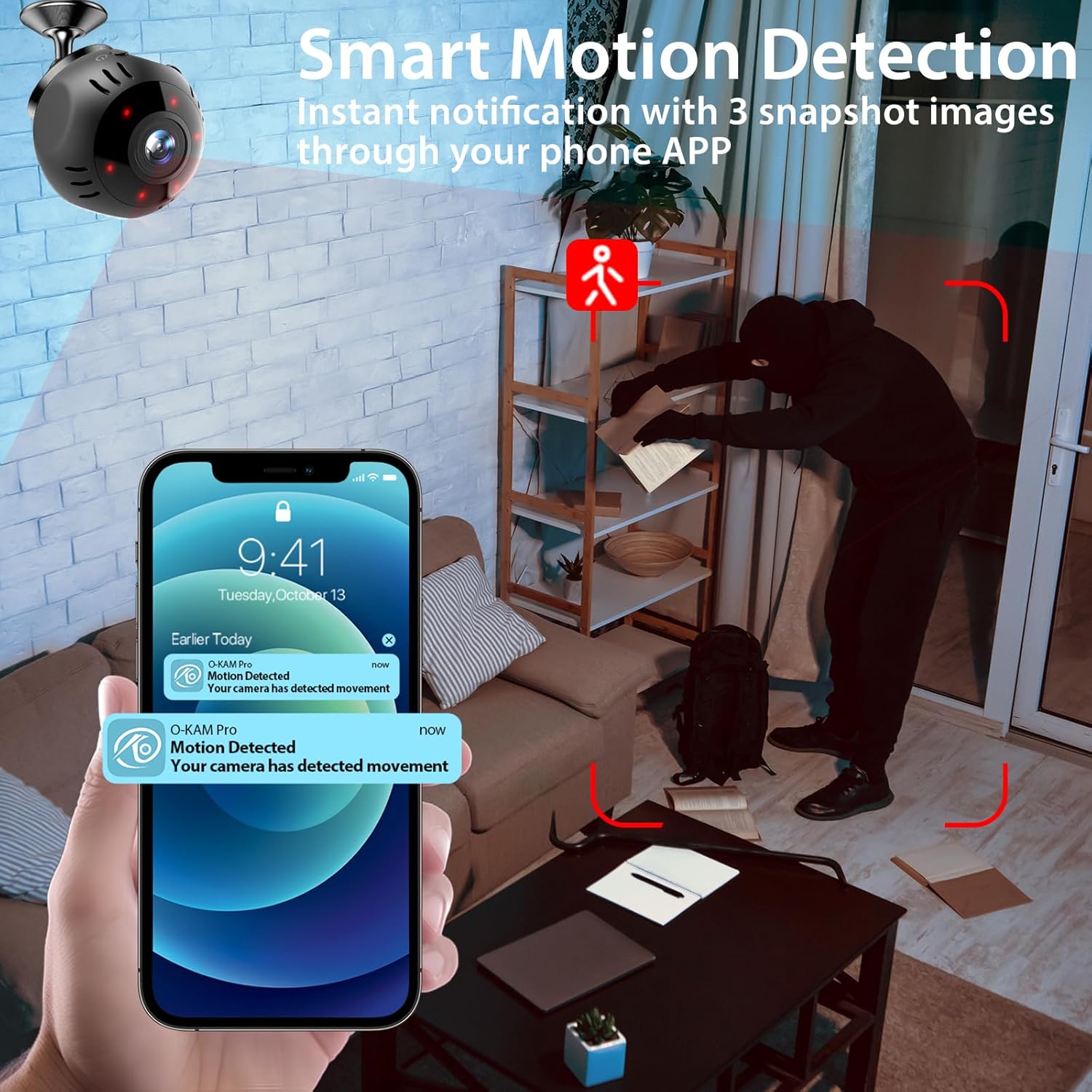
Image 5.1: Example of a motion detection notification received on a smartphone.
- Navigate to the camera settings in the mobile application.
- Enable 'Motion Detection' and adjust sensitivity levels as desired.
- Configure alert notifications (e.g., push notifications, email alerts).
- When motion is detected, the camera will record a short video clip and send an alert to your phone.
5.4. Night Vision
The camera automatically switches to night vision mode in low-light conditions, utilizing infrared LEDs to capture clear black-and-white footage.
- Night vision can typically be toggled On/Off/Auto within the app settings.
5.5. Multi-user Sharing
You can share access to your camera's live feed with family members or trusted individuals.
- In the app, go to the camera settings and look for 'Share Device' or 'Multi-user Access'.
- Follow the instructions to invite other users, typically by entering their app account ID or scanning a QR code.
5.6. Cloud and SD Card Storage
- Micro SD Card: Recordings are stored locally on the inserted Micro SD card. You can review footage directly from the app.
- Cloud Storage: The app may offer optional cloud storage services for a subscription fee. This provides off-site backup of your recordings. Refer to the app for details on available plans.
5.7. Loop Recording
When a Micro SD card is full, the camera will automatically overwrite the oldest recordings to continue saving new footage. This feature ensures continuous recording without manual intervention.
6. Maintenance
6.1. Cleaning
- Gently wipe the camera lens and body with a soft, dry, lint-free cloth.
- Do not use liquid cleaners, solvents, or abrasive materials, as these can damage the device.
6.2. Battery Care
- Avoid fully discharging the battery frequently to prolong its lifespan.
- If storing the camera for an extended period, charge it to about 50% and store in a cool, dry place.
- Do not expose the battery to extreme heat or cold.
6.3. Firmware Updates
Periodically check the mobile application for available firmware updates. Updates can improve performance, add new features, or fix bugs. Follow the in-app instructions carefully when performing an update.
7. Troubleshooting
| Problem | Possible Solution |
|---|---|
| Camera won't power on. | Ensure the battery is fully charged. Connect to a power source and try again. |
| Cannot connect to Wi-Fi. |
|
| No video recording to SD card. |
|
| Motion detection alerts not received. |
|
| Poor video quality. |
|
8. Specifications
- Model: L30 (C10 / C1001)
- Brand: QZT
- Video Resolution: 1080p
- Connectivity: Wi-Fi (2.4GHz only)
- Usage: Indoor
- Mounting Type: Magnetic / Window Mount
- Battery: 800mAh Lithium Polymer (1 A battery included)
- Product Dimensions: 3.56 x 3.56 x 7.62 cm (1.4 x 1.4 x 3 inches)
- Item Weight: 160 g (0.35 lbs)
- Storage: Micro SD Card (up to 128GB, not included), Cloud Storage (optional)
- Origin: China
9. Warranty and Support
9.1. Warranty Information
The QZT L30 Mini WiFi Camera comes with a limited manufacturer's warranty. Please refer to the product packaging or the official QZT website for specific warranty terms and conditions, including duration and coverage details.
9.2. Customer Support
If you encounter any issues or have questions not covered in this manual, please contact QZT customer support through the following channels:
- Refer to the contact information provided on the product packaging.
- Visit the official QZT website for support resources, FAQs, and contact forms.
- Check the mobile application for in-app support options.
Please have your product model (L30, C10, or C1001) and purchase details ready when contacting support.
10. Official Product Videos
No official product videos from the seller were provided for embedding in this manual.


