1. Introduction
This manual provides essential information for the proper setup, operation, and maintenance of your Gawfolk GF005 28-inch UHD 4K Computer Monitor. Please read this manual thoroughly before using the product to ensure optimal performance and safety.
2. Safety Information
- Ensure the monitor is placed on a stable, level surface to prevent accidental falls.
- Do not expose the monitor to rain, moisture, or extreme temperatures.
- Avoid blocking ventilation openings to prevent overheating.
- Use only the power adapter supplied with the monitor.
- Disconnect the power cable from the outlet before cleaning or if the monitor will not be used for an extended period.
- Do not attempt to repair the monitor yourself. Refer all servicing to qualified personnel.
3. Package Contents
Verify that all items are present in the package. If any items are missing or damaged, contact customer support.
Video: Gawfolk GF005 28-inch 4K Monitor Unboxing Video. This video demonstrates the unboxing process and displays all included accessories.
- Gawfolk GF005 28-inch UHD 4K Monitor
- Monitor Stand Base
- Monitor Mounting Arm
- DP Cable
- Power Adapter
- Monitor Manual
- Stand Base Screws
4. Setup
Follow these steps to assemble and connect your monitor. For a visual guide, refer to the installation video below.
Video: Gawfolk GF005 28'' 4K Monitor Mount Installation Video. This video provides a step-by-step demonstration of how to install the monitor stand.
4.1 Assembling the Stand
- Carefully remove the monitor from its packaging, keeping it protected on a soft surface.
- Attach the monitor mounting arm to the back of the monitor. Ensure it clicks securely into place.
- Secure the monitor stand base to the mounting arm using the provided screws and screwdriver.
- Place the assembled monitor on a stable desk or surface.

Image: Front view of the Gawfolk GF005 monitor with its stand assembled.
4.2 Connecting Cables
The monitor features multiple input ports for versatile connectivity.

Image: Rear view of the monitor detailing the available input ports (DC, HDMI 2.0 x2, DP 1.4 x2, Audio Out) and VESA mount points.
- Connect the provided DP cable from your computer's graphics card to one of the DP 1.4 ports on the monitor for optimal 4K 60Hz performance. Alternatively, use an HDMI 2.0 cable for up to 4K 50Hz.
- Connect the power adapter to the monitor's DC input and then to a power outlet.
- If desired, connect external audio devices to the Audio Out port.
4.3 VESA Wall Mounting
The monitor supports standard 75x75mm VESA mounting for wall or arm installation (mounting hardware sold separately).
5. Operating Instructions
5.1 Powering On/Off
Press the power button, usually located on the back or bottom of the monitor, to turn it on or off. The power indicator light will illuminate when the monitor is on.
5.2 Adjusting Display Settings
Use the control buttons (typically located on the back or bottom right) to navigate the On-Screen Display (OSD) menu. From the OSD, you can adjust settings such as brightness, contrast, color temperature, input source, and more.
5.3 Key Features
- UHD 4K Resolution: Enjoy sharp and detailed visuals with a 3840x2560 resolution IPS panel.
- 3:2 Aspect Ratio: Offers increased vertical screen space, beneficial for document viewing and creative tasks.
- 10-Bit Color Depth: Displays up to 1.07 billion colors with 128% sRGB coverage for accurate and vivid color reproduction.
- Eye-Care Technologies: Features DC dimming to reduce screen flicker and a low blue light design to minimize eye strain during extended use.
- Adaptive Sync: Synchronizes the monitor's 60Hz refresh rate with your graphics card to eliminate screen tearing and stuttering.
- Built-in Speakers: Integrated speakers provide audio for daily use, reducing desktop clutter.
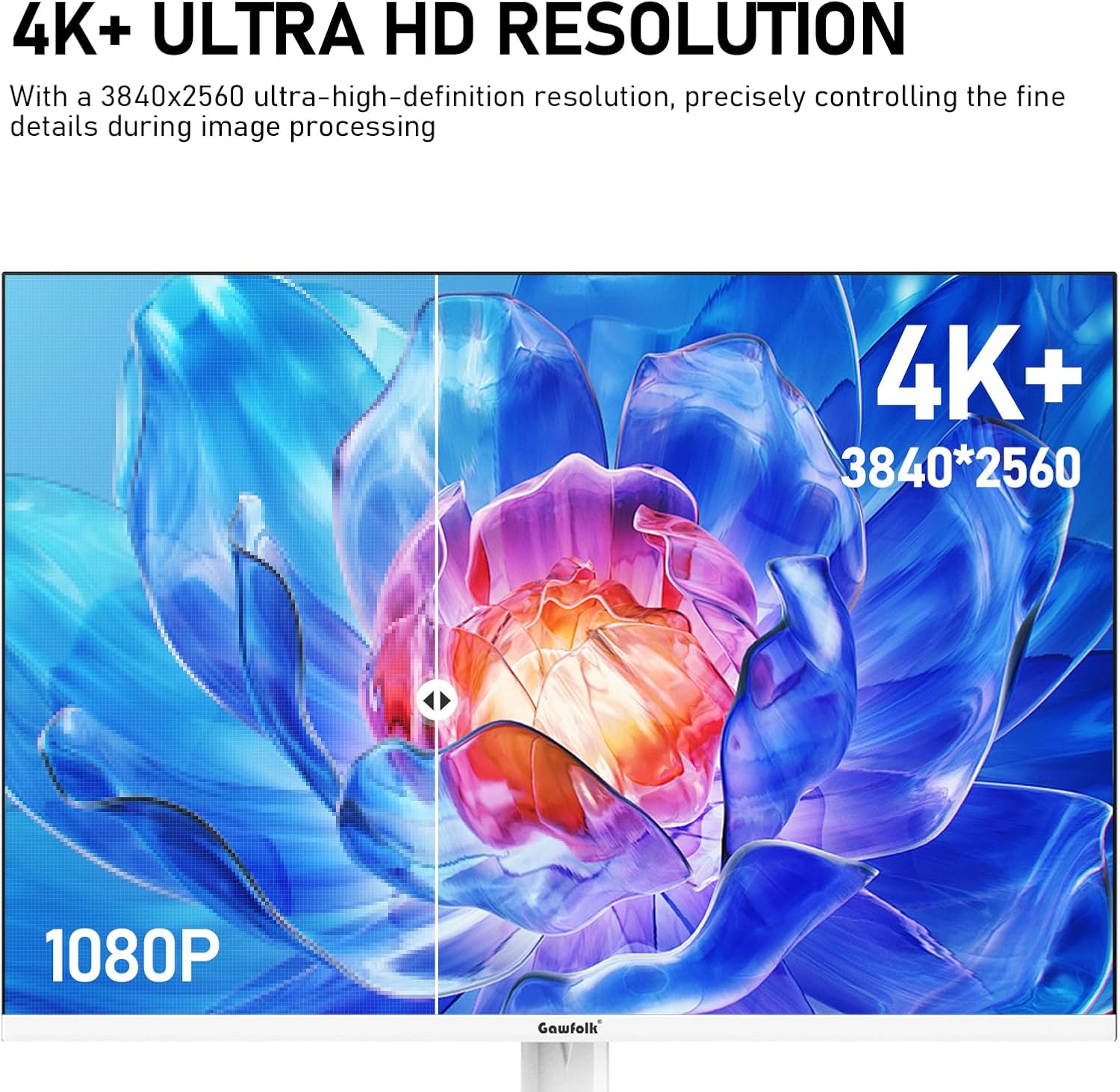
Image: Visual comparison demonstrating the clarity of 4K+ Ultra HD resolution.
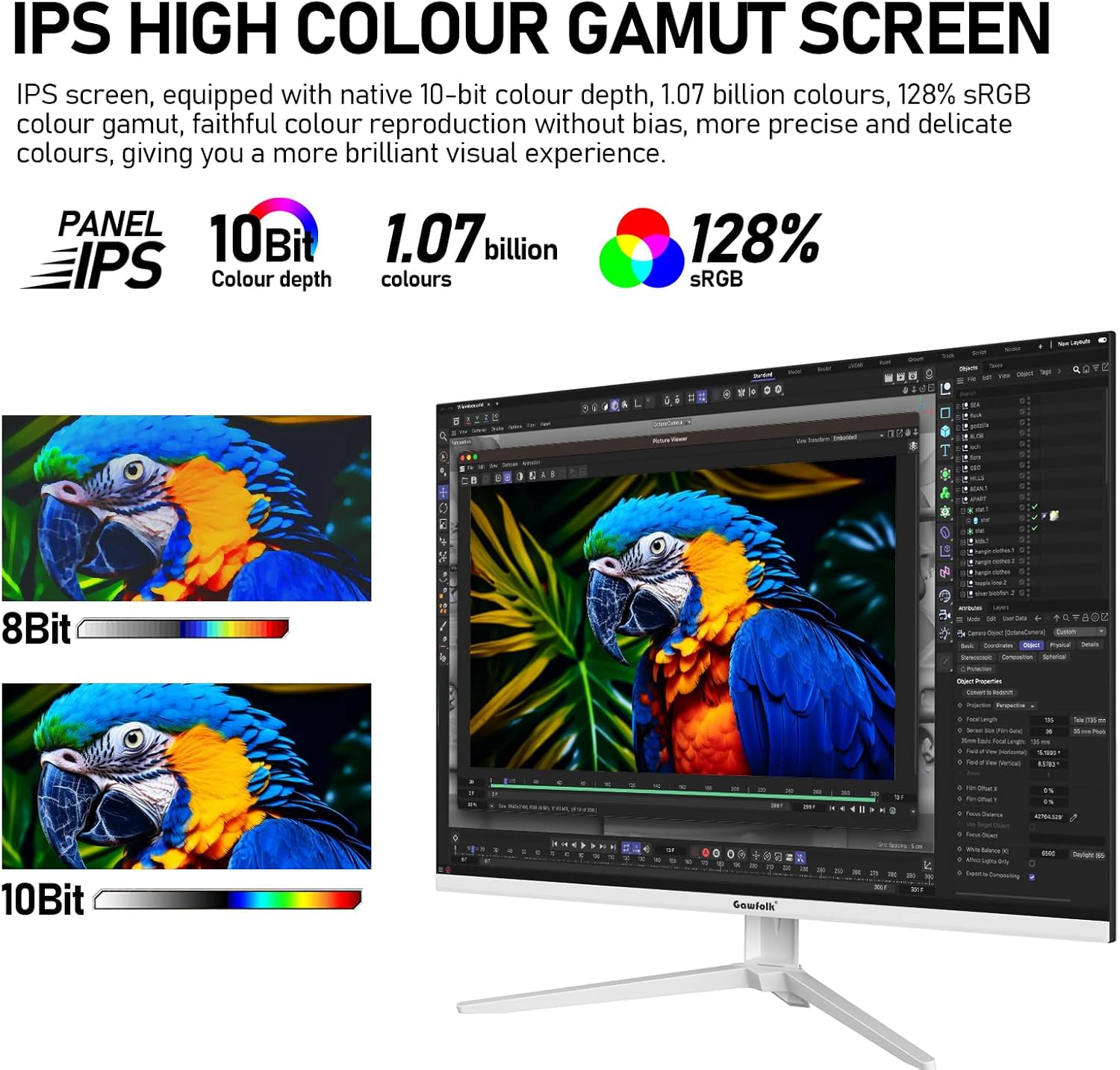
Image: Illustration of the IPS panel's high color gamut and 10-bit color depth capabilities.
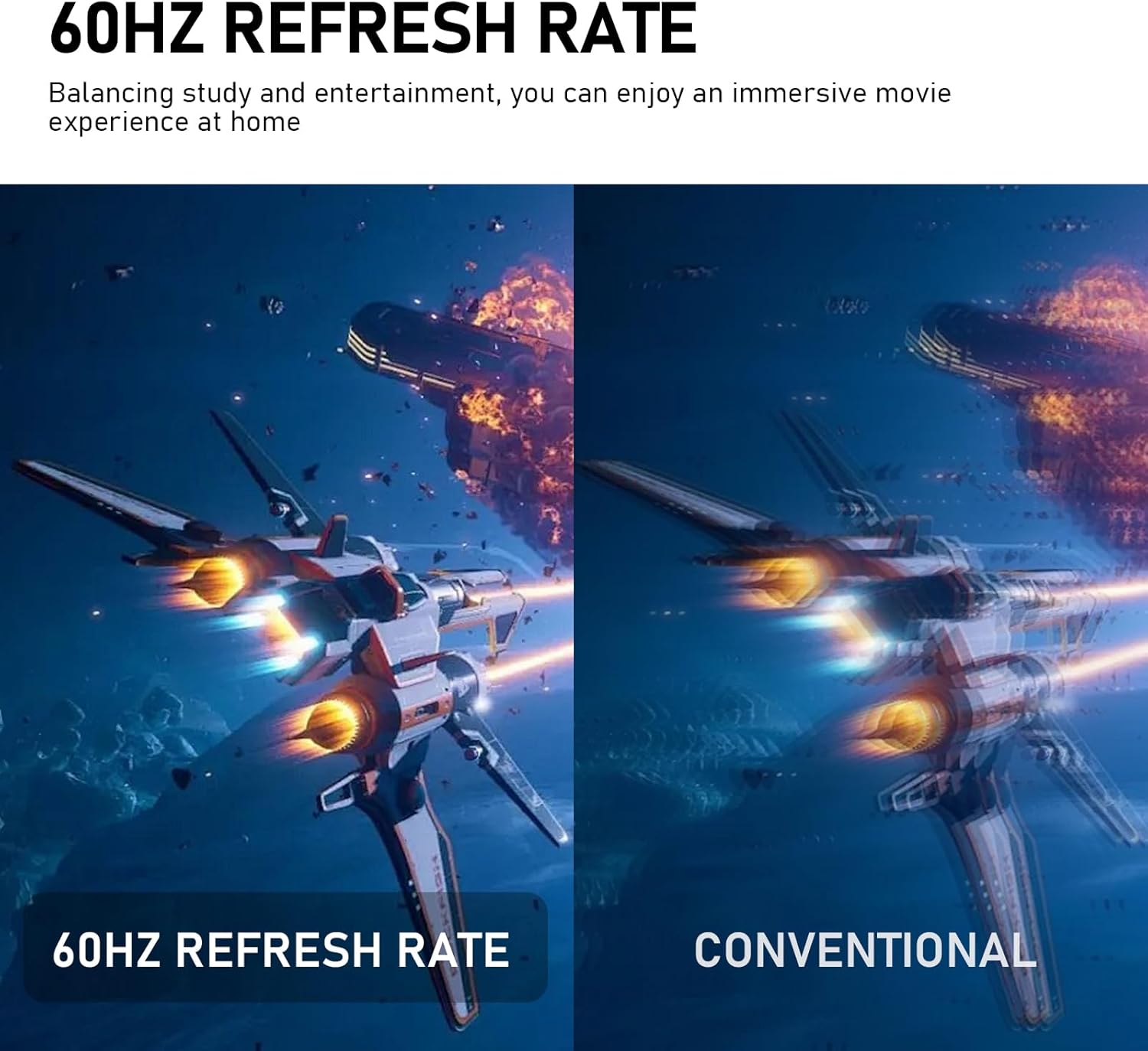
Image: Depiction of the monitor's built-in dual speakers providing audio.

Image: Visual representation of the smoothness provided by a 60Hz refresh rate compared to conventional displays.

Image: Diagram illustrating the benefits of DC Dimming and Low Blue Light technology for reducing eye strain.
6. Maintenance
6.1 Cleaning the Monitor
- Always unplug the monitor before cleaning.
- Use a soft, lint-free cloth lightly dampened with water or a mild, non-abrasive screen cleaner.
- Do not spray cleaner directly onto the screen.
- Avoid using benzene, thinner, ammonia-based cleaners, or abrasive materials.
6.2 Storage
If storing the monitor for an extended period, place it in its original packaging in a dry, cool environment away from direct sunlight.
7. Troubleshooting
If you encounter issues with your monitor, refer to the following common problems and solutions:
- No Power: Ensure the power cable is securely connected to both the monitor and the power outlet. Verify the power outlet is functional.
- No Signal: Check that the video cable (DP or HDMI) is firmly connected to both the monitor and your computer. Ensure the correct input source is selected in the monitor's OSD menu.
- Flickering Screen: Confirm that the video cable is properly connected. Adjust the refresh rate settings on your computer. Ensure Adaptive Sync is enabled if supported by your graphics card.
- Poor Image Quality: Adjust brightness, contrast, and color settings via the OSD menu. Ensure your computer's display resolution matches the monitor's native resolution (3840x2560).
- No Sound from Built-in Speakers: Check the volume settings on both the monitor and your computer. Ensure the correct audio output device is selected on your computer.
If the problem persists after attempting these solutions, please contact Gawfolk customer support.
8. Specifications
| Feature | Specification |
|---|---|
| Screen Size | 28 Inches |
| Panel Type | IPS |
| Resolution | 3840 x 2560 Pixels (UHD 4K) |
| Aspect Ratio | 3:2 |
| Color Depth | 10-Bit (1.07 Billion Colours) |
| Color Gamut | 128% sRGB |
| Refresh Rate | 60Hz (DP), 50Hz (HDMI) |
| Image Brightness | 270 Candela |
| Viewing Angle | 178° Wide Viewing Angle |
| Connectivity | 2x HDMI 2.0, 2x DisplayPort 1.4, Audio Out |
| Speakers | Built-in |
| VESA Mount | 75x75mm |
| Product Dimensions | 7.83 x 24.09 x 19.96 inches |
| Item Weight | 7.48 pounds |
| Model Number | GF005 |
9. Warranty and Support
Gawfolk provides 12 months of after-sales service for this monitor. If you encounter any problems or require assistance, please feel free to communicate with us through the retailer or the official Gawfolk support channels.


