
Product Overview
Package Contents
Verify that all items are included in your package:
- HDD Docking Station x1
- User Manual x1
- 12V Power Adapter (1M) x1
- USB-B to C Cable 1M x1
- Package Box x1

Image: UGREEN HDD Docking Station package contents.
Product Features
- Dual Bay & 32TB Capacity: Supports two 2.5-inch or 3.5-inch SATA HDDs/SSDs simultaneously, with a maximum capacity of 32TB. Features a compact, plug-and-play design.
- High-Speed Transfer (UASP & TRIM): Equipped with a USB 3.0 interface (up to 5Gbps transfer speed) and supports UASP and TRIM functions for enhanced data transfer efficiency, especially with SSDs. Ideal for backups and large data transfers.
- Offline Clone Function: Allows direct disk-to-disk cloning without a computer. Progress is indicated by a 4-stage LED.
- Power Separation & Short Circuit Protection: Includes a 12V/3A power adapter for stable operation, even with large hard drives, and features protection mechanisms for data safety.
- Practical Design: Features a dust cover, anti-slip silicone pads, and tool-free drive insertion. LED indicators show power and data activity. Automatic sleep mode activates after 15 minutes of inactivity to save power.
- Wide Compatibility: Compatible with Windows, macOS, and Linux operating systems. Supports all standard 2.5-inch/3.5-inch SATA HDDs/SSDs and can connect to various devices including desktop PCs, laptops, Xbox, PS3/PS4, smart TVs, and routers.

Image: UGREEN HDD/SSD Docking Station supporting up to 32TB capacity.

Image: Features of the docking station including anti-slip mat, LED indicators, and dust cover.
Setup Instructions
Connecting the Power Adapter
Connect the provided 12V/3A power adapter to the DC IN port on the back of the docking station and then plug it into a power outlet.
Inserting Hard Drives
1. Ensure the docking station is powered off before inserting or removing drives.
2. Gently insert your 2.5-inch or 3.5-inch SATA HDD/SSD into the drive slots (Slot A and Slot B). Ensure they are firmly seated in the SATA connectors.
Image: Inserting hard drives into the docking station.
Connecting to a Host Device
1. Connect the docking station to your computer or other compatible device (e.g., game console, smart TV) using the provided USB cable.
2. Power on the docking station using the power button. The power LED indicator will light up.
3. Your operating system should automatically detect the drives. New drives may require initialization and formatting before use.

Image: Connecting the docking station to a laptop for data access.
Operating Instructions
Data Transfer Mode
Once connected to a host device and powered on, the inserted drives will be recognized as external storage. You can now access, read, and write data to the drives as you would with any other external storage device. The LED indicator for the respective drive will blink during data read/write operations.

Image: High-speed data transfer capability of the docking station.
Offline Clone Function
The offline clone function allows you to duplicate a source drive (Drive A) to a target drive (Drive B) without connecting to a computer.
Important: The capacity of the target drive (Drive B) must be equal to or greater than the capacity of the source drive (Drive A). All data on the target drive will be overwritten during the cloning process. Ensure you have backed up any important data from the target drive before proceeding.
- Ensure the docking station is powered off.
- Insert the source drive into Slot A (Source) and the target drive into Slot B (Target).
- Power on the docking station.
- Press and hold the "Clone" button for approximately 3 seconds until the LED indicators (25%, 50%, 75%, 100%) start blinking.
- Briefly press the "Clone" button again to start the cloning process.
- The 4-stage LED indicators will show the cloning progress (25%, 50%, 75%, 100%).
- Once all LEDs are solid, the cloning process is complete. Power off the docking station before removing the drives.

Image: Offline clone function with source and target drives.
Maintenance
Cleaning
Use a soft, dry cloth to clean the exterior of the docking station. Do not use liquid cleaners or abrasive materials. The integrated dust cover helps protect the drive slots from dust accumulation when not in use.
Storage
When not in use, store the docking station in a cool, dry place away from direct sunlight, high humidity, and extreme temperatures. Avoid placing heavy objects on top of the unit.
Power Management
The docking station features an automatic sleep mode that activates after 15 minutes of inactivity. This conserves power and helps extend the lifespan of your hard drives. To wake the device, simply access the drives or press the power button.
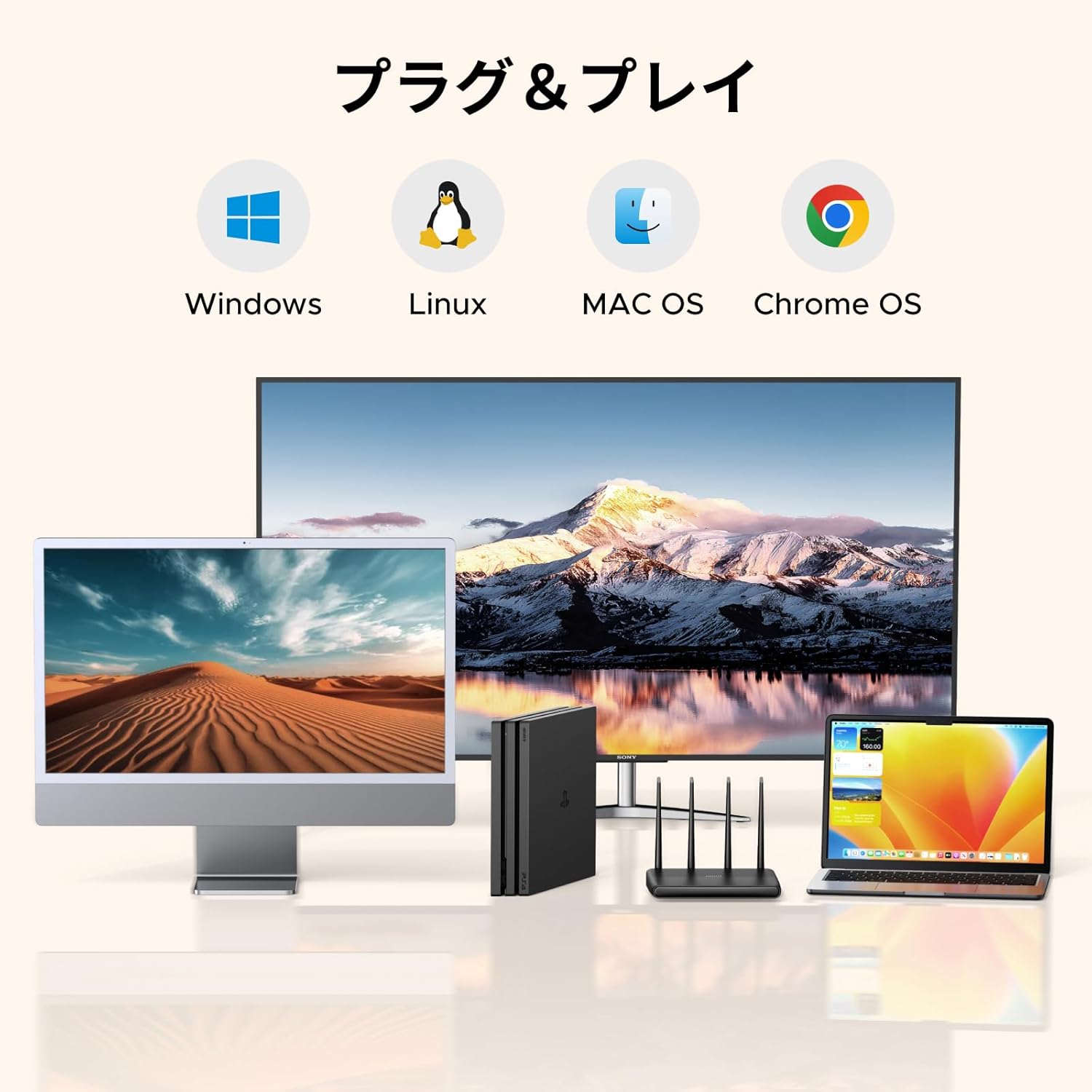
Image: Design for efficient heat dissipation.
Troubleshooting
Drives Not Recognized
- Ensure the power adapter is securely connected and the docking station is powered on.
- Verify that the USB cable is properly connected to both the docking station and the host device.
- Try connecting to a different USB port on your computer.
- Ensure the hard drives are correctly inserted into the slots and seated firmly.
- Check if the drives are properly formatted and partitioned by your operating system. New drives may need initialization and formatting in Disk Management (Windows) or Disk Utility (macOS).
Slow Data Transfer Speed
- Ensure your computer's USB port supports USB 3.0 for optimal speeds. Connecting to a USB 2.0 port will result in slower transfer rates.
- Verify that the USB cable used is a USB 3.0 compatible cable.
- Check if UASP (USB Attached SCSI Protocol) is enabled on your operating system (if supported).
Offline Clone Failure
- Confirm that the target drive's capacity is equal to or greater than the source drive's capacity.
- Ensure both drives are securely inserted into their respective slots (Source A, Target B).
- Check for bad sectors on the target drive, which can cause cloning to fail.
- Ensure the docking station is disconnected from any computer before initiating an offline clone.
Specifications
| Hardware Interface | USB 3.0 |
| Brand | UGREEN |
| Color | Black |
| Hardware Platform | Universal |
| Material | Plastic |
| Maximum Memory Capacity | 32 TB |
| Compatible Devices | PS3/PS4, Xbox, Game Consoles, Desktop PC, Notebook PC |
| Number of Supported Devices | 2 |
| Data Transfer Rate | 5 Gigabits Per Second |
| Communication/Connection Interface | USB |
| Manufacturer Model Number | CM198 |
| Warranty | 2-year manufacturer's warranty |
Warranty and Support
Warranty Information
This UGREEN product is covered by a 2-year manufacturer's warranty from the date of purchase. Please retain your proof of purchase (receipt or invoice) for any warranty claims. The warranty covers defects in materials and workmanship under normal use. It does not cover damage caused by misuse, accidents, unauthorized modifications, or natural disasters.
Technical Support
For technical assistance, troubleshooting, or any questions regarding your UGREEN HDD/SSD Docking Station, please contact UGREEN customer support. You can typically find contact information on the official UGREEN website (www.ugreen.com) or through the retailer where you purchased the product.