
1. Introduction
This manual provides essential information for the safe and efficient use of your ZWYING 10.5-inch 2-in-1 Convertible Laptop, Model HL105R. Please read it thoroughly before operating the device and retain it for future reference. This versatile device features a 10.5-inch Full HD IPS touchscreen, a powerful Intel N150 CPU, 16GB DDR4 RAM, and a 512GB NVMe SSD, running on Windows 11 Pro with pre-installed Office 2024.
2. Safety Information
- Do not expose the device to extreme temperatures, direct sunlight, or high humidity.
- Avoid dropping or subjecting the device to strong impacts.
- Use only the provided charger or a compatible PD 35W Type-C charger.
- Keep the device away from water and other liquids.
- Do not attempt to disassemble or repair the device yourself. Contact customer support for assistance.
- Ensure proper ventilation when using the laptop to prevent overheating.
3. Package Contents
Verify that all items are present in the package:
- ZWYING 10.5-inch 2-in-1 Convertible Laptop (Model HL105R) x 1
- PD 35W Type-C Charger x 1
- User Manual x 1
4. Product Overview
4.1. 360° Convertible Design
The ZWYING HL105R offers exceptional versatility with its 360° hinge, allowing it to transform into four distinct modes:
- Laptop Mode: Standard laptop configuration for typing and productivity.
- Tent Mode: Ideal for presentations or watching videos in confined spaces.
- Stand Mode: Perfect for media consumption or video calls.
- Tablet Mode: Fully folded back for touchscreen interaction and portability.

Image: The ZWYING HL105R laptop is shown transforming through its four modes: Laptop, Tent, Stand, and Tablet, highlighting its 360-degree convertible design.
4.2. Display and Touchscreen
The device features a 10.5-inch Full HD (1920x1280) IPS touchscreen with 207 PPI, providing clear and vibrant visuals. The 3:2 aspect ratio offers more vertical screen space, enhancing productivity for documents and creative tasks. It supports 10-point multi-touch for intuitive navigation, sketching, and annotation.
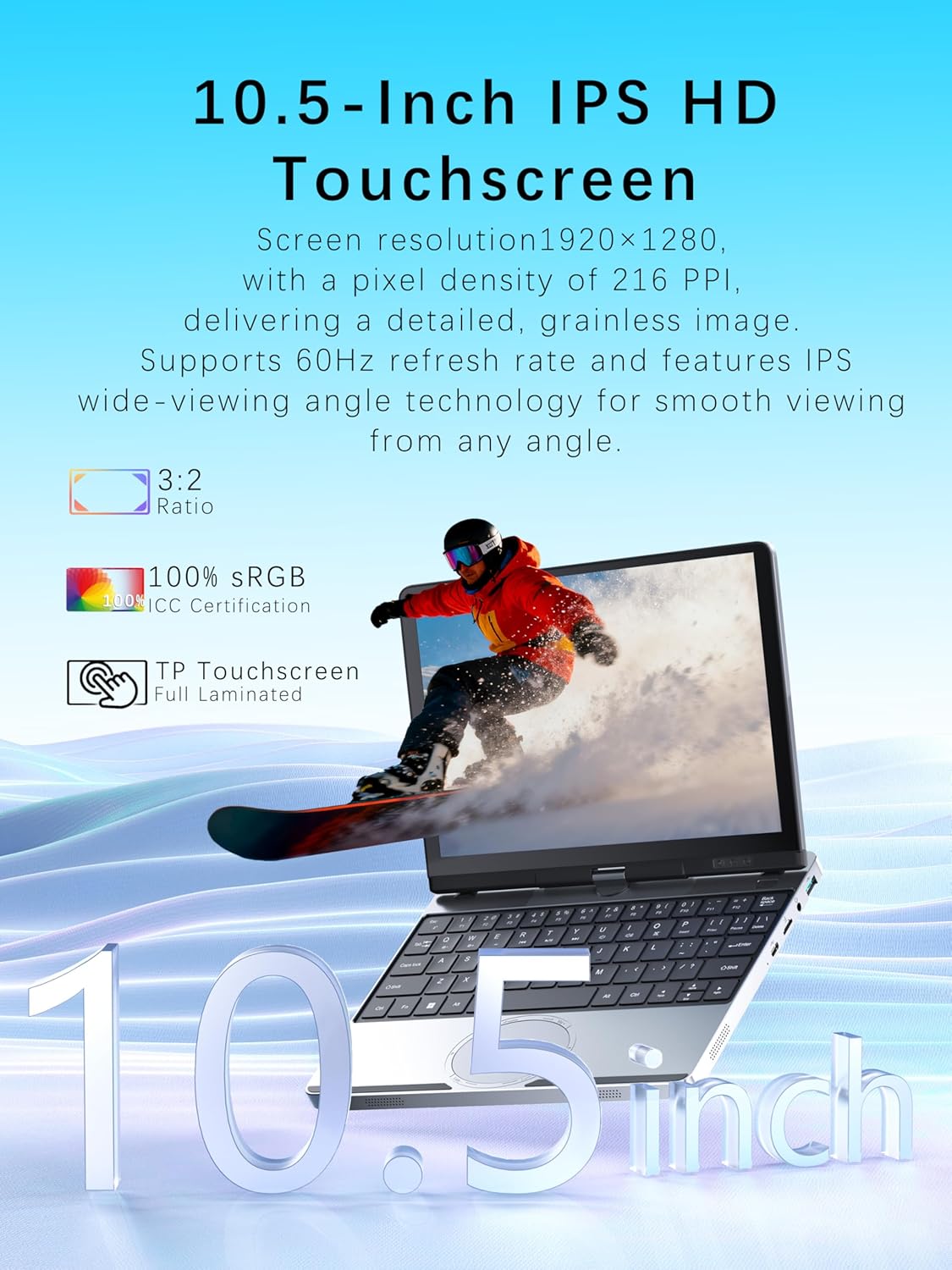
Image: A close-up of the ZWYING HL105R's 10.5-inch IPS HD touchscreen, displaying its resolution, pixel density, sRGB coverage, and touch capabilities.
4.3. Ports and Connectivity
The HL105R is equipped with a range of ports for comprehensive connectivity:
- USB 3.0 ports x 2
- Type-C ports x 2 (one full-function supporting 45W PD fast charging, data transfer, and video output; one standard Type-C)
- Mini HDMI port x 1
- Micro SD card slot x 1
- Audio Jack x 1
Wireless connectivity includes dual-band Wi-Fi (2.4G/5G) and Bluetooth 4.2.

Image: A diagram illustrating the various ports on both sides of the ZWYING HL105R laptop, detailing their types and functions.
4.4. Advanced Features
- Face Recognition: The integrated 1.3MP HD camera supports AI-powered face recognition for secure and fast system access.
- Multi-function Touchpad: The unique oval-shaped touchpad allows for intuitive gesture controls for functions like volume and screen brightness.
- Backlit Keyboard: The keyboard features backlighting for comfortable typing in low-light conditions.

Image: A detailed view of the ZWYING HL105R's keyboard, unique oval touchpad, and the 1.3MP HD camera, showing controls for volume, brightness, and backlit keyboard activation.
5. Setup
5.1. Initial Power On
- Connect the PD 35W Type-C charger to the laptop and a power outlet.
- Press the power button located on the side of the device.
- The device will boot up to the Windows 11 Pro setup screen.
5.2. Windows 11 Pro Configuration
Follow the on-screen prompts to complete the initial Windows 11 Pro setup, including:
- Selecting your region and keyboard layout.
- Connecting to a Wi-Fi network.
- Setting up your Microsoft account or creating a local user account.
- Configuring privacy settings.
5.3. Office 2024 Activation
Your laptop comes with Microsoft Office 2024 pre-installed and permanently activated. No additional setup or activation steps are required for Office applications like Word, Excel, and PowerPoint. Simply launch the applications from the Start Menu.
6. Operating Instructions
6.1. Switching Modes
Gently rotate the screen 360 degrees to switch between Laptop, Tent, Stand, and Tablet modes. The operating system will automatically adjust the display orientation and enable/disable the physical keyboard as appropriate.
6.2. Using the Touchscreen
The 10.5-inch display supports multi-touch gestures. Use your fingers to tap, swipe, pinch-to-zoom, and interact with applications directly on the screen.
6.3. Touchpad Gestures
The oval touchpad supports various gestures. For specific controls like volume (VOL+/-) and brightness (Lum+/-), use intuitive gestures as indicated on the touchpad. To prevent accidental activation of these gestures, press the FN + Spacebar shortcut to toggle them on or off.
6.4. Backlit Keyboard
To turn the keyboard backlight on or off, press the FN + E keys simultaneously.
6.5. Connecting Peripherals
- USB Devices: Connect USB drives, mice, or other peripherals to the USB 3.0 ports.
- External Display: Use the Mini HDMI port or the full-function Type-C port with a compatible adapter to connect an external monitor.
- Bluetooth Devices: Enable Bluetooth in Windows settings to pair with wireless headphones, speakers, or other Bluetooth accessories.
- Micro SD Card: Insert a Micro SD card into the dedicated slot for expanded storage.
6.6. Wi-Fi Connection
To connect to a Wi-Fi network, click the Wi-Fi icon in the taskbar, select your desired network, and enter the password if prompted.
7. Maintenance
7.1. Cleaning
- Use a soft, lint-free cloth to clean the screen. For stubborn smudges, slightly dampen the cloth with water or a screen cleaner.
- Wipe the laptop body with a soft, dry cloth. Avoid abrasive cleaners.
- Regularly clean the keyboard and touchpad to remove dust and debris.
7.2. Battery Care
The laptop is equipped with a 4500mAh (5800mWh) Lithium-Ion battery. To maximize battery life:
- Avoid fully discharging the battery frequently.
- Store the device in a cool, dry place if not used for extended periods.
- Calibrate the battery periodically by fully discharging and then fully charging it.

Image: The ZWYING HL105R laptop is displayed, emphasizing its lightweight (0.97kg) all-metal body, 4500mAh battery, and slim 21mm thickness, ideal for travel.
7.3. Software Updates
Regularly check for and install Windows updates to ensure optimal performance and security. Go to Settings > Windows Update to manage updates.
8. Troubleshooting
If you encounter issues with your ZWYING HL105R laptop, refer to the following common solutions:
| Problem | Possible Cause | Solution |
|---|---|---|
| Device does not power on | Low battery, faulty charger, hardware issue | Ensure charger is properly connected and power outlet is working. Charge the device for at least 30 minutes. If problem persists, contact support. |
| Slow performance (internet/programs) | Too many applications running, weak Wi-Fi signal, outdated drivers | Close unnecessary applications. Check Wi-Fi signal strength or try a different network. Update drivers via Device Manager. |
| Rapid battery drain | High screen brightness, background apps, power settings | Reduce screen brightness. Close power-intensive background applications. Adjust power settings to 'Battery Saver' mode. |
| Touchscreen unresponsive | Software glitch, dirty screen, driver issue | Restart the device. Clean the screen. Check for touchscreen driver updates. |
| Keyboard backlight not working | Backlight feature turned off | Press FN + E to toggle the backlight. |
9. Specifications
| Feature | Specification |
|---|---|
| Brand | ZWYING |
| Model Name | HL105R |
| Screen Size | 10.5 inches |
| Display Resolution | 1920 x 1280 pixels (FHD IPS) |
| CPU Model | Intel N150 (Quad-Core, up to 3.6 GHz) |
| RAM | 16 GB DDR4 |
| Storage | 512 GB NVMe SSD |
| Operating System | Windows 11 Pro |
| Pre-installed Software | Microsoft Office 2024 (Word, Excel, PowerPoint, Outlook) |
| Graphics | Integrated Intel Graphics |
| Wireless Connectivity | Wi-Fi (2.4GHz/5GHz), Bluetooth 4.2 |
| Ports | 2x USB 3.0, 2x Type-C (1 full-function), 1x Mini HDMI, 1x Micro SD, 1x Audio Jack |
| Webcam | 1.3 MP HD Camera with Face Recognition |
| Battery | 4500mAh / 5800mWh Lithium-Ion |
| Dimensions (LxWxH) | 25.1 x 17 x 1.7 cm |
| Weight | Approx. 0.97 kg |
| Keyboard | Backlit |

Image: The ZWYING HL105R laptop showcasing its internal components, highlighting 16GB RAM and 512GB/1TB SSD for fast performance and ample storage.

Image: A diagram detailing the Intel N150 CPU's specifications, including core count, threads, cache, and frequency, emphasizing its processing power.
10. Warranty and Support
10.1. Manufacturer's Warranty
The ZWYING HL105R laptop comes with a 12-month manufacturer's warranty from the date of purchase. This warranty covers defects in materials and workmanship under normal use. It does not cover damage caused by misuse, accidents, unauthorized repairs, or normal wear and tear.
10.2. Customer Support
For technical assistance, warranty claims, or any questions regarding your ZWYING HL105R laptop, please contact our customer support team. Refer to the contact information provided with your purchase documentation or visit the official ZWYING website for support details.