
1. Product Overview
The OMOTON KB525-D is a versatile wireless keyboard designed for Mac devices, offering both 2.4G wireless and dual Bluetooth connectivity. It features a premium metal frame, 7-color dimmable backlighting, and a rechargeable battery, enhancing your typing experience across multiple devices.

Image: OMOTON Wireless Keyboard in a typical Mac workstation setup.
2. Package Contents
- OMOTON Wireless Keyboard (KB525-D)
- 2.4G Dual Interface Receiver (USB-A & Type-C)
- USB-C Charging Cable
- User Manual
3. Setup Instructions
3.1 Charging the Keyboard
Before first use, fully charge the keyboard. Connect the provided USB-C charging cable to the keyboard's charging port and to a USB power source. The charging indicator light will show the charging status.

Image: The keyboard connected to its USB-C charging cable, illustrating the charging port and battery capacity.
3.2 2.4G Wireless Connection
- Locate the 2.4G dual interface receiver. It includes both USB-A and Type-C plugs.
- Plug the appropriate connector (USB-A or Type-C) into your Mac device's port. Important Note: If using the Type-C interface, the USB-A port of the receiver MUST be plugged into the Type-C port first.
- Turn on the keyboard.
- Press the 2.4G key on the keyboard to switch to 2.4G mode. The keyboard will connect to your device automatically.

Image: Close-up of the 2.4G dual interface receiver, showing both USB-A and Type-C connection options.
3.3 Bluetooth Connection (BT1 / BT2)
The keyboard supports two independent Bluetooth channels (BT1 and BT2) for connecting to two different devices simultaneously.
- Turn on the keyboard.
- Press the BT1 or BT2 key to select the desired Bluetooth channel.
- Long press the selected BT1 or BT2 key for 4-5 seconds until the indicator light flashes rapidly, indicating pairing mode.
- On your Mac device, go to System Settings > Bluetooth and select "Bluetooth Keyboard" from the list of available devices.
- Once paired, the indicator light on the keyboard will turn off.

Image: The keyboard seamlessly switching between two Mac devices using Bluetooth channels 1 and 2.
4. Operating Instructions
4.1 Switching Between Connected Devices
To switch between your connected devices (2.4G, BT1, BT2), simply press the corresponding key (2.4G, BT1, or BT2) once. The keyboard will quickly switch to the selected device.

Image: Close-up of the keyboard's connection keys (2.4G, BT1, BT2) for easy device switching.
4.2 Backlight Control
The keyboard features 7-color dimmable backlighting with 3 adjustable brightness levels.
- Press the Brightness- key (F1) to decrease backlight brightness.
- Press the Brightness+ key (F2) to increase backlight brightness. There are 3 levels (0-1-2-3).
- Press the Change Color key (F3) to cycle through the 7 available backlight colors.
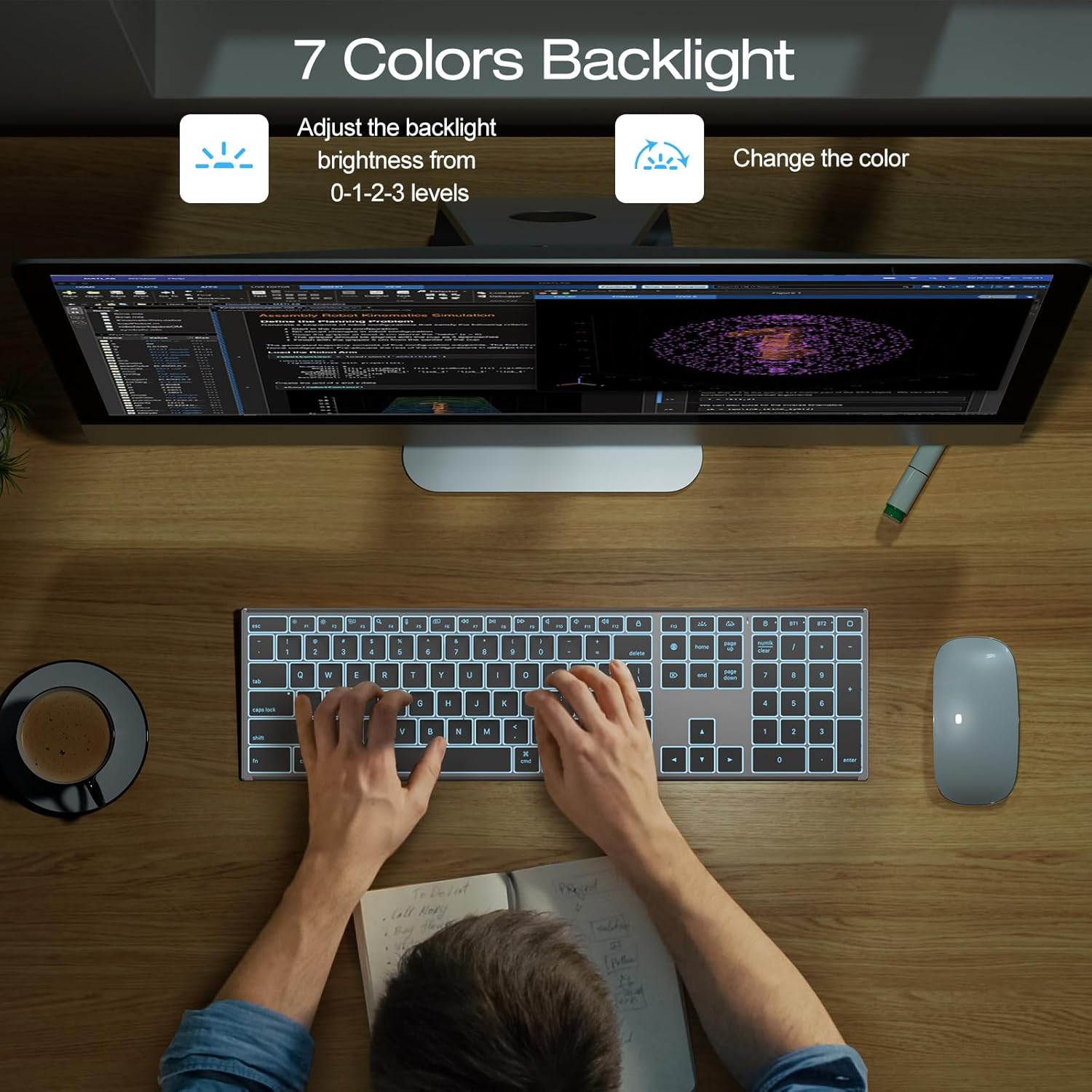
Image: The keyboard illuminated with a blue backlight, demonstrating the 7-color backlight feature.
4.3 Mac Function Keys
The keyboard is designed with Mac-specific function keys for enhanced productivity.
| Key | Function |
|---|---|
| Esc | Escape |
| F1 | Brightness - |
| F2 | Brightness + |
| F3 | Mission Control |
| F4 | Search |
| F5 | Dictation |
| F6 | Screenshot |
| F7 | Previous Track |
| F8 | Play/Pause |
| F9 | Next Track |
| F10 | Mute |
| F11 | Volume - |
| F12 | Volume + |
| Lock Screen | Locks the screen |
| Switch Input Language | Changes input language |
| Home Page | Opens browser home page |
4.4 Ergonomic Adjustment
The keyboard features adjustable feet to change the typing angle for improved comfort. You can adjust the angle from 6° to 8° as needed.
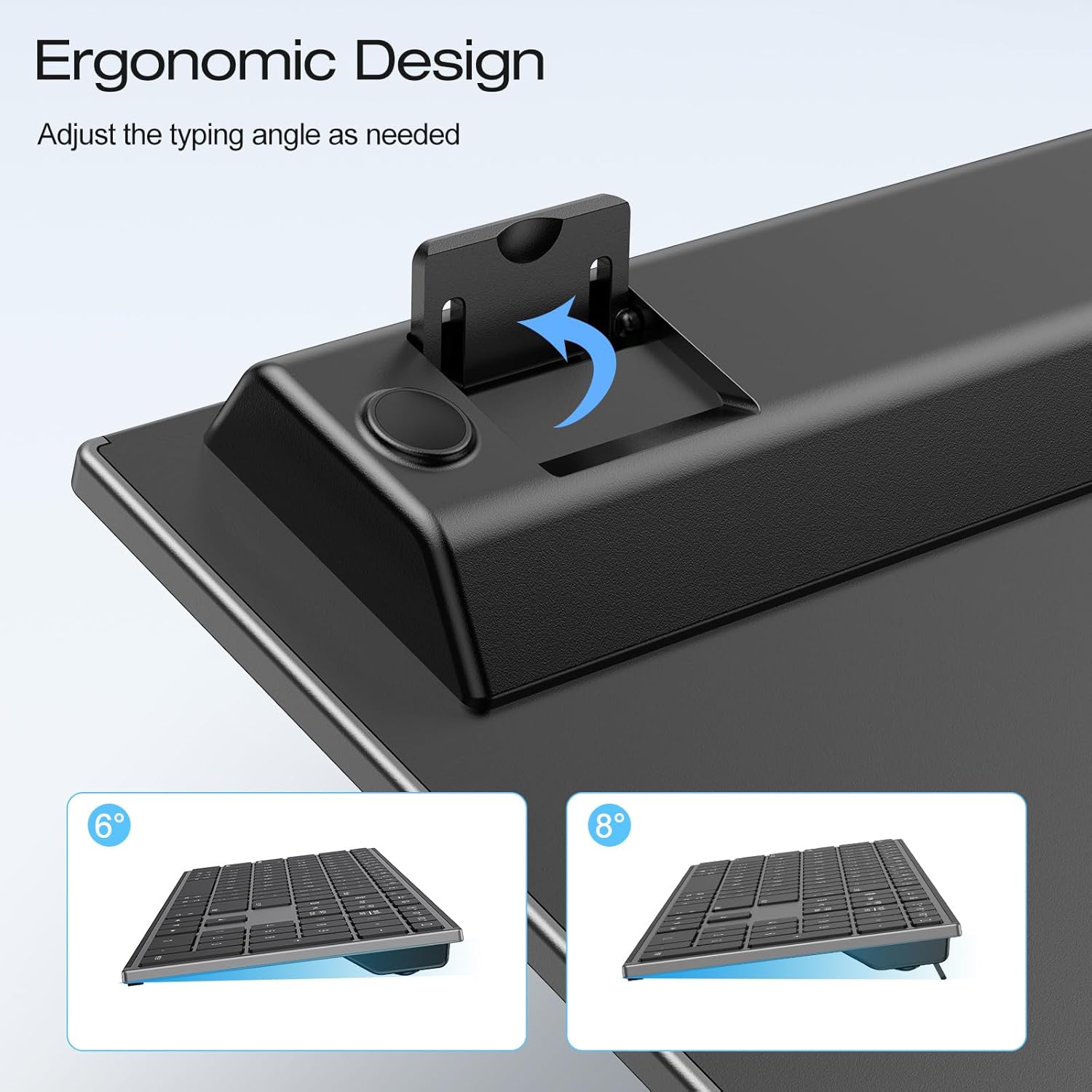
Image: The underside of the keyboard showing the adjustable stand, allowing for a 6° or 8° typing angle.
5. Maintenance
5.1 Battery Management
- The keyboard has a 1000mAh rechargeable battery. A full charge takes approximately 2 hours.
- It provides up to 300 hours of runtime with the backlight off and up to 6 hours with the backlight on (maximum brightness).
- Charge the keyboard when the battery indicator light shows low power.
5.2 Cleaning
- Use a soft, lint-free cloth to wipe the keyboard surface.
- For stubborn dirt, slightly dampen the cloth with water or a mild cleaning solution. Avoid excessive moisture.
- Do not use harsh chemicals, abrasive cleaners, or spray cleaners directly onto the keyboard.
6. Troubleshooting
6.1 Connection Issues
- Keyboard not connecting via 2.4G: Ensure the 2.4G receiver is properly plugged into your device. Press the 2.4G key on the keyboard. Try plugging the receiver into a different USB port.
- Keyboard not connecting via Bluetooth: Ensure the keyboard is in pairing mode (indicator flashing). Check your device's Bluetooth settings to ensure it's discoverable and select "Bluetooth Keyboard". Try forgetting the device on your Mac and re-pairing.
- Interference: Move the keyboard closer to your device. Avoid placing other wireless devices or large metal objects between the keyboard and your device.
6.2 Backlight Not Working
- Ensure the keyboard is charged. Low battery can disable backlighting.
- Press the Brightness+ key (F2) to increase brightness.
6.3 Keys Not Responding
- Check the connection (2.4G or Bluetooth).
- Ensure the keyboard is charged.
- Restart your Mac device and the keyboard.
7. Specifications
| Feature | Detail |
|---|---|
| Brand | OMOTON |
| Model | KB525-D |
| Connectivity Technology | 2.4G Receiver (USB-A & Type-C), Dual Bluetooth Channels (BT1, BT2) |
| Compatible Devices | Mac/iMac/MacBook (Mac OS 10.10 or later) |
| Keyboard Description | Numeric Keypad Full Size Keyboard |
| Special Features | 7 Color Backlit, Premium Forged Metal Frame, Rechargeable |
| Color | Grey |
| Material | Metal |
| Product Dimensions (L x W x H) | 0.18"L x 0.18"W x 0.18"H (Note: This seems to be a placeholder, actual dimensions are 16.73" L x 4.6" W x 0.71" H from image) |
| Battery Capacity | 1000mAh |
| Keyboard Layout | QWERTY (US Layout) |

Image: Diagram showing the ultra-thin design and dimensions of the keyboard (16.73" L x 4.6" W x 0.71" H).
8. Warranty Information
This OMOTON keyboard comes with a 12-month warranty from the date of purchase. Please retain your proof of purchase for warranty claims. The warranty covers manufacturing defects and malfunctions under normal use. It does not cover damage caused by misuse, accidents, unauthorized modifications, or normal wear and tear.
9. Customer Support
For further assistance, technical support, or warranty inquiries, please contact OMOTON customer service through the retailer where you purchased the product or visit the official OMOTON website.
You can also visit the OMOTON Store on Amazon for more information and products.