1. Introduction
The ZER-LON 34-inch Curved Gaming Monitor offers an expansive 21:9 WQHD (3440x1440) display with a 1500R curvature for an immersive viewing experience. Designed for both productivity and gaming, it features a high 165Hz refresh rate, 1ms (MPRT) response time, and FreeSync technology to ensure smooth visuals. With 125% sRGB color coverage and 350nits brightness, it delivers vibrant and detailed images. This manual provides essential information for setting up, operating, and maintaining your monitor.
2. What's in the Box
Carefully unpack the box and ensure all items are present:
- ZER-LON 34-inch Curved Gaming Monitor
- Monitor Stand (Base and Neck)
- DP Cable
- Power Adapter
- Power Cable
- Screws for Stand Assembly
- User Manual (this document)

3. Setup and Assembly
3.1 Stand Assembly
- Carefully remove the monitor and stand components from the packaging.
- Attach the monitor neck to the base using the provided screw. Tighten securely.
- Align the assembled stand with the mounting area on the back of the monitor.
- Insert the stand into the monitor's mounting slot until it clicks into place or is secured with screws, depending on the design.
3.2 Wall Mounting (Optional)
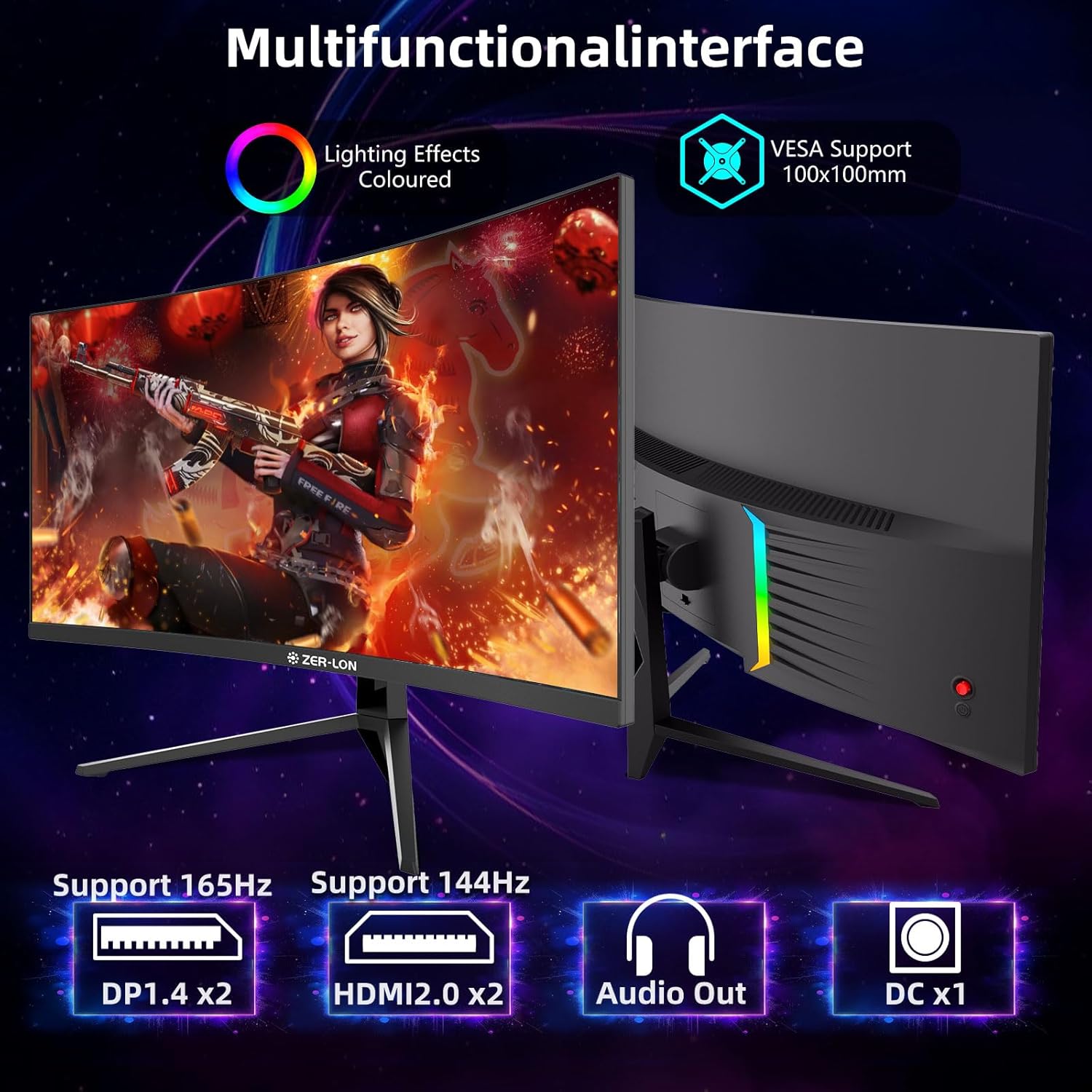
The monitor is VESA compatible (100 mm x 100 mm). If using a VESA mount, ensure the stand is removed and follow the instructions provided with your VESA mounting kit.
3.3 Connecting Devices
Connect your devices to the monitor using the appropriate cables:
- DisplayPort (DP1.4 x2): For high refresh rate and resolution connections to PCs.
- HDMI (HDMI2.0 x2): For connecting to PCs, gaming consoles (Xbox, PS5), and other HDMI-enabled devices.
- 3.5mm Audio Port: For connecting external speakers or headphones.
- Power Input: Connect the power adapter to the monitor and then to a power outlet.
4. Operating Instructions
4.1 Power On/Off
Press the power button, usually located on the back or bottom of the monitor, to turn it on or off. The power indicator light will illuminate when the monitor is active.
4.2 OSD Menu Navigation
The On-Screen Display (OSD) menu is controlled via a joystick or buttons typically located on the back of the monitor. Use the joystick to navigate through menu options and adjust settings.
- Push the joystick in to open the OSD menu.
- Move the joystick Up/Down/Left/Right to navigate.
- Push the joystick in again to select an option or confirm a setting.
- Move the joystick Left to exit a sub-menu or the OSD menu.
4.3 Display Settings
Adjust the following settings via the OSD menu for optimal viewing:
- Brightness: Adjust the overall luminance of the screen (up to 350 cd/m²).
- Contrast: Modify the difference between light and dark areas.
- Color Settings: Fine-tune color temperature, hue, and saturation. The monitor supports 8-bit color depth and 125% sRGB coverage.
- HDR: Enable or disable HDR technology for enhanced contrast and color detail.
- Black Equalizer: Adjust black levels for improved visibility in dark scenes, particularly useful in gaming.
- Low Blue Light: Activate to reduce blue light emission for eye comfort during prolonged use.


4.4 Gaming Features
- Refresh Rate: The monitor supports up to 165Hz refresh rate for fluid motion. Ensure your connected device and cable support this refresh rate.
- Response Time: Enjoy a rapid 1ms (MPRT) response time to minimize motion blur and ghosting.
- FreeSync Technology: Enable FreeSync to synchronize the monitor's refresh rate with your GPU's frame rate, eliminating screen tearing and stuttering.


4.5 Audio Settings
The monitor includes built-in speakers. You can adjust the volume through the OSD menu or connect external audio devices to the 3.5mm audio output port.
4.6 Multi-Window Functionality (PIP/PBP)
The monitor supports Picture-in-Picture (PIP) and Picture-by-Picture (PBP) modes, allowing you to display content from multiple input sources simultaneously. Refer to the OSD menu for options to configure these modes.
5. Maintenance
To ensure the longevity and optimal performance of your monitor:
- Cleaning: Use a soft, lint-free cloth to gently wipe the screen. For stubborn marks, lightly dampen the cloth with water or a mild, non-abrasive screen cleaner. Avoid harsh chemicals.
- Ventilation: Ensure adequate airflow around the monitor to prevent overheating. Do not block the ventilation slots.
- Power: Disconnect the power cable during thunderstorms or if the monitor will be unused for an extended period.
6. Troubleshooting
If you encounter issues with your monitor, try the following solutions:
- No Display/Black Screen:
- Ensure the power cable is securely connected to both the monitor and the power outlet.
- Verify that the video cable (DP or HDMI) is firmly connected to both the monitor and your device.
- Check if the correct input source is selected in the OSD menu.
- Test with a different video cable or device if possible.
- No Sound from Built-in Speakers:
- Increase the volume in the OSD menu and on your connected device.
- Ensure the audio output is not muted on the monitor or your device.
- If using external speakers/headphones, ensure they are correctly connected to the 3.5mm audio port.
- Screen Tearing/Stuttering:
- Ensure FreeSync technology is enabled in the OSD menu and on your graphics card settings.
- Verify that your graphics card drivers are up to date.
- Incorrect Resolution/Refresh Rate:
- Adjust the display settings in your operating system (e.g., Windows Display Settings) to the native WQHD (3440x1440) resolution and desired refresh rate (up to 165Hz).
- Ensure your video cable supports the desired resolution and refresh rate.
- OSD Menu Difficult to Navigate:
- Familiarize yourself with the joystick controls. Some users note that the direction of menu selection might be reversed from initial expectations.
7. Specifications
| Feature | Specification |
|---|---|
| Product Dimensions | 4.4 x 31.73 x 19.1 inches |
| Item Weight | 15.27 pounds |
| Item Model Number | PD22340W |
| Standing Screen Display Size | 34 Inches |
| Aspect Ratio | 21:9 |
| Resolution | 3440 x 1440 Pixels (WQHD) |
| Refresh Rate | 165Hz |
| Curvature | 1500R |
| Response Time | 1ms (MPRT) |
| Image Brightness | 350 cd/m² |
| Color Depth | 8-bit |
| sRGB Coverage | 125% |
| Adaptive Sync | FreeSync |
| Connectivity | 2x HDMI2.0, 2x DisplayPort1.4, 1x 3.5mm Audio Out |
| Wall Mounting | 100 mm x 100 mm VESA |
| Built-in Speakers | Yes |
8. Warranty and Support
The ZER-LON 34-inch Curved Gaming Monitor comes with a 12-month warranty. For any assistance, technical support, or warranty claims, please contact ZER-LON customer support. Refer to the contact information provided in your product packaging or on the official ZER-LON website.