
Introduction
Welcome to your new SGIN 15.6 Inch Laptop Computer. This manual provides essential information for setting up, operating, and maintaining your device. Please read this manual thoroughly before using your laptop to ensure proper function and longevity.
What's in the Box
- SGIN 15.6 Inch Laptop Computer
- Power Adapter (Charger)
- User Manual (this document)
- Windows 11 Home Operating System (pre-installed)
- Warranty Information (1 Year Repair Service, 30 Days Return)
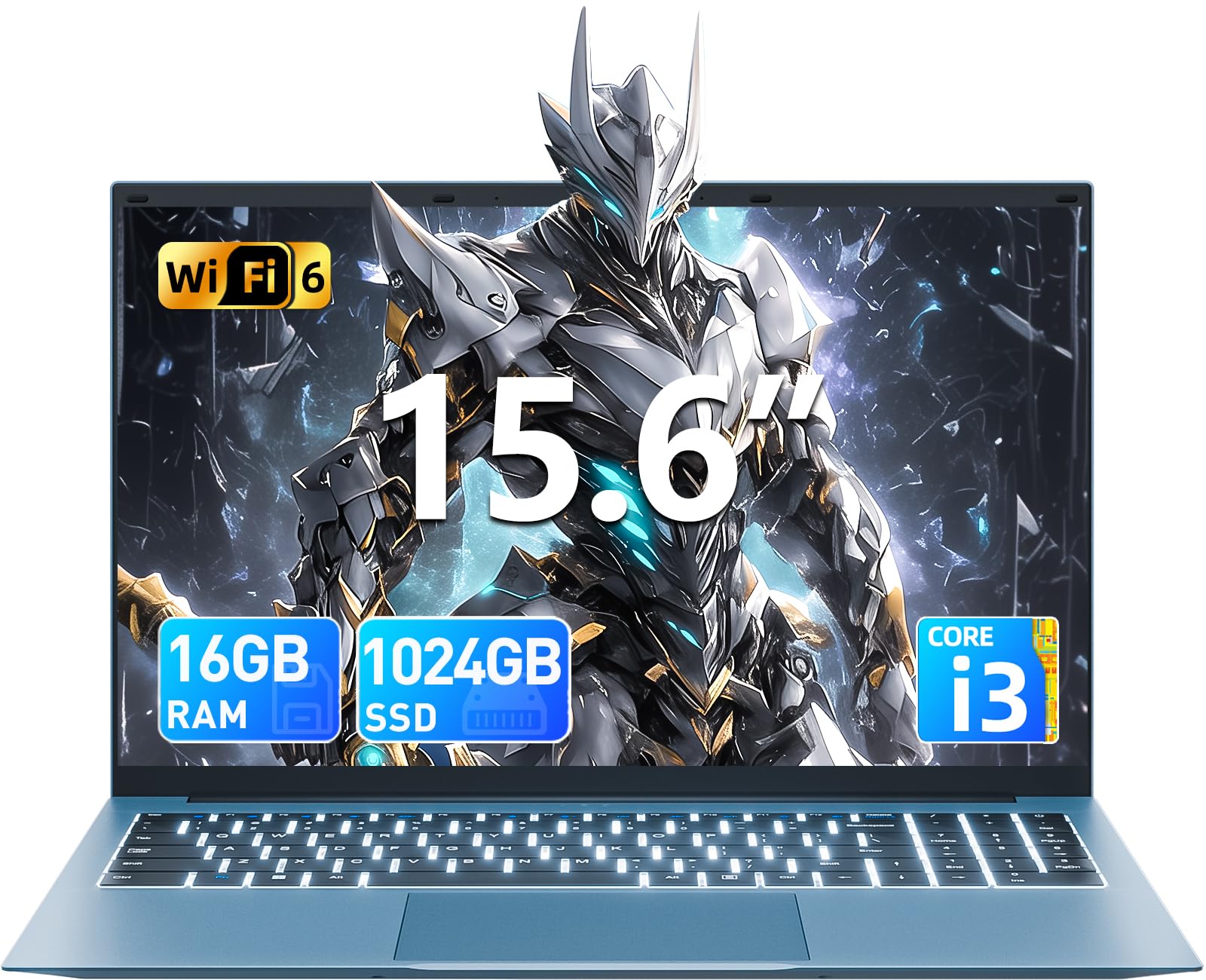
Product Overview
Familiarize yourself with the key features and components of your SGIN laptop.
Initial Setup
Powering On
Connect the power adapter to the charging port on the laptop and then to a standard electrical outlet. Press the power button, typically located on the top right of the keyboard, to turn on the device.
Operating System Setup
Upon first boot, you will be guided through the Windows 11 Home setup process. Follow the on-screen instructions to configure your language, region, connect to a Wi-Fi network, and create a user account. Ensure you have an active internet connection for updates during this process.
Operating Your Laptop
Keyboard and Touchpad
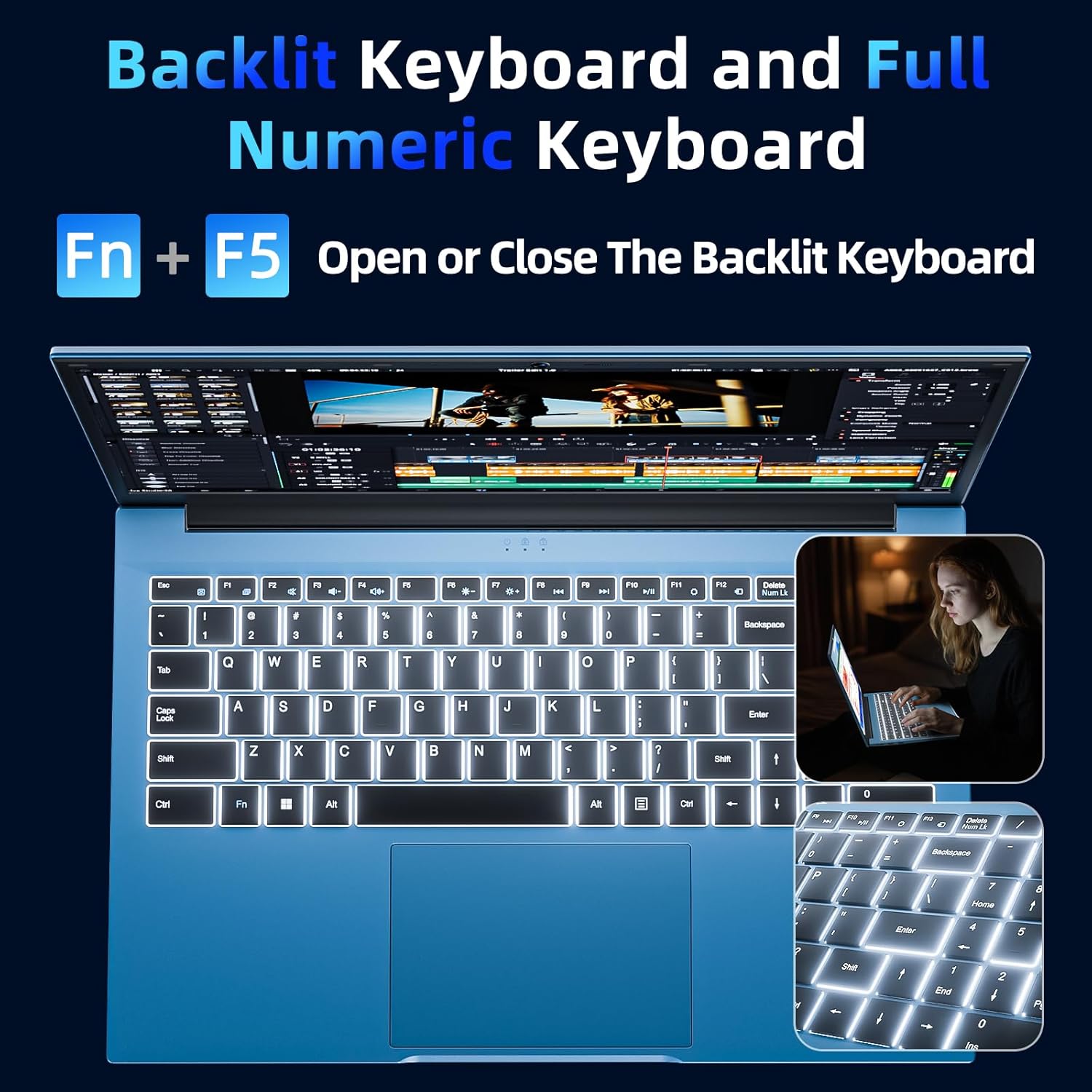
Your laptop features a full-size keyboard and a responsive touchpad for navigation and input.
Backlit Keyboard Function
To activate or deactivate the keyboard backlight, press the "Fn" + "F5" keys simultaneously. This feature is useful in low-light environments.
Display
The 15.6-inch Full HD (1920x1080) IPS screen delivers vivid colors and sharp details. The display features a 180° hinge, allowing the screen to lay flat for easy sharing and collaboration.
Connectivity
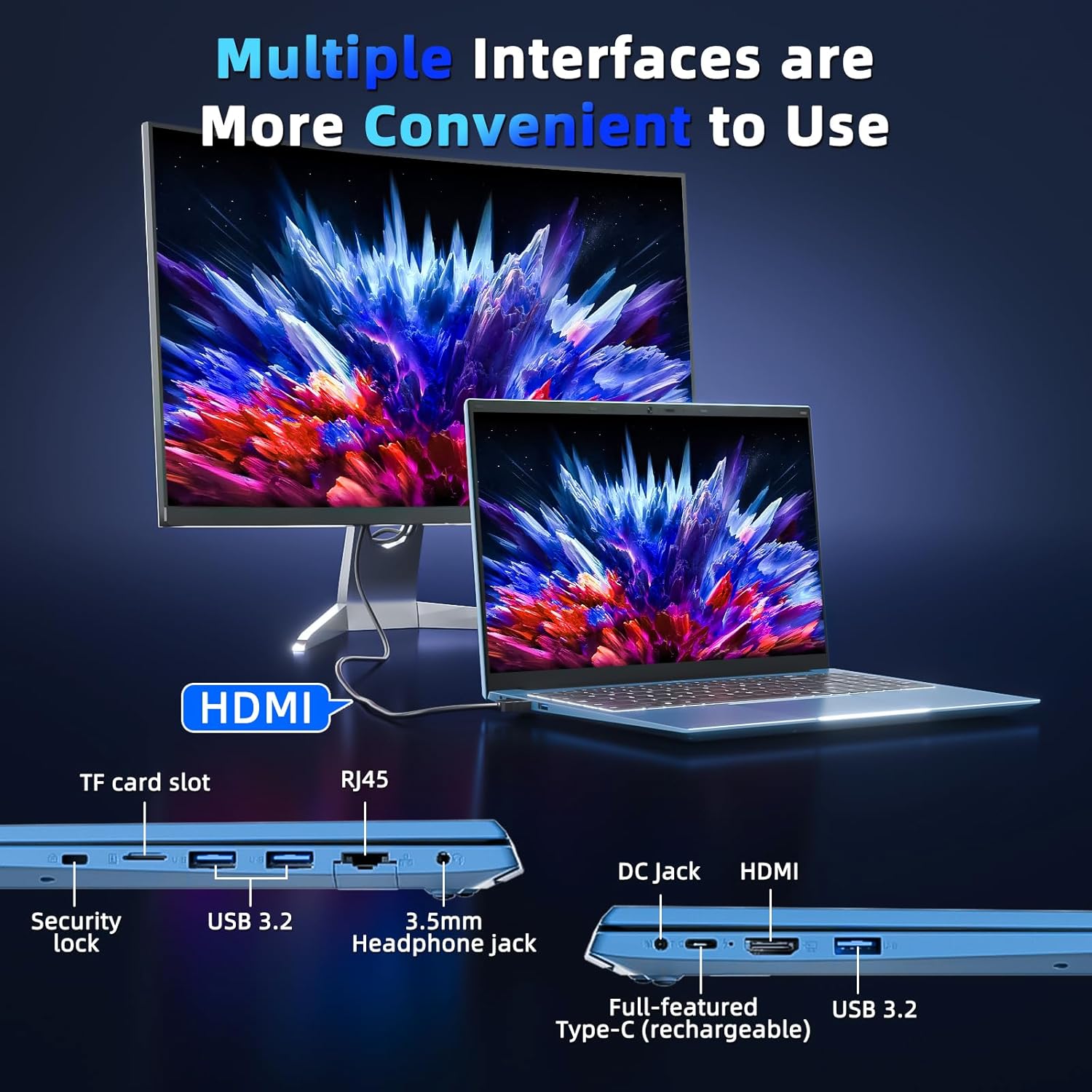
Your laptop is equipped with various ports for connecting external devices and network access:
- USB 3.0 Ports: For high-speed data transfer with compatible devices.
- HDMI Port: Connect to external monitors or projectors.
- Type-C Port: A versatile port for data, display, and power delivery.
- Micro SD Slot: Expand storage with a TF card up to 1TB.
- Headphone Jack: For audio output to headphones or external speakers.
- Ethernet Port (RJ45): For wired network connections.
- Kensington Lock Slot: For physical security of your device.
Battery Management
The integrated 53.2Wh (7000mAh) rechargeable battery provides up to 8 hours of battery life. For optimal battery longevity, ensure the laptop is fully charged before initial use and avoid frequent deep discharges. Disconnect the charger once the battery is full to prevent overcharging.

Technical Specifications
| Feature | Detail |
|---|---|
| Model Name | SGIN-Y101 |
| Display Size | 15.6 Inches |
| Screen Resolution | 1920 x 1080 pixels (Full HD) |
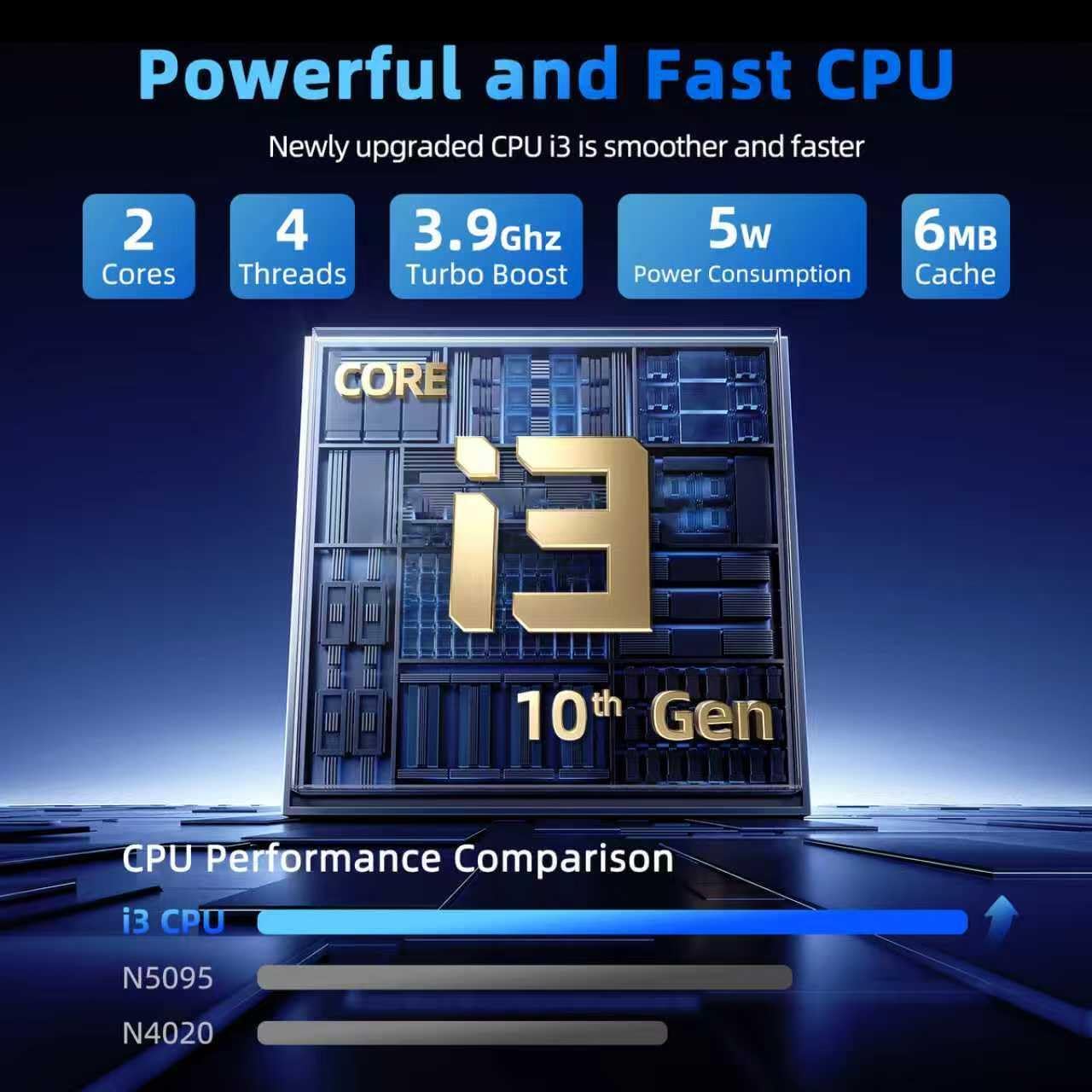
| Processor | Intel Core i3-10100 (up to 3.9GHz) |
| RAM | 16 GB DDR3 |
| Hard Drive | 1024 GB SSD |
| Graphics Coprocessor | Integrated |
| Operating System | Windows 11 Home |
| Wireless Type | WiFi 6, Bluetooth |
| Ports | USB 3.0 (x3), HDMI, Type-C, Micro SD slot, Ethernet (RJ45), Headphone Jack, Kensington Lock |
| Battery | 53.2Wh (7000mAh) Lithium Ion |
| Item Weight | 4.99 pounds |
| Product Dimensions | 15.6 x 9 x 0.6 inches |
Maintenance and Care
To ensure the longevity and optimal performance of your SGIN laptop, follow these maintenance guidelines:
- Cleaning: Gently wipe the screen with a microfiber cloth designed for electronics. For the chassis, use a soft, dry cloth. Avoid harsh chemicals or abrasive materials.
- Environment: Operate the laptop in a clean, dry environment. Avoid exposure to extreme temperatures, direct sunlight, dust, and liquids.
- Ventilation: Ensure the ventilation openings are not blocked to prevent overheating. Do not use the laptop on soft surfaces like beds or couches that can obstruct airflow.
- Data Backup: Regularly back up your important data to an external drive or cloud storage to prevent data loss in case of unforeseen issues.
- Software Updates: Keep your operating system and applications updated to benefit from the latest security patches and performance improvements.
Troubleshooting Common Issues
Laptop Not Powering On
- Ensure the power adapter is securely connected to both the laptop's charging port and a functional electrical outlet.
- Verify the power outlet is working by plugging in another device.
- If the battery is completely drained, allow the laptop to charge for at least 30 minutes before attempting to power it on again.
Keyboard Backlight Not Working
- Press the "Fn" + "F5" keys simultaneously to toggle the backlight on or off.
- Check your system settings for any keyboard backlight options that might be disabled.
Slow Performance
- Close any unnecessary applications or browser tabs running in the background.
- Ensure your Windows 11 operating system and device drivers are up to date.
- Run a system scan for malware or viruses that could be impacting performance.
- Verify that your 1024GB SSD has sufficient free space, as a full drive can slow down the system.
Warranty and Support
Your SGIN laptop includes a 1-year protection plan and access to 24/7 customer support. For technical assistance, warranty claims, or service inquiries, please refer to the contact information provided with your product or visit the official SGIN support website.
