
1. Important Safeguards
To ensure safe operation and prolong the life of your Cosori Smart Food Scale, please observe the following precautions:
- Do not immerse the scale in water or any other liquid.
- Clean the scale with a damp cloth only. Avoid abrasive cleaners or chemicals.
- Place the scale on a hard, flat, and stable surface for accurate measurements. Avoid soft surfaces like carpets.
- Do not overload the scale beyond its maximum capacity of 5000g (11lb).
- Keep the scale away from extreme temperatures and direct sunlight.
- This scale is for household use only and not for commercial purposes.
2. What's Included
Your Cosori Smart Food Scale package includes:
- 1 x Cosori Smart Nutrition Scale
- 1 x Quick Start Guide
- 1 x USB-C Charging Cable
- 1 x User Manual
3. Specifications
| Feature | Detail |
|---|---|
| Brand | Cosori |
| Model | CNS-R001S-X |
| Color | Black |
| Weight Capacity Maximum | 5 kg / 11 lb / 176.4 oz |
| Readout Accuracy | 1 g / 0.1 oz |
| Units | g, ml (water), ml (milk), oz, fl oz (water), fl oz (milk), lb:oz |
| Display Type | LCD |
| Battery Type | 800mAh Li-ion Rechargeable Battery |
| Material Type | Glass |
| Item Weight | 725 g |
| Special Features | AI Scan, Calorie Consumption, On-Screen Nutrient Info |
4. Setup
4.1 Unboxing
Carefully remove all components from the packaging. Verify that all items listed in the 'What's Included' section are present and undamaged.
4.2 Charging the Scale
The scale is equipped with an 800mAh Li-ion rechargeable battery. Before first use, or when the battery indicator is low, connect the provided USB-C charging cable to the scale's charging port and a compatible USB power source (e.g., wall adapter, computer USB port) to charge.

Image: The Cosori Smart Food Scale highlighting its USB-C charging capability.
4.3 App Installation
Download the free VeSync app from your smartphone's app store (available for iOS and Android). The app is essential for accessing the scale's smart features, including nutritional tracking and AI food scanning.
4.4 Pairing with the VeSync App
- Ensure Bluetooth is enabled on your smartphone.
- Open the VeSync app and create an account or log in.
- Follow the in-app instructions to add a new device. Select the Cosori Smart Food Scale from the list of available devices.
- The app will guide you through the pairing process. Once connected, the scale's display may show a Bluetooth icon.
5. Operating Instructions
5.1 Power On/Off
Press the power button (often labeled 'T/O' or a power symbol) to turn the scale on. The display will light up. To turn off, press and hold the power button, or the scale will automatically shut off after a period of inactivity to conserve battery.
5.2 Unit Selection
The scale supports multiple units: grams (g), milliliters (ml) for water, milliliters (ml) for milk, ounces (oz), fluid ounces (fl oz) for water, fluid ounces (fl oz) for milk, and pounds:ounces (lb:oz). Press the 'Unit' button to cycle through the available measurement units until your desired unit is displayed.
5.3 Tare Function
The Tare function allows you to zero out the weight of a container or to measure multiple ingredients consecutively in the same bowl.
- Place an empty container on the scale. The display will show its weight.
- Press the 'T/O' button. The display will reset to zero.
- Add your first ingredient. The display will show the weight of only the ingredient.
- To add another ingredient, press 'T/O' again to zero the scale, then add the next ingredient. Repeat as needed.
Image: The Cosori Smart Food Scale illustrating the tare function and 1-gram increments.
5.4 Weighing Food
Place the food item directly onto the scale or into a tared container. The weight will be displayed on the screen. For smart features, ensure the scale is connected to the VeSync app.
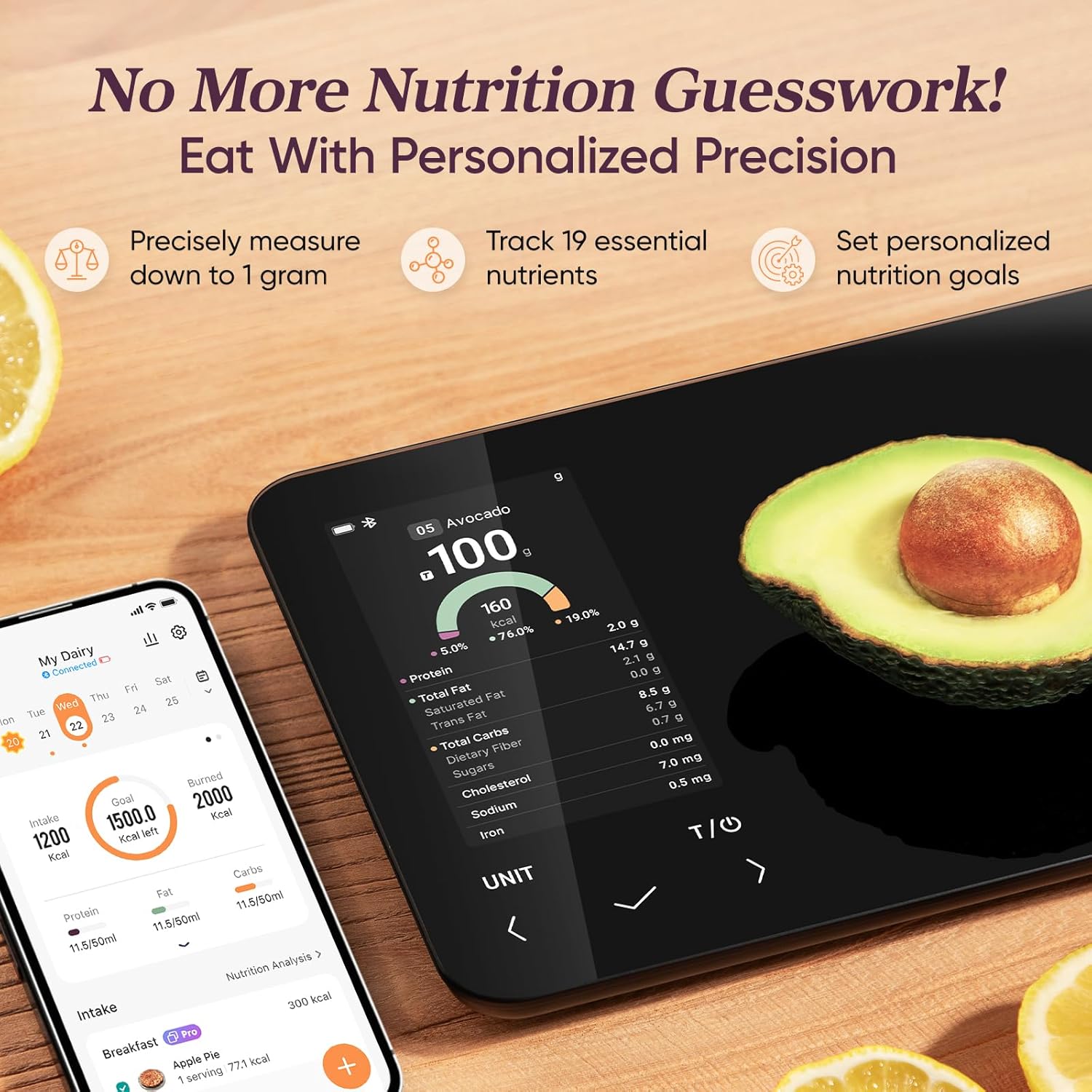
Image: The Cosori Smart Food Scale showing an avocado being weighed, with nutritional data displayed on the scale and a connected smartphone.
5.5 Nutritional Tracking with VeSync App
The VeSync app enhances your nutritional tracking experience by providing detailed information for 19 essential nutrients, including calories, protein, carbohydrates, and fat.
- AI Food Scan: Use the AI Scan feature in the VeSync app to estimate nutritional information for meals, particularly useful when dining out. Point your phone's camera at the food, and the app will provide an estimated nutritional breakdown. Note: AI scan provides estimates; for precise accuracy, use the scale directly.
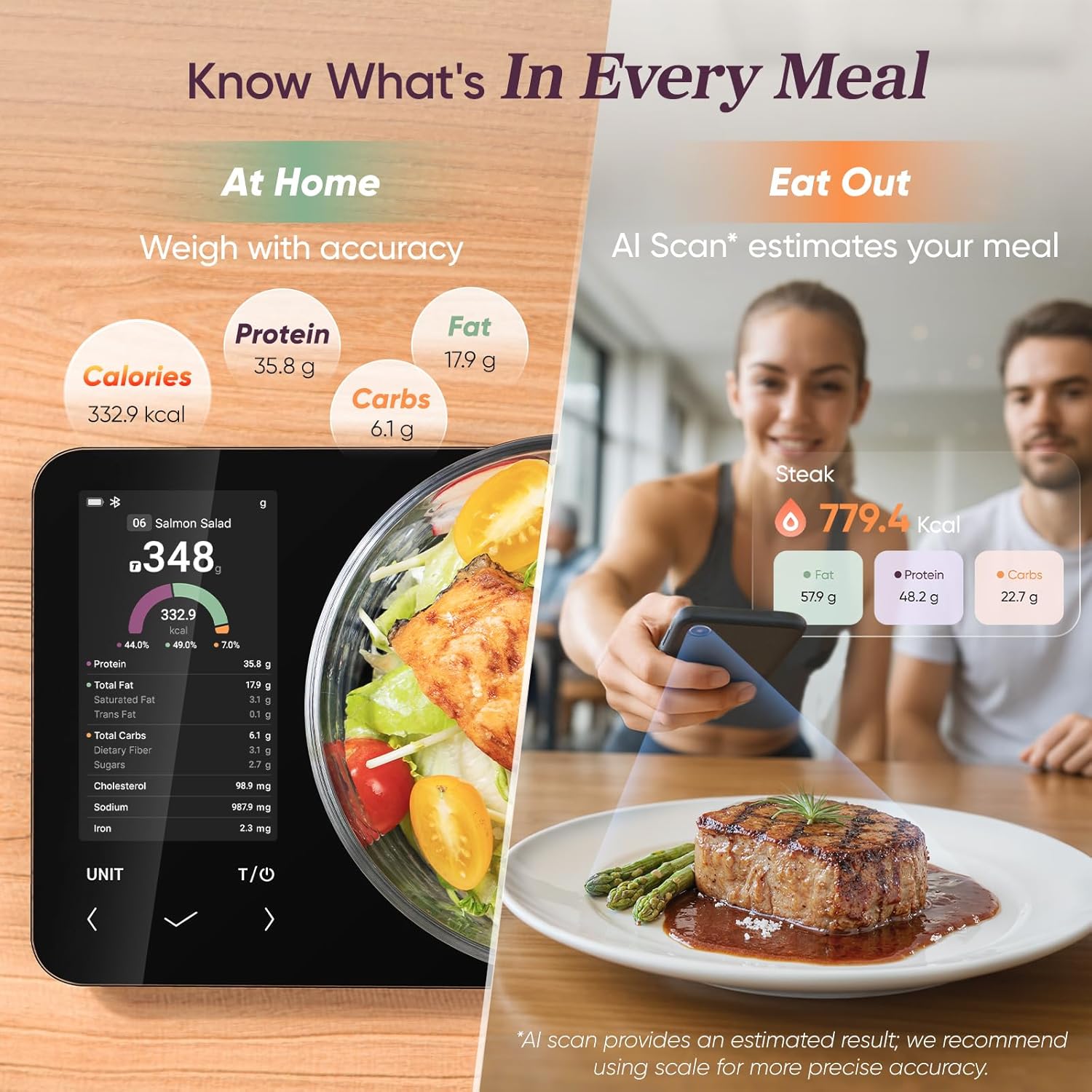
Image: The Cosori Smart Food Scale displaying nutritional data for a salmon salad, with a smartphone demonstrating the AI scan feature for estimating nutrients in a meal.
Video: Demonstrates how to use the AI Food Scan feature in the VeSync app to track food intake effortlessly by snapping a photo.
- Barcode Scan: Scan product barcodes using the VeSync app to retrieve nutritional data from a comprehensive database. Note: Some users have reported that the barcode scan option may not always provide measurements in grams directly, requiring manual adjustment within the app.
- Manual Search: If a food item cannot be scanned, search for it manually within the app's database (which contains over 1 million items) to log its nutritional values.
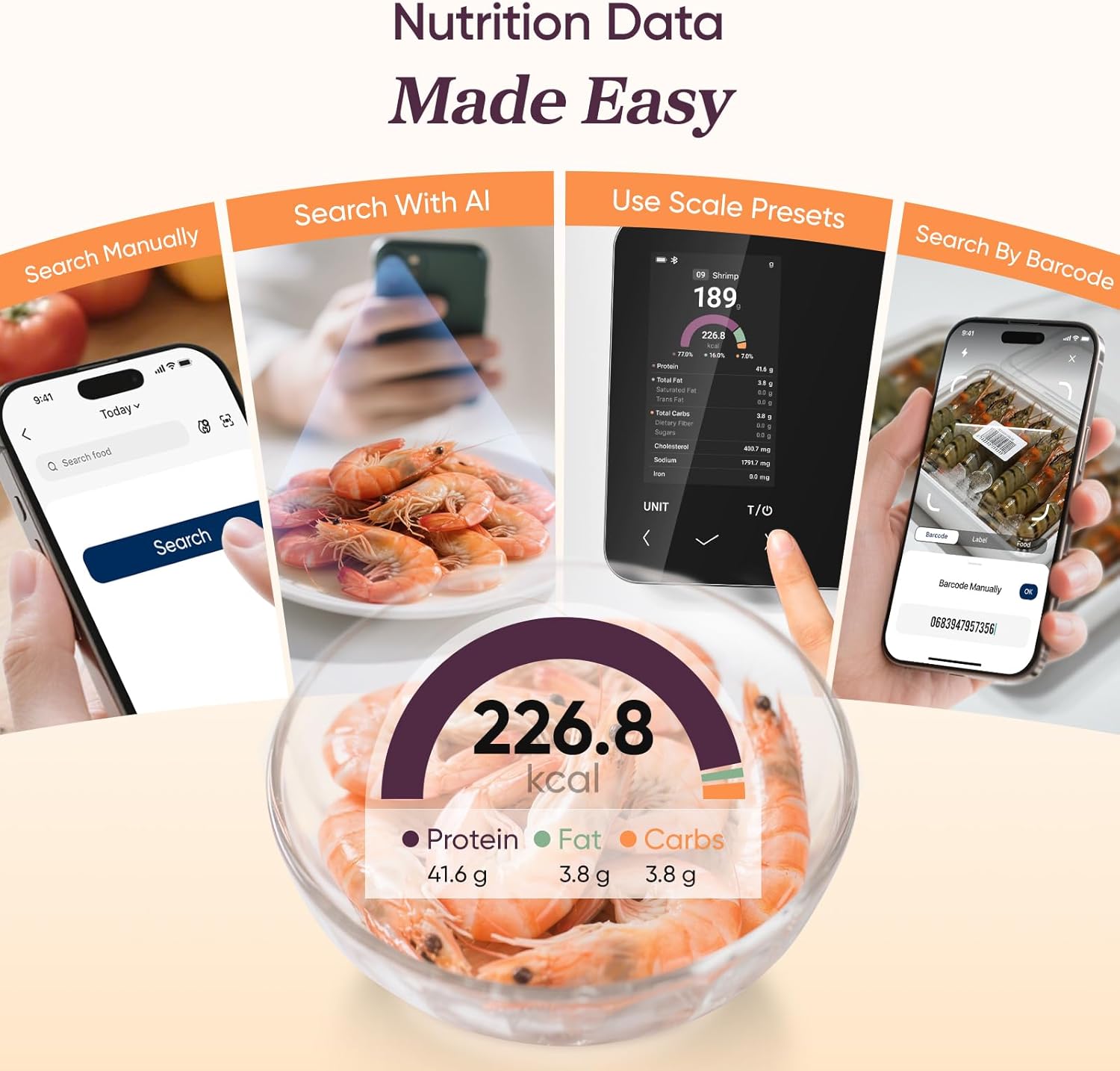
Image: The Cosori Smart Food Scale illustrating different methods for inputting nutrition data: manual search, AI scan, scale presets, and barcode scan.
- Personalized Goals: Set and track personalized nutrition goals (calories, protein, carbs, fat) within the VeSync app. The app calculates and updates your daily intake goals based on your progress, helping you reach your health objectives.

Image: The Cosori Smart Food Scale with a smartphone displaying personalized nutrition goals and meal logging features.
Video: Illustrates how to consistently record and track progress towards nutritional goals using the VeSync app.
- Meal Logging: Log your meals by day, week, and month to analyze eating habits and evaluate nutrient intake over time. The app provides insights and personalized advice to help you stay on track.

Image: A woman tracking her macros on the VeSync app, with the Cosori Smart Food Scale in the foreground.
Video: Shows how to create and save custom meals within the VeSync app for easier tracking.
6. Maintenance
6.1 Cleaning
Wipe the scale surface with a slightly damp cloth. For stubborn stains, use a mild soap solution. Ensure the scale is completely dry before storage or next use. Do not use abrasive cleaners, harsh chemicals, or immerse the scale in water.
6.2 Storage
Store the scale in a cool, dry place. Avoid placing heavy objects on the scale when not in use, as this can affect its accuracy over time.
7. Troubleshooting
- Scale Not Turning On: Ensure the scale is sufficiently charged. Connect it to a USB power source using the provided cable.
- Inaccurate Readings: Verify the scale is placed on a hard, flat, and stable surface. Uneven surfaces can cause inaccuracies. Avoid placing the scale near strong electromagnetic fields.
- App Connectivity Issues: Check that Bluetooth is enabled on your smartphone and the scale is within range. Try restarting both the VeSync app and the scale. If issues persist, try unpairing and re-pairing the device in the app settings.
- Barcode Scan Not Working / Grams Not Displayed: If the barcode scan feature does not recognize a product or does not provide measurements in grams, use the manual search function within the VeSync app or the AI scan feature for an estimate.
- Small Amounts Not Registering: The scale has a minimum measurement threshold of approximately 3 grams. Very small amounts below this may not register accurately.
8. Warranty and Support
8.1 Warranty Information
The Cosori Smart Food Scale CNS-R001S-X is covered by a 2-Year Warranty from the date of purchase. This warranty covers defects in materials and workmanship under normal use.
8.2 Customer Support
For any questions, concerns, or support needs regarding your Cosori Smart Food Scale, please contact Cosori customer support. Refer to the Quick Start Guide or the VeSync app for specific contact details or visit the official Cosori website.


