
1. Initial Setup
This section guides you through the initial setup of your DOOGEE Tab A9 Pro tablet.
1.1 Package Contents
Verify that all items are present in the package:
- 1x DOOGEE Tab A9 Pro Tablet
- 1x Type-C USB Cable
- 1x Charger
- 1x Stylus (VIP Edition)
- 1x Tempered Film (VIP Edition)
- 1x Bluetooth Mouse (VIP Edition)
- 1x Leather Protective Cover (VIP Edition)
- 1x Bluetooth Keyboard (VIP Edition)
- 1x Packing Box
- 1x User Manual

Image: DOOGEE Tab A9 Pro tablet shown with its complete set of accessories, including a stylus, tempered film, Bluetooth mouse, leather protective cover, and Bluetooth keyboard.
1.2 Charging the Tablet
Before first use, fully charge the tablet. Connect the Type-C USB cable to the tablet's USB port and the charger to a power outlet. The tablet supports a maximum charging current of 10W.
1.3 Powering On/Off
- To Power On: Press and hold the power button until the DOOGEE logo appears.
- To Power Off: Press and hold the power button, then select "Power off" from the options on the screen.
1.4 Initial Configuration
Upon first power-on, follow the on-screen prompts to configure your tablet. This includes selecting your language, connecting to a Wi-Fi network, setting up your Google account, and configuring security options.

Image: Front and back view of the DOOGEE Tab A9 Pro tablet, highlighting its sleek design and camera placement.
2. Operating Instructions
This section provides guidance on using the core features of your DOOGEE Tab A9 Pro tablet.
2.1 Navigating the Android 15 Interface
The tablet runs on Android 15. Familiarize yourself with gestures and navigation:
- Swipe Up: Access the app drawer.
- Swipe Down: Access quick settings and notifications.
- Tap: Select items.
- Long Press: Access contextual menus or move icons.
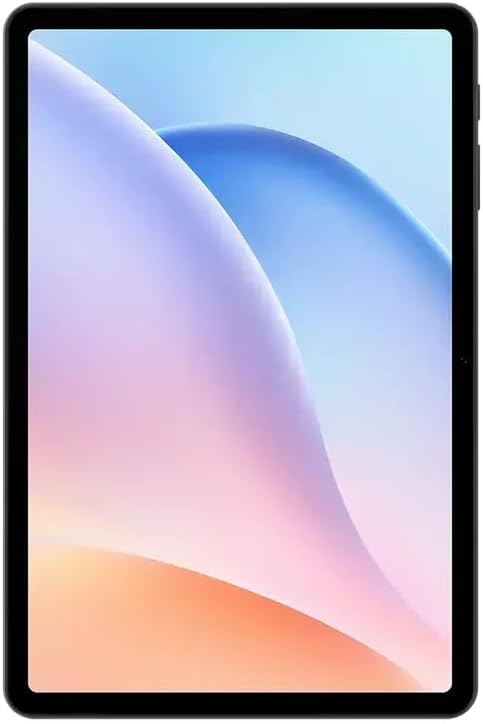
Image: Front view of the DOOGEE Tab A9 Pro tablet, showcasing its 10.1-inch IPS HD display.
2.2 Wi-Fi and Bluetooth Connectivity
To connect to Wi-Fi or Bluetooth devices:
- Go to Settings.
- Select Network & internet for Wi-Fi or Connected devices for Bluetooth.
- Toggle Wi-Fi or Bluetooth on and select the desired network or device to connect.
The tablet supports Wi-Fi 802.11 a/b/g/n/ac (2.4GHz/5GHz) and Bluetooth 5.0.
2.3 Using the Camera
The tablet features a 5MP front camera and an 8MP rear camera with flash. Open the Camera app to capture photos and videos. Video recording supports FHD 30fps.
2.4 External Storage (TF Card)
The tablet includes a TF card slot, supporting up to 2TB of external storage. Insert a compatible TF card to expand your device's memory for photos, videos, and documents.
2.5 Connecting Peripherals
The VIP Edition includes a Bluetooth keyboard and mouse. Pair these devices via Bluetooth settings for enhanced productivity. The tablet also supports OTG (On-The-Go) functionality via its Type-C USB port for connecting other USB devices, and has a 3.5mm earphone jack.
3. Maintenance
Proper maintenance ensures the longevity and optimal performance of your DOOGEE Tab A9 Pro.
3.1 Cleaning the Tablet
- Use a soft, lint-free cloth to clean the screen and body.
- Avoid using harsh chemicals, abrasive cleaners, or aerosol sprays.
- For stubborn smudges, slightly dampen the cloth with water.
3.2 Battery Care
The tablet is equipped with a 6580mAh battery. To maximize battery life:
- Avoid extreme temperatures.
- Do not let the battery completely drain frequently.
- Use the provided charger for optimal charging.

Image: Visual representation of the DOOGEE Tab A9 Pro's 6580mAh battery, highlighting its capacity and 10W fast charging capability.
3.3 Software Updates
Regularly check for and install software updates to ensure your tablet has the latest features, security patches, and performance improvements. Go to Settings > System > System update.
4. Troubleshooting
This section addresses common issues you might encounter with your DOOGEE Tab A9 Pro.
4.1 Tablet Not Powering On
- Ensure the tablet is sufficiently charged. Connect it to the charger for at least 30 minutes.
- Try a forced restart by holding the power button for 10-15 seconds.
4.2 Wi-Fi Connectivity Issues
- Check if Wi-Fi is enabled in Settings.
- Restart your Wi-Fi router.
- Forget the network in tablet settings and reconnect.
- Ensure you are within range of the Wi-Fi signal.
4.3 Slow Performance
- Close unnecessary background applications.
- Clear cache data for apps.
- Ensure sufficient storage space is available.
- Restart the tablet.
4.4 Screen Unresponsive
- Perform a forced restart.
- If the issue persists, consider a factory reset (Warning: This will erase all data).
5. Technical Specifications
Detailed specifications for the DOOGEE Tab A9 Pro tablet.

Image: Infographic detailing the 10.1-inch IPS HD display features, including 1280x800 resolution, 80.2% screen-to-body ratio, and 16.7 million screen colors.
| Feature | Specification |
|---|---|
| Model | DOOGEE Tab A9 Pro |
| Operating System | Android 15 |
| Dimensions | 242.5 x 160.9 x 9.7 mm |
| Weight | 512g |
| Screen Size | 10.1 inch |
| Display Type | IPS LCD HD Display |
| Resolution | 1280 x 800 pixels |
| PPI | 149 |
| Screen-to-Body Ratio | 80.2% |
| Processor (CPU) | Unisoc T310 Octa-core (1x Arm Cortex-A75 @2.0GHz, 3x Arm Cortex-A55 @1.8GHz) |
| Graphics (GPU) | Arm Mali-G52 |
| RAM | 4GB LPDDR4 (with 16GB virtual RAM expansion, total 20GB) |
| Internal Storage (ROM) | 128GB eMMC |
| Expandable Storage | TF Card Slot, up to 2TB |
| Wi-Fi | 802.11 a/b/g/n/ac (2.4GHz/5GHz) |
| Bluetooth | Bluetooth 5.0 |
| Front Camera | 5MP |
| Rear Camera | 8MP with Flash |
| Battery Capacity | 6580mAh |
| Charging | 10W Max Charging Current, Type-C USB |
| Audio Jack | 3.5mm |
| Sensors | G-sensor |
| Other Features | OTG support, Bluetooth keyboard connection support |
6. Warranty and Support
Your DOOGEE Tab A9 Pro comes with a warranty and access to customer support.
6.1 Warranty Information
The DOOGEE Tab A9 Pro includes a 12-month warranty from the date of purchase. This warranty covers manufacturing defects and malfunctions under normal use. It does not cover damage caused by misuse, accidents, unauthorized repairs, or normal wear and tear. Please retain your proof of purchase for warranty claims.
6.2 Customer Support
For technical assistance, warranty claims, or further inquiries, please contact DOOGEE customer support through their official website or the retailer where the product was purchased. Have your product model and purchase details ready when contacting support.


