
Introduction
Welcome to the user manual for your new DOOGEE Tab A9 Wi-Fi Tablet. This guide provides essential information to help you set up, operate, maintain, and troubleshoot your device. Please read this manual thoroughly to ensure optimal performance and longevity of your tablet.
Package Contents
Verify that all items are present in your package:
- DOOGEE Tab A9 Tablet
- USB Type-C Cable
- Charger
- User Manual
- (Optional accessories, depending on package edition: Stylus Pen, Reinforced Case, Bluetooth Mouse, Leather Protective Cover, Bluetooth Keyboard)
Setup
1. Initial Charging
Before first use, fully charge your tablet. Connect the USB Type-C cable to the tablet's charging port and the other end to the provided charger. Plug the charger into a power outlet. The charging indicator will show the charging status.
2. Powering On/Off
- To Power On: Press and hold the Power button until the DOOGEE logo appears on the screen.
- To Power Off: Press and hold the Power button until a power-off menu appears. Select "Power off" to shut down the device.
- To Restart: From the power-off menu, select "Restart" to reboot the device.
3. Initial Setup Wizard
Upon first power-on, the tablet will guide you through an initial setup process. Follow the on-screen prompts to:
- Select your language.
- Connect to a Wi-Fi network.
- Accept terms and conditions.
- Sign in with your Google account or create a new one.
- Set up screen lock (PIN, pattern, password).

Image: Front and back view of the DOOGEE Tab A9 tablet, illustrating its design and camera placement.
Operating Instructions
1. Basic Navigation
- Touch: Tap an icon or option to select it.
- Swipe: Drag your finger across the screen to scroll through pages or content.
- Pinch-to-Zoom: Place two fingers on the screen and spread them apart to zoom in, or pinch them together to zoom out.
- Home Screen: Tap the Home button (usually a circle or house icon) to return to the main screen.
- Back: Tap the Back button (usually a left arrow) to return to the previous screen.
- Recent Apps: Tap the Recent Apps button (usually a square or three vertical lines) to view and switch between recently used applications.
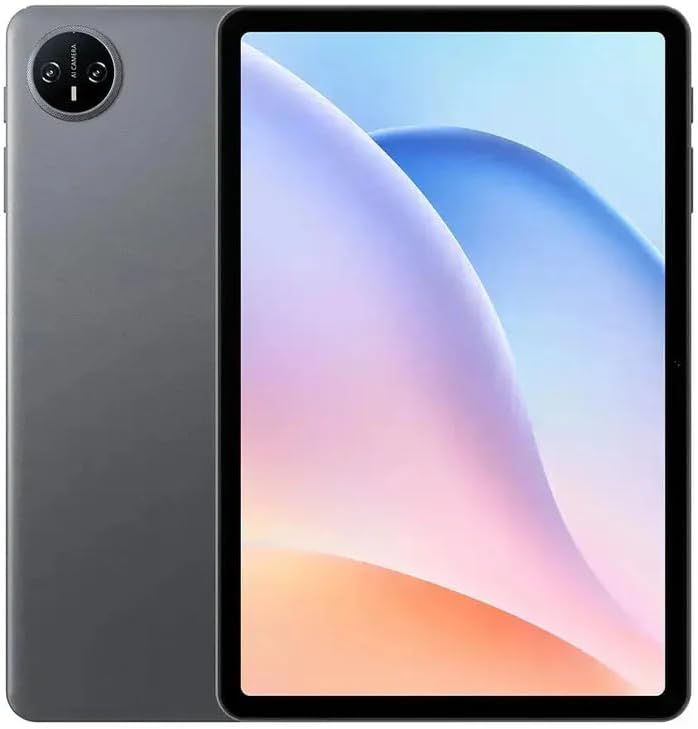
Image: Front view of the DOOGEE Tab A9 tablet with its display active, showing the user interface.
2. Wi-Fi Connectivity
To connect to a Wi-Fi network:
- Go to Settings > Network & internet > Wi-Fi.
- Toggle Wi-Fi On.
- Select your desired network from the list.
- Enter the password if prompted and tap Connect.
3. Bluetooth Pairing
To pair with a Bluetooth device:
- Go to Settings > Connected devices > Bluetooth.
- Toggle Bluetooth On.
- Ensure the other Bluetooth device is in pairing mode.
- Select the device from the list of available devices and follow any on-screen prompts to complete pairing.
4. Camera Usage
The tablet features a 5MP front camera and an 8MP rear camera.
- Open the Camera application.
- Tap the shutter button to take a photo.
- Switch between front and rear cameras using the camera switch icon.
- Select video mode to record videos.
5. Display Features

Image: Visual representation of the DOOGEE Tab A9's 10.1-inch IPS HD display, highlighting its 1280x800 resolution, 80.2% screen-to-body ratio, and 16.7 million screen colors.
The DOOGEE Tab A9 features a 10.1-inch IPS HD display with a resolution of 1280x800 pixels, offering a wide field of view and vibrant colors. The screen-to-body ratio is approximately 80.2%, providing an immersive viewing experience.
6. Battery Management

Image: Infographic detailing the DOOGEE Tab A9's 6580mAh battery capacity and its estimated usage times for Wi-Fi standby, music playback, video watching, and web browsing.
The tablet is equipped with a 6580mAh battery. To optimize battery life:
- Adjust screen brightness.
- Close unused applications.
- Turn off Wi-Fi or Bluetooth when not in use.
- Use power-saving modes available in Android settings.
Maintenance
1. Cleaning
- Use a soft, lint-free cloth to clean the screen and body of the tablet.
- Avoid using harsh chemicals, abrasive cleaners, or aerosol sprays.
- For stubborn smudges, slightly dampen the cloth with water or a screen-specific cleaning solution.
2. Storage
- Store the tablet in a cool, dry place away from direct sunlight and extreme temperatures.
- If storing for an extended period, ensure the battery is charged to about 50% to prevent deep discharge.
3. Software Updates
Regularly check for and install software updates to ensure your tablet has the latest features, security patches, and performance improvements. Go to Settings > System > System update.
Troubleshooting
| Issue | Possible Solution |
|---|---|
| Tablet does not power on | Ensure the battery is charged. Connect the charger and try again. If unresponsive, press and hold the Power button for 10-15 seconds to force a restart. |
| Cannot connect to Wi-Fi | Check if Wi-Fi is enabled in settings. Restart your router and tablet. Verify the Wi-Fi password. |
| Applications are crashing or freezing | Close and reopen the application. Clear the app's cache (Settings > Apps > [App Name] > Storage & cache). Restart the tablet. |
| Slow performance | Close unused apps. Clear cache and temporary files. Check for system updates. Consider a factory reset if issues persist (backup data first). |
| Touchscreen unresponsive | Restart the tablet. Ensure the screen is clean and free of debris. If a screen protector is installed, ensure it is properly applied. |
Specifications
| Feature | Detail |
|---|---|
| Model Name | DOOGEE Tab A9 |
| Operating System | Android 15 |
| Processor | Unisoc T310 Octa-Core (1x Cortex-A75 @2.0GHz, 3x Cortex-A55 @1.8GHz) |
| GPU | Arm Mali G52 |
| RAM | 3GB LPDDR3 |
| Internal Storage (ROM) | 64GB eMMC |
| Expandable Storage | Supports TF Card up to 2TB |
| Display Size | 10.1 inches |
| Display Type | IPS HD LCD |
| Display Resolution | 1280 x 800 pixels |
| Screen-to-Body Ratio | 80.2% |
| Front Camera | 5MP |
| Rear Camera | 8MP with Flash |
| Video Recording | FHD 1080p @ 30fps |
| Wi-Fi | 802.11 a/b/g/n/ac (2.4GHz/5GHz) |
| Bluetooth | Bluetooth 5.0 |
| Cellular Network | Not supported (Wi-Fi only model) |
| Battery Capacity | 6580 mAh (38.38 Wh) |
| Charging | 10W Max Charging Current, USB Type-C |
| Audio Jack | 3.5mm Headphone Jack |
| Sensors | Accelerometer |
| Dimensions | 242.5 × 160.9 × 9.7 mm (approx. 25L x 18W x 1.5T cm) |
| Weight | 512 grams (approx. 500 grams) |
| Color | Gray |
Warranty and Support
Warranty Information
Your DOOGEE Tab A9 tablet comes with a limited one-year manufacturer's warranty from the date of purchase. This warranty covers defects in materials and workmanship under normal use. It does not cover damage caused by accidents, misuse, unauthorized repairs, or normal wear and tear. Please retain your proof of purchase for warranty claims.
Customer Support
For technical assistance, warranty claims, or further inquiries, please contact DOOGEE customer support through their official website or the retailer where you purchased the device. Have your model number (Tab A9) and proof of purchase ready when contacting support.


