
1. Introduction
Thank you for choosing the Mobility Lab KS720W Solar Wireless Keyboard. This manual provides detailed instructions for setting up, operating, and maintaining your new keyboard. Please read this manual thoroughly before use to ensure optimal performance and longevity of your device.
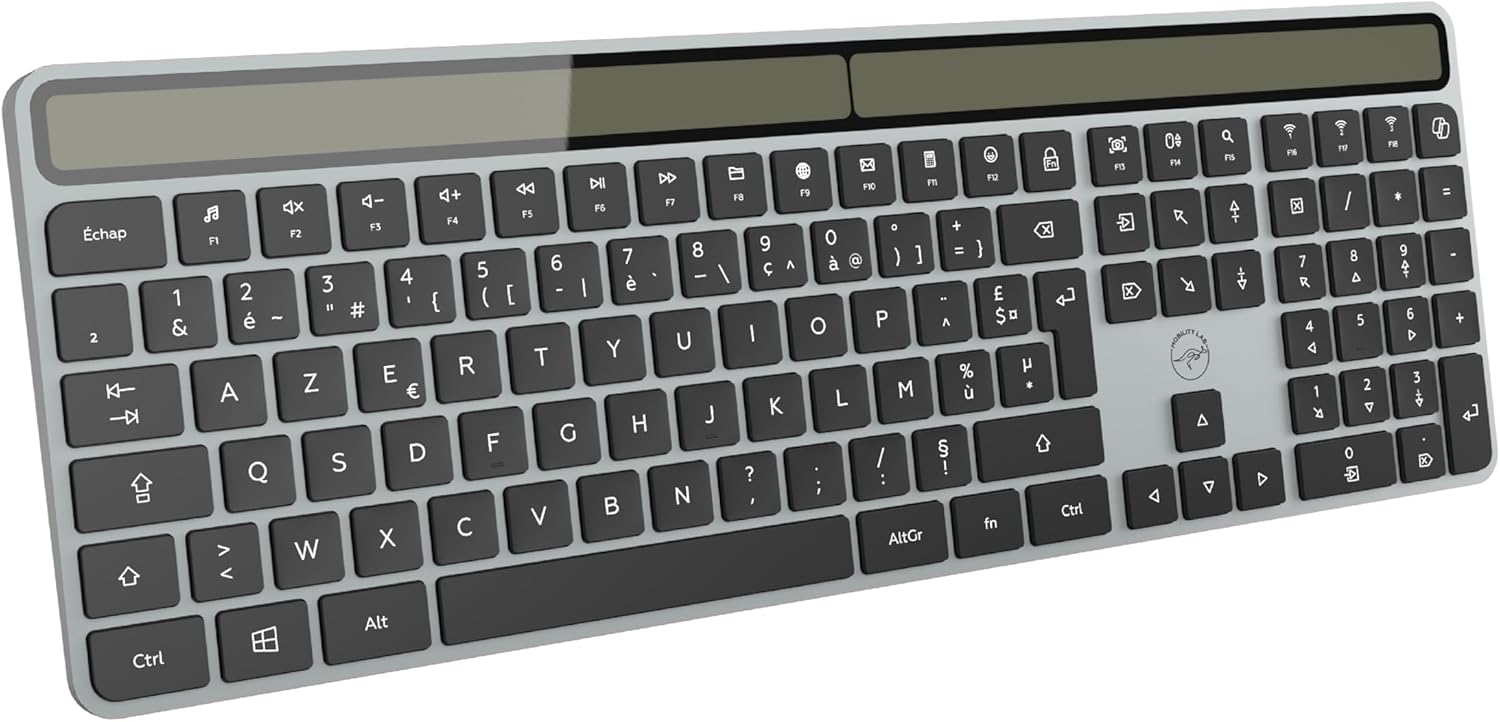
Image 1.1: The Mobility Lab KS720W Solar Wireless Keyboard, showcasing its full AZERTY layout and integrated solar panel.
2. Package Contents
Please check the package for the following items:
- Mobility Lab KS720W Solar Wireless Keyboard
- USB-C Charging Cable
- User Manual (this document)
3. Product Features
The Mobility Lab KS720W keyboard offers a range of advanced features designed for productivity and convenience:
- Intelligent Multi-Device Connection: Seamlessly switch between up to three Bluetooth-connected devices (PC, tablet, smartphone) with a single click.
- Full-Size AZERTY Layout: Includes an integrated numeric keypad for comprehensive functionality.
- Modern and Elegant Design: Features a matte finish with a metal effect and a slim profile.
- Exceptional Typing Comfort: Flat, offset keys with a responsive scissor mechanism for smooth and precise typing.
- 17 Multimedia Shortcuts: Quick access to essential functions such as volume control, media playback, and window management.
- Dual Charging Options: Efficient solar charging or rapid charging via USB-C.
- Auto Power Saving Mode: Automatically enters sleep mode after 1 minute of inactivity to conserve battery.
- 10-Meter Wireless Range: Provides stable and reliable connectivity.
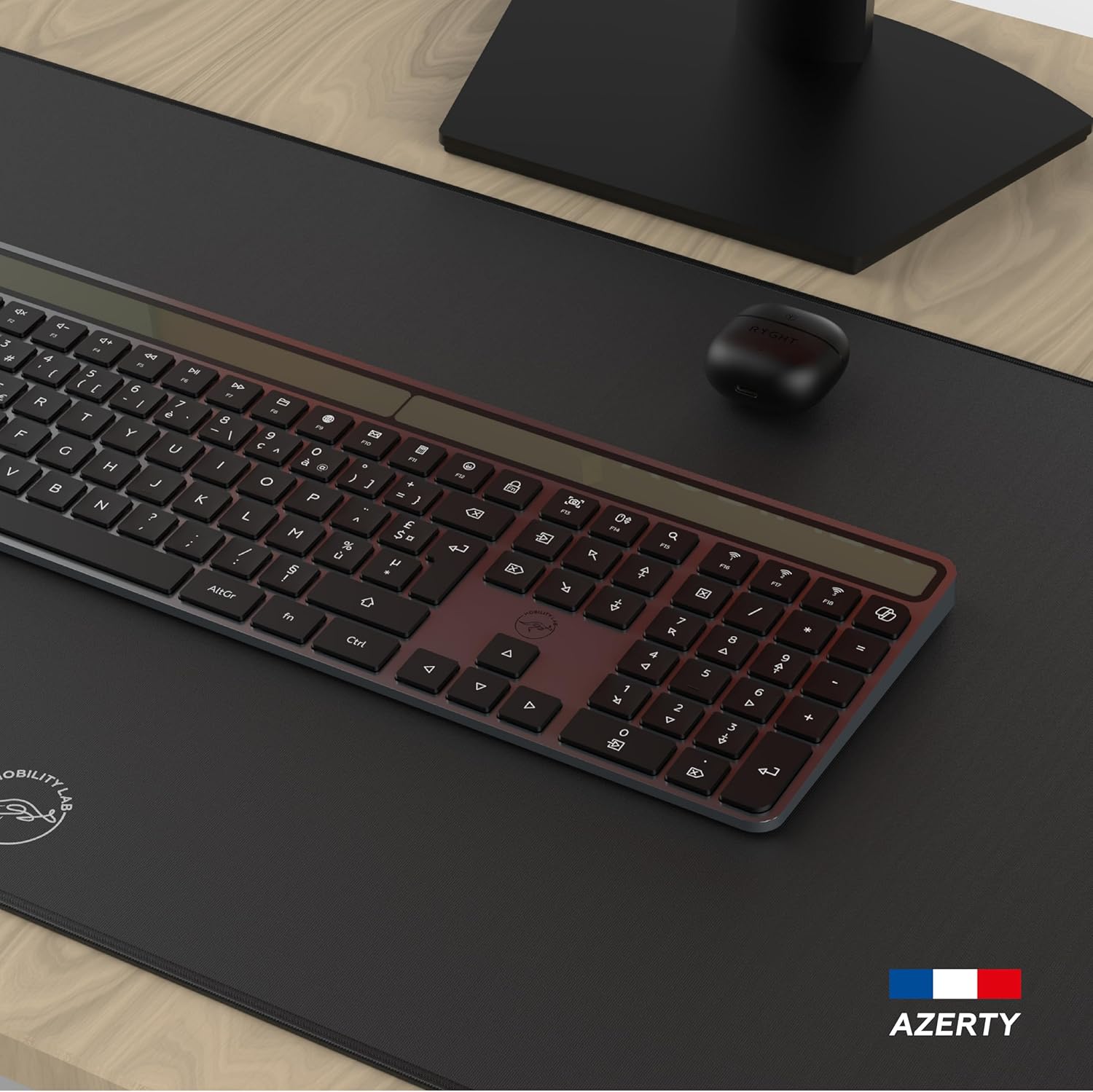
Image 3.1: The KS720W keyboard positioned on a desk, illustrating its sleek design in a typical workspace environment.
4. Setup
4.1 Initial Charging
Before first use, or if the keyboard battery is low, charge the device using one of the following methods:
- Solar Charging: Place the keyboard with its solar panel facing a light source. The keyboard will automatically charge when exposed to sufficient light.
- USB-C Charging: Connect the provided USB-C cable to the keyboard's USB-C port and the other end to a powered USB port (e.g., computer, wall adapter). A full charge via USB-C is typically very fast.
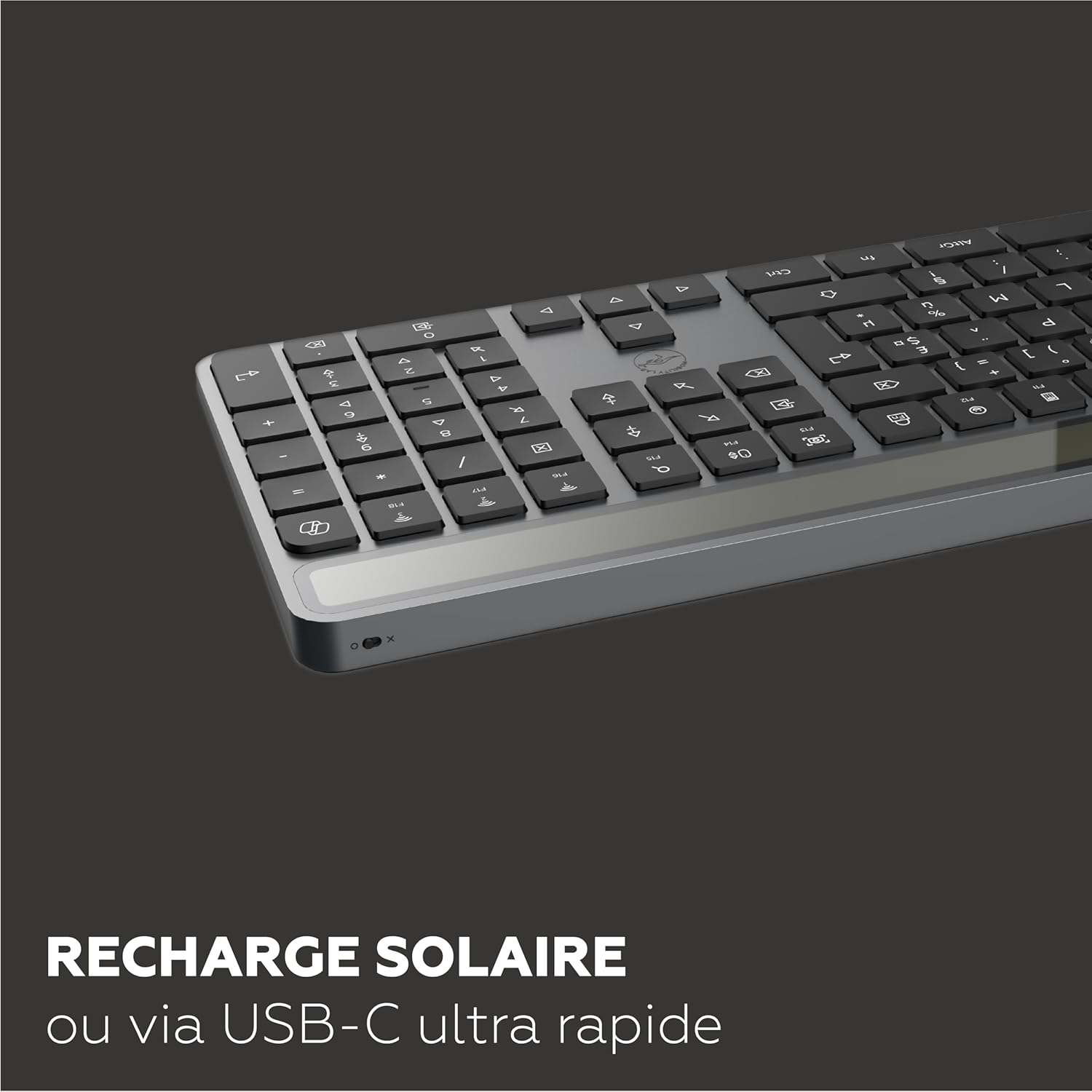
Image 4.1: Detail view of the keyboard's solar panel and USB-C charging port, highlighting the dual charging capabilities.
4.2 Bluetooth Pairing
The KS720W keyboard supports connection to up to three Bluetooth devices. Follow these steps to pair your keyboard:
- Turn on the keyboard using the power switch, usually located on the side or back.
- Press and hold one of the Bluetooth keys (e.g., F16, F17, or F18, often marked with Bluetooth icons) for 3-5 seconds until the corresponding indicator light flashes rapidly. This indicates the keyboard is in pairing mode.
- On your device (computer, tablet, smartphone), go to Bluetooth settings and enable Bluetooth.
- Search for available devices. The keyboard should appear as "Mobility Lab KS720W" or similar.
- Select the keyboard to connect. If prompted, enter the pairing code displayed on your screen using the keyboard and press Enter.
- Once connected, the indicator light will stop flashing and remain solid for a few seconds, then turn off.
Repeat these steps for up to two additional devices using the other Bluetooth keys.
4.3 Switching Between Devices
To switch between paired devices, simply press the corresponding Bluetooth key (F16, F17, or F18) once. The keyboard will connect to the selected device automatically.
5. Operating Instructions
5.1 General Use
The Mobility Lab KS720W keyboard features a standard AZERTY layout with a full numeric keypad, providing a familiar and efficient typing experience for Windows users. It is plug-and-play compatible with Windows operating systems.
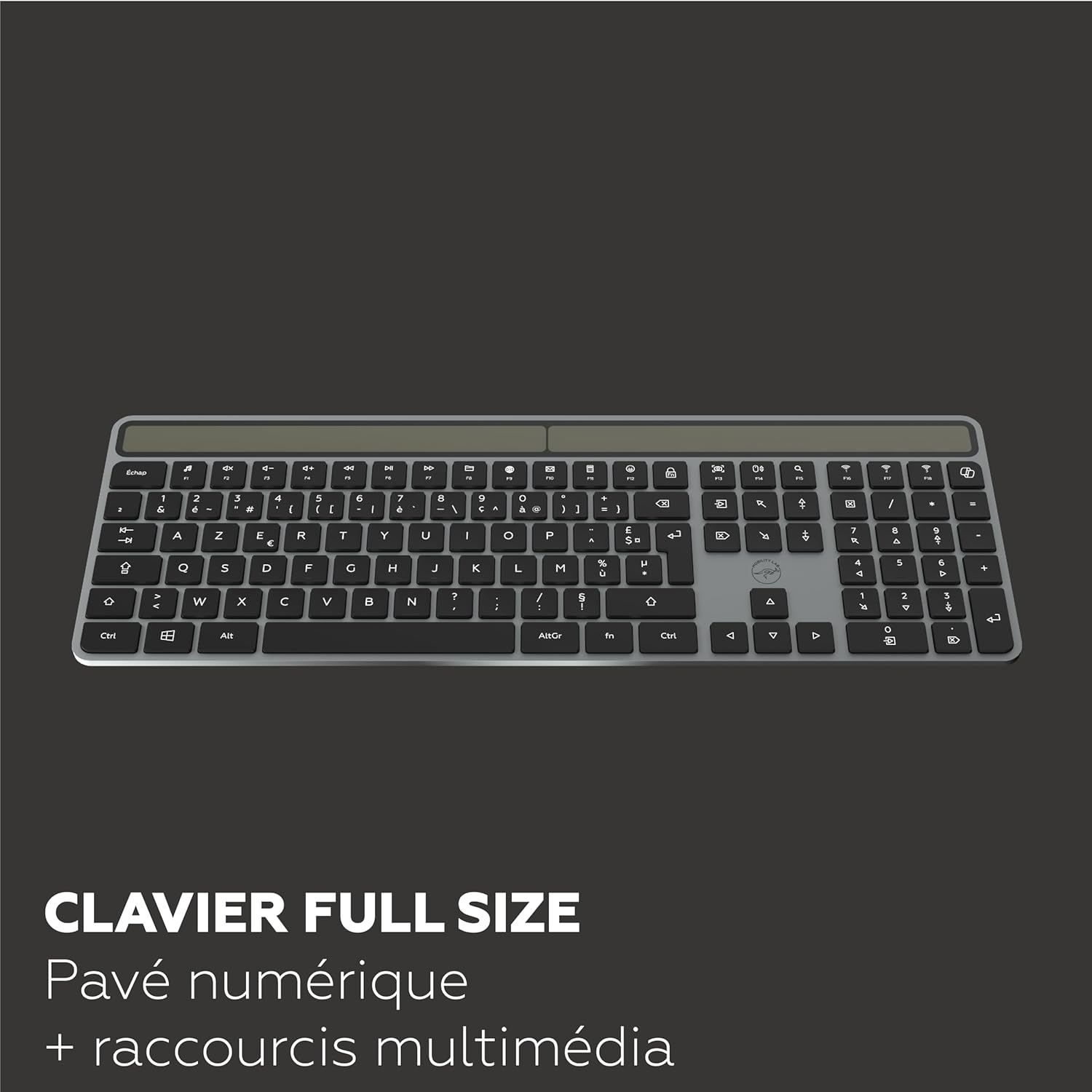
Image 5.1: A comprehensive view of the KS720W keyboard, detailing its full AZERTY layout and integrated numeric pad.
5.2 Multimedia Shortcuts
The keyboard includes 17 dedicated multimedia shortcuts for quick access to common functions. These keys are typically located on the F-row and may require pressing the Fn key simultaneously, depending on your system configuration. Refer to the key legends for specific functions.
- Volume Control: Mute, Volume Down, Volume Up.
- Media Playback: Play/Pause, Previous Track, Next Track.
- System Functions: Search, Home, Email, Lock Screen, etc.

Image 5.2: A close-up of the keyboard's function row, highlighting the dedicated multimedia shortcut keys.
5.3 Power Saving Mode
To maximize battery life, the keyboard automatically enters a sleep mode after 1 minute of inactivity. To wake the keyboard, simply press any key. The connection will be re-established automatically.
6. Maintenance
Proper maintenance ensures the longevity and optimal performance of your keyboard:
- Cleaning: Use a soft, dry, lint-free cloth to clean the keyboard surface. For stubborn dirt, slightly dampen the cloth with water or a mild, non-abrasive cleaner. Avoid excessive moisture.
- Solar Panel: Keep the solar panel clean and free from obstructions to ensure efficient charging.
- Storage: When not in use for extended periods, store the keyboard in a cool, dry place. Ensure it is adequately charged before storage.
- Avoid Liquids: Do not expose the keyboard to liquids. In case of accidental spills, immediately power off the keyboard and allow it to dry completely before attempting to use it again.
7. Troubleshooting
If you encounter issues with your Mobility Lab KS720W keyboard, please refer to the following common solutions:
- Keyboard Not Connecting/Pairing:
- Ensure the keyboard is powered on and sufficiently charged.
- Verify that Bluetooth is enabled on your device.
- Place the keyboard within the 10-meter wireless range of your device.
- Put the keyboard into pairing mode again by holding the desired Bluetooth key (F16, F17, or F18).
- Remove any previous "Mobility Lab KS720W" entries from your device's Bluetooth list and attempt to pair again.
- Restart your device and the keyboard.
- Keys Not Responding:
- Check the battery level and charge the keyboard if necessary.
- Ensure the keyboard is properly connected to your device (check Bluetooth status).
- Test the keyboard on another device to rule out a device-specific issue.
- Slow or Intermittent Connection:
- Reduce the distance between the keyboard and your device.
- Minimize interference from other wireless devices (e.g., Wi-Fi routers, other Bluetooth devices).
- Ensure the keyboard is not placed on a metal surface, which can interfere with wireless signals.
- Solar Charging Not Working:
- Ensure the solar panel is clean and exposed to direct light.
- Verify that the light source is strong enough (e.g., direct sunlight, bright indoor lighting).
- If solar charging is insufficient, use the USB-C cable for charging.
8. Specifications
| Feature | Detail |
|---|---|
| Brand | Mobility Lab |
| Model Name | KS720W |
| Item Model Number | ML315317 |
| Connectivity Technology | Bluetooth (3x) |
| Keyboard Layout | AZERTY |
| Compatible Devices | Windows |
| Special Features | Solar Charging, USB-C Charging, 17 Multimedia Shortcuts, Multi-device Switching, Power Saving Mode, Scissor Mechanism Keys, Full-size with Numeric Keypad |
| Wireless Range | 10 meters |
| Color | Gray |
| Dimensions (approx.) | 421.5 x 143 x 15 mm (from image) |
| Weight (approx.) | 950 g |
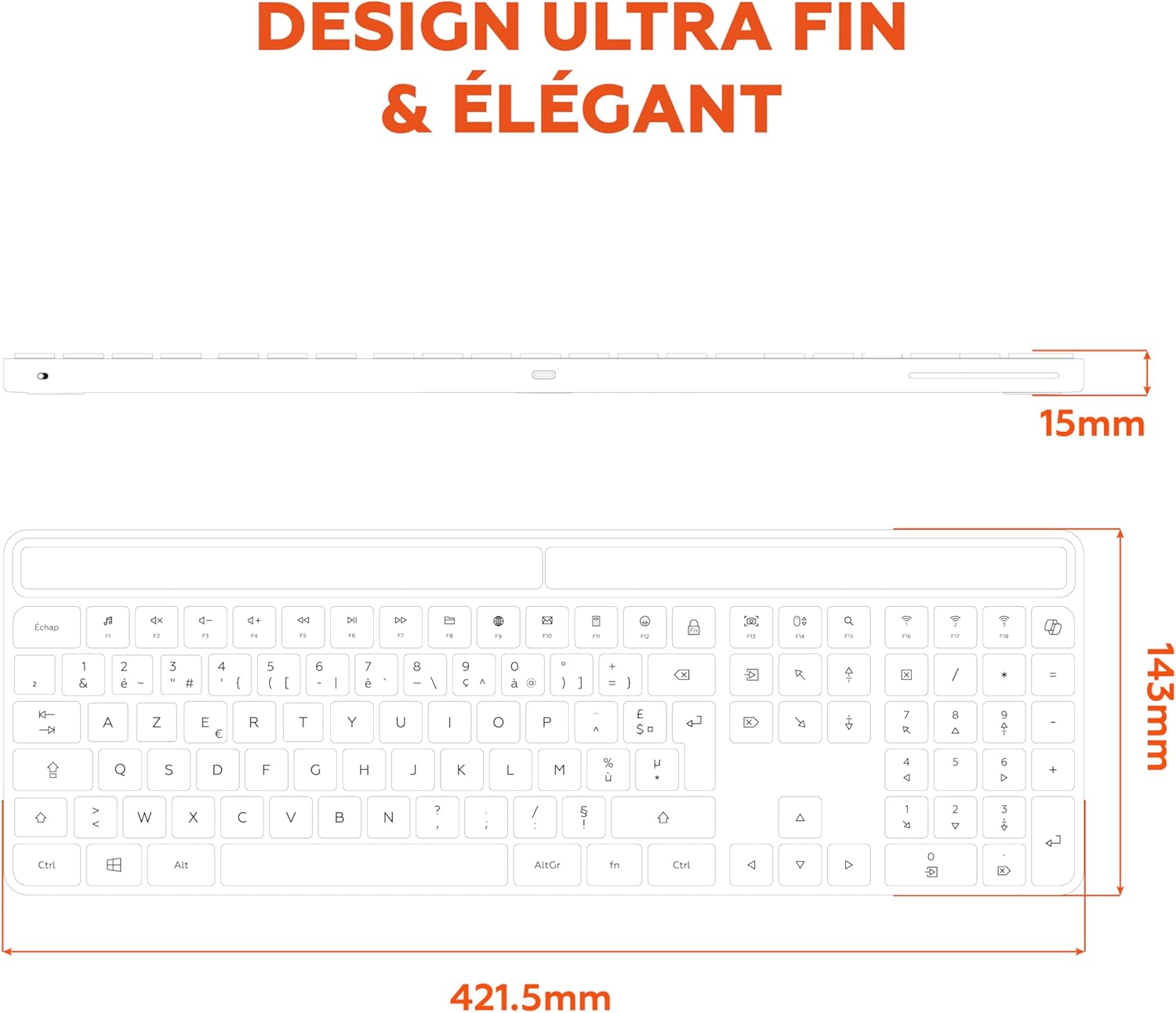
Image 8.1: Diagram illustrating the approximate dimensions of the Mobility Lab KS720W keyboard.
9. Warranty and Support
Mobility Lab products are designed for reliability and performance. For information regarding warranty coverage, technical support, or service, please refer to the warranty card included with your product or visit the official Mobility Lab website. Please retain your proof of purchase for warranty claims.
For further assistance, you may contact Mobility Lab customer support through their official channels.
