
1. Introduction
This manual provides detailed instructions for the proper use and maintenance of your BAOFENG UV-32 10W Ham Radio. The UV-32 is a multi-band two-way radio featuring 10W selectable power, GPS navigation, a 2.0-inch color display, and multiple programming options including wireless app connectivity. Please read this manual thoroughly before operating the device to ensure safe and efficient communication.
2. Safety Information
Observe the following safety precautions to prevent injury or damage to the radio:
- Do not operate the radio in explosive atmospheres (e.g., flammable gases, dust particles, metallic powders).
- Do not transmit without an antenna connected.
- Keep the antenna at least 2.5 cm (1 inch) away from your body when transmitting.
- Use only BAOFENG-approved batteries and chargers. Unauthorized accessories may cause damage or fire.
- Do not disassemble or modify the radio. Repairs should only be performed by qualified technicians.
- Avoid prolonged exposure to direct sunlight or extreme temperatures.
- Do not operate the radio while driving or performing other activities that require full attention.
3. Package Contents
Verify that all items are present in your package:
- 1 x BAOFENG UV-32 Radio
- 1 x 2500mAh Battery
- 1 x USB-C Charger
- 1 x Desktop Charger Base
- 1 x Standard UV Antenna
- 1 x Long Airband Antenna
- 1 x Headset
- 1 x Belt Clip
- 1 x Radio Case Holder

Image: The BAOFENG UV-32 radio shown with its complete set of accessories, including the battery, charger, antennas, headset, belt clip, and case holder.
4. Product Overview
Familiarize yourself with the main components of your UV-32 radio.

Image: Front view of the BAOFENG UV-32 radio, highlighting the 2.0-inch color display, alphanumeric keypad, and function buttons.
Key Components:
- Antenna Connector: For attaching the standard UV or airband antenna.
- Power/Volume Knob: Turns the radio on/off and adjusts volume.
- Display: 2.0-inch color screen showing frequency, channel, battery status, and other indicators.
- PTT Button: Push-To-Talk button for transmitting.
- Side Keys (P1, P2): Customizable function keys.
- Keypad: Alphanumeric input for frequencies, channels, and menu navigation.
- USB-C Charging Port: For direct battery charging.
- Accessory Jack: For connecting the headset or programming cable.
5. Setup
5.1 Battery Installation and Charging
- Align the 2500mAh Li-ion battery with the grooves on the back of the radio.
- Slide the battery upwards until it clicks into place.
- To charge, connect the USB-C charger directly to the battery's USB-C port or place the radio with the battery attached into the desktop charging base.
- The charging indicator on the desktop base will show red during charging and green when fully charged.

Image: A close-up of the 2500mAh Li-ion battery for the UV-32, highlighting its integrated USB-C charging port.
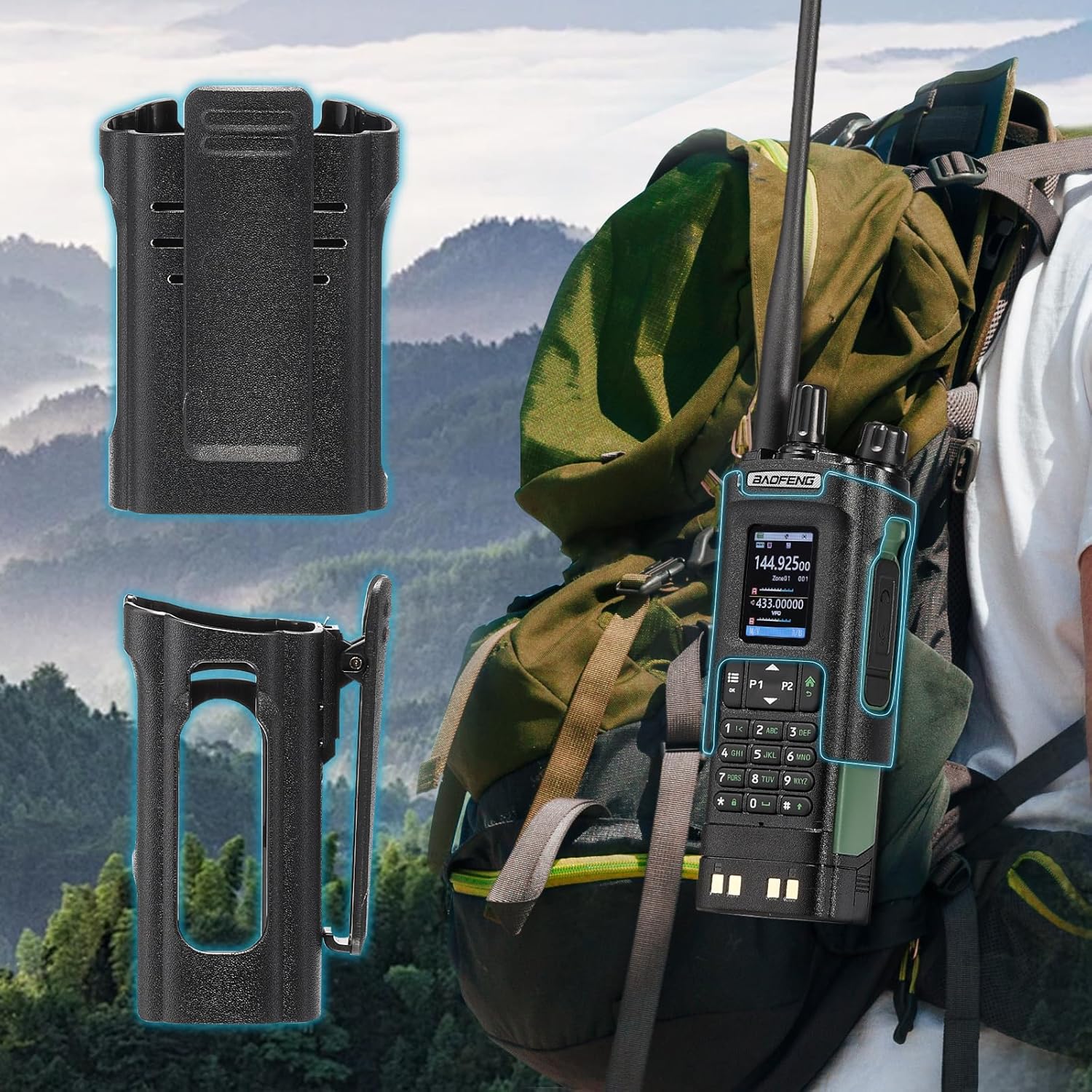
Image: The BAOFENG UV-32 radio demonstrating both direct USB-C charging and charging via its desktop cradle.
5.2 Antenna Installation
- Select the appropriate antenna: the standard UV antenna for general VHF/UHF use or the long airband antenna for enhanced aviation signal reception.
- Screw the chosen antenna clockwise onto the antenna connector at the top of the radio until it is finger-tight. Do not overtighten.

Image: The BAOFENG UV-32 radio illustrating the use of two different antennas: a standard antenna for UHF/VHF and a longer antenna specifically designed for airband reception.
5.3 Belt Clip Installation
- Align the belt clip with the screw holes on the back of the radio.
- Secure the belt clip using the provided screws.
- The radio case holder can be used to attach the radio to a backpack or belt for secure carrying.

Image: The BAOFENG UV-32 radio securely mounted to a backpack strap using its belt clip and an additional case holder, demonstrating portability.
6. Operating the Radio
6.1 Power On/Off and Volume
Rotate the Power/Volume knob clockwise to turn the radio on and increase volume. Rotate counter-clockwise to decrease volume and turn the radio off.
6.2 Display Overview
The 2.0-inch color display provides essential information:
- Frequency/Channel: Displays the current operating frequency or channel number.
- Battery Level: Indicates remaining battery charge.
- Signal Strength: Shows the strength of received signals.
- Mode Indicators: Icons for various functions like GPS, Bluetooth, power level, etc.

Image: A close-up of the BAOFENG UV-32's 2-inch color display, showing detailed frequency, channel, and status information.
6.3 Channel Mode vs. Frequency Mode
The radio operates in two primary modes:
- Frequency Mode (VFO): Allows direct input of frequencies for scanning or temporary use.
- Channel Mode (MR): Uses pre-programmed channels for quick access to stored frequencies.
Press the MENU button and navigate to the mode setting to switch between VFO and MR modes.
6.4 Frequency Selection
- Keypad: In Frequency Mode, directly enter the desired frequency using the numeric keypad.
- Quick Channel Knob: Rotate the top knob to quickly scroll through frequencies or channels.
- Up/Down Arrows: Use the arrow keys (P1/P2) to fine-tune frequencies or navigate channels.
6.5 Transmitting and Receiving
- Ensure an antenna is properly connected.
- Select the desired frequency or channel.
- To transmit, press and hold the PTT button on the side of the radio. Speak clearly into the microphone.
- Release the PTT button to stop transmitting and return to receive mode.
- Power Levels: The UV-32 offers High (H), Medium (M), and Low (L) power settings. Adjust this in the menu to balance range and battery life.
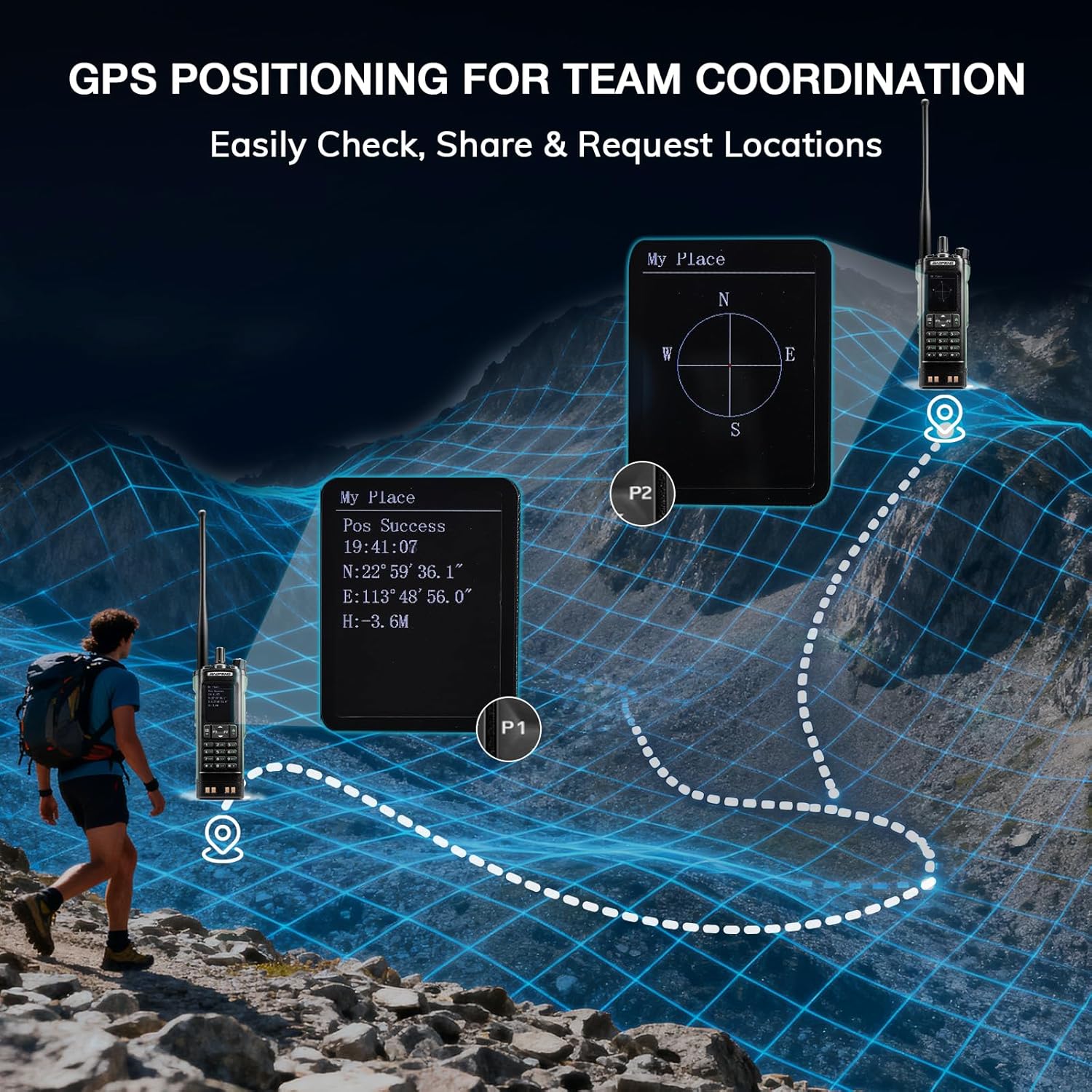
Image: The BAOFENG UV-32 radio's display showing different power output levels (High, Medium, Low) and an external SWR meter for measurement.
6.6 Programming Options
The UV-32 offers several methods for programming frequencies and settings:
- Wireless APP Programming: Connect your radio to a smartphone (iOS/Android) via Bluetooth using the dedicated BT app for quick and wireless programming.
- CHIRP Software: For advanced or bulk programming, use CHIRP software on a PC. Select "UV-17ProGPS" as the radio model in CHIRP.
- Keypad Programming: Basic programming can be done directly on the radio using the keypad and menu system.
- One-Key Frequency Copy: This feature allows for easy cloning of frequencies from another radio. Refer to the radio's on-screen prompts or full manual for specific steps.

Image: An illustration depicting the various programming methods available for the BAOFENG UV-32, including mobile app (Bluetooth), CPS software, CHIRP software, and direct keypad input.

Image: Two BAOFENG radios illustrating the one-key frequency copy function, allowing for quick and easy channel cloning between devices.
6.7 GPS Navigation
The integrated GPS module provides real-time location data:
- Access the GPS function through the radio's menu.
- View your current latitude, longitude, and altitude.
- The radio supports sharing your location or requesting coordinates from other team members for improved coordination.

Image: A visual representation of the BAOFENG UV-32's GPS functionality, showing how it displays coordinates and facilitates location sharing for team coordination in outdoor environments.
6.8 Enhanced Airband Reception
For clearer reception of aviation signals, utilize the dedicated AM antenna included with your UV-32. This specialized antenna is designed to provide more accurate and stable airband listening compared to standard UV dual-band antennas.
6.9 NOAA Weather Radio
The UV-32 can receive NOAA weather alerts. Consult the radio's menu for instructions on how to scan for and select NOAA channels in your area.
6.10 Customizable Side Keys
The radio features four customizable side keys (P1, P2, and two others). These can be programmed via the menu or programming software to quickly access frequently used functions such as scan, monitor, or power level adjustment.

Image: A close-up of the BAOFENG UV-32's side, highlighting the customizable P1 and P2 function keys.
7. Maintenance
7.1 Cleaning the Radio
Wipe the radio's surface with a soft, damp cloth. Do not use harsh chemicals or abrasive cleaners. Ensure all ports are dry before use.
7.2 Battery Care
- Charge the battery fully before first use.
- Avoid overcharging or completely draining the battery.
- Store the battery in a cool, dry place when not in use for extended periods.
7.3 Storage
When storing the radio for a long time, remove the battery and store it separately. Keep the radio in a dry, dust-free environment away from direct sunlight and extreme temperatures.
8. Troubleshooting
| Problem | Possible Cause | Solution |
|---|---|---|
| Radio does not power on | Battery not installed correctly or discharged. | Ensure battery is securely attached. Charge the battery fully. |
| Cannot transmit | Antenna not connected. Incorrect frequency/channel. Low power setting. | Attach antenna. Verify frequency/channel. Increase power level. |
| Poor reception/transmission range | Obstructions. Low power setting. Incorrect antenna. | Move to an open area. Increase power. Ensure correct antenna is used and properly connected. |
| Programming errors with CHIRP/APP | Incorrect radio model selected. Connection issues. Outdated software/firmware. | Ensure "UV-17ProGPS" is selected in CHIRP. Re-establish Bluetooth connection. Update software/firmware if available. |
9. Specifications
| Feature | Detail |
|---|---|
| Brand | BAOFENG |
| Model Number | UV-32 |
| Number of Channels | 1000 |
| Frequency Range | UHF, VHF |
| Power Output | Up to 10W (selectable High, Medium, Low) |
| Display | 2.0" Color Display |
| Battery | 2500mAh Li-ion (included) |
| Charging | USB-C, Desktop Charger Base |
| Special Features | Digital Display, Dual Band, USB-C Rechargeable, Wireless APP Programming, Wireless Channel Clone, GPS, NOAA Reception |
| Connectivity Protocol | Bluetooth |
| Product Dimensions | 1.2"D x 2.2"W x 4"H |
| Water Resistance Level | Not Water Resistant |
10. Warranty and Support
Your BAOFENG UV-32 radio comes with an 18-month warranty. BAOFENG also provides lifetime support for this product.
For technical assistance, warranty claims, or further inquiries, please visit the official BAOFENG website or contact their customer support directly. Keep your purchase receipt as proof of purchase for warranty services.


