
1. Introduction
The Anweller MD2 Smart Deadbolt Lock is an advanced security solution for your home, integrating multiple access methods with a built-in 2K camera for enhanced monitoring. This manual provides detailed instructions for installation, setup, operation, and maintenance to ensure optimal performance and security.
2. Package Contents
Please verify that all components are present before beginning installation:
- 1 x MD2 Smart Deadbolt Lock (All Parts)
- 1 x 10000mAh Li-ion Battery
- 1 x Smart Door Sensor
- 2 x Mechanical Keys
- 4 x RFID Cards
- Mounting Hardware (screws, screwdriver)
- Installation Template
- User Manual
3. Specifications
| Feature | Description |
|---|---|
| Brand | Anweller |
| Model Number | MD2 |
| Lock Type | Biometric, Deadbolt, WiFi Smart Lock |
| Special Features | Integrated 2K Camera, Smart Door Sensor, Built-in WiFi, 10000mAh Battery, ANSI/BHMA Grade 2 Safety Standards, Easy Installation |
| Material | Aluminum, Zinc |
| Item Dimensions | 6.2 x 2.9 x 1.1 inches |
| Item Weight | 2.9 Pounds |
| Connectivity Protocol | Bluetooth, Wi-Fi (2.4GHz only) |
| Controller Type | Amazon Alexa, Android, iOS |
| Recommended Uses | Front Doors, Side Doors, Exterior Doors, Garage Door |
4. Installation Guide
The Anweller MD2 Smart Deadbolt Lock is designed for easy DIY installation, typically taking about 15 minutes with a screwdriver. No additional drilling or bridge is required for most U.S. standard doors.
4.1 Door Compatibility
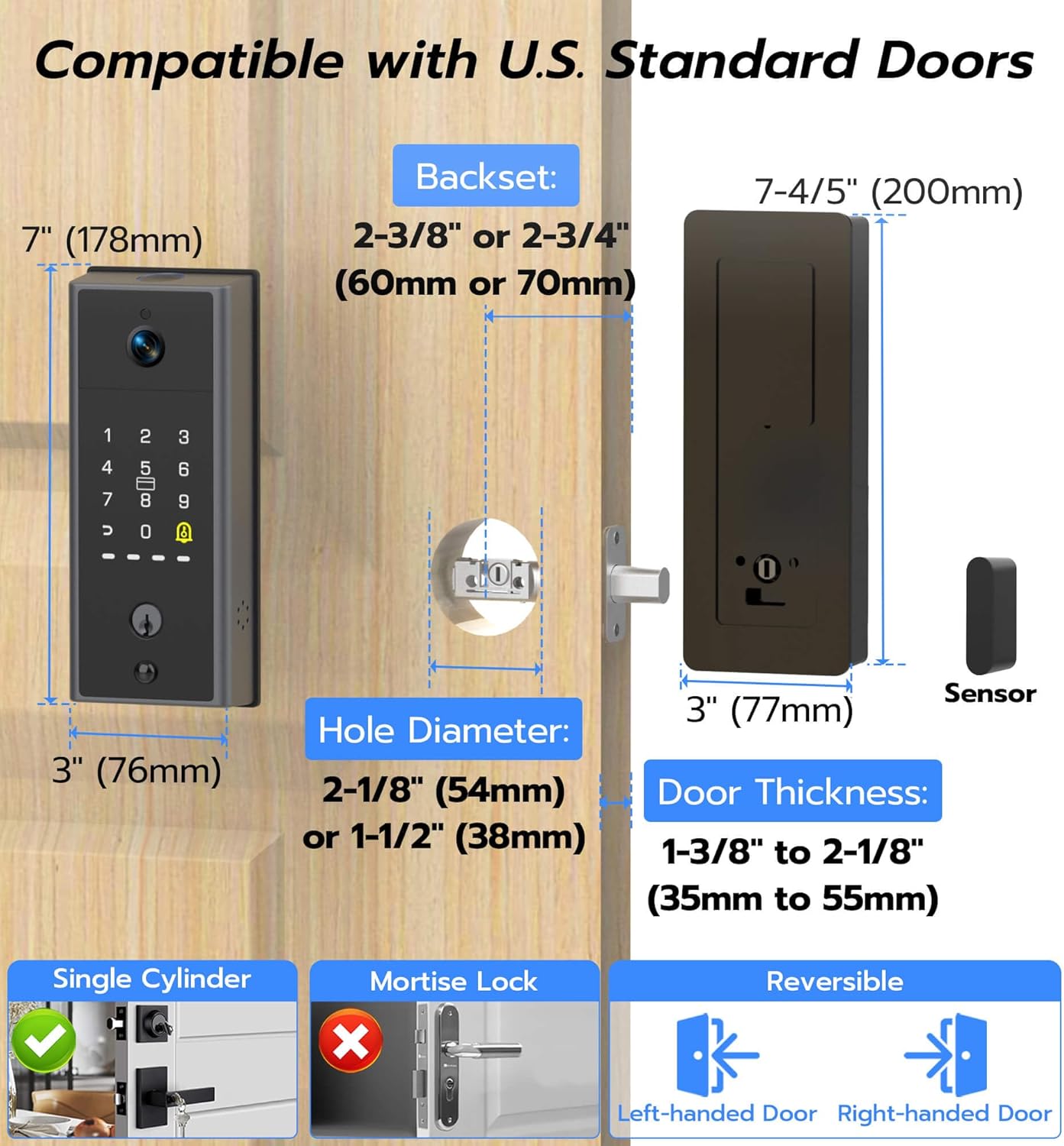
Ensure your door meets the following specifications:
- Backset: 2-3/8" or 2-3/4" (60mm or 70mm)
- Hole Diameter: 2-1/8" (54mm) or 1-1/2" (38mm)
- Door Thickness: 1-3/8" to 2-1/8" (35mm to 55mm)
- Reversible for both left and right-handed doors.
4.2 Step-by-Step Installation
For a visual guide, please refer to the official installation video below. A screwdriver is the only tool required.
- Install the Lock Latch: Adjust the latch to fit your door's backset (60mm or 70mm) and insert it into the door edge, ensuring the 'UP' marking faces upward.
- Install the Front Lock: Pass the lock pin and cable through the door hole. Temporarily fix the front lock panel to the door using double-sided tape.
- Install the Mounting Bracket: Pass the lock pin and cable through the mounting bracket. Pre-fix the bracket with double-sided tape and then secure it with two screws. Select appropriate screw length (40mm for 45-55mm doors, 25mm for 35-45mm doors).
- Install the Rear Lock: Connect the cables from the front lock to the rear lock unit. Align the rear lock with the mounting bracket and secure it with screws.
- Install the Battery: Insert the 10000mAh Li-ion battery into the designated compartment in the rear lock unit.
- Install the Door Sensor: Use the provided positioning card to confirm the optimal installation area for the smart door sensor on the door frame. Attach the sensor using its adhesive backing.
5. Setup & Configuration
After physical installation, configure your smart lock using the dedicated mobile application.
5.1 App Installation and Wi-Fi Connection
- Download the eSmartLock app from your smartphone's app store (compatible with iOS and Android).
- Follow the in-app instructions to register an account and add your MD2 Smart Deadbolt Lock.
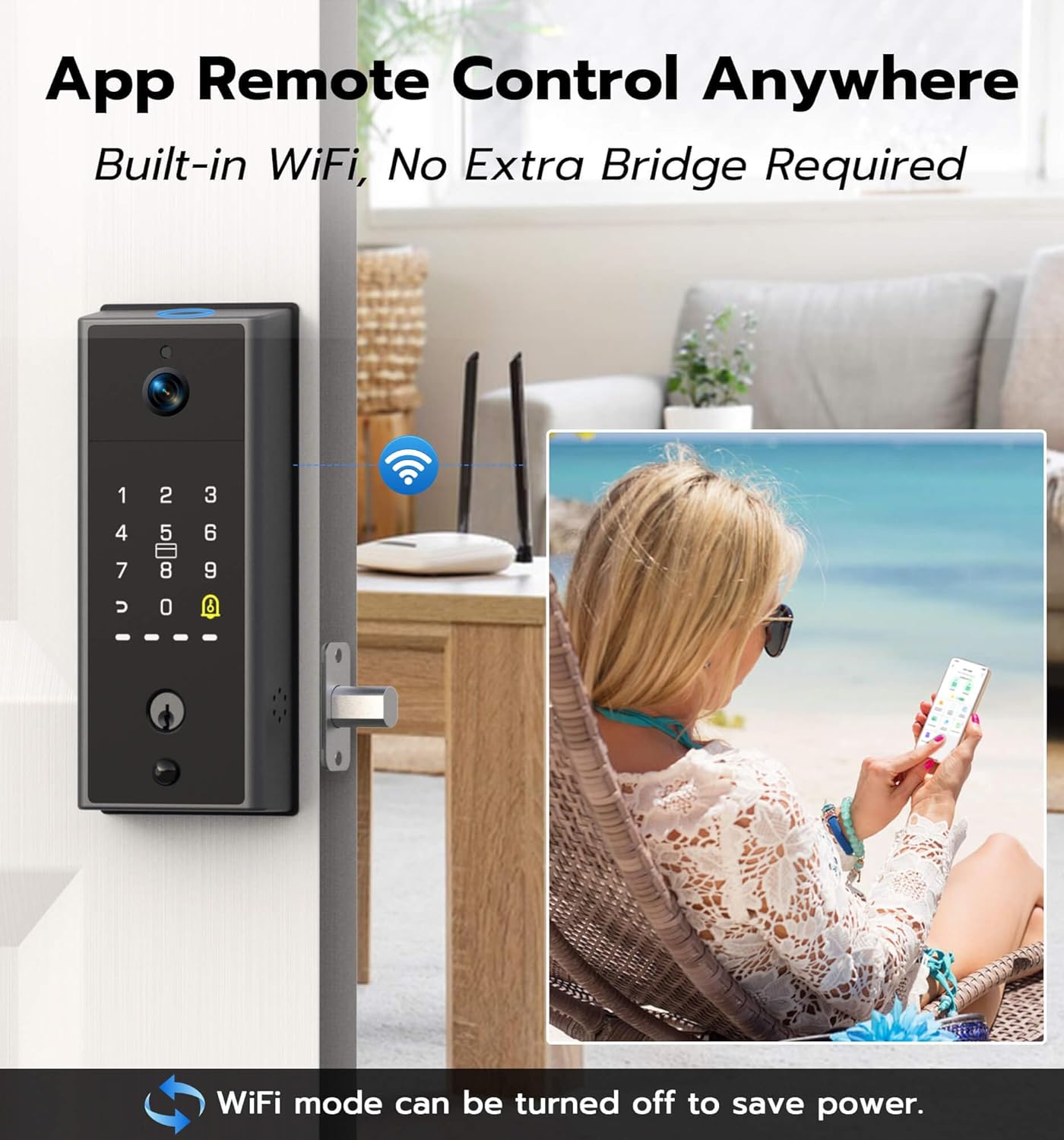
- Connect the lock to your home's 2.4GHz Wi-Fi network directly through the app. No external bridge is required.
- The Wi-Fi function can be toggled off in the app to conserve battery life if remote access is not frequently needed.
5.2 Adding Access Methods
The MD2 supports multiple keyless entry methods:
- Fingerprint: Register up to 100 unique fingerprints through the app. Follow the on-screen prompts to scan your finger multiple times for accurate recognition.
- Passcodes: Create and manage custom passcodes for family members or temporary guests via the app.
- RFID Cards: Register the included RFID cards (or key fobs) by presenting them to the lock's sensor as instructed in the app.
- App Remote Control: Unlock or lock your door from anywhere using the eSmartLock app.
- Mechanical Keys: Use the provided physical keys as a backup for emergency access.

6. Operating Instructions
6.1 Unlocking and Locking
- Fingerprint: Place your registered finger on the fingerprint sensor.
- Passcode: Enter your 6-digit passcode on the keypad, followed by the '#' key.
- RFID Card: Present a registered RFID card to the card service area on the lock.
- App: Open the eSmartLock app and tap the unlock icon.
- Mechanical Key: Insert and turn the physical key in the keyhole.
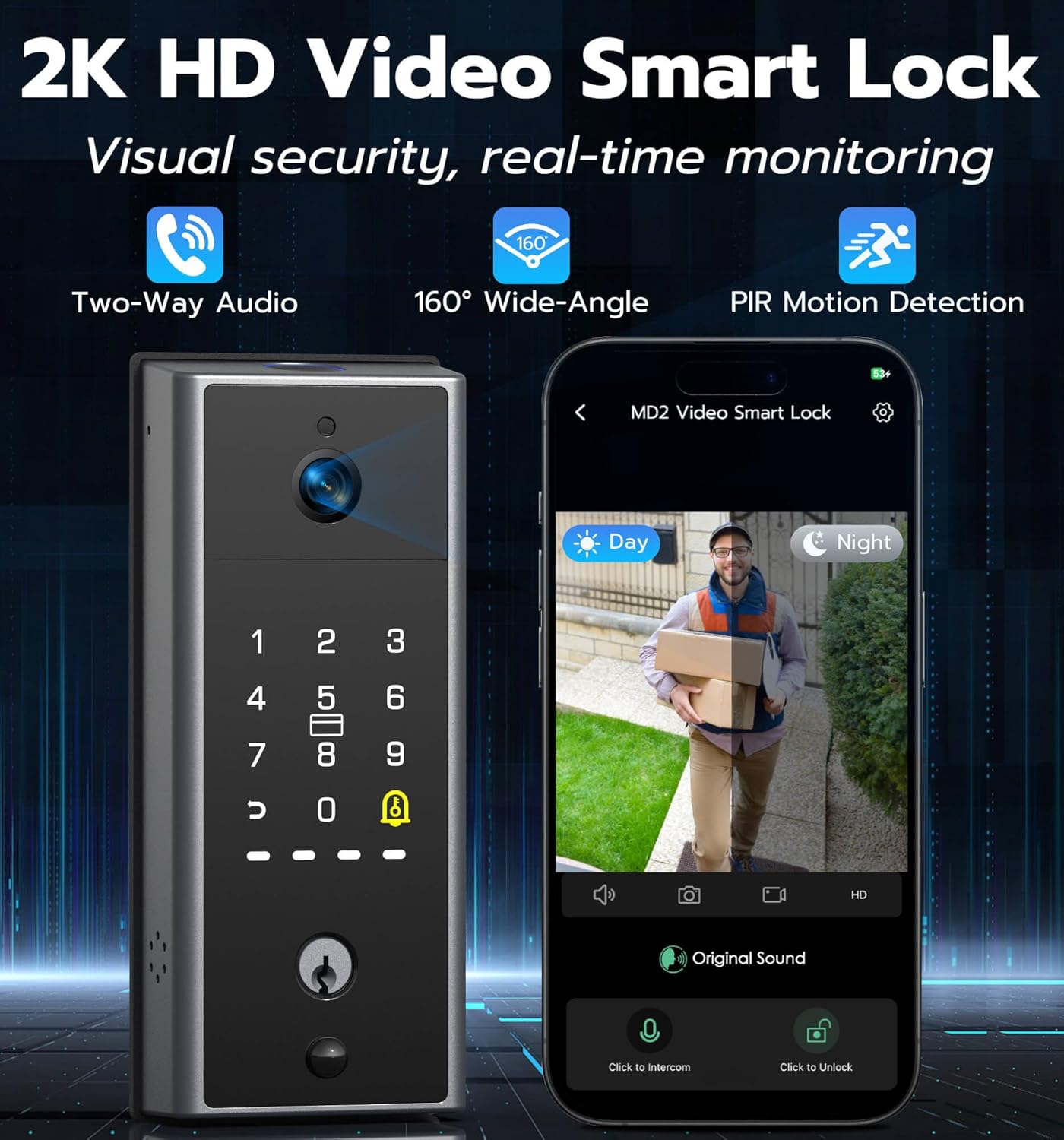
6.2 Integrated 2K Camera Features
The built-in 2K camera provides high-definition video and images with a 160° wide-angle view, ensuring clear visibility even at night.
- Two-Way Audio: Communicate with visitors at your door directly through the app.
- PIR Motion Detection: Receive alerts on your smartphone when motion is detected at your door.
- Night Vision: The camera provides clear images in low-light conditions.
- Video Recording: Store video footage on the pre-installed 8GB memory card or via cloud recording (subscription may be required).

6.3 Smart Door Sensor & Auto-Lock
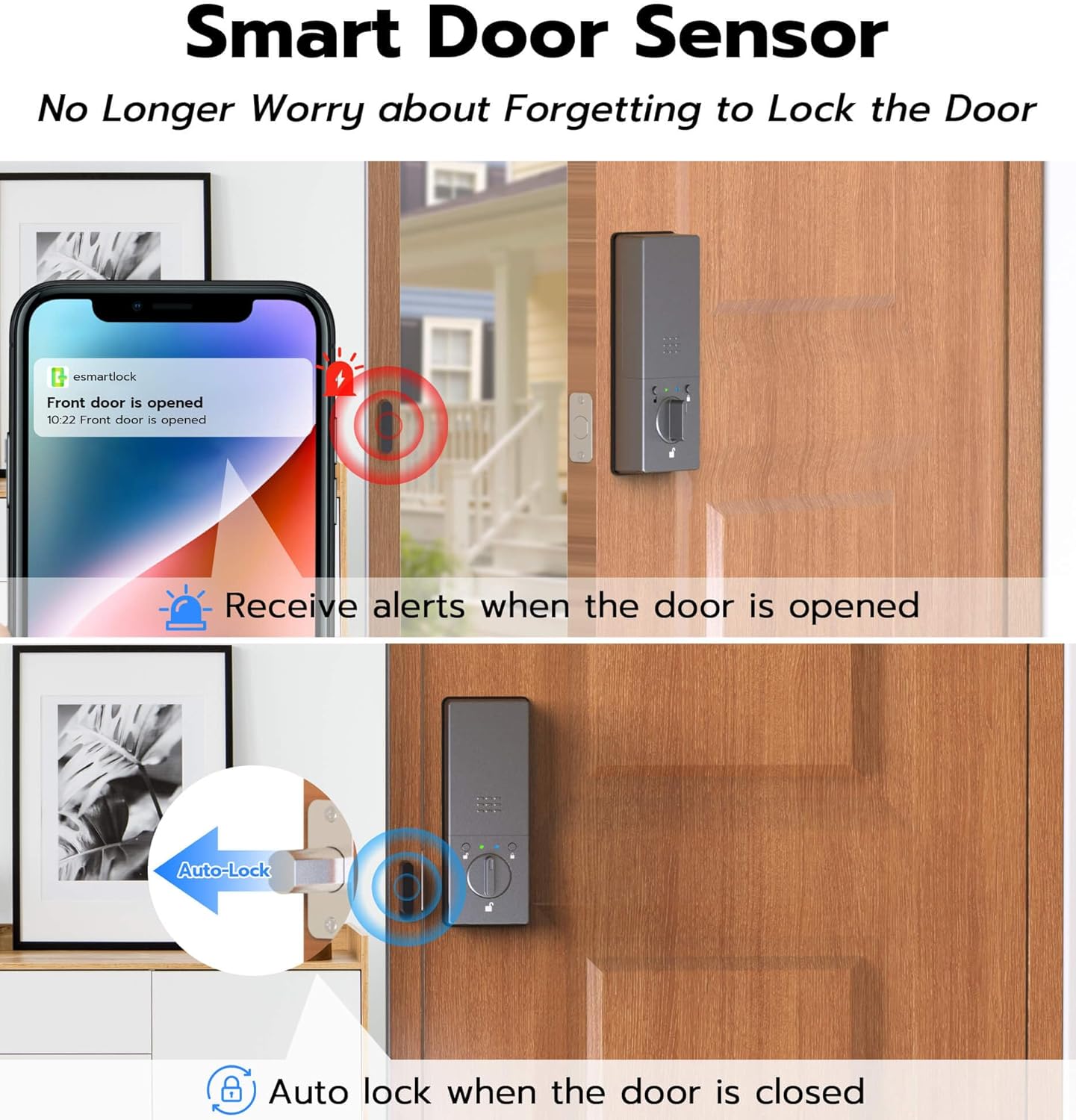
The smart door sensor enhances security and convenience:
- Auto-Lock: The lock automatically engages when the door is closed.
- Open Door Alerts: The app will send a reminder if the door remains open for more than 60 seconds.
6.4 Mode Switching
Easily switch between different operating modes using the one-touch shortcut button on the interior unit:
- Normal Mode: Auto-locks the door after closing.
- Passage Mode: Keeps the door unlocked for convenient entry/exit during high traffic periods.
- Anti-unlock Mode: Only the owner can unlock the door, restricting other access methods.
7. Maintenance
7.1 Battery Charging
The MD2 is equipped with a 10000mAh high-capacity rechargeable Li-ion battery. The mobile app will notify you when the battery level is low.
- To charge, remove the battery pack from the interior unit.
- Connect the battery to a USB-C charging cable.
- In case of a completely drained battery, the lock can be temporarily powered via a power bank connected to the emergency USB-C port on the exterior unit, or unlocked with a mechanical key.

7.2 Cleaning
Wipe the lock's surfaces, especially the fingerprint sensor and keypad, with a soft, dry cloth to ensure optimal performance.
8. Troubleshooting
- Lock not responding: Check battery level in the app or physically. Recharge if necessary.
- Fingerprint not recognized: Ensure your finger is clean and dry. Re-register fingerprint if issues persist.
- App connectivity issues: Verify your home Wi-Fi (2.4GHz) is active and the lock is within range. Restart the app or the lock if needed.
- Door sensor not working: Ensure the sensor is correctly aligned and securely attached to the door frame. Calibrate the unlocking on the APP for the first time.
For further assistance, please refer to the 'Excellent Customer Support' section.
9. Warranty & Support
Anweller provides a 12-month warranty and free lifetime technical support for the MD2 Smart Deadbolt Lock. Should you encounter any issues or have queries, please do not hesitate to contact us.
- Warranty Coverage: 12-month warranty for defects in materials and workmanship.
- Technical Support: Free lifetime technical support is available.
- Contact Email: hongjdzwj@outlook.com
