
1. Introduction
The HUGEROCK T71EX is a 7-inch Anti-Explosion Rugged Android Tablet designed for use in hazardous environments. It is ATEX and IECEx Zone 2 certified, ensuring safe operation in areas with potentially explosive atmospheres. This tablet features a robust design with MIL-STD-810G and IP67 waterproof protection, making it suitable for demanding industrial conditions. This manual provides essential information for the safe and effective use of your T71EX tablet.
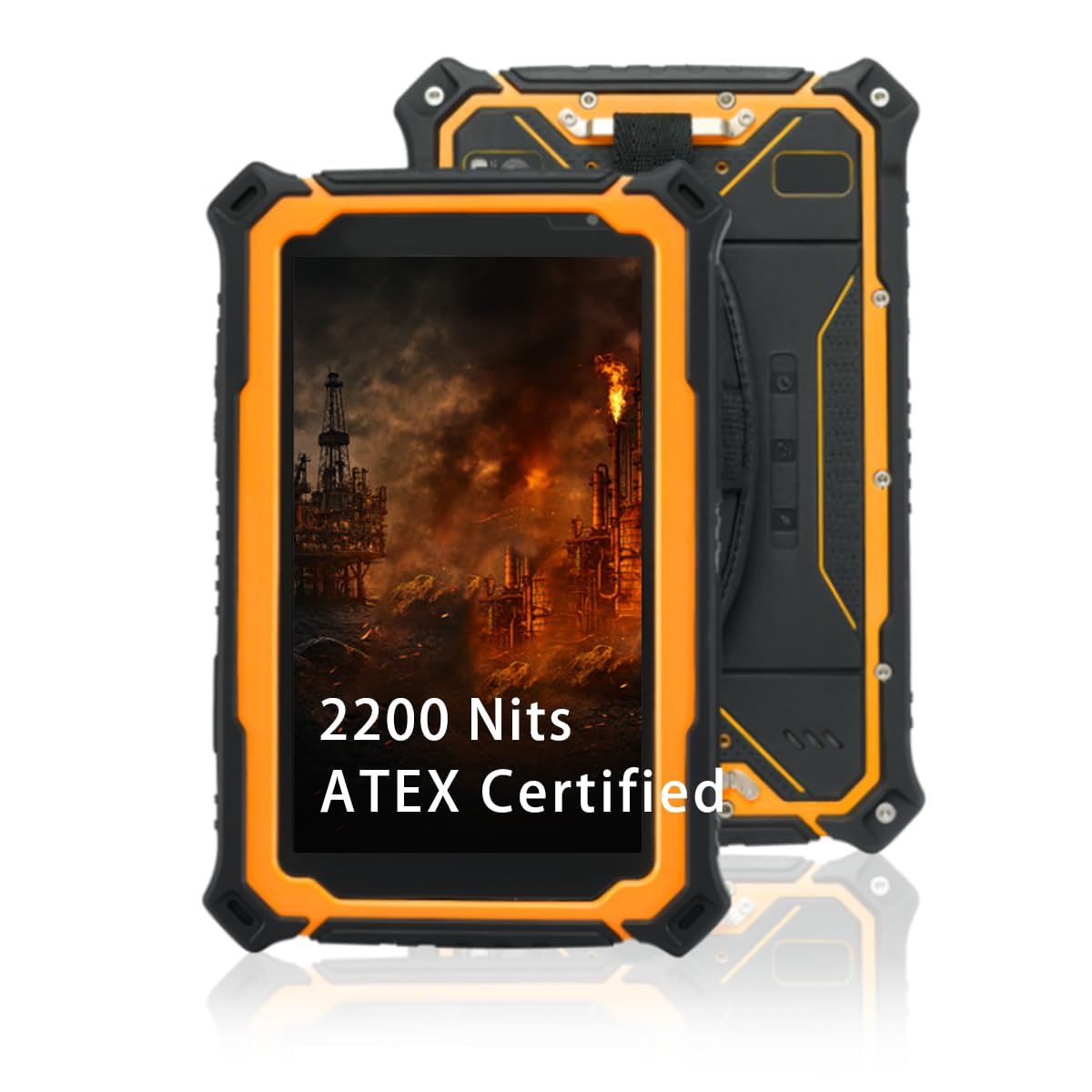
Image 1.1: The HUGEROCK T71EX Anti-Explosion Rugged Android Tablet.
2. Safety Information
This device is certified for use in hazardous areas (ATEX & IECEx Zone 2). Adherence to all safety guidelines is critical to prevent accidents and ensure proper functioning. Failure to follow these instructions can result in serious injury, damage to the device, or voiding of certifications.
- Hazardous Area Use: Only operate this tablet in environments for which it is certified (Zone 2). Do not open or attempt to repair the device in a hazardous area.
- Battery Safety: The tablet is equipped with a 10,000mAh intrinsically safe battery. Use only the original or approved charging accessories. Do not expose the battery to extreme temperatures, puncture, or disassemble it.
- Environmental Protection: The device is IP67 waterproof and dustproof. Ensure all port covers are securely sealed before exposure to water or dust.
- Impact Resistance: While rugged, avoid unnecessary drops or severe impacts. The device is built to withstand 5.5ft drops and 2-ton shock pressure, but extreme force can still cause damage.

Image 2.1: The T71EX tablet designed for explosion-proof environments.
3. Package Contents
Verify that all items are present in the package upon unboxing:
- HUGEROCK T71EX Tablet Body
- Power Adapter
- USB Cable
- Wrist Strap
- SIM Tools
- User Manual (this document)

Image 3.1: Contents included in the HUGEROCK T71EX retail package.
4. Device Overview
Familiarize yourself with the physical components and ports of your HUGEROCK T71EX tablet.

Image 4.1: Overview of the HUGEROCK T71EX tablet with labeled components.
4.1. Components and Ports
- Light Sensor: Automatically adjusts screen brightness.
- Sub Camera (Front): For video calls and selfies (5 MP).
- Headphone Jack (Sealed Cover): For audio output. Ensure cover is sealed for water/dust protection.
- MIC: Microphone for audio input.
- SOS Button: Programmable emergency button.
- Camera Button: Dedicated button for quick camera access.
- Main Camera (Rear) & Flash Lamp: For high-resolution photos and videos (13 MP).
- Nameplate: Contains device identification information.
- Speaker: For audio output.
- Power Button: Turns the device on/off or puts it to sleep.
- Reset Button: For force restarting the device (requires a pin).
- Volume Up/Down: Adjusts audio volume.
- Type-C (Sealed Cover): USB-C port for charging and data transfer. Ensure cover is sealed for water/dust protection.
- SIM-Card (Sealed Cover): Slot for cellular SIM card. Ensure cover is sealed.
- TF-Card (Sealed Cover): Slot for microSD (TF) card for expandable storage. Ensure cover is sealed.
5. Setup
5.1. Charging the Device
- Open the sealed cover of the Type-C port.
- Connect the provided USB cable to the tablet and the power adapter.
- Plug the power adapter into a suitable power outlet.
- Allow the tablet to charge fully before first use. The battery indicator on the screen will show charging status.
- Once charging is complete, securely close the Type-C port cover to maintain IP67 protection.
5.2. Installing SIM and TF Cards
- Locate the sealed covers for the SIM-Card and TF-Card slots.
- Carefully open the appropriate cover.
- Insert your SIM card (if applicable) and/or TF (microSD) card into their respective slots, ensuring correct orientation.
- Gently push until the cards are seated.
- Securely close both sealed covers to maintain the device's waterproof and dustproof rating.
5.3. Powering On/Off
- To Power On: Press and hold the Power Button until the HUGEROCK logo appears on the screen.
- To Power Off: Press and hold the Power Button until a power menu appears. Select "Power Off" and confirm.
- To Sleep/Wake: Briefly press the Power Button to put the tablet to sleep or wake it up.
5.4. Initial Android Setup
Upon first power-on, follow the on-screen prompts to configure your Android operating system. This typically includes selecting a language, connecting to Wi-Fi, setting up a Google account, and configuring security options.
6. Operating Instructions
6.1. Touchscreen Navigation
The T71EX features a 7-inch FHD IPS touchscreen that supports glove touch, allowing operation without removing protective gloves.
- Tap: Select an item or open an application.
- Swipe: Navigate through screens or scroll content.
- Pinch-to-Zoom: Enlarge or reduce images and web pages.
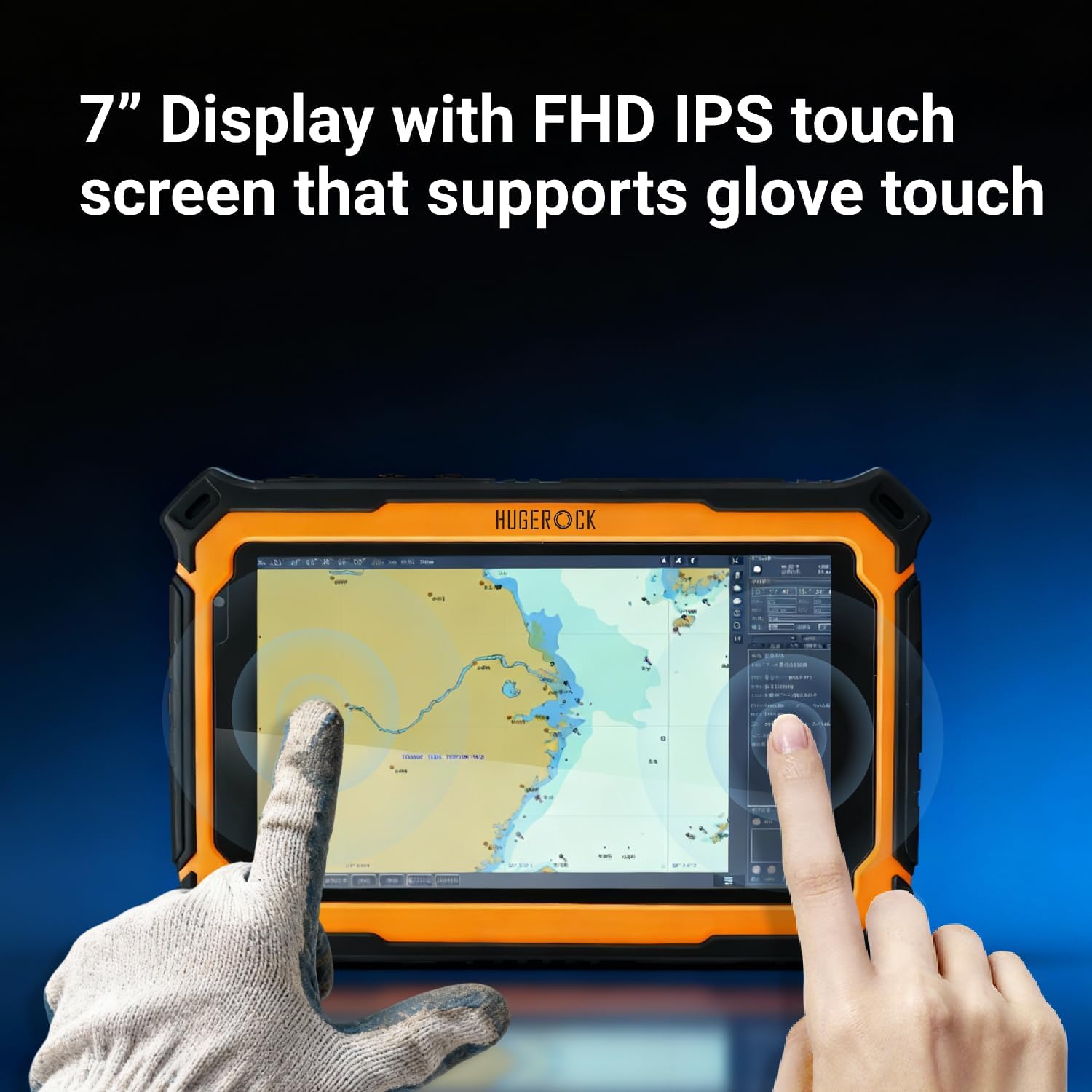
Image 6.1: The T71EX touchscreen supports operation with gloves.
6.2. Connectivity
The tablet offers various connectivity options:
- Wi-Fi: Connect to wireless networks (802.11a/b/g/n/ac/ax). Go to Settings > Network & internet > Wi-Fi.
- 4G LTE: Utilize cellular data with an installed SIM card. Go to Settings > Network & internet > Mobile network.
- Bluetooth 5.0: Pair with Bluetooth devices like headphones or external sensors. Go to Settings > Connected devices > Bluetooth.
- NFC: For near-field communication, such as data exchange or payment. Ensure NFC is enabled in Settings > Connected devices > Connection preferences > NFC.
6.3. Display Features
The 2200 Nits ultra-bright display ensures readability even under direct sunlight.

Image 6.2: The T71EX display offers 2200 nits brightness for outdoor visibility.
6.4. Camera Usage
Use the pre-installed camera application or the dedicated Camera Button to capture photos and videos. The tablet features a 13 MP rear camera and a 5 MP front camera.
6.5. Applications in Hazardous Environments
The T71EX is specifically designed for personnel in critical industries such as petroleum, petrochemical, mining, oil and gas, chemical plants, military, and public safety departments. It provides reliable digital access and communication in dangerous zones.

Image 6.3: The T71EX tablet in use within an industrial environment.
7. Maintenance
7.1. Cleaning the Tablet
Due to its IP67 rating, the T71EX can be cleaned with water. Ensure all port covers are securely sealed before cleaning. Use a soft, damp cloth to wipe the screen and body. Avoid harsh chemicals or abrasive materials.

Image 7.1: The T71EX tablet demonstrating its IP67 waterproof capability.
7.2. Battery Care
To prolong battery life and ensure safety:
- Avoid fully discharging the battery frequently.
- Do not expose the tablet to temperatures outside its operating range.
- Use only the manufacturer-approved charger.
7.3. Software Updates
Regularly check for and install software updates to ensure optimal performance, security, and compatibility. Go to Settings > System > System update.
8. Troubleshooting
This section addresses common issues you might encounter with your T71EX tablet.
| Problem | Possible Cause | Solution |
|---|---|---|
| Tablet does not power on. | Low battery; system crash. | Charge the tablet for at least 30 minutes. If still unresponsive, use a pin to press the Reset Button. |
| Cannot connect to Wi-Fi. | Wi-Fi is off; incorrect password; router issue. | Ensure Wi-Fi is enabled in settings. Verify password. Restart router. |
| Screen is unresponsive. | Software glitch; extreme temperature. | Restart the tablet. If unresponsive, use the Reset Button. Ensure tablet is within operating temperature range. |
| SIM card not detected. | SIM card improperly inserted; faulty SIM card. | Power off the tablet, re-insert the SIM card correctly. Test with another SIM card if available. |
9. Specifications
Detailed technical specifications for the HUGEROCK T71EX tablet.
| Feature | Specification |
|---|---|
| Brand | HUGEROCK |
| Model Name | T71EX |
| Operating System | Android |
| Processor | ARM Cortex A73 Octa-Core (up to 2 GHz) |
| RAM | 8 GB |
| Internal Storage | 128 GB |
| Expandable Storage | Up to 128 GB (TF Card) |
| Screen Size | 7 Inches |
| Display Resolution | 1920 x 1080 Pixels (FHD) |
| Display Brightness | 2200 Nits (Sunlight-readable) |
| Rear Camera | 13 MP |
| Front Camera | 5 MP |
| Video Capture Resolution | 4K UHD 2160p |
| Battery Capacity | 10000 mAh (Lithium Polymer) |
| Battery Average Life | 7 Hours |
| Connectivity | 4G LTE, Wi-Fi (802.11a/b/g/n/ac/ax), Bluetooth 5.0, NFC |
| Ruggedness | IP67 Waterproof & Dustproof, MIL-STD-810G, 5.5ft Drop Resistance |
| Certifications | ATEX & IECEx Zone 2 Certified (Anti-Explosion) |
| Dimensions (L x W x Thickness) | 7.95" x 5.43" x 0.87" |
10. Warranty and Support
10.1. Manufacturer's Warranty
The HUGEROCK T71EX tablet comes with a 1-Year Manufacturer's Warranty from the date of purchase. This warranty covers defects in materials and workmanship under normal use. It does not cover damage caused by misuse, accidents, unauthorized repairs, or modifications.
10.2. Customer Support
For technical assistance, warranty claims, or any questions regarding your HUGEROCK T71EX tablet, please contact HUGEROCK customer support. Refer to the contact information provided on the official HUGEROCK website or your purchase documentation.