
1. Introduction
This manual provides detailed instructions for the installation, configuration, and operation of your NEWFAST AC1200 Dual Band WiFi Repeater, model NF-RE523. This device is designed to extend the range of your existing wireless network, eliminate Wi-Fi dead zones, and provide stable, high-speed internet access throughout your home or office. Please read this manual carefully before using the product and retain it for future reference.
2. Package Contents
Verify that all items are present in your package:
- 1 x NEWFAST AC1200 WiFi Repeater (Model NF-RE523)
- 1 x RJ-45 Ethernet Cable
- 1 x User Manual
3. Product Overview
The NEWFAST AC1200 WiFi Repeater features a compact design with adjustable antennas and an informative LCD display. Familiarize yourself with the device's components:
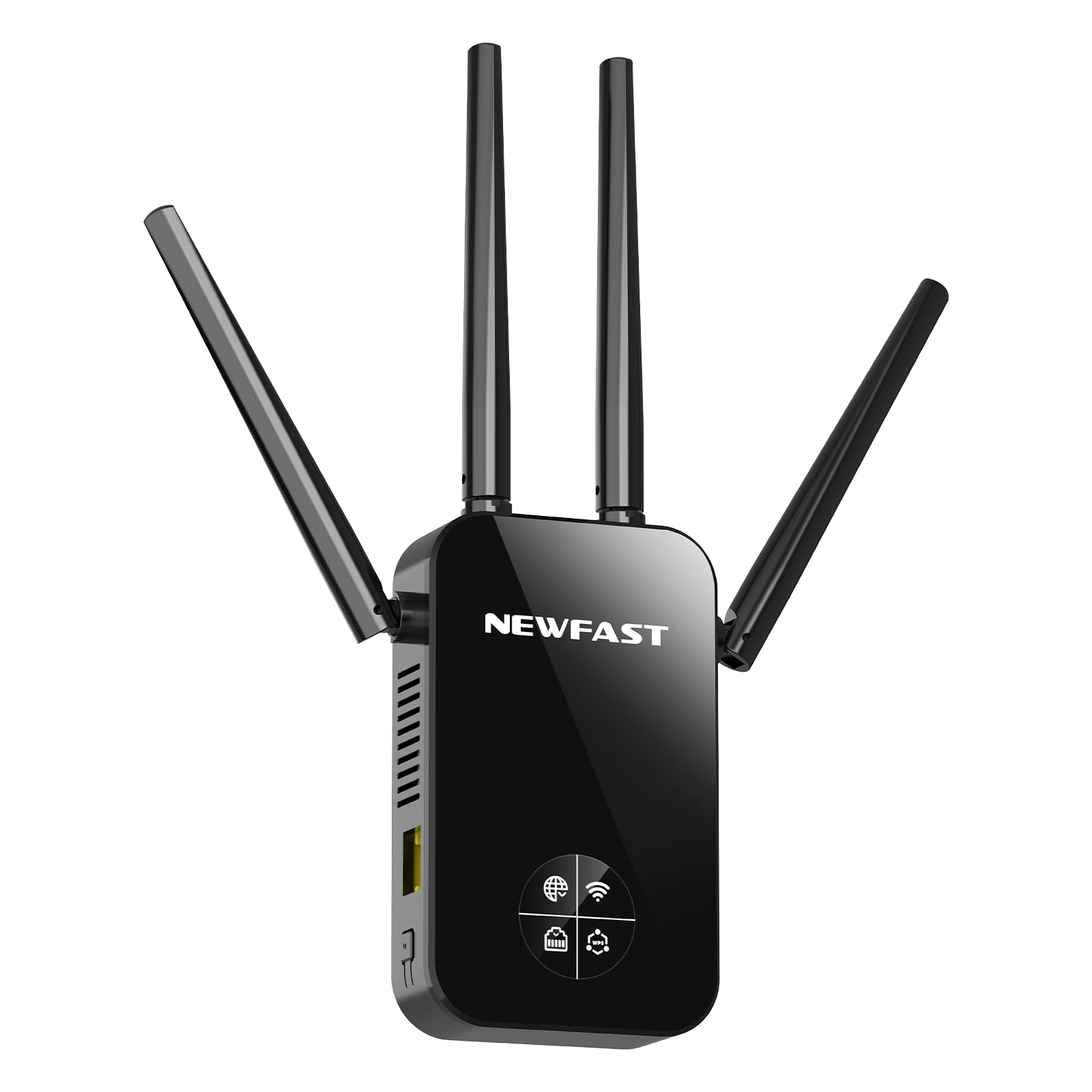
Image 1: Front view of the NEWFAST AC1200 WiFi Repeater NF-RE523. The device is black, featuring four adjustable external antennas, two on each side, and a central LCD screen. Below the screen, there are indicator lights and a WPS button. An RJ45 port is located at the bottom.
Key Components:
- Adjustable Antennas (x4): Two dedicated to 2.4 GHz and two to 5 GHz, designed to maximize signal coverage and reduce interference.
- LCD Display: Provides real-time information on signal strength, connection status, and WPS status.
- WPS Button: For quick and secure connection to your router without manual password entry.
- RJ45 Port: Functions as an Ethernet port for wired connections in Repeater/AP mode or as a WAN port in Router mode.
- Power Plug: Integrated EU plug for direct wall outlet connection.
4. Setup
The NEWFAST NF-RE523 offers two primary methods for setup: WPS (Wi-Fi Protected Setup) for quick configuration, and Web UI for more detailed settings.
4.1. WPS Setup (Recommended for Repeater Mode)
- Power On: Plug the NEWFAST Repeater into an electrical outlet near your main router. Wait for the device to power on and the LCD display to activate.
- Activate WPS on Router: Press the WPS button on your main Wi-Fi router. The WPS indicator on your router should start blinking.
- Activate WPS on Repeater: Within two minutes, press the WPS button on the NEWFAST Repeater. The WPS indicator on the repeater's LCD display will flash.
- Wait for Connection: The repeater will automatically connect to your router. This process may take a few moments. Once connected, the LCD display will show a stable signal strength indicator.
- Relocate (Optional): Unplug the repeater and move it to a location between your router and the Wi-Fi dead zone. Ensure the LCD display shows a good signal strength from your router.
Note: If WPS setup fails, try the Web UI setup method.
4.2. Web UI Setup (For all modes and advanced configuration)
- Power On: Plug the NEWFAST Repeater into an electrical outlet near your main router.
- Connect to Repeater's Wi-Fi: On your computer or mobile device, connect to the Wi-Fi network broadcast by the repeater (e.g., "NEWFAST_Repeater" or similar, check the label on the device). No password is required for the initial connection.
- Access Web Interface: Open a web browser and enter the default IP address (usually
192.168.1.1or192.168.0.1, or a specific domain likerepeater.net). Refer to the device label or the included quick start guide for the exact address. - Login: Enter the default username and password (commonly
adminfor both). - Select Operating Mode: Follow the on-screen wizard to select your desired operating mode (Repeater, Router, or Access Point).
- Configure Settings:
- Repeater Mode: Select your main Wi-Fi network from the list, enter its password, and choose a name for the extended network (or keep the default).
- Router Mode: Configure WAN settings (e.g., PPPoE, Dynamic IP, Static IP) and set up your new Wi-Fi network name and password.
- Access Point Mode: Connect the repeater to your main router via an Ethernet cable (RJ45 port). Configure the new Wi-Fi network name and password.
- Save and Reboot: Save your settings. The repeater will reboot to apply the changes.
- Verify Connection: Once rebooted, connect your devices to the new or extended Wi-Fi network.
5. Operating Modes
The NEWFAST NF-RE523 supports three distinct operating modes to suit various networking needs:
- Repeater Mode (Range Extender):
This is the most common mode. The device wirelessly connects to your existing router and extends its Wi-Fi signal to areas with weak or no coverage. It uses the same network name (SSID) or a new one, providing seamless roaming.
- Router Mode:
In this mode, the device acts as a primary router. Connect your internet modem to the repeater's RJ45 port, and it will create a new wireless network for your devices. This is ideal for setting up a new network, especially with fiber optic connections.
- Access Point (AP) Mode:
The device converts a wired internet connection into a wireless one. Connect the repeater to your existing router or network switch via an Ethernet cable (RJ45 port). It then broadcasts a new Wi-Fi network, providing wireless access to the wired network.
6. LCD Display Information
The integrated LCD display provides crucial real-time status updates:
- Signal Strength Indicator: Shows the strength of the Wi-Fi signal received from your main router. Aim for a strong signal for optimal performance when placing the repeater.
- Internet Connection Status: Indicates whether the repeater has a stable internet connection.
- RJ45 Port Status: Shows if a device is connected to the Ethernet port and if data is being transmitted.
- WPS Indicator: Flashes during WPS pairing and remains steady when WPS is successfully connected.
7. Troubleshooting
If you encounter issues with your NEWFAST AC1200 WiFi Repeater, refer to the following common problems and solutions:
- Cannot connect to the repeater's Wi-Fi network during setup:
Ensure the repeater is powered on. Try unplugging and replugging the device. If using a mobile device, temporarily disable mobile data to ensure it connects to the repeater's Wi-Fi.
- WPS setup fails or does not connect:
Ensure your main router supports WPS and that its WPS function is enabled. Press the WPS buttons on both the router and repeater within two minutes of each other. If it still fails, try the Web UI setup method.
- No internet access after setup:
Check the internet connection status on the repeater's LCD display. Ensure your main router has an active internet connection. Verify that you entered the correct Wi-Fi password for your main router during setup. If in Repeater mode, try relocating the repeater closer to your main router to ensure a strong signal.
- Slow internet speed or frequent disconnections:
The repeater might be too far from your main router, resulting in a weak signal. Relocate the repeater to a position where the LCD display shows a strong signal strength (at least 2-3 bars). Avoid placing the repeater near large metal objects, microwaves, or other devices that may cause interference. Ensure your main router's firmware is up to date.
- Forgot the repeater's login password or Wi-Fi password:
You can perform a factory reset. Locate the reset button (usually a small pinhole) on the device. With the repeater powered on, use a paperclip to press and hold the reset button for about 5-10 seconds until the lights flash or the device reboots. This will restore all settings to factory defaults, and you will need to set up the repeater again.
8. Specifications
| Feature | Detail |
|---|---|
| Model | NF-RE523 |
| Brand | NEWFAST |
| Wireless Standard | IEEE 802.11a/b/g/n/ac |
| Data Transfer Rate | Up to 1200 Mbps (300 Mbps 2.4 GHz + 867 Mbps 5 GHz) |
| Frequency Bands | 2.4 GHz and 5 GHz (Dual Band) |
| Antennas | 4 External Adjustable Antennas |
| Ethernet Port | 1 x RJ45 (10/100 Mbps) |
| Security Protocols | WPS/WPA2-PSK/AES |
| Operating Modes | Repeater, Router, Access Point |
| Special Features | LCD Display, WPS Button, Beamforming Technology, MU-MIMO |
| Dimensions (L x W x H) | 86P x 45l x 197H mm |
| Power Plug | EU Plug |
| Compatible Devices | Internet Box, Computers, Access Points, Routers |
9. Safety Information
- Do not expose the device to water, fire, high temperatures, or humid environments.
- Do not attempt to disassemble, repair, or modify the device.
- Use only the power supply provided or specified by the manufacturer.
- Keep the device away from medical devices and pacemakers.
- Ensure proper ventilation around the device to prevent overheating.
- This device is for indoor use only.
10. Warranty and Support
NEWFAST products are covered by a limited warranty. For detailed warranty terms and conditions, please refer to the warranty card included with your product or visit the official NEWFAST website. For technical support, troubleshooting assistance, or to inquire about replacement parts, please contact NEWFAST customer service through the contact information provided on the official website or your purchase platform.


