
1. Product Overview
The BOSGAME P6 Mini PC is a compact desktop computer designed for various tasks, from demanding professional applications to light gaming and home entertainment. It features an AMD Ryzen 9 6900HX processor, 32GB LPDDR5X RAM, and a 1TB PCIe 4.0 NVMe SSD, offering high performance in a small form factor.
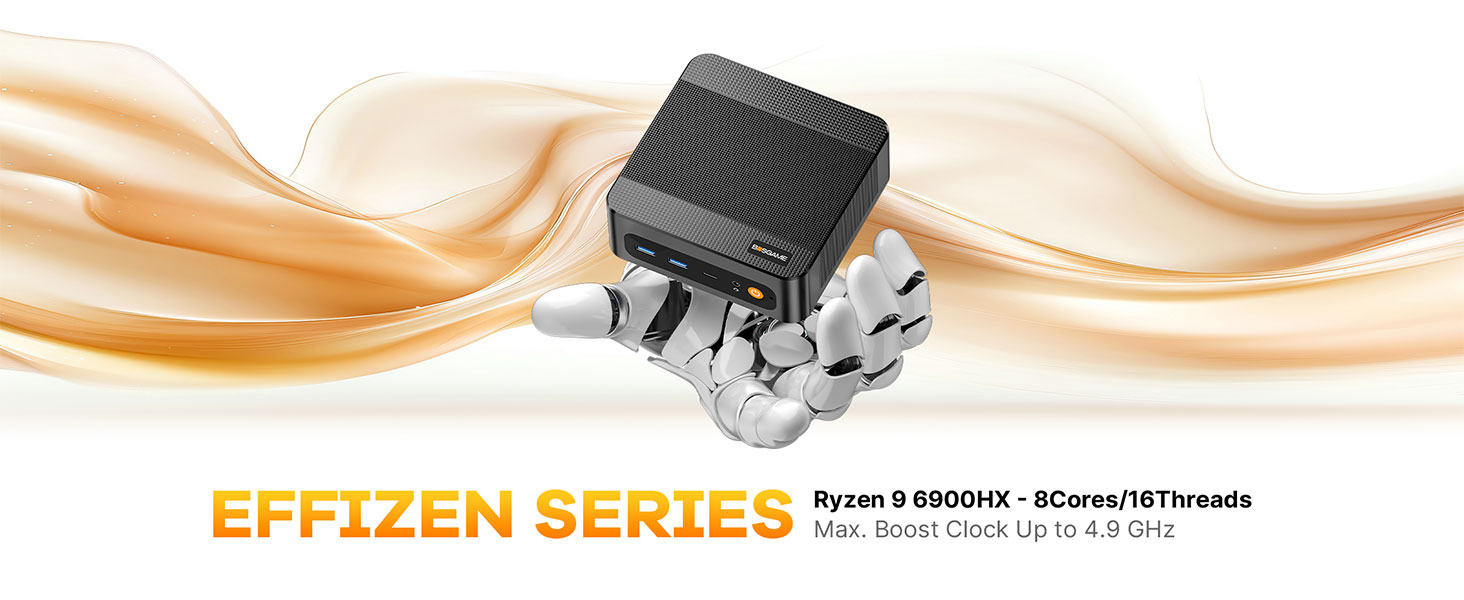
Image: Overview of the BOSGAME P6 Mini PC highlighting its compact design and key features.
Video: A brief overview of the BOSGAME P6 Mini PC's design and functionality, suitable for work environments.
2. What's in the Box
Verify that all items are present in the package:
- BOSGAME P6 Mini PC (1 unit)
- User Manual (1 unit)
- HDMI 2.0 Cable (1 unit)
- 19V 3.42A, 65W Power Adapter (1 unit)
- VESA Mount & Screws (1 set)
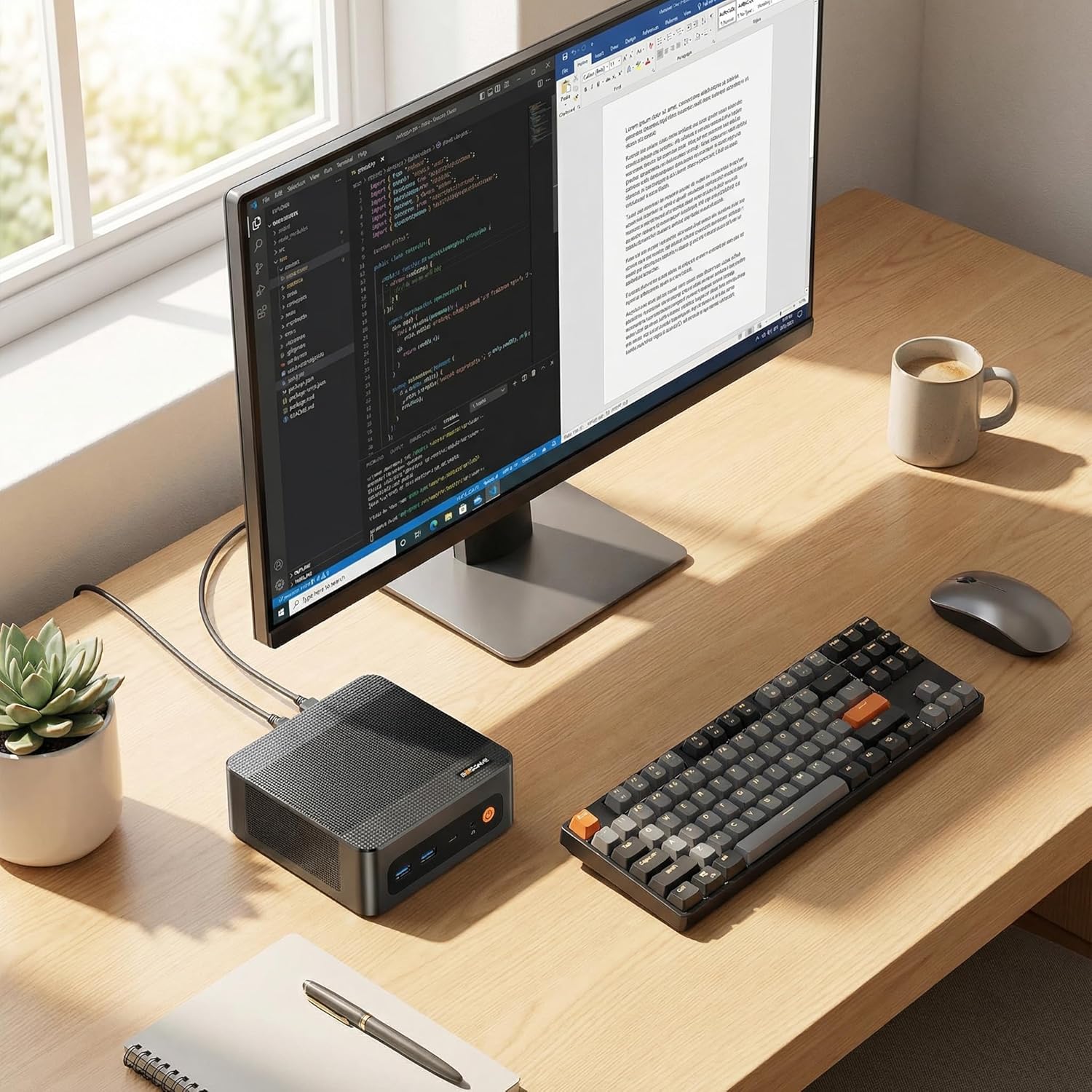
Image: All components included in the BOSGAME P6 Mini PC package.
3. Setup Guide
3.1 Initial Connection
- Connect your monitor(s) to the HDMI, DisplayPort, or USB-C ports on the Mini PC.
- Connect your keyboard and mouse to the available USB ports.
- Connect the power adapter to the DC-in port on the Mini PC and then to a power outlet.
- Press the power button on the front of the Mini PC to turn it on.
3.2 VESA Mount Installation
The BOSGAME P6 can be mounted to the back of a VESA-compatible monitor or under a desk for a clutter-free setup.
- Attach the VESA mount bracket to the back of your monitor or desired surface using the provided screws.
- Slide the Mini PC into the VESA mount until it clicks securely into place.

Image: Different installation methods for the BOSGAME P6 Mini PC.
4. Operating Instructions
4.1 Power On/Off
- Power On: Press the power button on the front panel.
- Power Off: Click the Start menu in Windows, then select Power > Shut down. Alternatively, press and hold the power button for 5 seconds to force a shutdown (not recommended for regular use).
4.2 Operating System
The Mini PC comes pre-installed with Windows 11 Pro. It is also compatible with Ubuntu for users who prefer a Linux environment.
- Windows 11 Pro: Follow the on-screen instructions for initial setup upon first boot.
- Ubuntu Compatibility: Users can install Ubuntu by creating a bootable USB drive and following standard installation procedures.
5. Connectivity
The BOSGAME P6 offers extensive connectivity options for various peripherals and network configurations.
5.1 Front Panel Ports
- Power Button: For turning the device on/off.
- Audio Jack: For headphones or external speakers.
- USB-C (4K@60Hz): Full-featured port supporting data transfer, power delivery (PD3.0), and DisplayPort video output.
- USB 3.2 Gen2 (10Gbps) x2: High-speed data transfer ports.
5.2 Rear Panel Ports
- DC-in: Power input port.
- RJ45 LAN x2: Dual Gigabit Ethernet ports for stable wired network connections.
- HDMI (4K@60Hz): Video output port.
- DisplayPort (4K@60Hz): Video output port.
- USB 3.2 Gen2 (10Gbps) x1: High-speed data transfer port.
- USB 2.0 (480Mbps) x1: Standard data transfer port.
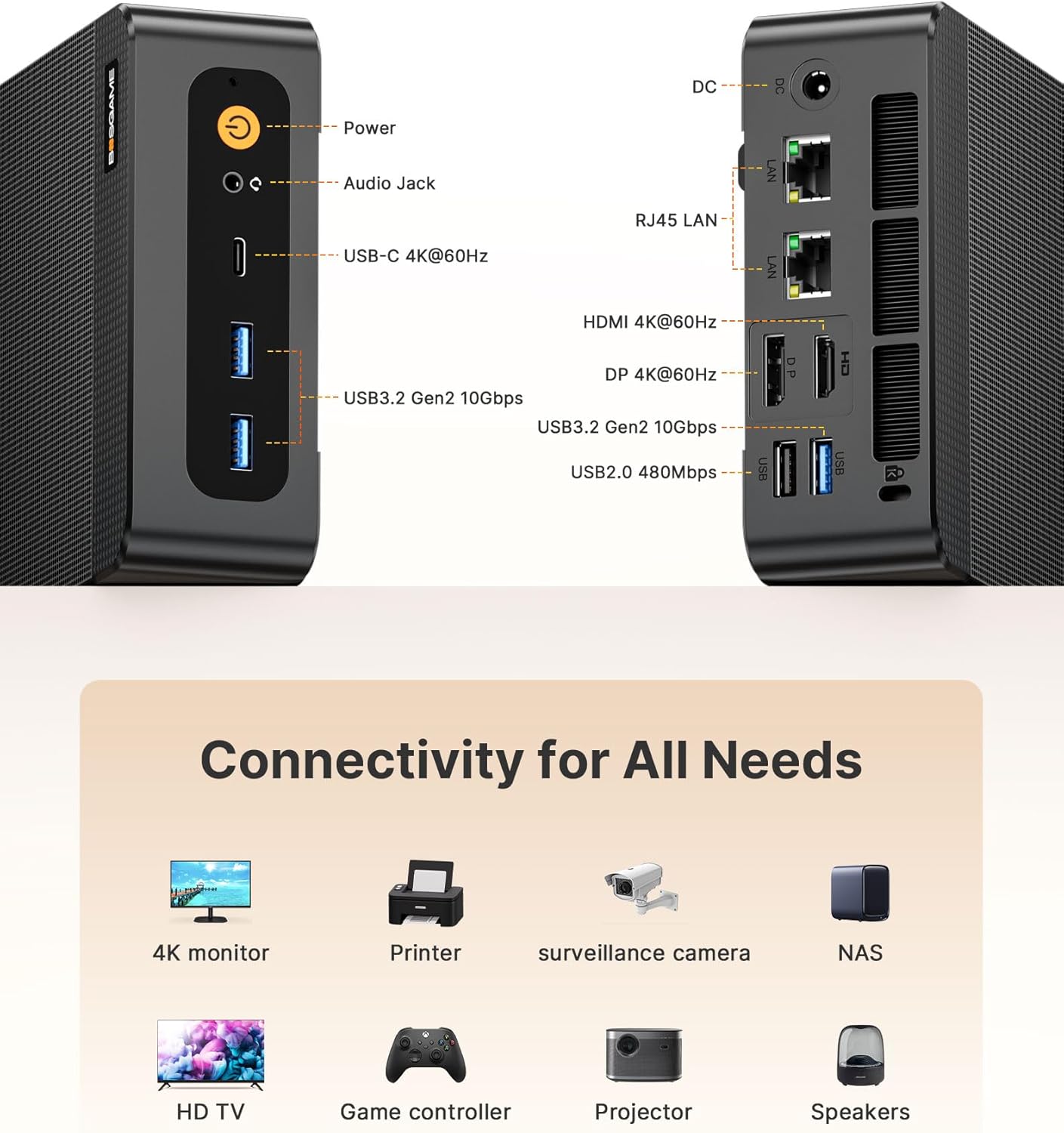
Image: Front and rear connectivity ports of the Mini PC.
5.3 Wireless Connectivity
- Wi-Fi 6E: For high-speed wireless internet access.
- Bluetooth 5.3: For connecting wireless peripherals. Note: To activate Bluetooth 5.3, download the corresponding driver from the official Intel website; otherwise, it defaults to Bluetooth 5.2 speeds.

Image: Wireless connectivity features (Wi-Fi 6E and Bluetooth 5.3) and compatible devices.
6. Storage Expansion
The Mini PC is equipped with a 1TB M.2 NVMe PCIe 4.0 x4 SSD and supports expansion up to 4TB with an additional M.2 NVMe drive.
- Power off the Mini PC and disconnect all cables.
- Carefully open the chassis (refer to the detailed user manual for specific instructions).
- Locate the additional M.2 NVMe slot.
- Insert the new M.2 NVMe SSD into the slot and secure it with the provided screw.
- Close the chassis and reconnect all cables.
7. Display Setup
The BOSGAME P6 supports triple 4K display output simultaneously via HDMI, DisplayPort, and USB-C, all at 60Hz.
- Connect your 4K monitors to the available HDMI, DisplayPort, and USB-C video output ports.
- Ensure your monitors are set to the correct input source.
- In Windows Display Settings, configure your display arrangement (extend, duplicate, or show only on one display).

Image: Triple display setup with the Mini PC.
8. Heat Dissipation & Noise
The Mini PC incorporates advanced phase change materials and active heat sinks for the CPU, memory, and hard drives, ensuring efficient and stable heat dissipation. It operates at a low noise level of under 36 decibels.

Image: Internal view of the heat dissipation system.
9. Usage Scenarios
The BOSGAME P6 Mini PC is versatile and suitable for a wide range of applications:
- Office & Business: Efficient for daily office tasks, presentations, and multitasking.
- Creative Work: Capable of handling photo and video editing, graphic design, and other demanding creative applications.
- Light Gaming: Enjoy various games at suitable settings thanks to the integrated Radeon 680M graphics.
- Home Theater: Connect to your TV for streaming 4K content and multimedia playback.
- Home Server: Utilize dual LAN ports for network attached storage (NAS) or other server applications.

Image: Examples of the Mini PC in different work and entertainment settings.
Video: Demonstrates the compact size and versatile functionality of the P6 Mini PC in various environments.
10. Specifications
| Feature | Detail |
|---|---|
| Processor | AMD Ryzen 9 6900HX (8C/16T, up to 4.9GHz) |
| Graphics | AMD Radeon 680M |
| RAM | 32GB LPDDR5X (6400MHz) |
| Storage | 1TB M.2 NVMe PCIe 4.0 x4 SSD (Expandable up to 4TB) |
| Operating System | Windows 11 Pro (pre-installed), compatible with Ubuntu |
| Video Output | HDMI 2.0 (4K@60Hz), DisplayPort (4K@60Hz), USB-C (4K@60Hz) |
| USB Ports | 2x USB 3.2 Gen2 (front), 1x USB 3.2 Gen2 (rear), 1x USB 2.0 (rear), 1x Full-function USB-C |
| Network | Dual 1000Mbps Gigabit Ethernet, Wi-Fi 6E, Bluetooth 5.3 |
| Dimensions | 129 x 123 x 44 mm |
| Weight | 2.81 pounds |
11. Troubleshooting
11.1 No Display Output
- Ensure all display cables (HDMI, DisplayPort, USB-C) are securely connected to both the Mini PC and the monitor.
- Verify that the monitor is powered on and set to the correct input source.
- Try connecting to a different display port or using a different cable.
11.2 No Power
- Check if the power adapter is correctly connected to the Mini PC and a working power outlet.
- Ensure the power outlet is functional by testing it with another device.
11.3 Bluetooth 5.3 Not Active
- Download and install the latest Bluetooth 5.3 driver from the official Intel website.
12. Warranty & Support
All BOSGAME Mini Desktop PCs are covered by a 12-month assurance period. For any questions or support needs, please contact us through the following methods:
- Contact via Amazon: Log into your Amazon buyer's account, find your order, and click 'Get help' for product-specific assistance.
- Email Support: Send an email to the After-sales Support Team at su**pport@bos**game.com. You will receive a response as soon as possible.


